Comandos utilizados en el curso
Clase 40 de 41 • Curso de Google Kubernetes Engine (2018)
Contenido del curso


Repaso de Docker


Conceptos Basicos
- 7

Cluster y nodos ¿Qué son y cómo funcionan?
07:25 min - 8

¿Qué son los Pods?
01:45 min - 9

Deployments
01:18 min - 10

Pods y Deployments en practica
03:10 min - 11

Servicios
04:51 min - 12

Servicios en práctica
06:16 min - 13

Servicios en práctica / Loadbalancer
04:06 min - 14

Servicios en práctica / Node Port
06:25 min - 15
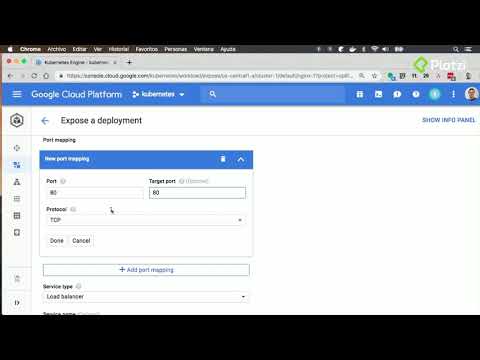
Crea tu primer Hola Mundo en Google Kubernetes Engine
04:12 min
Conceptos intermedios
- 16

Archivos descriptivos de infraestructura teoria y práctica
07:39 min - 17

Labels teoría
03:48 min - 18

Namespaces teoría
01:47 min - 19

Labels y Namespaces explicación gráfica
01:30 min - 20

Labels y Namespaces en práctica
03:46 min - 21

Deployment Avanzado (Blue-green y Canary Deployment)
01:53 min - 22

Implementando Deployment avanzados
10:30 min - 23

Terminando de implementar nuestro canary deployment
04:06 min - 24

Volúmenes
01:21 min - 25

Volúmenes en práctica
10:46 min - 26

RETO: Crea un blue green deployment
00:35 min
Arquitectura de una app más robusta


Contenido Bonus
- 33

Generando un certificado https con Let's Encrypt para GCP
04:06 min - 34

Certificado https
05:14 min - 35

Service mesh con Istio
03:44 min - 36

StackDriver
03:46 min - 37

CI/CD con Cloud Builder
02:05 min - 38

CI/CD con Cloud Builder práctica
13:46 min - 39

Knative, GKE Serverless Addon
03:50 min - 40
Comandos utilizados en el curso
Viendo ahora - 41

Buenas prácticas
02:08 min
Comandos Básicos de Docker
- git clone https://github.com/spring-petclinic/spring-framework-petclinic.git #clone
- cd ~/spring-framework-petclinic
- ./mvnw tomcat7:run-war #run app
- curl http://localhost:9966/petclinic #get app
- docker pull tomcat:8
- docker images
- docker run -d -p 8080:8080 tomcat:8
- docker ps
- docker exec -it <container id> bash
- docker stop <container id>
- docker ps -a
- docker rm <container id>
Creación del contenedor de Docker
-
ouch Dockerfile
-
Contenido del archivo Dockerfile --FROM tomcat:8 --COPY target/petclinic.war /usr/local/tomcat/webapps --EXPOSE 8080
-
docker build ./
-
docker tag <image id> spring-framework-petclinic
-
docker rm $(docker ps -qa)
-
gcloud auth configure-docker
-
docker tag spring-framework-petclinic gcr.io/[PROJECT-ID]/spring-framework-petclinic:v1
-
docker push gcr.io/[PROJECT-ID]//spring-framework-petclinic:v1
-
gcloud container images list
Pods y Deployments en práctica
Todo fue por interfaz gráfica
Servicios en práctica
Todo fue por interfaz gráfica
Archivos descriptivos de infraestructura teoría y práctica
- kubectl create -f deployment.yaml
- kubectl create -f service.yaml
Labels y Namespaces en práctica
- kubectl get namespaces
- kubectl create namespace desarrollo
- kubectl --namespace=desarrollo create -f deployment.yaml
Implementando Deployment avanzados
Todo fue por interfaz gráfica
Volúmenes en práctica
- touch volume.yaml
- contenido del archivo
apiVersion: v1
kind: Pod
metadata:
name: test-pd
spec:
containers:
- image: tomcat:8
name: test-container
volumeMounts:
- mountPath: /test-pd name: test-volume volumes:
- name: test-volume #This GCE PD must already exist. gcePersistentDisk: pdName: my-data-disk fsType: ext4
- image: tomcat:8
name: test-container
volumeMounts:
- kubectl create -f volume.yaml
Desplegar una aplicación Stateful Práctica
- touch mysql.yaml
- Contenido del archivo mysql.yaml
apiVersion: v1
kind: Pod
metadata:
name: mysql
spec:
containers:
- image: mysql:5.6
name: test-container
env:
- name: MYSQL_ROOT_PASSWORD value: password ports:
- containerPort: 3306 name: mysql volumeMounts:
- mountPath: /var/lib/mysql name: mysql-persistent-storage volumes:
- name: mysql-persistent-storage gcePersistentDisk: pdName: disk-2 fsType: ext4
- image: mysql:5.6
name: test-container
env:
apiVersion: v1 kind: Service metadata: name: mysql spec: ports:
- port: 3306 selector: app: mysql clusterIP: None
- kubectl create -f mysql.yaml
Auto Scaling en práctica
- sudo apt-get install apache2-utils
- ab -t 10 -n 100000 -c 10 <ip loadbalancer>
Node Pools práctica
- touch node_pool.yaml
- Contenido del archivo node_pool.yaml
apiVersion: v1
kind: Pod
metadata:
name: nginx
labels:
env: test
spec:
containers:
- name: nginx image: nginx imagePullPolicy: IfNotPresent nodeSelector: name: pool1
- kubectl create -f node_pool.yaml
- touch pod1.yaml
- Contenido del archivo pod1.yaml
apiVersion: v1
kind: Pod
metadata:
name: nginx
labels:
env: test
spec:
containers:
- name: nginx image: nginx nodeSelector: name : pool1
- kubectl create -f pod1.yaml
Generando un certificado https
Todo fue por interfaz gráfica
CI/CD con Cloud Builder práctica
- git clone https://github.com/cprietorod/cloudBuilder.git
- git config --global credential.https://source.developers.google.com.helper gcloud.sh
- git remote add google https://source.developers.google.com/p/<ID proyecto>/r/hello
- git push --all google contenido del archivo cloudbuild.yaml steps:
- name: 'gcr.io/cloud-builders/docker' args: [ 'build', '-t', "gcr.io/$PROJECT_ID/hello-web-app:v$BUILD_ID", '.' ]
- name: 'gcr.io/cloud-builders/docker'
args: ['push', "gcr.io/$PROJECT_ID/hello-web-app:v$BUILD_ID"]
env:
- CLOUDSDK_COMPUTE_ZONE=${_CLOUDSDK_COMPUTE_ZONE}
- CLOUDSDK_CONTAINER_CLUSTER=${_CLOUDSDK_CONTAINER_CLUSTER}
- git add .
- git commit -m "some changes"
- git push google master