Testing an AI agent in n8n with Telegram and Google Sheets is the moment of truth: you send a receipt photo from your phone and watch the workflow extract the data automatically. Here you'll learn how to validate the flow, fix the most common configuration errors, and make your agent return clean text instead of raw JSON.
How do you run the first test of an n8n workflow?
The starting point is the Test workflow button at the bottom center of the n8n canvas. Once you click it, n8n stays in listening mode waiting for any file sent through Telegram.
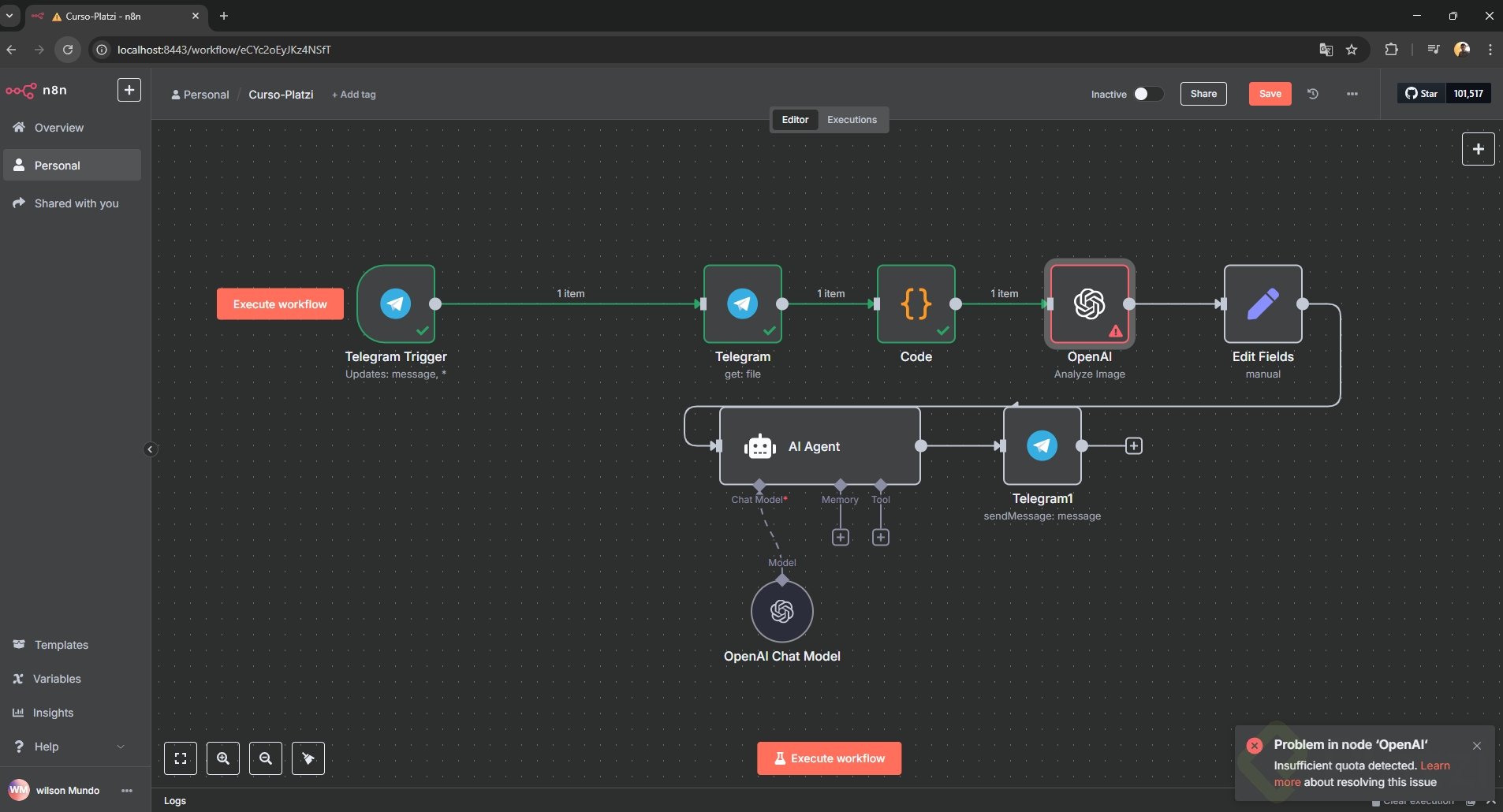
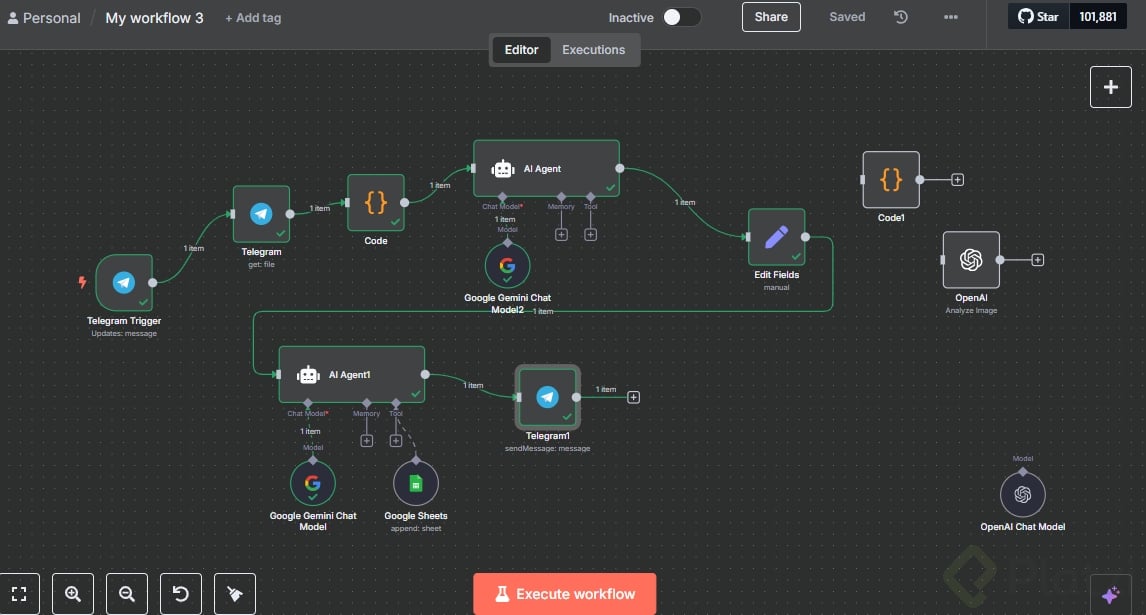
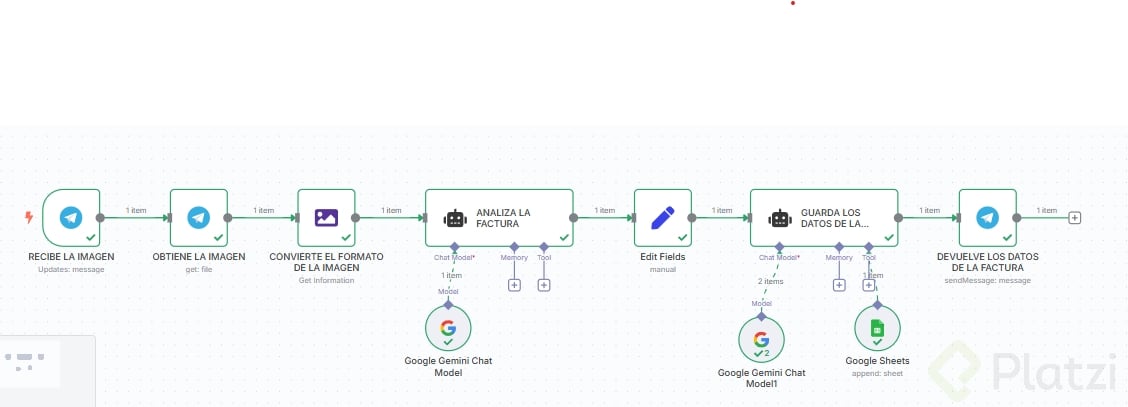
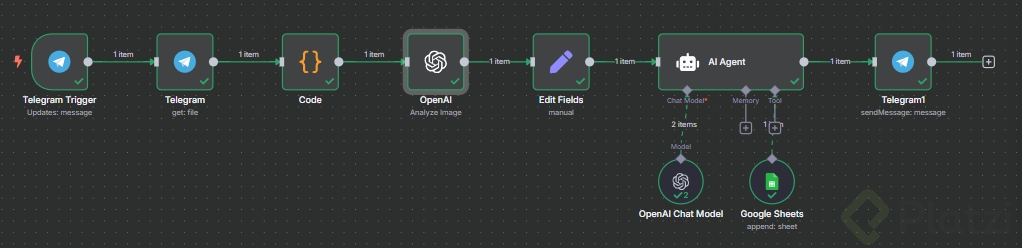
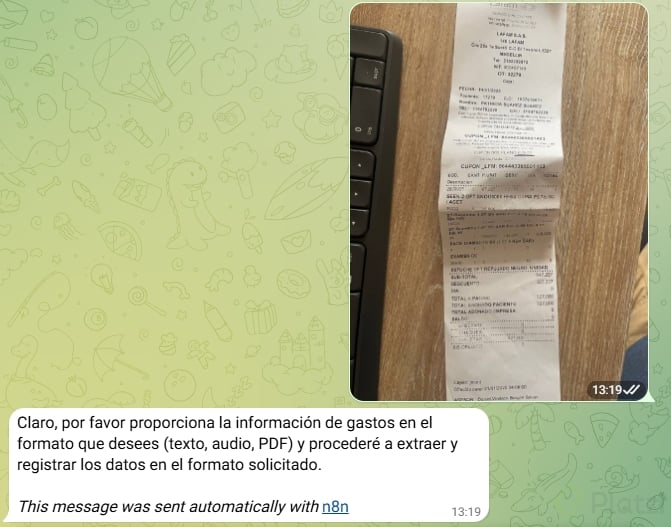
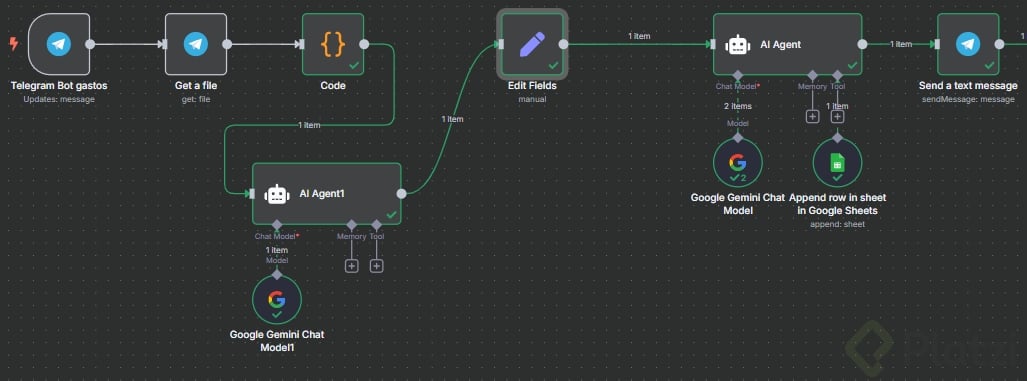
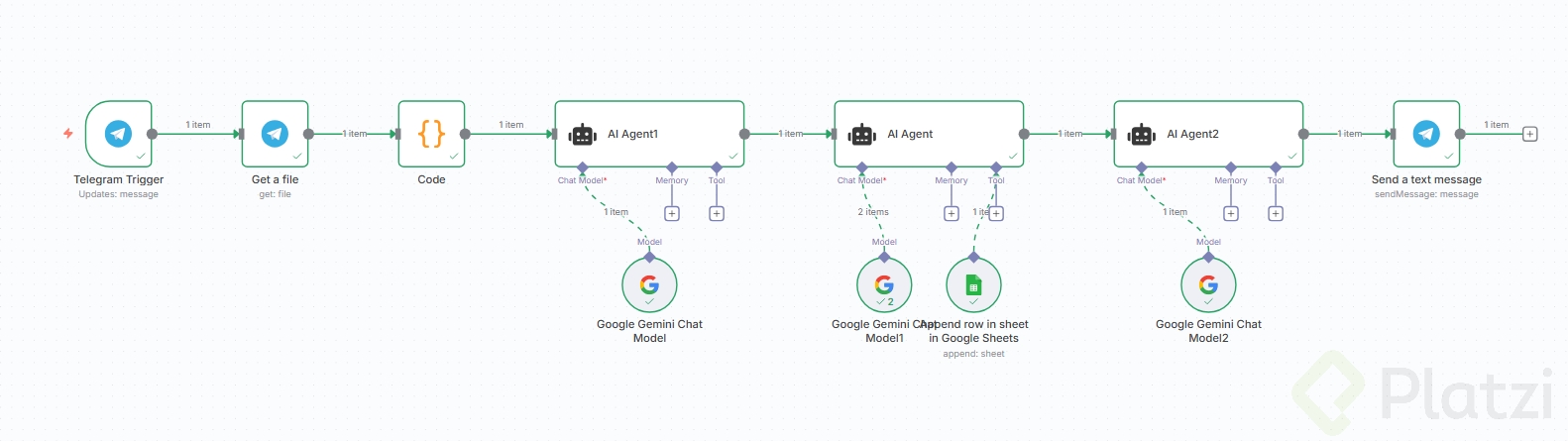
From your phone, you open Telegram and send a photo of a receipt. The workflow starts moving through each node in order:
- The Telegram node downloads the file.
- The Code node extracts the MIME information.
- OpenAI processes and extracts the data from the image.
- The plain text output is passed to the AI agent.
- The agent, powered by the OpenAI brain, should send the result to Google Sheets.
And here comes the interesting part: on the first run, nothing arrives at Google Sheets and Telegram returns an error message. That's expected, and fixing it is part of the learning.
What does Test workflow do in n8n? It activates the workflow in listening mode so n8n captures the next event (like a Telegram message) and runs every connected node once for debugging.
Why isn't your data reaching Google Sheets?
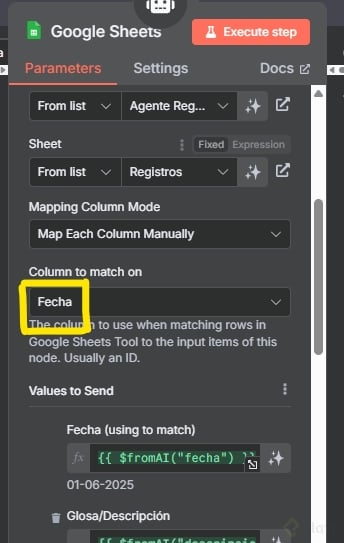
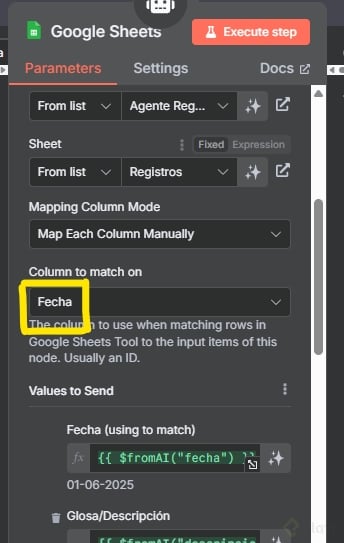
The first error lives inside the Google Sheets node. When you map fields like date or description, n8n offers two modes: fixed value or expression. If you leave them as fixed, the node always writes the same static text instead of the dynamic data coming from the agent.
The fix is to switch every mapped field to expression mode. You'll notice the field turns a light green color, which confirms that the value will now come in as a variable from the previous node.
- Date: change to expression.
- Description: change to expression.
- Amount, provider, NIT: same logic.
What is an expression in n8n? It's a dynamic value referenced from another node, written with JSON notation. Use it when the data changes on every execution instead of staying fixed.
How do you configure the prompt and input in the AI agent node?
The second error is in the AI agent configuration. The prompt was placed in the wrong field, so the agent wasn't receiving the receipt text properly.
The correct setup has two parts:
- In the main input field, use JSON notation pointing to the Telegram photo data. The easiest way is to drag the variable directly from the left panel into the field.
- For the prompt itself, click on Add option, choose System message, and paste your prompt there.
With those two changes, you clear the previous test data, hit Test workflow again, and resend the photo from Telegram. This time Google Sheets fills in with the date, description, amount, provider, and NIT extracted from the receipt.
How do you make Telegram reply with plain text instead of JSON?
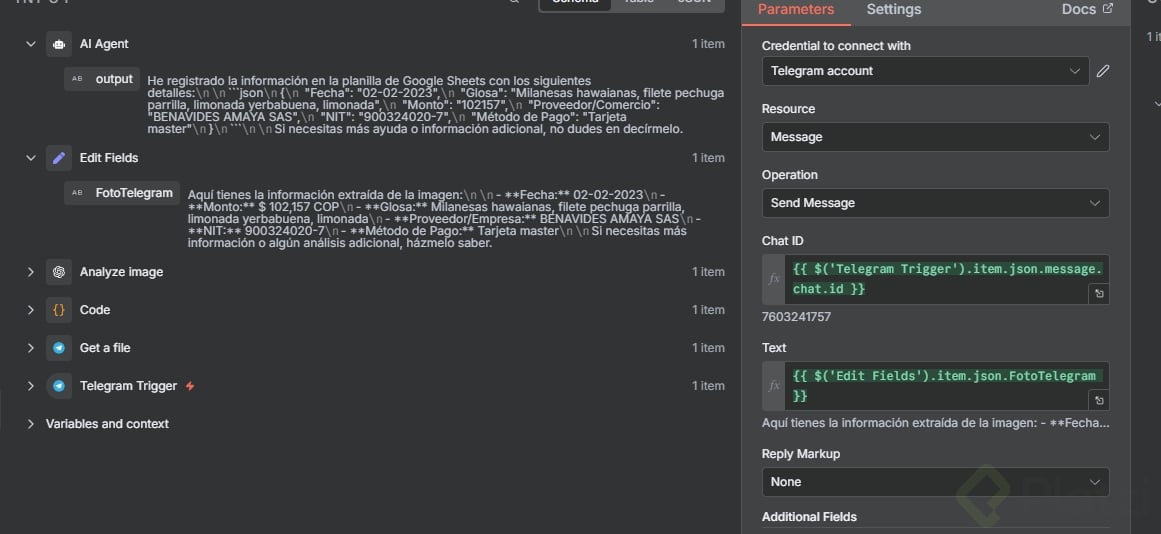
The agent now writes to the spreadsheet, but Telegram replies with a raw JSON object. That's not what a real user wants to read on their phone.
The culprit is in the final Telegram node, in the Text field, where the value is set to json.output. That's why the message is delivered as a JSON structure.
To fix it, you go to Get info and select the variable that holds the clean extracted text from the photo (the same one used as input for the agent). You save the change, clear the test data, and run the workflow once more.
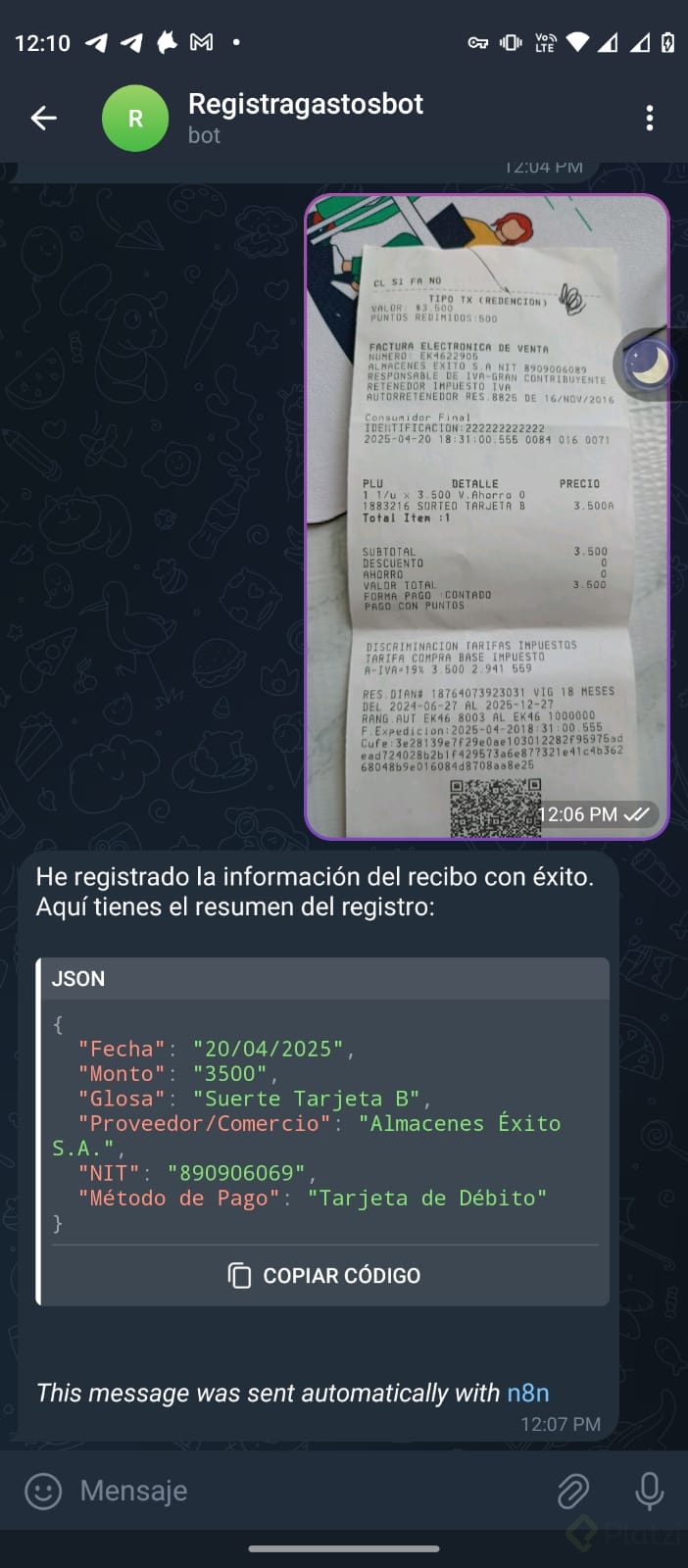
Now when you send the receipt photo, Telegram replies with a clean message containing:
- Date.
- Amount.
- Description (glosa).
- Provider.
- NIT.
- Payment method.
With that, your first AI agent is fully implemented and working end to end. If yours is already running, drop a screenshot in the comments. In the next module you'll go one step further and build a RAG agent, short for Retrieval Augmented Generation.