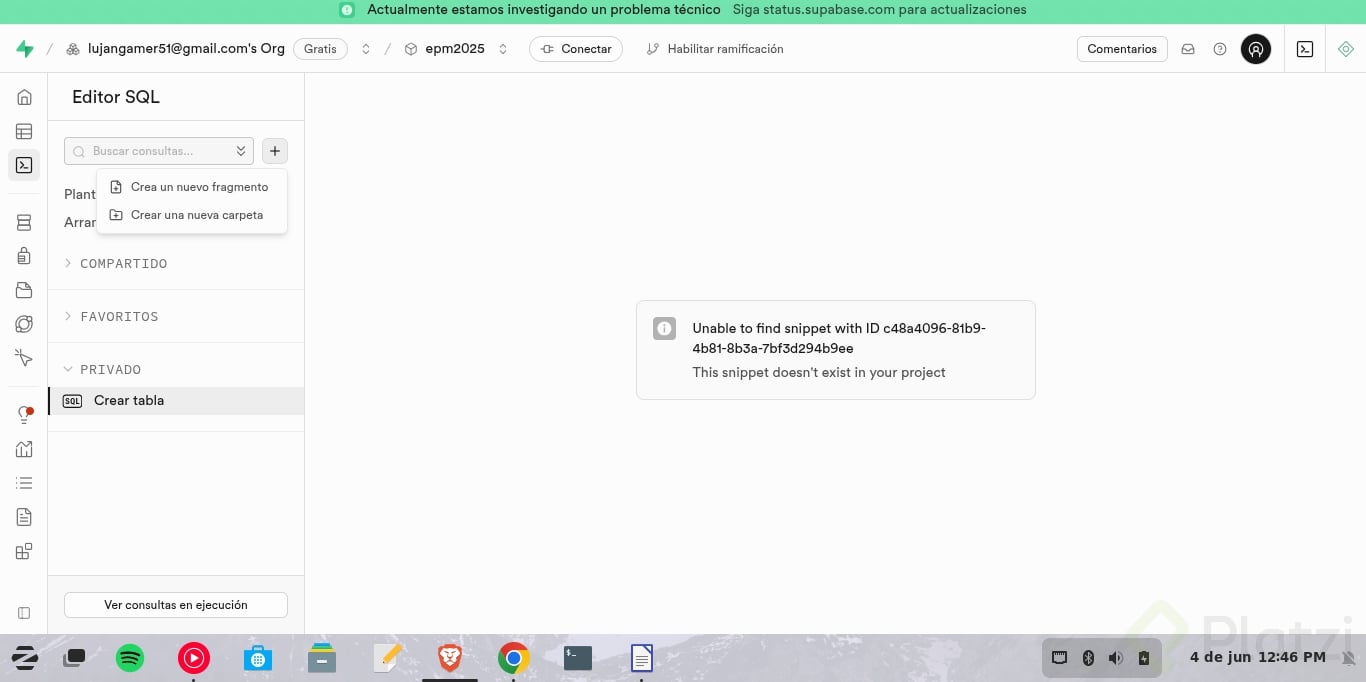
Tablas para Supabase:
## Paso 1. CREAR LAS TABLAS
-- Creación de la tabla Paises
CREATE TABLE Paises (
nombre VARCHAR(50) PRIMARY KEY
);
-- Creación de la tabla Departamentos
CREATE TABLE Departamentos (
nombre VARCHAR(50) PRIMARY KEY
);
-- Creación de la tabla Desempeno
CREATE TABLE Desempeno (
nombre VARCHAR(20) PRIMARY KEY
);
-- Creación de la tabla NivelSalarial
CREATE TABLE NivelSalarial (
nombre VARCHAR(30) PRIMARY KEY,
orden INT UNIQUE NOT NULL -- Para facilitar la ordenación por nivel
);
-- Creación de la tabla TipoTrabajo
CREATE TABLE TipoTrabajo (
nombre VARCHAR(20) PRIMARY KEY
);
-- Creación de la tabla Empleados con datos directos
CREATE TABLE Empleados (
ID SERIAL PRIMARY KEY,
Nombres VARCHAR(100) NOT NULL,
Apellidos VARCHAR(100) NOT NULL,
Email VARCHAR(100) NOT NULL,
Nacionalidad VARCHAR(50) REFERENCES Paises(nombre),
Fecha_Nacimiento DATE,
Fecha_Ingreso_Empresa DATE NOT NULL,
Pais_Base VARCHAR(50) REFERENCES Paises(nombre),
Tipo_Trabajo VARCHAR(20) REFERENCES TipoTrabajo(nombre),
Departamento VARCHAR(50) REFERENCES Departamentos(nombre),
Desempeno VARCHAR(20) REFERENCES Desempeno(nombre),
Nivel_Salarial VARCHAR(30) REFERENCES NivelSalarial(nombre)
);
## Paso 2. POBLAR LAS TABLAS
-- Inserción de los países
INSERT INTO Paises (nombre) VALUES
('Perú'),
('Colombia'),
('Brasil'),
('México'),
('USA');
-- Inserción de los departamentos
INSERT INTO Departamentos (nombre) VALUES
('Finanzas'),
('Ventas'),
('Operaciones'),
('RRHH'),
('Legal'),
('Producto'),
('Gerencia General');
-- Inserción de los niveles de desempeño
INSERT INTO Desempeno (nombre) VALUES
('Requiere Mejorar'),
('Bueno'),
('Muy Bueno'),
('Excelente');
-- Inserción de los niveles salariales (ordenados por jerarquía)
INSERT INTO NivelSalarial (nombre, orden) VALUES
('Intern', 1),
('Asistente', 2),
('Vendedor', 3),
('Analista I', 4),
('Analista II', 5),
('Especialista I', 6),
('Especialista II', 7),
('Supervisor', 8),
('Manager', 9),
('Head', 10),
('VP', 11),
('Senior VP', 12);
-- Inserción de los tipos de trabajo
INSERT INTO TipoTrabajo (nombre) VALUES
('Presencial'),
('Hibrido'),
('Remote');
## Paso 3. POBLAR LAS TABLA EMPLEADOS
-- Inserción de los 210 empleados de ejemplo
INSERT INTO Empleados (Nombres, Apellidos, Email, Nacionalidad, Fecha_Nacimiento, Fecha_Ingreso_Empresa, Pais_Base, Tipo_Trabajo, Departamento, Desempeno, Nivel_Salarial) VALUES
('Luciana', 'Vargas', 'luciana.v@platzitopia.com', 'Colombia', '1991-08-10', '2022-03-01', 'Colombia', 'Presencial', 'Ventas', 'Muy Bueno', 'Analista II'),
('Esteban', 'López', 'esteban.l@platzitopia.com', 'Perú', '1987-05-25', '2019-11-15', 'Perú', 'Hibrido', 'Finanzas', 'Bueno', 'Supervisor'),
('Mariana', 'Gomes', 'mariana.g@platzitopia.com', 'Brasil', '1996-01-05', '2023-07-01', 'Brasil', 'Remote', 'Operaciones', 'Bueno', 'Asistente'),
('Sebastián', 'Hernández', 'sebastian.h@platzitopia.com', 'México', '1989-12-01', '2020-05-10', 'México', 'Presencial', 'RRHH', 'Requiere Mejorar', 'Vendedor'),
('Daniela', 'Smith', 'daniela.s@platzitopia.com', 'USA', '1993-07-18', '2022-12-01', 'USA', 'Hibrido', 'Legal', 'Bueno', 'Manager'),
('Andrés', 'González', 'andres.g@platzitopia.com', 'Perú', '1985-03-22', '2021-08-20', 'Perú', 'Remote', 'Producto', 'Muy Bueno', 'Especialista I'),
('Valeria', 'Oliveira', 'valeria.o@platzitopia.com', 'Colombia', '1990-11-08', '2018-09-01', 'Colombia', 'Presencial', 'Gerencia General', 'Bueno', 'Head'),
('Mateo', 'Ramírez', 'mateo.r@platzitopia.com', 'Brasil', '1997-06-30', '2024-01-15', 'Brasil', 'Hibrido', 'Finanzas', 'Bueno', 'Intern'),
('Sofía', 'Torres', 'sofia.t@platzitopia.com', 'México', '1988-09-15', '2020-11-01', 'México', 'Remote', 'Ventas', 'Bueno', 'Analista I'),
('Emilio', 'Flores', 'emilio.f@platzitopia.com', 'USA', '1992-01-25', '2022-04-10', 'USA', 'Presencial', 'Operaciones', 'Muy Bueno', 'Especialista II'),
('Renata', 'Vargas', 'renata.v@platzitopia.com', 'Perú', '1994-05-10', '2023-02-01', 'Perú', 'Hibrido', 'RRHH', 'Bueno', 'Analista II'),
('Javier', 'Gomes', 'javier.g@platzitopia.com', 'Colombia', '1986-02-28', '2019-08-01', 'Colombia', 'Remote', 'Legal', 'Bueno', 'Supervisor'),
('Camila', 'Hernández', 'camila.h@platzitopia.com', 'Brasil', '1995-10-20', '2024-05-01', 'Brasil', 'Presencial', 'Producto', 'Excelente', 'Asistente'),
('Diego', 'Smith', 'diego.s@platzitopia.com', 'México', '1989-07-03', '2021-03-15', 'México', 'Hibrido', 'Gerencia General', 'Bueno', 'Vendedor'),
('Isabella', 'López', 'isabella.l@platzitopia.com', 'USA', '1993-04-18', '2023-09-01', 'USA', 'Remote', 'Finanzas', 'Bueno', 'Manager'),
('Nicolás', 'González', 'nicolas.g@platzitopia.com', 'Perú', '1987-12-28', '2020-01-10', 'Perú', 'Presencial', 'Ventas', 'Muy Bueno', 'Especialista I'),
('Martina', 'Oliveira', 'martina.o@platzitopia.com', 'Colombia', '1991-06-12', '2022-06-01', 'Colombia', 'Hibrido', 'Operaciones', 'Excelente', 'Intern'),
('Lucas', 'Ramírez', 'lucas.r@platzitopia.com', 'Brasil', '1994-02-25', '2021-03-15', 'Brasil', 'Remote', 'RRHH', 'Bueno', 'Head'),
('Victoria', 'Torres', 'victoria.t@platzitopia.com', 'México', '1987-09-08', '2019-11-01', 'México', 'Presencial', 'Legal', 'Bueno', 'Analista I'),
('Santiago', 'Flores', 'santiago.f@platzitopia.com', 'USA', '1996-01-03', '2023-05-10', 'USA', 'Hibrido', 'Producto', 'Muy Bueno', 'Especialista II'),
('Valentina', 'Vargas', 'valentina.v2@platzitopia.com', 'Brasil', '1990-03-22', '2020-08-01', 'Brasil', 'Presencial', 'Gerencia General', 'Bueno', 'Supervisor'),
('Andrés', 'Gomes', 'andres.g2@platzitopia.com', 'México', '1993-10-20', '2024-03-01', 'México', 'Remote', 'Finanzas', 'Excelente', 'Asistente'),
('Sofía', 'Hernández', 'sofia.h2@platzitopia.com', 'USA', '1986-09-15', '2022-09-20', 'USA', 'Hibrido', 'Ventas', 'Bueno', 'Vendedor'),
('Mateo', 'Smith', 'mateo.s2@platzitopia.com', 'Perú', '1991-07-01', '2021-02-10', 'Perú', 'Presencial', 'Operaciones', 'Bueno', 'Manager'),
('Isabella', 'López', 'isabella.l2@platzitopia.com', 'Colombia', '1994-12-25', '2023-08-01', 'Colombia', 'Remote', 'RRHH', 'Muy Bueno', 'Especialista I'),
('Gabriel', 'González', 'gabriel.g2@platzitopia.com', 'Brasil', '1988-06-10', '2020-07-15', 'Brasil', 'Presencial', 'Legal', 'Excelente', 'Intern'),
('Luciana', 'Oliveira', 'luciana.o2@platzitopia.com', 'México', '1995-01-05', '2024-01-01', 'México', 'Hibrido', 'Producto', 'Bueno', 'Head'),
('Freddy', 'Vega', 'freddier@platzitopia.com', 'Colombia', '1984-05-25', '2013-08-01', 'Colombia', 'Remote', 'Gerencia General', 'Requiere Mejorar', 'Senior VP'),
('Catalina', 'Vega', 'catalina.v@platzitopia.com', 'Brasil', '1990-04-01', '2023-03-10', 'Brasil', 'Presencial', 'Operaciones', 'Bueno', 'Analista II'),
('Alejandro', 'Rojas', 'alejandro.r@platzitopia.com', 'México', '1987-11-10', '2022-07-01', 'México', 'Hibrido', 'RRHH', 'Bueno', 'Supervisor'),
('Isabel', 'Silva', 'isabel.s@platzitopia.com', 'USA', '1993-06-20', '2021-09-15', 'USA', 'Remote', 'Legal', 'Muy Bueno', 'Especialista I'),
('Benito', 'Castro', 'benito.c@platzitopia.com', 'Perú', '1985-08-05', '2020-12-01', 'Perú', 'Presencial', 'Producto', 'Bueno', 'Head'),
('Florencia', 'Díaz', 'florencia.d@platzitopia.com', 'Colombia', '1992-02-28', '2024-01-20', 'Colombia', 'Hibrido', 'Gerencia General', 'Excelente', 'Intern'),
('Gustavo', 'Ortiz', 'gustavo.o@platzitopia.com', 'Brasil', '1991-12-15', '2022-11-01', 'Brasil', 'Remote', 'Finanzas', 'Bueno', 'Vendedor'),
('Daniela', 'Álvarez', 'daniela.a@platzitopia.com', 'México', '1987-09-25', '2021-04-05', 'México', 'Presencial', 'Ventas', 'Bueno', 'Manager'),
('Federico', 'Herrera', 'federico.h@platzitopia.com', 'USA', '1994-01-10', '2023-06-10', 'USA', 'Hibrido', 'Operaciones', 'Muy Bueno', 'Especialista II'),
('Carolina', 'Gómez', 'carolina.g@platzitopia.com', 'Perú', '1989-05-01', '2020-07-15', 'Perú', 'Remote', 'RRHH', 'Bueno', 'Analista I'),
('Hernán', 'Mendoza', 'hernan.m@platzitopia.com', 'Colombia', '1993-03-15', '2024-03-01', 'Colombia', 'Presencial', 'Legal', 'Bueno', 'VP'),
('Jimena', 'Fernández', 'jimena.f@platzitopia.com', 'Brasil', '1986-10-20', '2022-09-20', 'Brasil', 'Hibrido', 'Producto', 'Bueno', 'Asistente'),
('Leonardo', 'Vega', 'leonardo.v@platzitopia.com', 'México', '1992-07-05', '2021-02-10', 'México', 'Remote', 'Gerencia General', 'Muy Bueno', 'Supervisor'),
('Valeria', 'Rojas', 'valeria.r@platzitopia.com', 'USA', '1988-11-25', '2023-08-01', 'USA', 'Presencial', 'Finanzas', 'Bueno', 'Especialista I'),
('Manuel', 'Silva', 'manuel.s@platzitopia.com', 'Perú', '1995-04-10', '2020-11-05', 'Perú', 'Remote', 'Ventas', 'Bueno', 'Head'),
('Gabriela', 'Castro', 'gabriela.c@platzitopia.com', 'Colombia', '1990-01-01', '2024-05-10', 'Colombia', 'Hibrido', 'Operaciones', 'Bueno', 'Analista II'),
('Ricardo', 'Díaz', 'ricardo.d@platzitopia.com', 'Brasil', '1993-08-15', '2022-03-15', 'Brasil', 'Presencial', 'RRHH', 'Bueno', 'VP'),
('Lucía', 'Ortiz', 'lucia.o2@platzitopia.com', 'México', '1985-06-30', '2021-10-01', 'México', 'Remote', 'Legal', 'Bueno', 'Asistente'),
('Julián', 'Álvarez', 'julian.a@platzitopia.com', 'USA', '1992-03-05', '2023-01-20', 'USA', 'Hibrido', 'Producto', 'Muy Bueno', 'Supervisor'),
('Fernanda', 'Herrera', 'fernanda.h@platzitopia.com', 'Perú', '1987-12-20', '2020-09-01', 'Perú', 'Presencial', 'Gerencia General', 'Bueno', 'Especialista I'),
('Andrés', 'Gómez', 'andres.g3@platzitopia.com', 'Colombia', '1994-07-10', '2024-07-01', 'Colombia', 'Remote', 'Finanzas', 'Bueno', 'Head'),
('Valentina', 'Mendoza', 'valentina.m2@platzitopia.com', 'Brasil', '1989-02-15', '2022-05-05', 'Brasil', 'Hibrido', 'Ventas', 'Bueno', 'Analista II'),
('Diego', 'Fernández', 'diego.f2@platzitopia.com', 'México', '1993-11-01', '2021-12-10', 'México', 'Presencial', 'Operaciones', 'Bueno', 'VP'),
('Camila', 'Vega', 'camila.v2@platzitopia.com', 'USA', '1986-04-25', '2023-10-01', 'USA', 'Remote', 'RRHH', 'Bueno', 'Asistente'),
('Sebastián', 'Rojas', 'sebastian.r2@platzitopia.com', 'Perú', '1991-09-10', '2020-06-15', 'Perú', 'Hibrido', 'Legal', 'Bueno', 'Supervisor'),
('Martina', 'Silva', 'martina.s2@platzitopia.com', 'Colombia', '1988-01-05', '2024-02-01', 'Colombia', 'Presencial', 'Producto', 'Bueno', 'Especialista I'),
('Emilio', 'Castro', 'emilio.c2@platzitopia.com', 'Brasil', '1995-05-20', '2022-08-10', 'Brasil', 'Remote', 'Gerencia General', 'Bueno', 'Head'),
('Lucía', 'Díaz', 'lucia.d2@platzitopia.com', 'México', '1990-08-01', '2021-03-20','Perú', 'Remote', 'Legal', 'Bueno', 'Head'),
('Patricia', 'Martín', 'patricia.martín@platzitopia.com', 'Brasil', '1974-05-22', '2021-09-01', 'Colombia', 'Presencial', 'Finanzas', 'Bueno', 'Manager'),
('Lucía', 'Castro', 'lucía.castro@platzitopia.com', 'USA', '1995-03-29', '2023-04-24', 'Colombia', 'Presencial', 'Legal', 'Bueno', 'Intern'),
('José', 'Molina', 'josé.molina@platzitopia.com', 'México', '1997-01-24', '2018-11-29', 'USA', 'Hibrido', 'Gerencia General', 'Bueno', 'Analista I'),
('Andrés', 'Sánchez', 'andrés.sánchez@platzitopia.com', 'México', '1998-10-30', '2022-08-14', 'Perú', 'Hibrido', 'Gerencia General', 'Muy Bueno', 'Intern'),
('María', 'Rodríguez', 'maría.rodríguez@platzitopia.com', 'México', '1974-09-09', '2022-07-21', 'Perú', 'Presencial', 'Finanzas', 'Bueno', 'VP'),
('Elena', 'Álvarez', 'elena.álvarez@platzitopia.com', 'USA', '1967-03-06', '2025-03-01', 'Perú', 'Hibrido', 'Ventas', 'Excelente', 'Senior VP'),
('María', 'Álvarez', 'maría.álvarez@platzitopia.com', 'Perú', '1981-07-17', '2019-04-29', 'México', 'Presencial', 'RRHH', 'Excelente', 'Head'),
('Álvaro', 'Rodríguez', 'álvaro.rodríguez@platzitopia.com', 'Brasil', '1997-10-07', '2016-12-09', 'Brasil', 'Hibrido', 'Legal', 'Bueno', 'Head'),
('Daniel', 'Ortega', 'daniel.ortega@platzitopia.com', 'Colombia', '1989-11-12', '2020-05-15', 'USA', 'Remote', 'Operaciones', 'Muy Bueno', 'Especialista II'),
('Claudia', 'Gil', 'claudia.gil@platzitopia.com', 'México', '1992-04-18', '2024-01-10', 'Brasil', 'Hibrido', 'Producto', 'Bueno', 'Analista II'),
('Roberto', 'Suárez', 'roberto.suárez@platzitopia.com', 'USA', '1985-08-30', '2017-06-11', 'Colombia', 'Presencial', 'Ventas', 'Bueno', 'Manager'),
('Silvia', 'García', 'silvia.garcía@platzitopia.com', 'Perú', '1972-10-19', '2015-06-11', 'USA', 'Hibrido', 'Gerencia General', 'Muy Bueno', 'Asistente'),
('Andrés', 'Ortega', 'andrés.ortega@platzitopia.com', 'Colombia', '1983-01-11', '2025-04-30', 'Brasil', 'Remote', 'Gerencia General', 'Bueno', 'Manager'),
('Pedro', 'Díaz', 'pedro.díaz@platzitopia.com', 'Brasil', '1992-06-27', '2018-07-09', 'México', 'Remote', 'Legal', 'Bueno', 'Analista I'),
('Álvaro', 'Serrano', 'álvaro.serrano@platzitopia.com', 'Perú', '1987-11-13', '2018-09-23', 'México', 'Presencial', 'Legal', 'Muy Bueno', 'Analista I'),
('Valeria', 'Vázquez', 'valeria.vázquez@platzitopia.com', 'Colombia', '1976-07-23', '2016-07-17', 'Colombia', 'Remote', 'Legal', 'Muy Bueno', 'Especialista I'),
('Antonio', 'Ramos', 'antonio.ramos@platzitopia.com', 'USA', '1980-01-10', '2017-07-29', 'México', 'Remote', 'Legal', 'Bueno', 'Especialista I'),
('Luis', 'Moreno', 'luis.moreno@platzitopia.com', 'Colombia', '1971-03-12', '2018-03-25', 'México', 'Presencial', 'Legal', 'Muy Bueno', 'Especialista II'),
('Beatriz', 'Rubio', 'beatriz.rubio@platzitopia.com', 'Colombia', '1978-10-20', '2021-11-12', 'México', 'Hibrido', 'Legal', 'Muy Bueno', 'Especialista II'),
('Carmen', 'Serrano', 'carmen.serrano@platzitopia.com', 'México', '1990-03-21', '2023-07-17', 'Colombia', 'Remote', 'Legal', 'Muy Bueno', 'Supervisor'),
('Roberto', 'Navarro', 'roberto.navarro@platzitopia.com', 'USA', '2000-03-22', '2023-01-12', 'Brasil', 'Hibrido', 'Legal', 'Bueno', 'Supervisor'),
('Isabel', 'Blanco', 'isabel.blanco@platzitopia.com', 'Colombia', '1998-04-01', '2023-04-18', 'Brasil', 'Presencial', 'Legal', 'Bueno', 'Manager'),
('Miguel', 'Pérez', 'miguel.pérez@platzitopia.com', 'México', '1983-06-05', '2017-07-10', 'Brasil', 'Presencial', 'Legal', 'Muy Bueno', 'Manager'),
('Patricia', 'Romero', 'patricia.romero@platzitopia.com', 'México', '1989-04-23', '2021-09-08', 'Colombia', 'Remote', 'Legal', 'Muy Bueno', 'Head'),
('Laura', 'López', 'laura.lópez@platzitopia.com', 'Perú', '1992-03-24', '2017-10-27', 'Colombia', 'Remote', 'Legal', 'Bueno', 'Head'),
('Daniel', 'Sánchez', 'daniel.sánchez@platzitopia.com', 'USA', '1975-06-17', '2018-10-11', 'Brasil', 'Presencial', 'Legal', 'Muy Bueno', 'VP'),
('Javier', 'Gómez', 'javier.gómez@platzitopia.com', 'Brasil', '1995-07-23', '2022-10-19', 'Colombia', 'Presencial', 'Legal', 'Muy Bueno', 'VP'),
('Sofía', 'Jiménez', 'sofía.jiménez@platzitopia.com', 'Perú', '1970-09-16', '2017-12-10', 'USA', 'Remote', 'Legal', 'Bueno', 'Senior VP'),
('Ana', 'Domínguez', 'ana.domínguez@platzitopia.com', 'México', '1974-04-18', '2019-03-03', 'México', 'Presencial', 'Legal', 'Bueno', 'Senior VP'),
('María', 'Martínez', 'maría.martínez@platzitopia.com', 'Brasil', '1978-03-25', '2018-06-16', 'México', 'Remote', 'Producto', 'Muy Bueno', 'Intern'),
('Pablo', 'Ruiz', 'pablo.ruiz@platzitopia.com', 'USA', '1977-11-10', '2018-07-27', 'Colombia', 'Hibrido', 'Producto', 'Muy Bueno', 'Asistente'),
('Fernando', 'Gómez', 'fernando.gómez@platzitopia.com', 'Perú', '1979-10-07', '2017-09-25', 'Brasil', 'Presencial', 'Producto', 'Muy Bueno', 'Vendedor'),
('Ricardo', 'Hernández', 'ricardo.hernández@platzitopia.com', 'México', '1972-08-19', '2022-02-10', 'USA', 'Presencial', 'Producto', 'Bueno', 'Analista I'),
('Natalia', 'Álvarez', 'natalia.álvarez@platzitopia.com', 'Brasil', '1976-09-17', '2017-09-22', 'Colombia', 'Remote', 'Producto', 'Bueno', 'Analista II'),
('Francisco', 'Suárez', 'francisco.suárez@platzitopia.com', 'Colombia', '1976-06-27', '2020-06-14', 'Colombia', 'Remote', 'Producto', 'Muy Bueno', 'Especialista I'),
('Claudia', 'Ortiz', 'claudia.ortiz@platzitopia.com', 'Brasil', '1986-12-05', '2025-01-21', 'USA', 'Remote', 'Producto', 'Muy Bueno', 'Especialista II'),
('Marina', 'Castro', 'marina.castro@platzitopia.com', 'Perú', '1983-04-17', '2018-01-08', 'México', 'Hibrido', 'Producto', 'Muy Bueno', 'Supervisor'),
('José', 'García', 'josé.garcía@platzitopia.com', 'Perú', '1991-12-06', '2022-07-31', 'Colombia', 'Presencial', 'Producto', 'Muy Bueno', 'Manager'),
('Lucía', 'Iglesias', 'lucía.iglesias@platzitopia.com', 'Brasil', '1972-07-13', '2018-11-09', 'USA', 'Remote', 'Producto', 'Muy Bueno', 'Head'),
('Andrea', 'Vázquez', 'andrea.vázquez@platzitopia.com', 'Perú', '1982-06-30', '2017-03-22', 'México', 'Presencial', 'Producto', 'Bueno', 'VP'),
('Juan', 'Delgado', 'juan.delgado@platzitopia.com', 'Colombia', '1979-06-11', '2023-03-18', 'Colombia', 'Remote', 'Producto', 'Bueno', 'Senior VP'),
('Sergio', 'Marín', 'sergio.marín@platzitopia.com', 'USA', '1977-04-19', '2017-04-18', 'Brasil', 'Hibrido', 'Producto', 'Bueno', 'Intern'),
('Rosa', 'Gil', 'rosa.gil@platzitopia.com', 'México', '1977-05-09', '2018-06-22', 'Colombia', 'Presencial', 'Producto', 'Bueno', 'Asistente'),
('Paula', 'Sanz', 'paula.sanz@platzitopia.com', 'Colombia', '1989-07-17', '2019-01-06', 'Brasil', 'Remote', 'Producto', 'Muy Bueno', 'Vendedor'),
('Diego', 'Fernández', 'diego.fernández@platzitopia.com', 'México', '1982-10-29', '2018-08-12', 'USA', 'Remote', 'Producto', 'Bueno', 'Analista I'),
('Carlos', 'Moreno', 'carlos.moreno@platzitopia.com', 'Brasil', '1997-03-02', '2015-09-16', 'USA', 'Presencial', 'Producto', 'Bueno', 'Analista II'),
('Javier', 'Martín', 'javier.martín@platzitopia.com', 'Colombia', '1972-11-27', '2018-10-16', 'México', 'Remote', 'Producto', 'Bueno', 'Especialista I'),
('Patricia', 'Pérez', 'patricia.pérez@platzitopia.com', 'Perú', '1987-09-11', '2018-09-22', 'Brasil', 'Hibrido', 'Producto', 'Bueno', 'Especialista II'),
('Lucía', 'López', 'lucía.lópez@platzitopia.com', 'Brasil', '1972-06-28', '2017-01-19', 'Colombia', 'Presencial', 'Producto', 'Bueno', 'Supervisor'),
('Fernando', 'González', 'fernando.gonzález@platzitopia.com', 'Perú', '1973-11-11', '2022-01-28', 'México', 'Remote', 'Producto', 'Muy Bueno', 'Manager'),
('María', 'Navarro', 'maría.navarro@platzitopia.com', 'USA', '1973-07-12', '2018-09-18', 'México', 'Remote', 'Producto', 'Muy Bueno', 'Head'),
('Antonio', 'Díaz', 'antonio.díaz@platzitopia.com', 'México', '1976-09-15', '2017-08-14', 'Brasil', 'Presencial', 'Producto', 'Bueno', 'VP'),
('Sofía', 'Marín', 'sofía.marín@platzitopia.com', 'Brasil', '1985-12-01', '2017-08-04', 'Colombia', 'Remote', 'Producto', 'Bueno', 'Senior VP'),
('Miguel', 'Serrano', 'miguel.serrano@platzitopia.com', 'Colombia', '1976-12-21', '2017-07-06', 'México', 'Remote', 'Producto', 'Muy Bueno', 'Intern'),
('Beatriz', 'Martínez', 'beatriz.martínez@platzitopia.com', 'USA', '1971-06-27', '2017-08-18', 'Colombia', 'Presencial', 'Producto', 'Muy Bueno', 'Asistente'),
('Roberto', 'Suárez', 'roberto.suárez@platzitopia.com', 'Colombia', '1985-08-30', '2017-06-11', 'Colombia', 'Presencial', 'Ventas', 'Bueno', 'Manager'),
('Francisco', 'Rubio', 'francisco.rubio@platzitopia.com', 'México', '1972-09-15', '2018-09-10', 'Perú', 'Hibrido', 'Ventas', 'Bueno', 'Head'),
('Elena', 'Delgado', 'elena.delgado@platzitopia.com', 'Brasil', '1982-10-27', '2017-09-06', 'México', 'Presencial', 'Ventas', 'Muy Bueno', 'VP'),
('Paula', 'González', 'paula.gonzález@platzitopia.com', 'Perú', '1974-11-23', '2017-09-19', 'USA', 'Remote', 'Ventas', 'Bueno', 'Senior VP'),
('Valeria', 'Delgado', 'valeria.delgado@platzitopia.com', 'Perú', '1984-11-13', '2021-03-17', 'México', 'Remote', 'Legal', 'Bueno', 'Especialista II'),
('Esteban', 'Romero', 'esteban.romero@platzitopia.com', 'Colombia', '1990-05-22', '2022-06-10', 'Brasil', 'Presencial', 'Operaciones', 'Muy Bueno', 'Supervisor'),
('Camila', 'Rubio', 'camila.rubio@platzitopia.com', 'México', '1997-08-30', '2020-04-15', 'USA', 'Hibrido', 'Ventas', 'Bueno', 'Analista II'),
('Tomás', 'Serrano', 'tomás.serrano@platzitopia.com', 'Brasil', '1982-01-19', '2016-09-05', 'Perú', 'Remote', 'Producto', 'Muy Bueno', 'Especialista I'),
('Gabriela', 'Vega', 'gabriela.vega@platzitopia.com', 'USA', '1994-03-27', '2023-07-11', 'México', 'Presencial', 'Finanzas', 'Excelente', 'Intern'),
('Matías', 'Torres', 'matías.torres@platzitopia.com', 'Colombia', '1988-12-08', '2019-12-01', 'Brasil', 'Hibrido', 'Legal', 'Bueno', 'Analista I'),
('Julieta', 'Paredes', 'julieta.paredes@platzitopia.com', 'Perú', '1996-07-14', '2021-09-20', 'Colombia', 'Presencial', 'RRHH', 'Bueno', 'Manager'),
('Sebastián', 'Reyes', 'sebastián.reyes@platzitopia.com', 'México', '1979-02-10', '2017-04-24', 'USA', 'Remote', 'Gerencia General', 'Muy Bueno', 'Head'),
('Renata', 'Mendoza', 'renata.mendoza@platzitopia.com', 'Brasil', '1985-10-21', '2018-11-30', 'Perú', 'Hibrido', 'Producto', 'Bueno', 'Especialista II'),
('Emilio', 'Cruz', 'emilio.cruz@platzitopia.com', 'USA', '1992-09-15', '2022-08-03', 'México', 'Presencial', 'Ventas', 'Bueno', 'Vendedor'),
('Lorena', 'Morales', 'lorena.morales@platzitopia.com', 'Colombia', '1987-04-05', '2015-10-22', 'Brasil', 'Remote', 'Finanzas', 'Muy Bueno', 'Analista II'),
('Mauricio', 'Campos', 'mauricio.campos@platzitopia.com', 'México', '1975-06-29', '2016-03-17', 'USA', 'Presencial', 'Legal', 'Bueno', 'Especialista I'),
('Florencia', 'Peña', 'florencia.peña@platzitopia.com', 'Perú', '1993-02-18', '2020-05-12', 'Colombia', 'Hibrido', 'Operaciones', 'Muy Bueno', 'Supervisor'),
('Simón', 'Herrera', 'simón.herrera@platzitopia.com', 'Brasil', '1981-09-23', '2018-12-28', 'México', 'Remote', 'Producto', 'Bueno', 'Analista I'),
('Daniela', 'Ríos', 'daniela.rios@platzitopia.com', 'USA', '1998-12-30', '2023-01-19', 'Perú', 'Presencial', 'Ventas', 'Bueno', 'Manager'),
('Agustín', 'Silva', 'agustín.silva@platzitopia.com', 'Colombia', '1977-11-16', '2017-02-14', 'Brasil', 'Hibrido', 'Finanzas', 'Bueno', 'Especialista II'),
('Martina', 'Luna', 'martina.luna@platzitopia.com', 'México', '1983-04-08', '2018-07-22', 'USA', 'Remote', 'RRHH', 'Muy Bueno', 'Analista II'),
('Vicente', 'Rojas', 'vicente.rojas@platzitopia.com', 'Perú', '1991-07-01', '2022-03-30', 'Colombia', 'Presencial', 'Gerencia General', 'Bueno', 'Head'),
('Alicia', 'Méndez', 'alicia.méndez@platzitopia.com', 'Brasil', '1989-10-11', '2021-06-18', 'México', 'Hibrido', 'Legal', 'Muy Bueno', 'Supervisor'),
('Ramiro', 'Acosta', 'ramiro.acosta@platzitopia.com', 'USA', '1978-05-25', '2019-11-03', 'Perú', 'Remote', 'Operaciones', 'Bueno', 'Especialista I'),
('Victoria', 'Cordero', 'victoria.cordero@platzitopia.com', 'Colombia', '1986-03-17', '2016-08-29', 'Brasil', 'Presencial', 'Producto', 'Bueno', 'Analista II'),
('Nicolás', 'Figueroa', 'nicolás.figueroa@platzitopia.com', 'México', '1993-11-09', '2020-02-27', 'USA', 'Hibrido', 'Ventas', 'Bueno', 'Vendedor'),
('Mónica', 'Salinas', 'mónica.salinas@platzitopia.com', 'Perú', '1995-08-16', '2022-07-10', 'Colombia', 'Remote', 'Finanzas', 'Muy Bueno', 'Especialista II'),
('Enrique', 'Del Valle', 'enrique.delvalle@platzitopia.com', 'Brasil', '1982-02-03', '2017-10-05', 'México', 'Presencial', 'Legal', 'Bueno', 'Analista I'),
('Leticia', 'Soto', 'leticia.soto@platzitopia.com', 'USA', '1997-12-25', '2021-04-22', 'Perú', 'Hibrido', 'RRHH', 'Bueno', 'Manager'),
('Iván', 'Palacios', 'iván.palacios@platzitopia.com', 'Colombia', '1980-09-04', '2018-09-13', 'Brasil', 'Presencial', 'Gerencia General', 'Muy Bueno', 'Head'),
('Rocío', 'Montoya', 'rocío.montoya@platzitopia.com', 'México', '1999-06-21', '2023-03-16', 'USA', 'Remote', 'Legal', 'Muy Bueno', 'Supervisor'),
('Bruno', 'Escobar', 'bruno.escobar@platzitopia.com', 'Perú', '1987-03-29', '2020-10-08', 'Colombia', 'Hibrido', 'Operaciones', 'Bueno', 'Especialista I'),
('Carla', 'Arias', 'carla.arias@platzitopia.com', 'Brasil', '1976-07-19', '2017-12-19', 'México', 'Presencial', 'Producto', 'Bueno', 'Analista II'),
('Damián', 'Miranda', 'damián.miranda@platzitopia.com', 'USA', '1994-10-13', '2022-02-28', 'Perú', 'Remote', 'Ventas', 'Bueno', 'Vendedor'),
('Teresa', 'Rosales', 'teresa.rosales@platzitopia.com', 'Colombia', '1983-08-05', '2019-04-12', 'Brasil', 'Hibrido', 'Finanzas', 'Muy Bueno', 'Especialista II'),
('Leandro', 'Mora', 'leandro.mora@platzitopia.com', 'México', '1990-12-17', '2016-06-25', 'USA', 'Presencial', 'Legal', 'Bueno', 'Analista I'),
('Natalia', 'Sosa', 'natalia.sosa@platzitopia.com', 'Perú', '1985-02-27', '2018-03-07', 'Colombia', 'Remote', 'RRHH', 'Bueno', 'Manager'),
('Federico', 'Godoy', 'federico.godoy@platzitopia.com', 'Brasil', '1978-11-22', '2015-11-14', 'México', 'Hibrido', 'Gerencia General', 'Bueno', 'Head'),
('Daniela', 'Correa', 'daniela.correa@platzitopia.com', 'USA', '1992-06-19', '2021-12-11', 'Perú', 'Presencial', 'Legal', 'Muy Bueno', 'Supervisor'),
('Maximiliano', 'Rivas', 'maximiliano.rivas@platzitopia.com', 'Colombia', '1981-05-03', '2017-05-30', 'Brasil', 'Remote', 'Operaciones', 'Bueno', 'Especialista I'),
('Julia', 'Carrillo', 'julia.carrillo@platzitopia.com', 'México', '1996-03-13', '2022-10-17', 'USA', 'Presencial', 'Producto', 'Bueno', 'Analista II'),
('Santiago', 'Peralta', 'santiago.peralta@platzitopia.com', 'Perú', '1986-09-07', '2018-08-19', 'Colombia', 'Hibrido', 'Ventas', 'Bueno', 'Vendedor'),
('Marina', 'Aguilar', 'marina.aguilar@platzitopia.com', 'Brasil', '1979-07-26', '2016-12-22', 'México', 'Remote', 'Finanzas', 'Muy Bueno', 'Especialista II'),
('Rodrigo', 'Villalba', 'rodrigo.villalba@platzitopia.com', 'USA', '1995-11-28', '2023-06-14', 'Perú', 'Presencial', 'Legal', 'Bueno', 'Analista I'),
('Luciana', 'Bustos', 'luciana.bustos@platzitopia.com', 'Colombia', '1989-03-15', '2020-09-01', 'Brasil', 'Hibrido', 'RRHH', 'Bueno', 'Manager'),
('Felipe', 'Del Río', 'felipe.delrio@platzitopia.com', 'México', '1977-01-05', '2017-10-10', 'USA', 'Remote', 'Gerencia General', 'Muy Bueno', 'Head'),
('Noelia', 'Solís', 'noelia.solis@platzitopia.com', 'Perú', '1993-09-22', '2021-01-28', 'Colombia', 'Presencial', 'Legal', 'Muy Bueno', 'Supervisor'),
('Guillermo', 'Ponce', 'guillermo.ponce@platzitopia.com', 'Brasil', '1984-06-11', '2015-08-21', 'México', 'Hibrido', 'Operaciones', 'Bueno', 'Especialista I'),
('Verónica', 'Olivares', 'verónica.olivares@platzitopia.com', 'USA', '1990-10-02', '2022-04-26', 'Perú', 'Remote', 'Producto', 'Bueno', 'Analista II'),
('Lucas', 'Saavedra', 'lucas.saavedra@platzitopia.com', 'Colombia', '1982-08-13', '2018-02-02', 'Brasil', 'Presencial', 'Ventas', 'Bueno', 'Vendedor'),
('Ariadna', 'Ledesma', 'ariadna.ledesma@platzitopia.com', 'México', '1997-05-09', '2020-06-18', 'USA', 'Hibrido', 'Finanzas', 'Muy Bueno', 'Especialista II'),
('Cristian', 'Maldonado', 'cristian.maldonado@platzitopia.com', 'Perú', '1980-12-29', '2019-03-23', 'Colombia', 'Remote', 'Legal', 'Bueno', 'Analista I'),
('Guadalupe', 'Benítez', 'guadalupe.benítez@platzitopia.com', 'Brasil', '1992-07-18', '2021-09-15', 'México', 'Presencial', 'RRHH', 'Bueno', 'Manager'),
('Natalia', 'Navarro', 'natalia.navarro@platzitopia.com', 'Brasil', '1994-05-25', '2019-01-25', 'Colombia', 'Presencial', 'Finanzas', 'Bueno', 'Manager'),
('Paula', 'Del Río', 'paula.delrio@platzitopia.com', 'México', '1975-10-14', '2017-11-27', 'Colombia', 'Presencial', 'Legal', 'Bueno', 'Intern'),
('Simón', 'Saavedra', 'simón.saavedra@platzitopia.com', 'México', '1984-03-15', '2017-06-13', 'Brasil', 'Remote', 'RRHH', 'Bueno', 'Analista I'),
('Esteban', 'Díaz', 'esteban.díaz@platzitopia.com', 'México', '1969-12-15', '2018-02-12', 'Perú', 'Hibrido', 'Gerencia General', 'Muy Bueno', 'Intern'),
('Ana', 'González', 'ana.gonzález@platzitopia.com', 'México', '1994-02-04', '2018-03-08', 'Perú', 'Presencial', 'Finanzas', 'Bueno', 'VP'),
('Nicolás', 'Suárez', 'nicolás.suárez@platzitopia.com', 'Colombia', '1979-02-23', '2024-12-03', 'Perú', 'Hibrido', 'Ventas', 'Requiere Mejorar', 'Senior VP'),
('Juan', 'Rubio', 'juan.rubio@platzitopia.com', 'Perú', '1987-03-30', '2021-05-30', 'México', 'Presencial', 'RRHH', 'Requiere Mejorar', 'Head'),
('Iván', 'González', 'iván.gonzález@platzitopia.com', 'Brasil', '1971-01-07', '2023-10-18', 'Brasil', 'Hibrido', 'Legal', 'Muy Bueno', 'Head'),
('Guillermo', 'Sanz', 'guillermo.sanz@platzitopia.com', 'México', '1985-11-10', '2017-11-18', 'Brasil', 'Remote', 'Finanzas', 'Requiere Mejorar', 'Analista I'),
('Cristian', 'Pérez', 'cristian.pérez@platzitopia.com', 'USA', '1979-08-14', '2020-04-07', 'Perú', 'Hibrido', 'Operaciones', 'Muy Bueno', 'Supervisor'),
('Nicolás', 'Del Valle', 'nicolás.delvalle@platzitopia.com', 'Brasil', '1978-05-15', '2015-06-08', 'México', 'Hibrido', 'Producto', 'Bueno', 'Analista II'),
('Rocío', 'Aguilar', 'rocío.aguilar@platzitopia.com', 'México', '1978-05-29', '2020-01-18', 'Perú', 'Remote', 'Finanzas', 'Muy Bueno', 'Vendedor'),
('Julieta', 'García', 'julieta.garcía@platzitopia.com', 'USA', '1981-07-08', '2025-03-25', 'USA', 'Presencial', 'Finanzas', 'Bueno', 'Manager'),
('Felipe', 'Maldonado', 'felipe.maldonado@platzitopia.com', 'Perú', '1970-01-26', '2021-02-16', 'México', 'Presencial', 'Legal', 'Bueno', 'Senior VP'),
('Laura', 'Peña', 'laura.peña@platzitopia.com', 'Perú', '1979-06-15', '2016-11-11', 'Brasil', 'Hibrido', 'Producto', 'Requiere Mejorar', 'Intern'),
('Antonio', 'Moreno', 'antonio.moreno@platzitopia.com', 'Brasil', '1972-11-21', '2023-10-15', 'USA', 'Hibrido', 'Finanzas', 'Muy Bueno', 'Manager'),
('Nicolás', 'Saavedra', 'nicolás.saavedra@platzitopia.com', 'México', '1973-02-04', '2020-02-12', 'Perú', 'Remote', 'Producto', 'Requiere Mejorar', 'Intern'),
('María', 'Correa', 'maría.correa@platzitopia.com', 'México', '1985-07-29', '2020-01-08', 'Perú', 'Hibrido', 'Gerencia General', 'Muy Bueno', 'Supervisor'),
('Renata', 'Blanco', 'renata.blanco@platzitopia.com', 'USA', '1997-05-19', '2020-02-09', 'Perú', 'Presencial', 'Gerencia General', 'Muy Bueno', 'Especialista I'),
('Pablo', 'Salinas', 'pablo.salinas@platzitopia.com', 'Perú', '1999-04-17', '2024-03-31', 'Perú', 'Hibrido', 'Ventas', 'Requiere Mejorar', 'Intern'),
('Cristian', 'Rodríguez', 'cristian.rodríguez@platzitopia.com', 'México', '2000-12-11', '2021-03-18', 'Colombia', 'Presencial', 'Operaciones', 'Muy Bueno', 'Asistente'),
('Luis', 'Maldonado', 'luis.maldonado@platzitopia.com', 'Brasil', '1967-12-29', '2018-07-14', 'Perú', 'Remote', 'RRHH', 'Bueno', 'Analista II'),
('Rocío', 'Marín', 'rocío.marín@platzitopia.com', 'Colombia', '1992-06-20', '2023-12-16', 'México', 'Presencial', 'RRHH', 'Muy Bueno', 'VP'),
('Bruno', 'Rivas', 'bruno.rivas@platzitopia.com', 'USA', '1990-06-27', '2020-02-12', 'USA', 'Presencial', 'Gerencia General', 'Muy Bueno', 'Asistente'),
('Agustín', 'Mora', 'agustín.mora@platzitopia.com', 'Perú', '1978-04-11', '2022-02-11', 'México', 'Hibrido', 'Finanzas', 'Bueno', 'Vendedor'),
('Iván', 'Silva', 'iván.silva@platzitopia.com', 'México', '1982-06-14', '2021-08-16', 'Colombia', 'Hibrido', 'Legal', 'Bueno', 'Senior VP'),
('Ramiro', 'Rubio', 'ramiro.rubio@platzitopia.com', 'Colombia', '1970-12-30', '2015-09-08', 'USA', 'Presencial', 'Legal', 'Muy Bueno', 'Senior VP'),
('Daniel', 'Martín', 'daniel.martín@platzitopia.com', 'Perú', '1972-07-04', '2021-02-01', 'México', 'Hibrido', 'Ventas', 'Bueno', 'Analista I'),
('Tomás', 'Benítez', 'tomás.benítez@platzitopia.com', 'México', '1995-07-05', '2018-12-23', 'Brasil', 'Remote', 'Operaciones', 'Requiere Mejorar', 'Intern'),
('Florencia', 'Carrillo', 'florencia.carrillo@platzitopia.com', 'Colombia', '1994-06-13', '2021-08-14', 'Perú', 'Presencial', 'Ventas', 'Muy Bueno', 'Intern'),
('Marina', 'Ponce', 'marina.ponce@platzitopia.com', 'Colombia', '1988-12-15', '2018-06-21', 'Perú', 'Hibrido', 'Finanzas', 'Bueno', 'Especialista I'),
('Federico', 'García', 'federico.garcía@platzitopia.com', 'Perú', '1990-04-07', '2024-08-19', 'Colombia', 'Remote', 'Ventas', 'Bueno', 'Head'),
('Santiago', 'Moreno', 'santiago.moreno@platzitopia.com', 'México', '1976-04-22', '2019-12-15', 'Brasil', 'Hibrido', 'Gerencia General', 'Muy Bueno', 'Senior VP'),
('Federico', 'Villalba', 'federico.villalba@platzitopia.com', 'USA', '1977-07-30', '2024-04-09', 'México', 'Presencial', 'Ventas', 'Bueno', 'Asistente'),
('Carla', 'Rojas', 'carla.rojas@platzitopia.com', 'USA', '1998-10-16', '2024-05-14', 'Brasil', 'Presencial', 'Ventas', 'Muy Bueno', 'Supervisor'),
('Mónica', 'Mendoza', 'mónica.mendoza@platzitopia.com', 'USA', '1965-10-07', '2018-07-04', 'México', 'Hibrido', 'Ventas', 'Bueno', 'Especialista II'),
('María', 'Sanz', 'maría.sanz@platzitopia.com', 'México', '1981-11-22', '2018-06-26', 'Brasil', 'Remote', 'Ventas', 'Muy Bueno', 'Analista I'),
('Victoria', 'Molina', 'victoria.molina@platzitopia.com', 'Colombia', '1999-09-22', '2019-11-17', 'Brasil', 'Hibrido', 'RRHH', 'Muy Bueno', 'Analista I'),
('Iván', 'Paredes', 'iván.paredes@platzitopia.com', 'Colombia', '1965-09-28', '2019-03-20', 'Colombia', 'Presencial', 'Operaciones', 'Bueno', 'VP'),
('Javier', 'Arias', 'javier.arias@platzitopia.com', 'México', '1999-11-20', '2024-04-14', 'Brasil', 'Remote', 'Operaciones', 'Bueno', 'Senior VP'),
('Daniel', 'Vega', 'daniel.vega@platzitopia.com', 'Perú', '1970-12-01', '2020-01-06', 'Colombia', 'Hibrido', 'Gerencia General', 'Muy Bueno', 'Especialista II'),
('Leticia', 'Soto', 'leticia.soto@platzitopia.com', 'Perú', '1971-05-16', '2021-10-20', 'USA', 'Presencial', 'Finanzas', 'Muy Bueno', 'Analista I'),
('Enrique', 'Reyes', 'enrique.reyes@platzitopia.com', 'Colombia', '1970-03-22', '2018-07-29', 'USA', 'Presencial', 'Gerencia General', 'Bueno', 'Intern'),
('Florencia', 'Salinas', 'florencia.salinas@platzitopia.com', 'Colombia', '1977-05-22', '2018-11-30', 'Perú', 'Hibrido', 'Producto', 'Bueno', 'VP'),
('Valeria', 'Delgado', 'valeria.delgado@platzitopia.com', 'USA', '1993-04-16', '2017-04-29', 'Perú', 'Hibrido', 'Legal', 'Bueno', 'Senior VP'),
('Lucas', 'Soto', 'lucas.soto@platzitopia.com', 'USA', '1980-11-07', '2025-02-11', 'USA', 'Presencial', 'Operaciones', 'Muy Bueno', 'Analista I'),
('Patricia', 'Álvarez', 'patricia.álvarez@platzitopia.com', 'USA', '1984-04-12', '2022-07-04', 'Colombia', 'Hibrido', 'Operaciones', 'Muy Bueno', 'Supervisor'),
('Federico', 'Aguilar', 'federico.aguilar@platzitopia.com', 'México', '1972-05-13', '2021-10-08', 'Brasil', 'Remote', 'RRHH', 'Muy Bueno', 'Intern'),
('Andrea', 'Peña', 'andrea.peña@platzitopia.com', 'Brasil', '1984-12-08', '2017-03-05', 'USA', 'Remote', 'Operaciones', 'Muy Bueno', 'Analista II');