Dynamic Catalog Ads That React to Shoppers
Contenido del curso


Audiencias y targeting


Anuncios que si funcionan


Implementación inteligente


Métricas, optimización y escala


Aprovecha el sistema y vence


Dynamic Catalog Ads That React to Shoppers
Resumen
Imagine running ads that change depending on who sees them. If someone abandoned a product in their cart, they see an ad featuring that exact product. If someone started checkout, they get reminded of what they left behind. That is the power of Meta catalogs connected to your pixel, and you can set them up to make your campaigns work harder for ecommerce.
What is a Meta catalog and why does it matter for ecommerce?
A catalog is a structured list of your products that Meta uses to power dynamic ads. Instead of designing one creative for every product, the catalog feeds your campaigns automatically and personalizes what each shopper sees based on their behavior.
What is a Meta catalog? It is a product database connected to your Business Manager that lets Meta show personalized ads pulling titles, prices, descriptions, and images directly from your inventory.
You create one inside Business Settings, under Data Sources and Catalogs. From the blue Add button, you can either create a new catalog from scratch or transfer one from another Business Manager. Meta recommends keeping a single catalog per business to avoid duplicated data and reporting issues.
How do I upload products to a Meta catalog?
Once you name your catalog (for example, Catálogo Productos Ejemplo), you have two main paths to load inventory: connect a partner platform like Shopify or WordPress, or do it directly inside Meta.
If you go direct, you will face two upload options:
- Manual entry, filling a form with title, description, photo, and price for each product.
- Data feed upload, which is faster and scales better when you have dozens or hundreds of SKUs.
For data feeds, you can upload a CSV file using Meta's template, or paste the URL of a Google Sheet. The Google Sheet route is the most efficient: when you update the sheet, your catalog updates too. Just make sure the sheet has public sharing permissions so Meta can read it.
Which settings should I configure when uploading a feed?
Three settings define how your catalog stays fresh:
- The feed name and source URL, pointing to your Google Sheet or CSV.
- The currency of your prices, for example pesos mexicanos.
- The update schedule, which tells Meta how often to re-read your file.
A daily update at midnight works well unless you change inventory constantly. After a few minutes of processing, your products appear in the Items section, ready to use.
How do I organize products into sets for better targeting?
A single catalog can hold many product sets, and sets are what make your communication relevant. By default, Meta creates an all products set when you upload, but smaller, themed sets convert better.
You can build sets in two ways:
- Manual selection, useful for collections that share no common attribute. For example, a Spring collection mixing a light denim pant, an embroidered cap, and a gray tee.
- Filters, ideal when your products are already categorized. You can filter by title, type, or any field. A filter like title contains pantalón automatically groups every pant in your catalog.
The filter method is dynamic: if you add new pants to your sheet, they enter the set automatically. That means less manual work and more accurate retargeting over time.
What is a product set in Meta? It is a subgroup of products inside your catalog, used to target specific audiences with relevant ads instead of showing your entire inventory.
Before moving on, validate two things in your catalog settings: that your pixel is correctly connected as the data source, and that your data feed is running with no errors.
How do I use a catalog inside a Meta ad campaign?
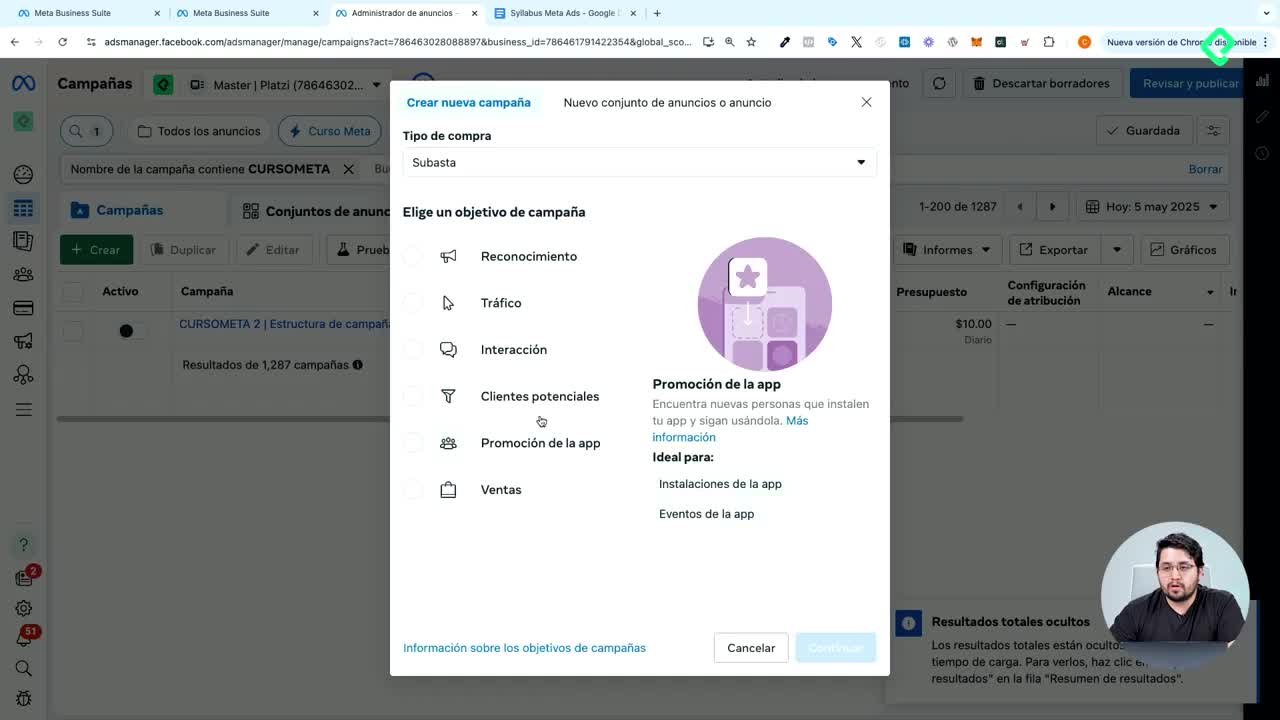
In Ads Manager, create a new campaign with the Sales objective and enable Advantage+ catalog ads. Meta will preselect your catalog if you just created one.
At the ad set level, choose your conversion location (website, app, or single conversion location) and pick the product set you want to promote. Then decide your audience strategy:
- Find new customers, reaching people who haven't interacted with your business but match the product's likely buyers.
- Retarget people who already engaged with your products on or off Facebook, powered by your pixel data.
If you go with retargeting, exclude past buyers and choose a behavior: viewers, cart adders, or cross-sell and upsell flows. Cross-sell means showing a different set to someone who already saw another. For example, anyone who browsed your full catalog now sees ads featuring only your pants collection.
Which ad formats work best with a catalog?
Two formats unlock the catalog's full potential:
- Carousel format with catalog feed, where each card shows a product with name and price, ordered by what the shopper viewed.
- Collection format with Instant Experience, a fullscreen mobile experience showing a cover image or video and a grid of products below.
The Collection format takes more screen real estate and behaves like a mini storefront inside Facebook or Instagram. When a user taps a product, they land directly on that product page in your site, skipping homepage navigation entirely. The product order also adapts to user interest: if someone already engaged with caps, caps appear first.
For the Instant Experience template, the Storefront version is the most recommended starting point. You can swap the cover for a custom image or video, edit the call-to-action button to something like Ver más, and add the link to your full store at the bottom.
With catalogs connected to your pixel, your ads stop being static and start reacting to each visitor's behavior. That is what turns a generic creative into a smarter shopping experience. Tell me in the comments which product set you would build first for your store.