Contenido del curso
Operaciones con Vectores y Matrices


Multiplicación de Matrices



Construcción de un Modelo de Regresión Lineal




Google Colab Setup for Machine Learning Python
Resumen
Setting up Google Colab is the fastest way to start applying linear algebra to machine learning with Python, without worrying about installations or local configurations. If you have ever heard the phrase "it works on my machine", this cloud based environment solves exactly that problem and guarantees that your code runs the same way for everyone.
Why use Google Colab for machine learning projects?
Colab runs Jupyter Notebooks directly in your browser, so you can focus on writing code instead of fighting with dependencies. It is the working environment we will use throughout the course to turn linear algebra theory into functional Python code.
Three advantages make it ideal for learning:
- Zero installation. You open a browser tab, sign in with Google and you are ready to program.
- Free and powerful. Colab gives you access to GPUs that accelerate model training, useful for future projects even if we will not use them here.
- Collaborative. You can share your notebooks like a Google document so others can view and run your code instantly [01:30].
What is Google Colab? It is a free cloud service that runs Jupyter Notebooks in your browser, with Python preinstalled and optional GPU access, designed for data science and machine learning work.
How do I open my first notebook in Colab?
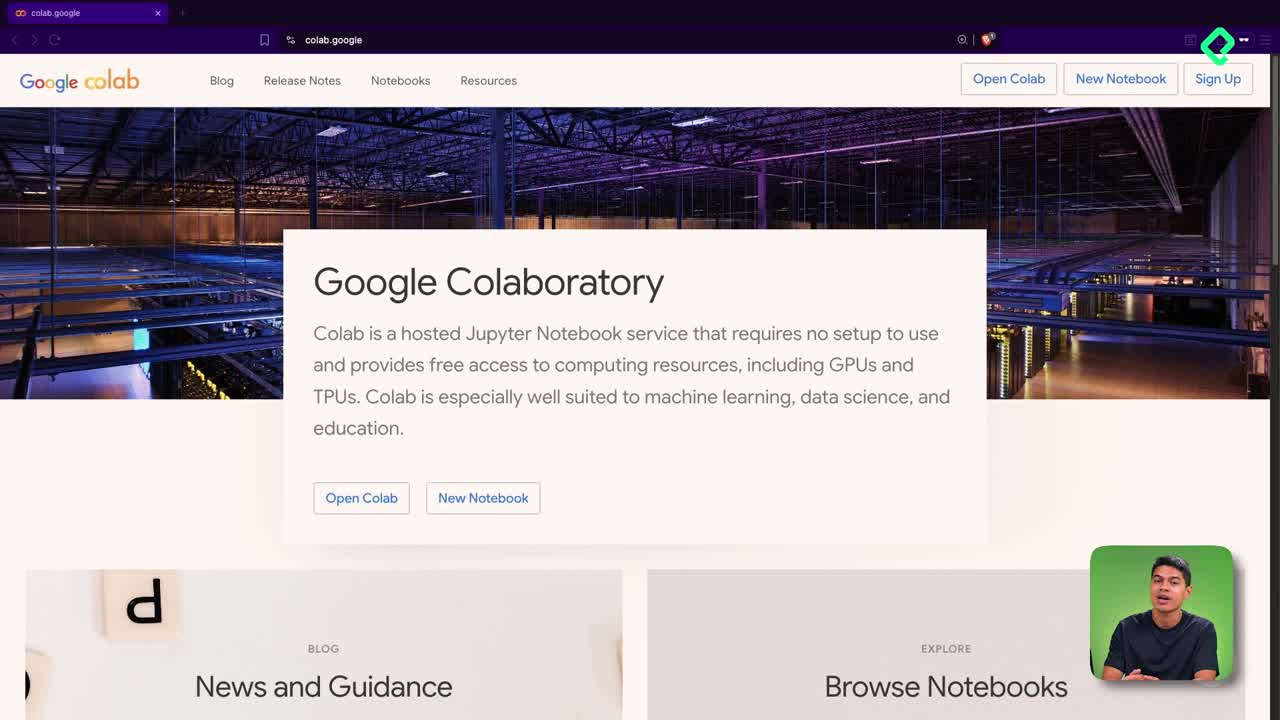
Go to colab.google and click the Open Colab button. You will land on a welcome notebook where the first step is signing in with your Google account, which lets you save your files and share them later.
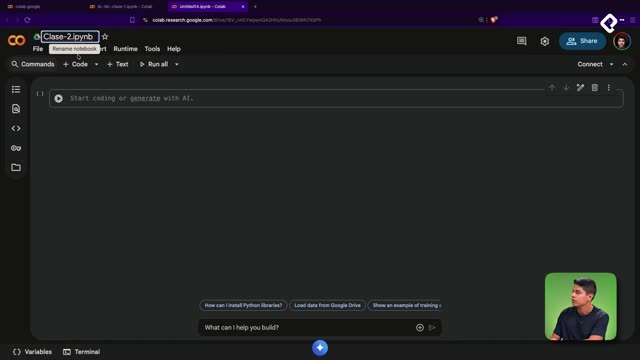
Once logged in, click New Notebook. After a few seconds the Jupyter Notebook loads and you have a blank canvas ready to run Python code [02:10].
Is there a local alternative to Colab?
Yes. The professional path is installing Jupyter Notebook on your computer, which is ideal when you need to work offline or want full control over your libraries. Everything you build in Colab works the same way in a local environment, so switching later is straightforward.
How do I check my Python version in Colab?
To confirm your laboratory is operational, open a code cell and write a quick check using the sys module. This is also your first contact with running cells in a notebook.
python import sys
print("Hello world") print(f"Your Python version is: {sys.version}")
To execute the cell, click the Play button or use the keyboard shortcut. The first run takes a few extra seconds because Colab is preparing the environment behind the scenes.
- Use
Ctrl + Enteron Windows or Linux. - Use
Cmd + Enteron Mac. - Click the play icon next to the cell as a manual option.
When the cell finishes, you will see the printed Python version. In the demo it returned 3.12.12, one of the most recent stable releases, which confirms the environment is working correctly [03:25].
How do I know which Python version I am running? Import the
sysmodule and printsys.versioninside a notebook cell. The output shows the exact interpreter version powering your environment.
What comes after setting up the environment?
With your laboratory ready, the next step is starting to build vectors in Python using the two most important libraries of the data ecosystem: NumPy and Matplotlib. NumPy handles numerical operations and matrix math, while Matplotlib lets you visualize those structures so the geometry of linear algebra becomes tangible.
Share in the comments the Python version you got after running the cell, and tell me why you are learning linear algebra applied to machine learning. I would love to read your motivation before we jump into vectors.