Copilot is more than a content generator. It can also analyze data, run repetitive workflows, and host custom skills that act like specialists for the tasks you do most often. If you work inside Microsoft 365, learning how to automate tasks in Copilot turns scattered files into a single workspace that thinks with you.
How does Copilot analyze a customer satisfaction survey?
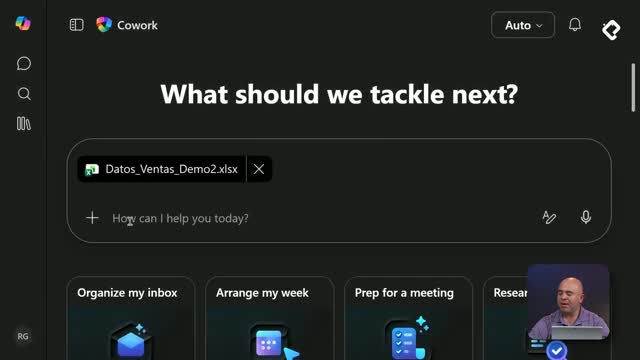
The starting point is a real dataset. In the demo, the survey lives in Excel with fields like ID, date, NPS, classification, comments, city, age range, recurring customer status, and support flags, plus monthly summaries for context.
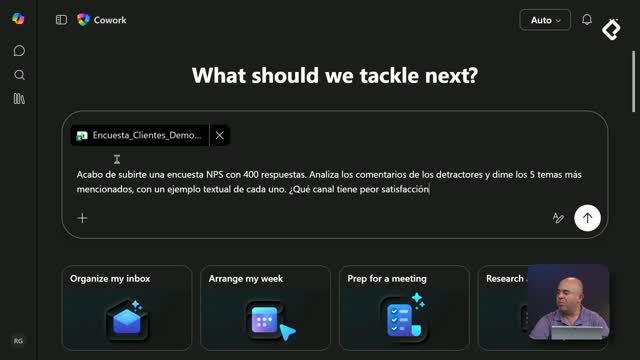
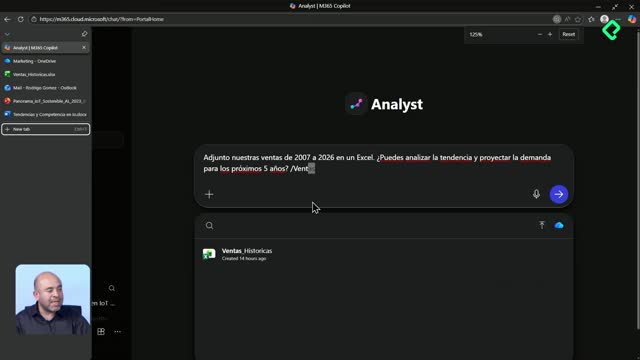
Once that file is uploaded to OneDrive, Copilot can open it and run an analysis directly from a prompt. The request was specific: review every detractor comment, return the five most mentioned topics, identify the channel with the worst satisfaction, list the cities concentrating most detractors, and back everything with numbers.
The result was a clean breakdown of 160 detractors out of the full universe, with tables for channels, cities, and recurring themes. The lesson here is precision: the more concrete your prompt, the more useful the output.
What is a detractor in NPS? A customer who scored low enough on the Net Promoter Score to be considered unhappy. Copilot can isolate them from a survey and surface patterns in their comments.
How do I turn an analysis into an executive email?
After the analysis, the next step was drafting an email to the executive committee. The prompt set clear constraints: professional tone, maximum 250 words, three findings, three prioritized recommendations, a call to action at the end, and an elegant HTML format.
That last detail matters. Copilot generates emails through HTML, so telling it the format you want produces a more polished message instead of a flat block of text.
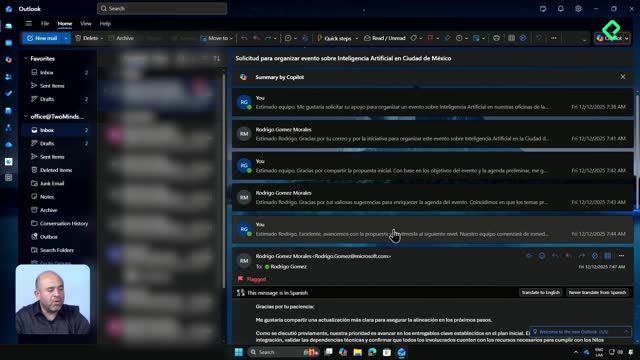
The draft showed up directly in the Drafts folder of Outlook, with highlighted findings, prioritized recommendations, and a visible call to action. From there, you only need to add recipients and send.
How to write better Copilot prompts for emails
- Define the audience and the tone you want.
- Set a hard word limit so the message stays scannable.
- Specify the structure: findings, recommendations, call to action.
- Mention HTML formatting when you want a visually rich email.
These four anchors keep the output close to what an executive reader actually expects.
How do I automate recurring tasks in Copilot?
The demo went one step further with a scheduled automation. The prompt asked Copilot to run every Monday at 8 a.m., check for new survey responses, and send an alert only if NPS dropped more than five points or a new critical topic appeared.
Copilot configured the recurrence on its own, wrote the conditional logic for the alert, and stored the task inside the prompts panel. From there you can review recent prompts and scheduled ones in the same place.
Can Copilot run tasks on a schedule? Yes. You can describe the trigger, the condition, and the action in plain language, and Copilot will save it as a recurring automation visible in your prompt history.
This is where Copilot stops being a chat tool and starts behaving like a quiet assistant working in the background.
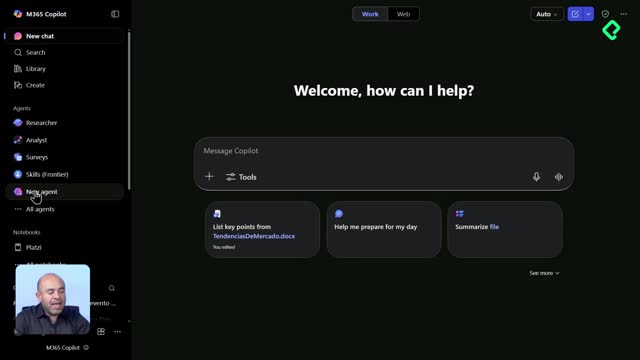
What are skills in Copilot and how do I create one?
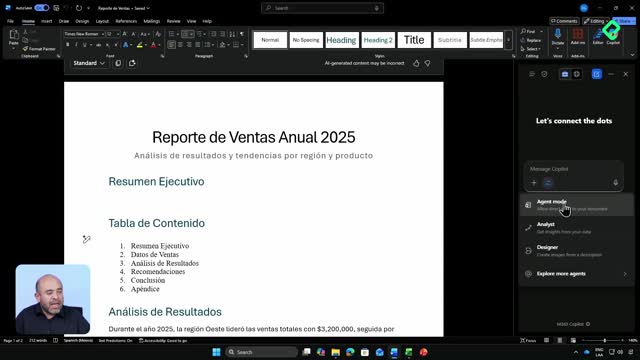
Skills, or skills in English, are specialists trained for a very specific job. Copilot ships with 13 preconfigured skills inside Microsoft 365, covering things like generating a PowerPoint, drafting a Word document, or pulling from OneDrive. You can also build your own when you spot a repetitive task worth automating.
The example built a skill called Briefing Cliente. When invoked with an account name, it produces context in three sentences, a stakeholders table, a summary of emails from the last two weeks, upcoming meetings, and pending actions for that account.
How does the skill management workspace work?
Copilot opens a workspace called skill management, which is itself a skill specialized in creating skills. It writes the new skill as a Markdown file with structured fields:
- Name and description of the skill.
- When it should be activated and when it should not.
- Variables it can use, like client name or stakeholder influence (high, medium, low).
- Examples of valid and invalid triggers.
The skill gets saved into Copilot's memory tools and into a dedicated folder, so you can review it later or share it with other users in your organization.
How does Copilot validate a new skill?
After saving, Copilot runs an automatic quality check and returns an HTML report stored in OneDrive. In the demo, the new skill scored 97 out of 100, with a breakdown of activation tests, non activation tests, and structural validation.
To use it, you type a forward slash in the Copilot text box, pick the skill, and pass an account name. The example used Grupo Solaris, and Copilot pulled signals from emails, Teams, SharePoint, and OneDrive through WorkIQ to build the briefing. When it had no evidence for a section, it said so instead of inventing content.
Now think about your own week. Which task drains the most time? Build a skill for it, run it through Copilot, and tell us in the comments how it went.