PowerPoint with Copilot turns a blank deck into a guided storytelling workshop, where generative AI helps you draft the narrative, design the slides, translate the content, and even describe images for accessibility. If you build presentations for work, school, or client pitches, this is where the heavy lifting now happens automatically.
What can Copilot actually do inside PowerPoint?
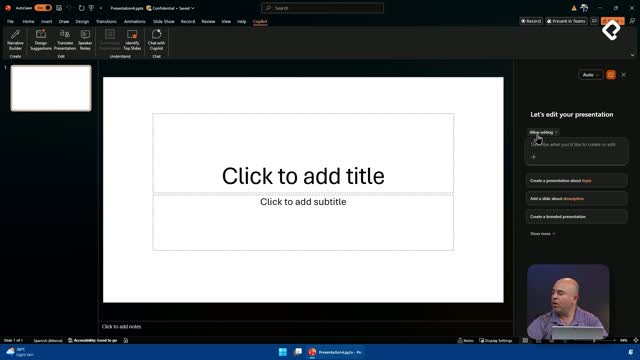
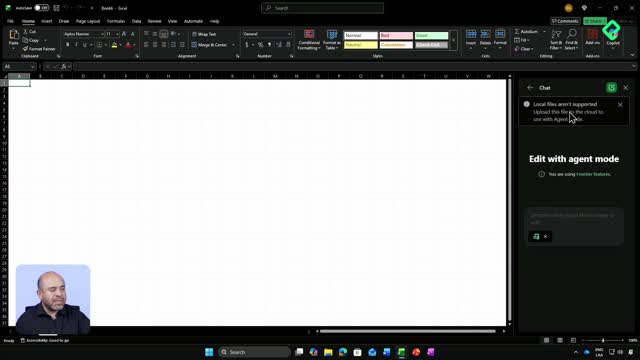
Copilot lives in two main spots inside the installed version of PowerPoint: the top-right menu, where you find the AI commands, and the bottom-right button, where you can chat about your deck or edit it directly [00:54]. From there, you can generate slides from a prompt, restyle them, translate them, and pull in images.
Think of it as having a designer, a copywriter, and a translator sitting next to you while you work.
How do I generate a presentation from a prompt?
The starting point is the narrative. You tell Copilot what story you want to tell, and it proposes a structure with a beginning, middle, and end before building any slide [01:38].
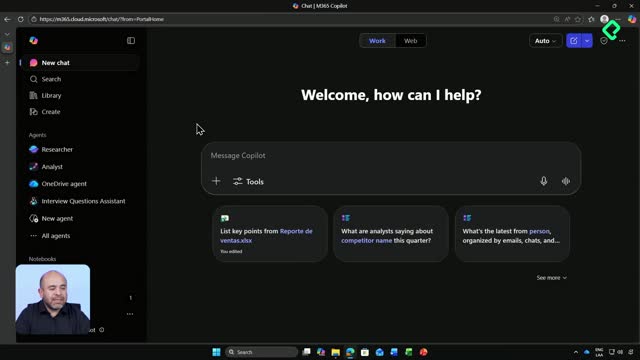
In the demo, the prompt was a presentation about AI adoption in retail, forced into Spanish even though the app was in English [01:25]. You can also attach a Word file, a PDF, or an Excel sheet as a reference so Copilot grounds the content in your own data [01:32].
Once you approve the outline, you move through three quick decisions:
- Narrative: reorder topics, add new ones, or tweak them with another prompt.
- Style: pick from a gallery of templates, including custom corporate themes if your Microsoft 365 tenant admin has loaded your logos and brand colors [02:30].
- Images: choose between AI-generated visuals, Microsoft stock images, or brand assets [02:55].
After that, Copilot drafts every slide with titles, subtitles, sections, body text, images, and even speaker notes at the bottom of each slide [03:48].
What is the difference between chat mode and edit mode in Copilot for PowerPoint? Chat mode only answers questions about your existing deck. Edit mode lets Copilot create or modify slides directly inside your presentation [05:23].
How do I restyle or translate a finished deck?
If the first design does not click, Copilot suggests alternative layouts with different animations and image placements. You select the variation you like and the slide updates instantly [04:30].
Translation lives in the Review menu under Translate with Copilot. A side panel opens with a long list of languages, from Polish to Malay to Korean, and once you pick one and hit translate, Copilot rebuilds the deck in the new language while keeping the original elements [04:55]. Some manual cleanup may be needed, but the result is functional from the start.
Can Copilot translate an entire PowerPoint deck at once? Yes. From the Review menu, choose Translate with Copilot, pick the target language, and Copilot generates a fully translated version of the presentation [04:55].
How do I add new slides with AI research?
The bottom-right Copilot button opens a panel where you can switch between chatting about the deck and editing it [05:23]. In chat mode, you can ask things like what AI features matter for retail and Copilot answers using only what is on your slides [05:42].
In edit mode, you can request a brand-new slide. The example in the demo asked for a slide on AI safety in retail use cases [06:13]. Copilot then offered angles to choose from:
- Risks and mitigation.
- Best practices.
- Regulation and compliance.
- Safe use cases.
After picking best practices, Copilot asked whether to pull updated data from the web, ran the research, and built the slide with cited references from sources like LinkedIn and AI ethics publications [07:00]. The image on that slide was created from scratch by generative AI, not pulled from stock [07:38].
Why does describing an image with AI matter?
Generative AI can also write a text description of any image in your deck. That description feeds screen readers used by people who are blind or visually impaired, so they can hear what the slide shows [07:48]. It is a small step that improves accessibility across every presentation you ship.
Now think about what you actually want to narrate: a project recap, a quarterly result, a pitch, or even an email you want to turn into something visual. Try building it with Copilot in PowerPoint and tell us in the comments which part saved you the most time.