Recursos
Resumen
Learning how to create a skill in Claude, ChatGPT, or Gemini is the fastest way to run realistic mock job interviews without copying and pasting the same prompt every time. If you are preparing for an English interview and already built your bio, uploaded your resume, and set up your coach project, this is the next step that turns practice into a repeatable routine.
A skill sounds technical, but it is simpler than it looks. Think of it as a shortcut you teach your AI once, then reuse forever with a single phrase.
What is a skill in an LLM? It is a saved prompt you can reuse multiple times by name, so you never have to copy and paste the same instructions again. In Claude, ChatGPT, and Gemini, you just invoke it with a phrase like "use the interview practice skill."
How do you turn a prompt into a reusable skill?
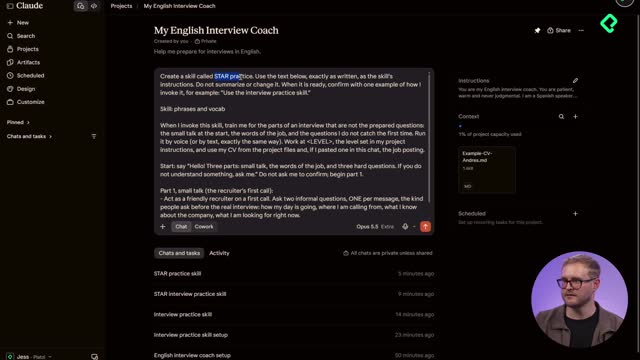
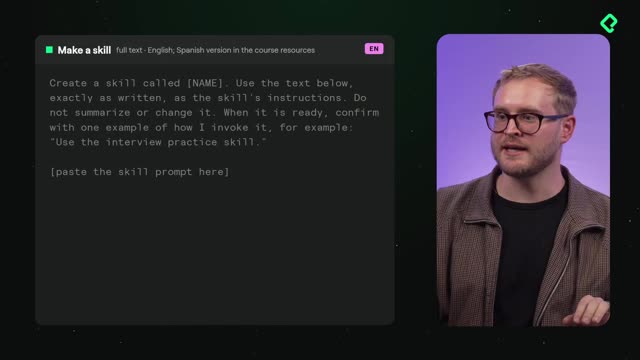
The process starts with a short setup prompt that tells your AI to save your instructions exactly as written. The idea is to keep the text untouched, not summarized or changed, so your skill behaves consistently every time.
The setup prompt does three things:
- It names the skill, for example Interview Practice.
- It tells the model to use the pasted text exactly as the skill's instructions.
- It asks the model to confirm with one example of how to invoke it [00:50].
You paste this inside your project, in a new chat. In the example, both prompts get combined: the creation instruction on top and the full interview skill right below it. That way the model reads them as one unit.
Where can you create skills in each platform?
You have options depending on the tool you use. All of them also let you build the skill directly in the chat, which keeps things simple.
- In Claude, go to Customize, then Skills, and add your skill [01:42].
- In ChatGPT, open Plugins, then Skills [01:52].
- In Gemini, go to Settings at the bottom, then Skills [02:02].
No matter which one you pick, the chat method works everywhere, so you do not need to dig through menus if you prefer speed.
What does the Interview Practice skill actually do?
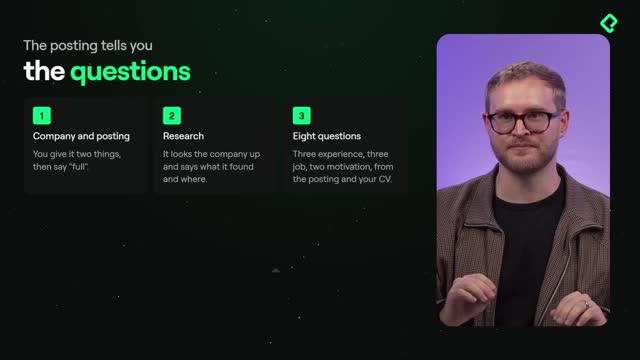
Once invoked, the skill interviews you for a real job. The job posting is the input, and you can run the interview by voice or by text. Here is where the connection to your project files matters.
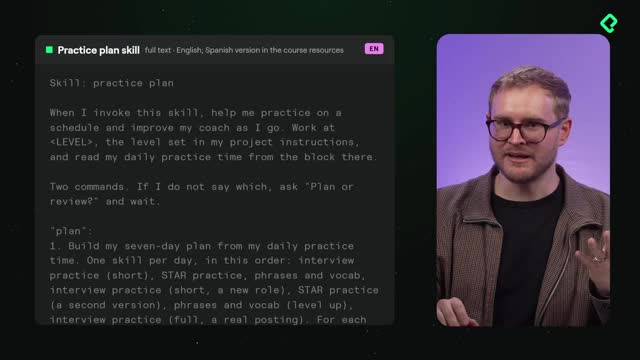
The skill pulls your level directly from your instructions. So if you are A2 and move up to B1, you only change it in one place and every skill updates automatically [03:28]. That is the whole point of keeping your profile centralized.
If you do not provide a company posting, the skill will ask for one or invent one for you, which is useful when you are just practicing and do not have a specific LinkedIn job in mind.
Short or full: which interview mode should you pick?
The skill offers two lengths, and the difference is about depth.
- Short gives you a quick, focused interview.
- Full researches the company and runs a longer session [04:28].
After either version, you get a report with your errors, a couple of phrases you used well, and one thing to practice. You can customize this freely: ask for five phrases instead of two, or more action items. It is your coach, so you set the rules.
There is also a bonus: the skill can help you write a thank you email to the interviewer at the end [05:04].
How do the control commands make practice easier?
Four commands let you adjust difficulty and clarity on the fly, and you will reuse them across every skill in this course.
- Explain gives you more detail on the feedback.
- Too hard drops the interview one level easier.
- Too easy raises the difficulty.
- Simplify makes the language more accessible [05:18].
How do I reuse a saved skill in Claude? Click Save Skill after creating it, and Claude remembers the full description permanently. Then just type "use the interview practice skill" and it runs the whole process, pulling your level, resume, and profile automatically.
When you save the skill in Claude, you can also download it as a markdown file. The saved version remembers everything, so a single phrase triggers the full flow [05:58].
What does a real mock interview look like?
In the live example, the interview started in voice mode with a spoken conversation. The candidate, Jess Harris, introduced herself as a customer support specialist with five years of experience, mostly at hotel front desks handling complaints, check-ins, and room problems.
The interviewer pushed with follow-up questions, like asking about a time she helped an angry customer. She described upgrading a guest whose room was not ready, which calmed them down. Then came the trap: when asked what she knew about the company's product, she admitted she had not read the prompt [08:10].
And here is what makes this valuable: the skill caught that gap. It flagged three main errors, highlighted phrases used well, and named one thing to practice: learn about the company before the interview.
The feedback even included three checks: did you answer every question, did you give a specific example (kind of), and were answers long enough (yes, they were good). Typing explain then delivered a more detailed breakdown of those errors for deeper learning.
Now it is your turn. Create the skill yourself and run a short interview. Was your interview good? Tell me in the comments, and I will see you in the next class to build more skills and practice even more.
Crea tu skill y haz tu primer simulacro de entrevista

Curso de Entrevistas en Inglés con IA
Clase 4 / 8