




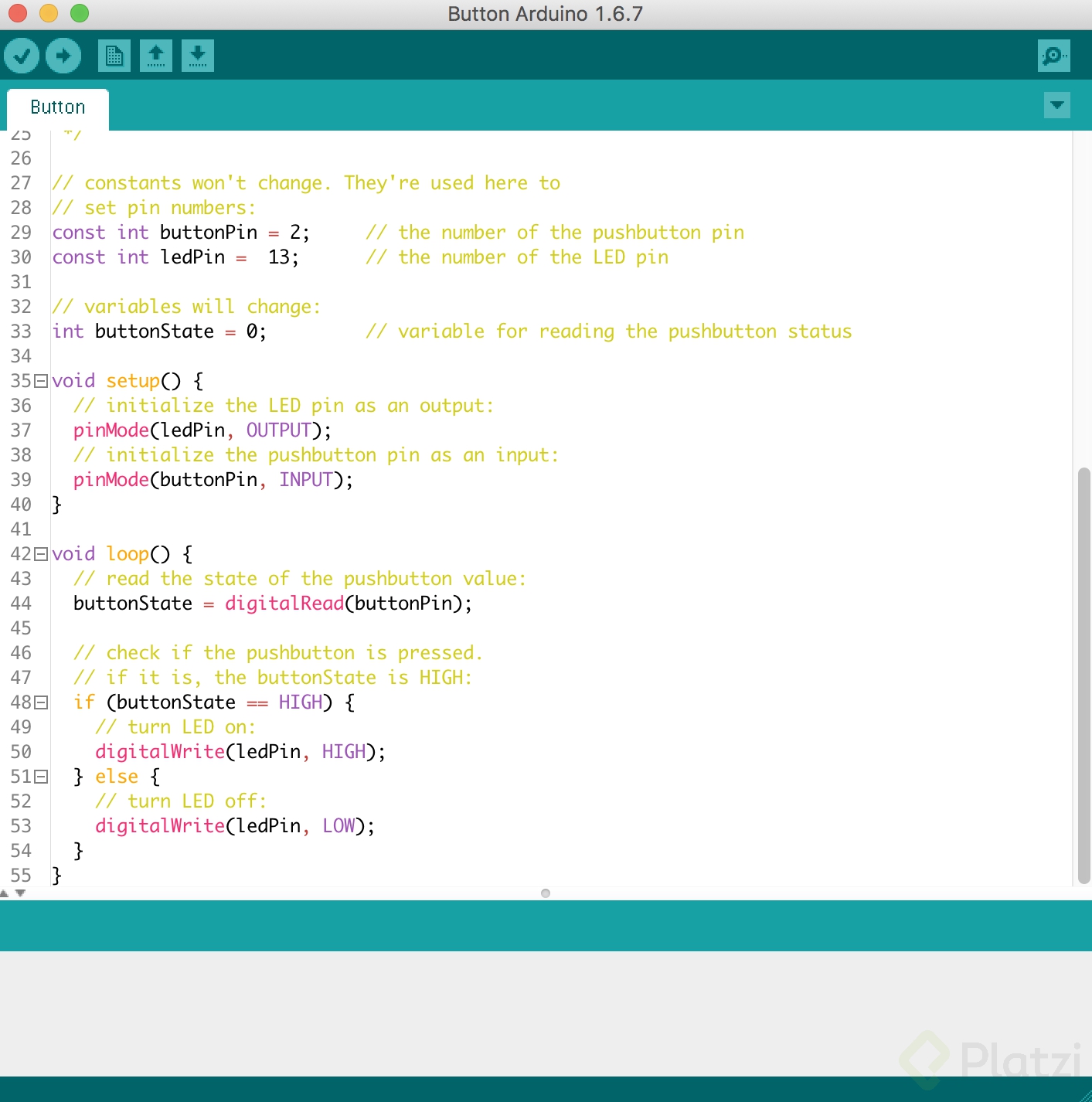
Como dato curioso, gracias a la naturaleza de Arduino de ser un producto hardware-software libre, su IDE es totalmente personalizable. En mi caso, solo personalize los colores del texto:
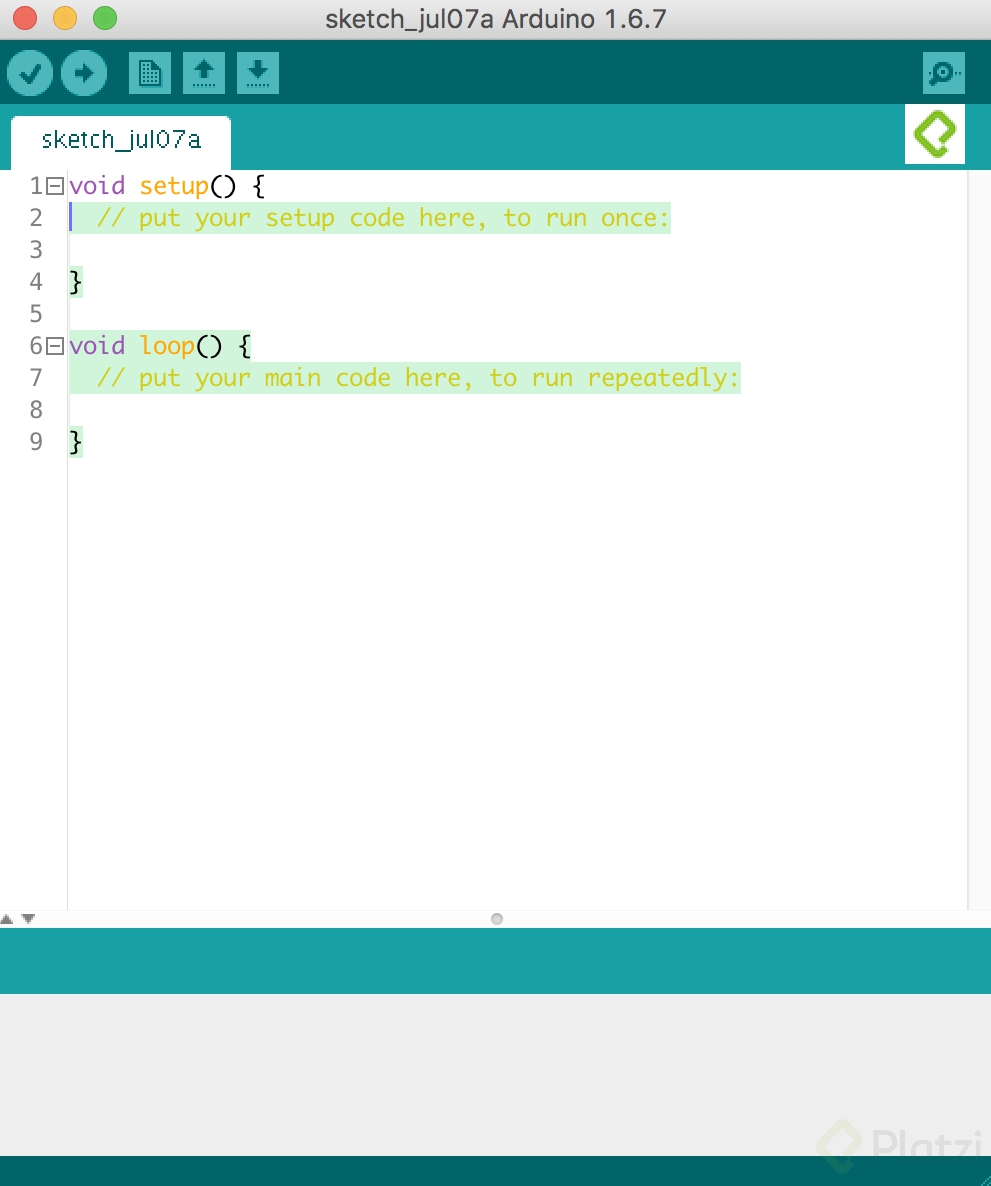
Pero es posible cambiar cualquier cosa, como reemplazar el botón del sistema de ventanas con el icono de Platzi 😃
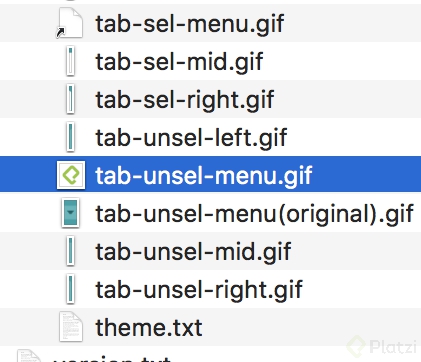
Tan solo se reemplaza el archivo con el mismo nombre y extensión
Para jugar con los colores del texto del tema, buscan en los archivos raíz de la app el archivo theme.txt y ahí pueden ir configurando a su gusto, les dejo el mio (solo lo reemplazan por este):
#FUNCTIONS COLOR 			#52DDED - ORANGE			KEYWORD1
#FUNCTIONS COLOR			#52DDED - ORANGE			KEYWORD2
#STRUCTURE COLORS 			#DDED52 - GREEN			KEYWORD3
#VARIABLES COLOR 				#ED5252 - BLUE				LITERAL1

#ERROR COLOR					#A61717 - RED
#COMMENTS // COLOR			#95A5A6 - LIGHT GREY
#COMMENTS /**/ COLOR		#FFFFFF	- DARK GREY


# GUI - STATUS
status.notice.fgcolor = #002325
status.notice.bgcolor = #17A1A5
status.error.fgcolor = #FFFFFF
status.error.bgcolor = #E34C00
status.edit.fgcolor = #000000
status.edit.bgcolor = #F1B500
status.font = SansSerif,plain,12

# GUI - TABS
# settings for the tabs at the top
# (tab images are stored in the lib/theme folder)
header.bgcolor = #17A1A5
header.text.selected.color = #005B5B
header.text.unselected.color = #007e82
header.text.font = SansSerif,plain,12

# GUI - CONSOLE
console.font = Monospaced,plain,11
console.font.macosx = Monaco,plain,10
console.color = #EEEEEE
console.output.color = #0C0D0D
console.error.color = #E34C00

# GUI - BUTTONS
buttons.bgcolor = #006468
buttons.status.font = SansSerif,plain,12
buttons.status.color = #ffffff

# GUI - PLOTTING
# color cycle created via colorbrewer2.org
plotting.bgcolor = #ffffff
plotting.color = #ffffff
plotting.graphcolor.size = 4
plotting.graphcolor.00 = #2c7bb6
plotting.graphcolor.01 = #fdae61
plotting.graphcolor.02 = #d7191c
plotting.graphcolor.03 = #abd9e9

# GUI - LINESTATUS
linestatus.color = #006468
linestatus.bgcolor = #006468

# EDITOR - DETAILS

# foreground and background colors
editor.fgcolor = #OOOOOO
editor.bgcolor = #FFFFFF

# highlight for the current line
editor.linehighlight.color=#c8d2dc
# highlight for the current line
editor.linehighlight=false

#CURSOR!!!!
editor.caret.color = #7074F5

# color to be used for background when 'external editor' enabled
editor.external.bgcolor = #c8d2dc

# selection color
editor.selection.color = #D1F5DA

# area that's not in use by the text (replaced with tildes)
editor.invalid.style = #FCBA04,bold

# little pooties at the end of lines that show where they finish
editor.eolmarkers = false
editor.eolmarkers.color = #FBFBFA

# bracket/brace highlighting
editor.brackethighlight = true
editor.brackethighlight.color = #3D7591


# TEXT - KEYWORDS

# FUNCTIONS
editor.keyword1.style = #02C4BD,bold
editor.data_type.style = #02C4BD,bold

# METHODS
editor.keyword2.style = #F22F73,plain
editor.function.style = #F22F73,plain

# STRUCTURES
editor.keyword3.style = #FFA600,plain
editor.reserved_word.style = #FFA600,plain


# TEXT - LITERALS

# constants & datatypes
editor.literal1.style = #60BEEE,plain

# p5 built in variables: e.g. mouseX, width, pixels
editor.literal2.style = #D0FFE0,plain

editor.variable.style = #000000,plain

#PALABRAS RESERVADAS
editor.reserved_word_2.style = #9C54B7,plain

editor.literal_boolean.style = #9C54B7,plain

editor.literal_char.style = #9C54B7,plain

#TEXTP ENTRE COMILLAS
editor.literal_string_double_quote.style = #FC0101,plain

#EL INCLUDE
editor.preprocessor.style = #69C56C,plain

# http://www.arduino.cc/
editor.url.style = #383897,underlined

# e.g. + - = /
editor.operator.style = #C13E39,plain


# ?? maybe this is for words followed by a colon
# like in case statements or goto
editor.label.style = #F7F7F7,bold


# TEXT - COMMENTS
editor.comment1.style = #D1CE1B,plain
editor.comment2.style = #D1CE1B,plain


# LINE STATUS - editor line number status bar at the bottom of the screen
linestatus.font	   = SansSerif,plain,10
linestatus.height  = 20```