Automate Dev Tasks with Make Targets

Resumen

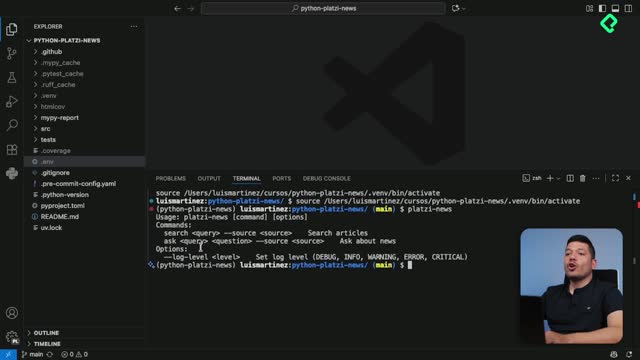
Running the same commands over and over slows you down: installing dependencies, running tests, formatting code. A task runner like Make turns those long instructions into short, memorable commands so you save time and avoid typos. If you work on Unix or Linux, Make is already there waiting for you.

What is Make and why should you use it in your projects?

Make is the classic automation tool shipped with almost every Unix and Linux system. It reads a file called Makefile where you define tasks (also known as targets) and the real commands behind them. Instead of remembering a long instruction, you just type make followed by the task name.

What is a task runner? It's a tool that executes predefined commands with a single short instruction, automating repetitive work in your project.

Think of it as a shortcut layer on top of your terminal. You write the long version once, and from then on you only type the alias.

How do you create your first Makefile?

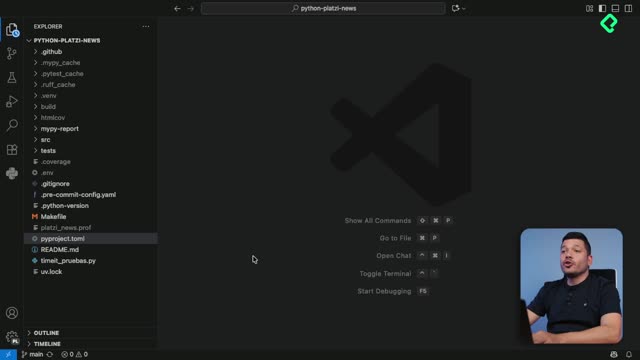
Start by creating a file named Makefile (with capital M) at the root of your project. Inside, you declare targets and the commands they should run [00:24].

A simple example for installing dependencies looks like this:

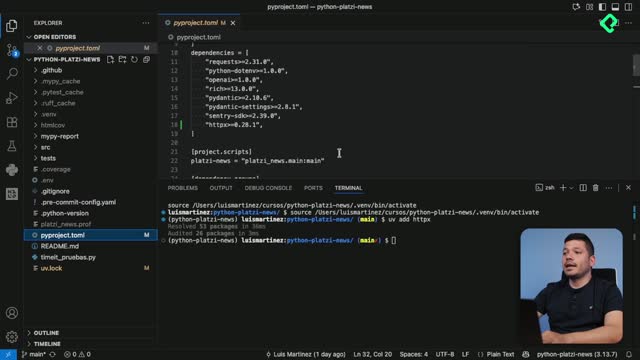
makefile install: uv sync uv venv

Once saved, open the terminal and run make install. Make will create the virtual environment and sync your dependencies automatically. No need to memorize each command separately.

How do you chain multiple commands in a single target?

You can stack as many commands as you need under one target. For instance, a run target that installs the local library and then launches the app [01:09]:

makefile run: uv pip install -e . platzi-news --log-level debug

Now make run builds, installs, and runs your application in one shot. That's the whole point: compress repetitive workflows into one short word.

Why must you use tabs and how do you print messages in Make?

Two details make or break your Makefile, and both appear around [02:08].

  • Indentation must use tabs. Spaces will fail. If your editor shows dots instead of an arrow, replace them with a real tab character.
  • Use @echo to print messages. Adding @echo "installing packages" before a command shows a friendly message in the terminal when the target runs.

Why does Make require tabs instead of spaces? Because Make's syntax was designed that way from the start. Tabs signal that a line is a command belonging to a target, and spaces will break the build.

A practical use is a help target that prints all available commands, so any developer joining the project knows what they can run.

makefile install: @echo "installing packages" uv sync

What kind of targets should you add to your own Makefile?

Anything you type more than twice is a candidate. Some ideas worth adding:

  • A test target to run your test suite.
  • A lint or format target for code style checks.
  • A clean target to remove cache or build files.
  • A help target that lists every available command with @echo.

How do I run a Makefile target? Open your terminal in the project folder and type make <target-name>, for example make install or make run.

The goal is simple: stop memorizing long commands and let your Makefile carry that weight for you. Take the commands you've used during the course, group them into targets, and turn your workflow into something you can run with three letters and a word.

Which targets are you adding first to your Makefile? Share your setup in the comments.