Excel errors like #DIV/0!, #N/A, or #REF! aren't bugs, they're signals. Learning to read them and apply functions like IFERROR and IFNA helps you build cleaner spreadsheets and troubleshoot faster, whether you're an analyst, student, or finance professional.
What do the most common Excel errors mean?
Each error code in Excel points to a specific issue in your formula or data. Knowing the cause is half the fix.
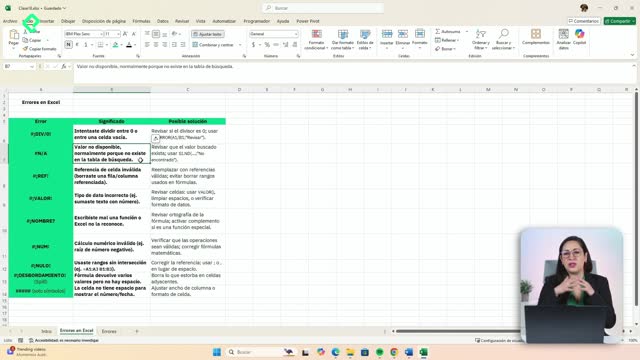
- #DIV/0!: you're dividing by zero or by an empty cell.
- #N/A: the value isn't available, common in VLOOKUP or SUMIFS when the lookup value doesn't exist [00:38].
- #REF!: the cell your formula referenced was deleted, so Excel lost track of the source [01:10].
- #VALUE!: you're mixing incompatible formats, like multiplying text by a number. Sometimes a number looks like a number but is stored as text [01:30].
- #NAME?: the function name is misspelled. For example, writing
SUMARSICON instead of SUMAR.SI.CONJUNTO triggers this error [01:55].
- #NUM!: invalid math, like the square root of a negative number [02:18].
- #NULL!: invalid intersection between ranges.
- #SPILL!: an array formula doesn't have room to expand because another cell blocks it.
- ######: not really an error. The column is too narrow to display the number or date [02:35].
What does #N/A mean in Excel? It means the value you're looking for doesn't exist in the lookup range. Excel isn't broken, it's telling you the data isn't there.
How do I use IFERROR to handle any Excel error?
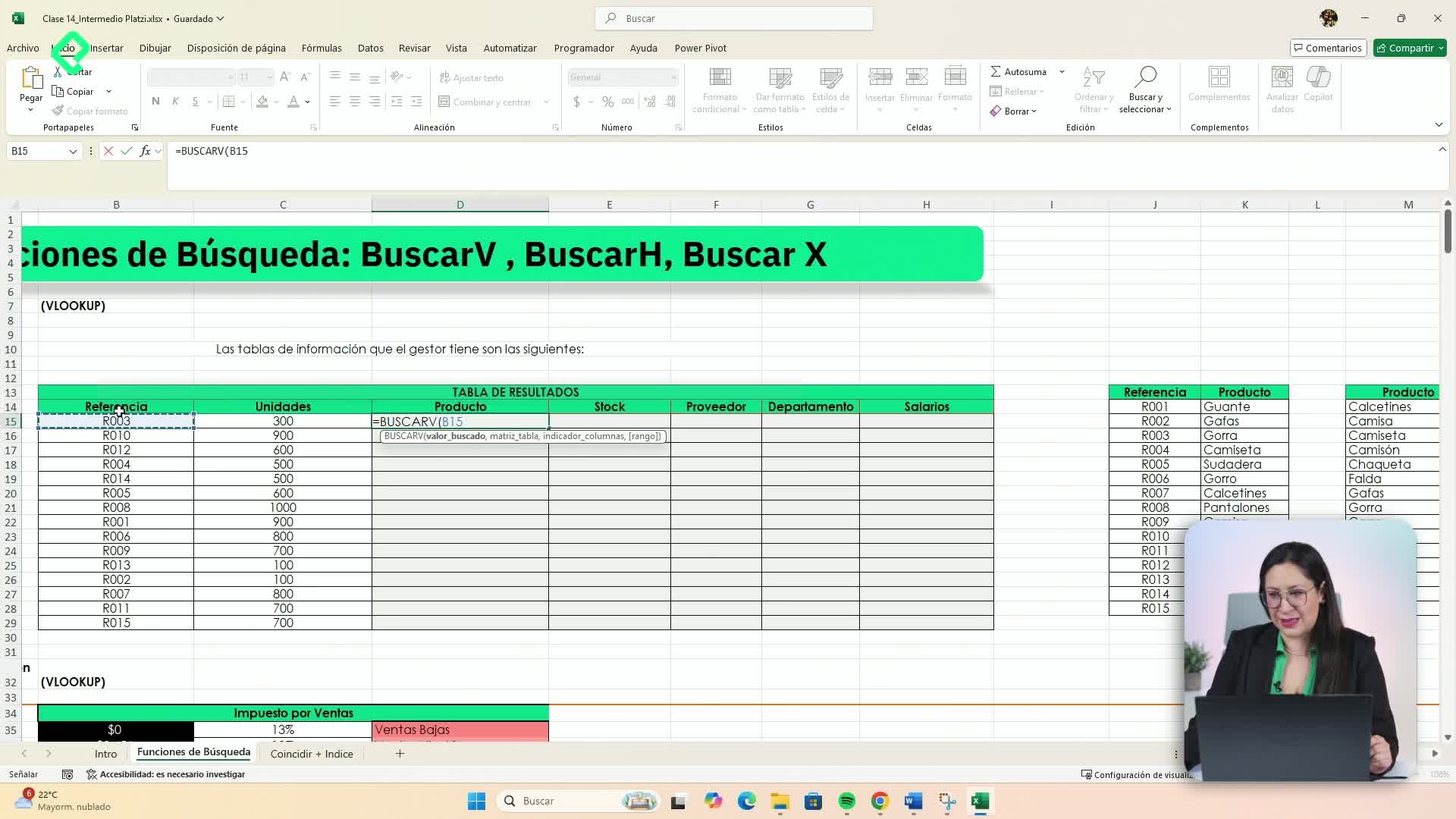
The IFERROR function wraps your main formula and tells Excel what to show if something goes wrong. Think of it as a safety net around your VLOOKUP, SUMIFS, AVERAGEIF, or any other calculation [03:20].
The syntax is simple:
=IFERROR(your_formula, value_if_error)
Let's say you run a VLOOKUP searching for code R035, but it doesn't exist in your table. Excel returns #N/A. To replace that with a friendlier message, you wrap it like this:
=IFERROR(VLOOKUP(F4, table, 2, 0), "Data not found")
Now every #N/A becomes "Data not found". And here's the interesting part: instead of text, you can also return a calculation. For example, multiply inventory by 20 if the lookup fails. The function gives you full flexibility.
What does IFERROR do in Excel? It catches any error from a formula and replaces it with a value or calculation you define, so your spreadsheet stays clean.
When should I use IFNA instead of IFERROR?
IFNA works almost the same way, but it only catches the #N/A error. Every other error (#REF!, #VALUE!, #DIV/0!) will still show up [05:40].
Use it when you want to isolate lookup failures without masking other problems:
=IFNA(VLOOKUP(F4, table, 2, 0), "N/A error")
This is useful when you're debugging. If a #VALUE! slips through, you'll see it instead of hiding it under a generic message.
Why fixing Excel errors visually isn't the same as fixing the data?
Here's something worth remembering: IFERROR and IFNA don't repair your data, they just put a bandage on the display. If your inventory shows #DIV/0! because the divisor is genuinely zero, the underlying issue stays.
These functions are perfect when you already know the error exists and is expected, and you just want your spreadsheet to look professional. But if the error is a symptom of bad data or a broken reference, you need to fix the source first.
- Use IFERROR when you want to handle any type of error in one shot.
- Use IFNA when you only care about missing lookup values.
- Always validate your data formats before trusting a calculation.
Mastering these two functions changes how your reports feel. Instead of red errors scattered across cells, you get controlled messages or fallback calculations that keep your analysis readable.
Have you run into a specific Excel error that IFERROR couldn't solve? Drop it in the comments and let's troubleshoot together.