Power Query in Excel turns hours of manual data consolidation into a one click task. If a folder full of monthly reports lands on your desk every week, this tool connects, cleans, and refreshes that data automatically, saving you real working hours.
What is Power Query and why does it matter?
Power Query is a data automation and cleaning tool built into Excel, and also available in Power BI. Think of it as a pipeline that links your source files directly to your spreadsheet, so every update at the source flows straight into your report.
What is Power Query in Excel? It is a built in tool that imports, transforms, and combines data from multiple sources. You set it up once and it refreshes your file with a single click.
The scenario is familiar: the same file arrives every day with new records, and you spend hours merging them into one report. With Power Query, that work happens in seconds.
How do I combine multiple Excel files from a folder?
The trick is to point Power Query at a folder instead of a single file, so any new spreadsheet you drop in gets picked up automatically.
Here is the path to follow inside Excel:
- Open a blank sheet and go to the Data menu.
- Click Get Data, then choose From File and select From Folder at the bottom of the list.
- Pick the folder that holds your files and hit Open.
- Review the preview, then click Combine and Load or Combine and Load To.
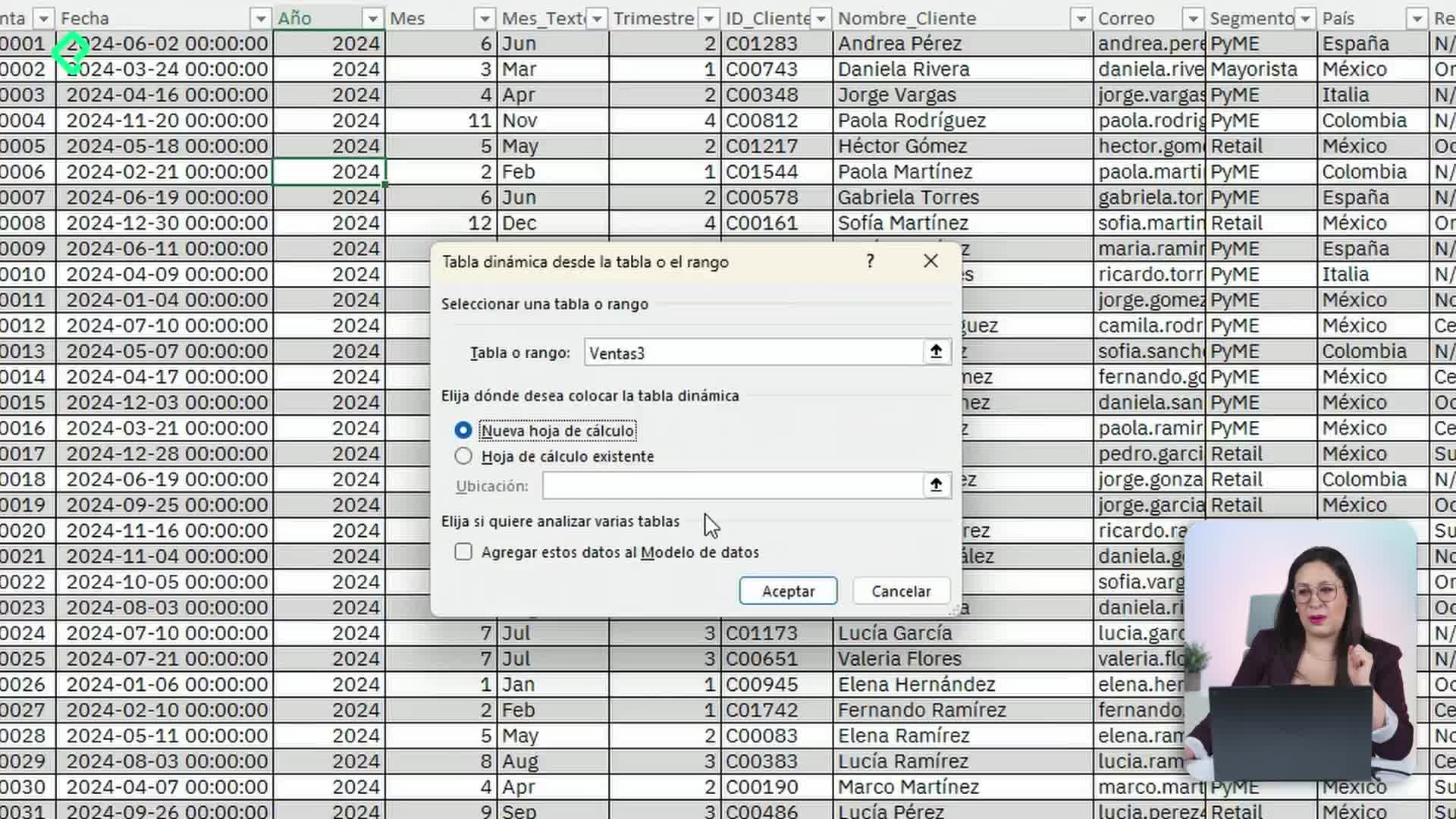
In the demo, the folder held sales files for 2024, from month one through month five, all sharing the exact same columns. Power Query merged them into a single table with 8,172 rows in one move. You can load that result as a regular table, a PivotTable, or a PivotChart on a new worksheet.
And here is where it gets interesting: because the connection points to a folder, not a file, you do not have to redo anything when month six or month seven shows up.
How do I refresh Power Query when I add new files?
Once the connection exists, keeping your report current is a two step routine. Drop the new file into the same folder, then refresh the query.
How do I update Power Query in Excel? Open the Queries panel on the right, find your query, and click Refresh. Excel pulls the new files from the folder and recalculates the row count.
A quick habit worth keeping: after refreshing, glance at the loaded row count. That number confirms your data really did update and nothing got skipped.
Why must all files live in the same folder?
Power Query reads the folder as a single source. If a file sits somewhere else, the query will not see it, and your totals will silently fall short. Same folder, same column structure, every time.
What kinds of sources can Power Query connect to?
The Get Data menu offers more than folders. You can pull from a database, combine queries, or import from a single file. The folder option shines when you receive recurring reports with identical layouts, like monthly sales exports.
Picture a small tube running from your source folder to your Excel file. Every new drop at the origin travels through that tube the moment you hit refresh, which is exactly the kind of automation that frees you to focus on analysis instead of copy paste.
If you want to go further with this kind of workflow, Power BI uses the same Power Query engine and is the natural next step. Tell me in the comments which repetitive Excel task you would automate first.