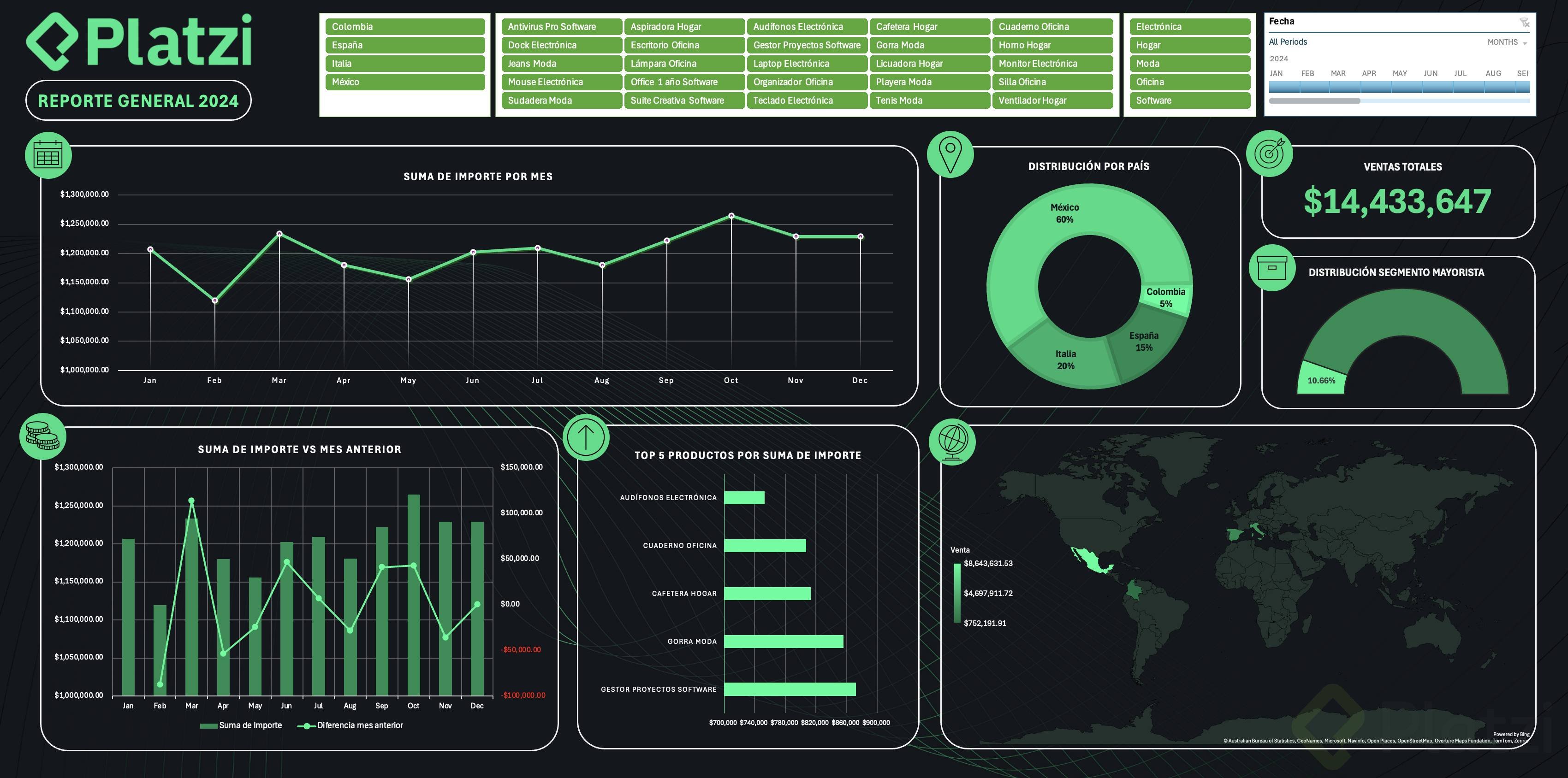
Updating an Excel dashboard every time new data arrives can feel like an endless task. The good news: you can automate Excel data updates so your pivot tables and visualizations refresh almost on their own. Here you will learn three practical methods, from the simplest click to a small macro that does the work for you.
Why does your source data need to be in table format?
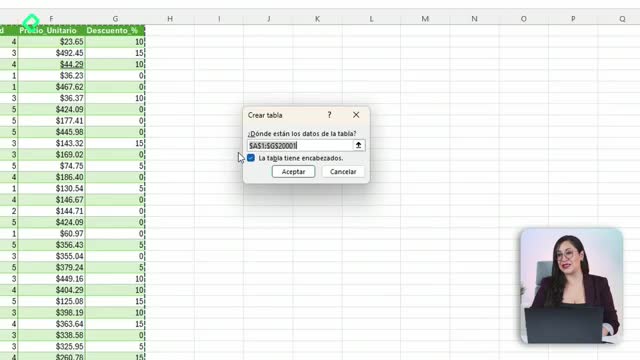
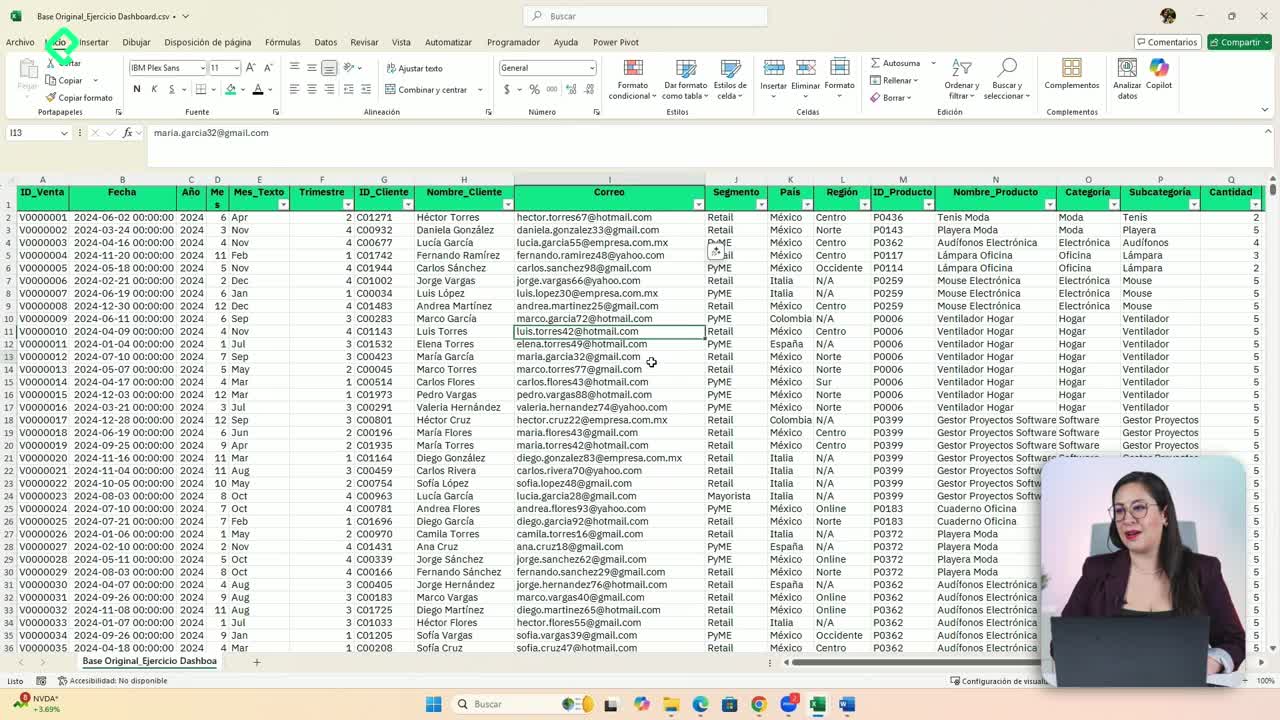
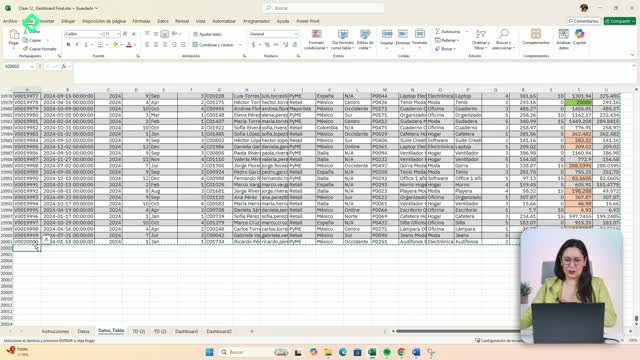
Everything starts with how your raw data is stored. If your source is formatted as an Excel table, any new row you paste in gets absorbed automatically into that structure.
That is why, when you append next month's records at the bottom of your existing data, Excel instantly extends the table format and recognizes the new rows as part of the same dataset. Without this step, none of the automation tricks below will work properly.
What is an Excel table and why does it matter for dashboards? It is a structured range with its own design tab. It matters because pivot tables and charts connected to it expand automatically when you add new rows.
How do I refresh pivot tables manually in one click?
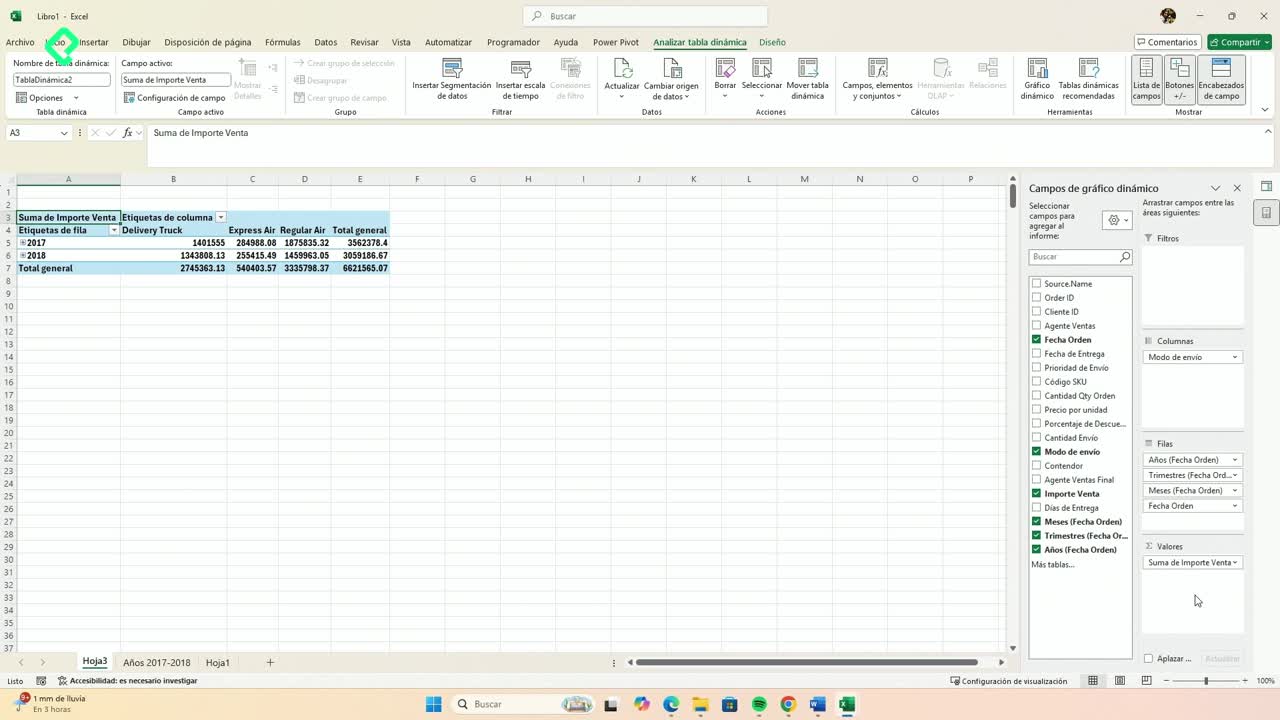
Once your new data is pasted into the source table, head to any pivot table, open Analyze PivotTable and use the Refresh options at the top.
You have two choices:
- Refresh: updates only the selected pivot table. The keyboard shortcut is Alt + F5 [02:00].
- Refresh All: updates every pivot and data source in the file. Heavier files may take longer.
After one click, totals recalculate and the dashboard reflects the new numbers immediately. This works because the source lives inside a formatted table.
Can I refresh automatically when opening the file?
Yes. Click on a pivot table, go to PivotTable Options and open the Data tab. There you can enable Refresh data when opening the file [03:20]. Every time you close and reopen the workbook, the information updates on its own, no clicks required.
How do I automate pivot table updates with a macro?
A macro is a small piece of code that performs a repetitive task for you. Instead of clicking refresh twenty times a day, the macro detects activity on the sheet and updates the pivot automatically.
What is a macro in Excel? It is a recorded or written instruction in Visual Basic that executes an action whenever you trigger it, saving repetitive manual work.
What do I need before writing the macro?
Two names matter here:
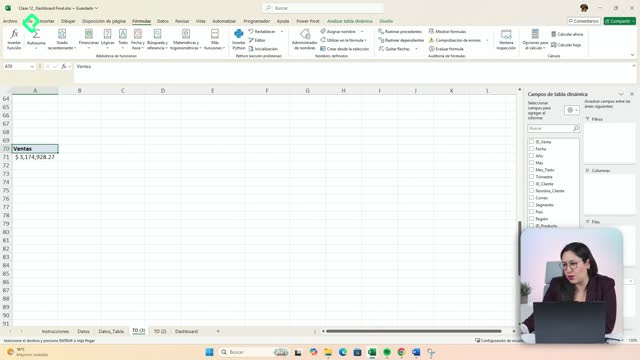
- The pivot table name. Go to Analyze PivotTable and rename it to something simple like Ventas [04:30].
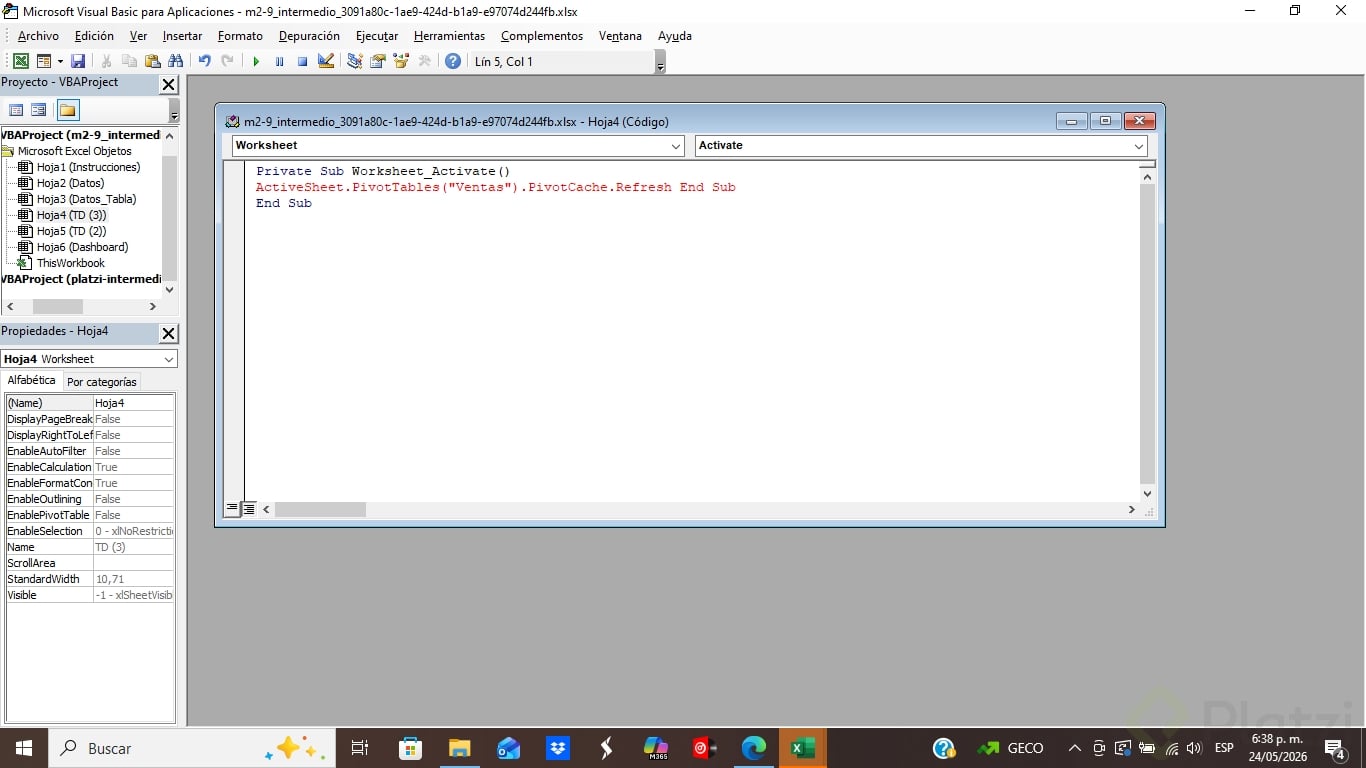
- The sheet code name. Right click the tab, choose View Code, and inside Visual Basic look at the name in parentheses next to the sheet, for example TD3. That is the one you must use.
Which code should I paste in Visual Basic?
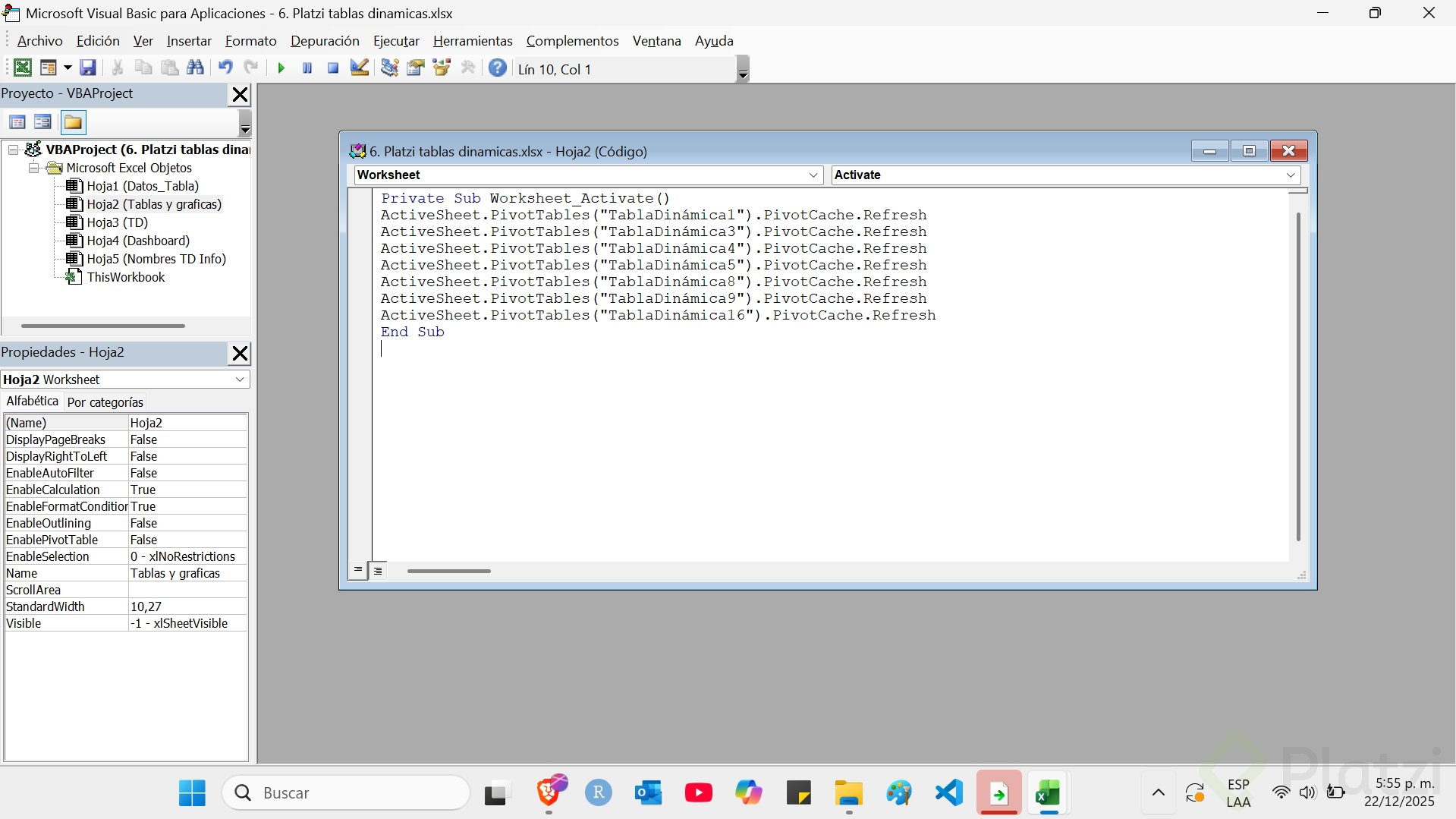
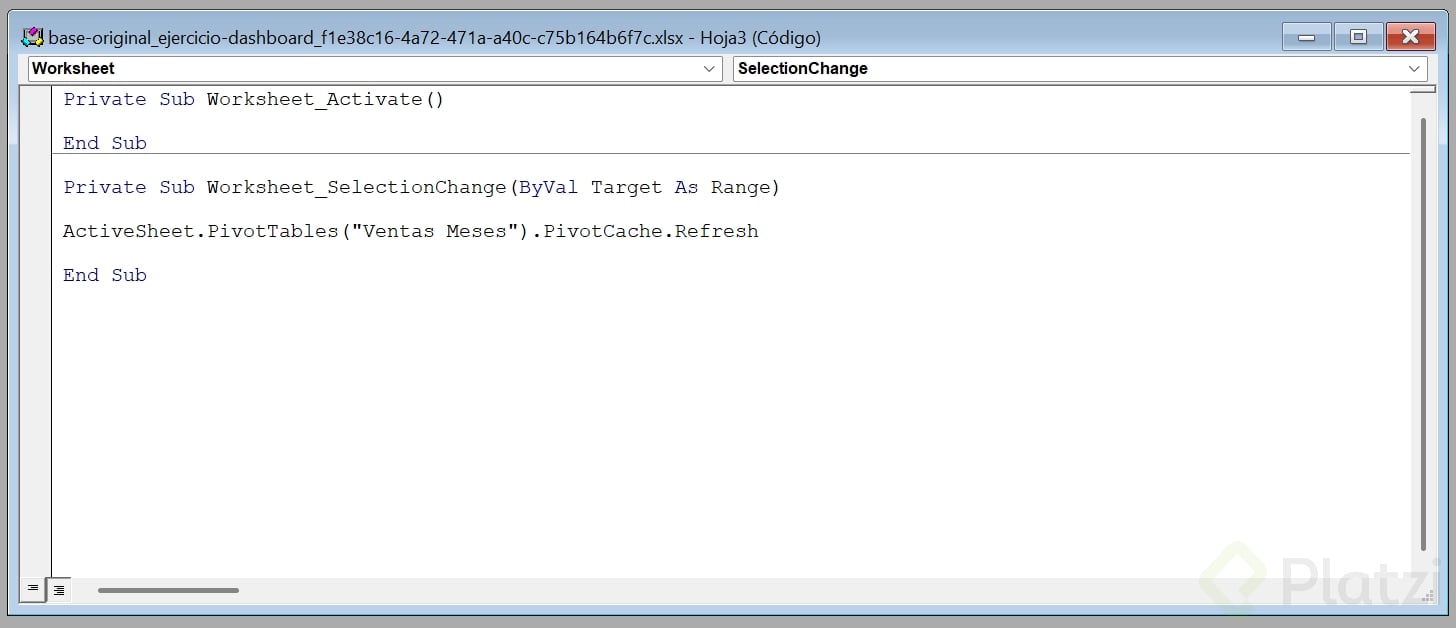
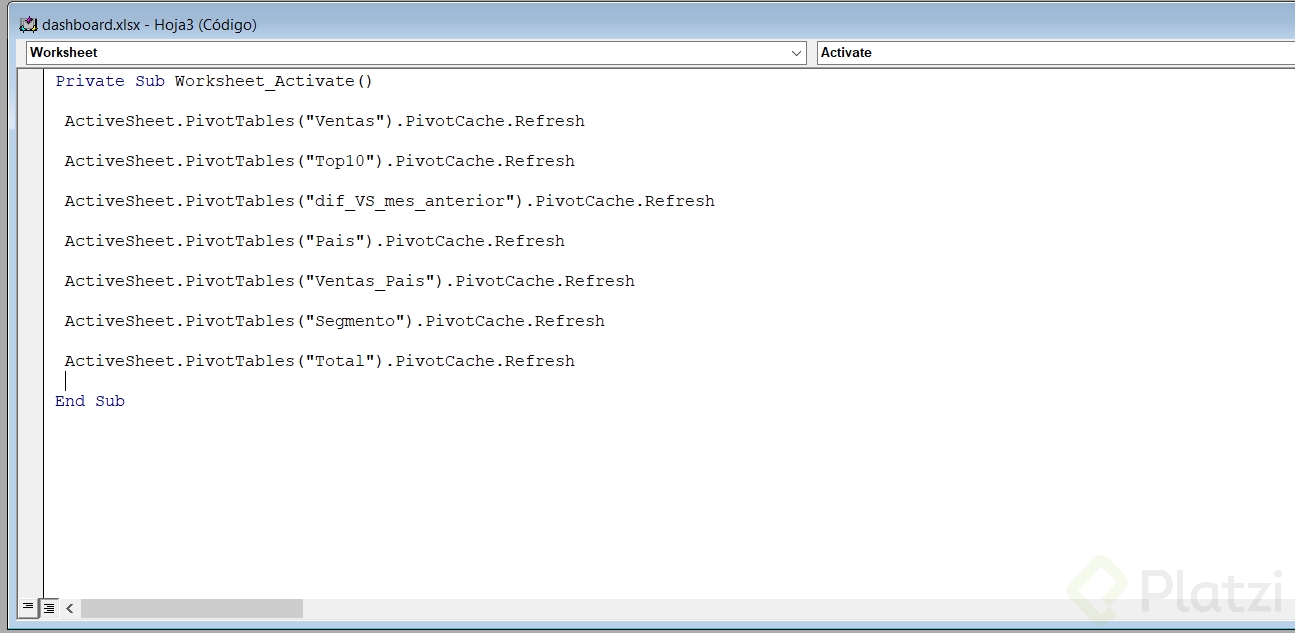
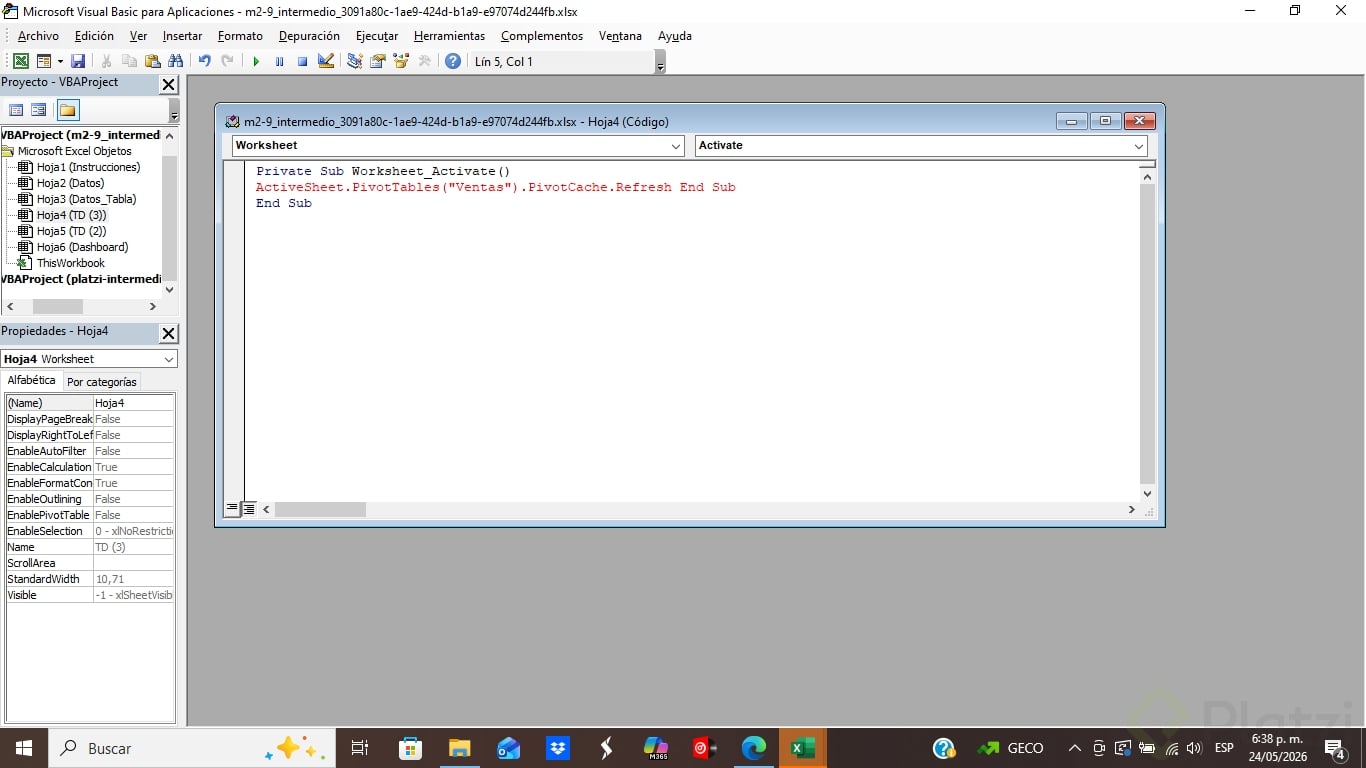
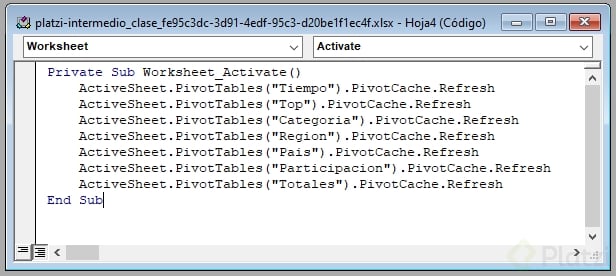
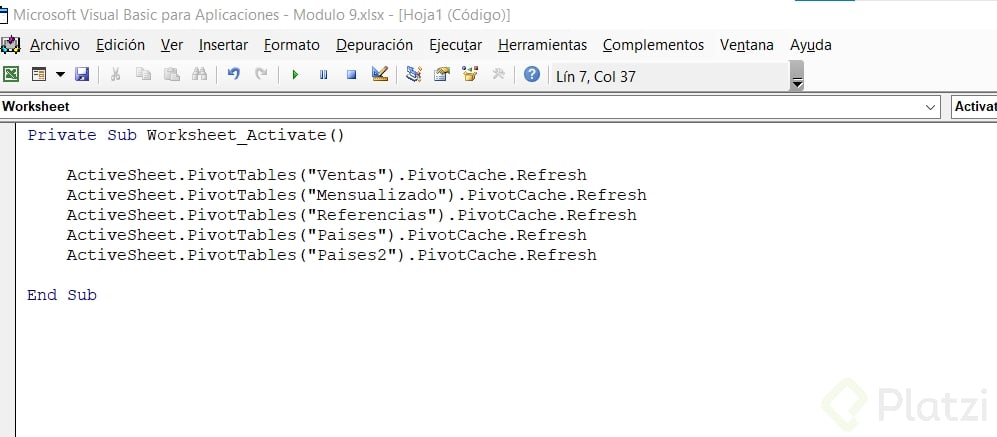
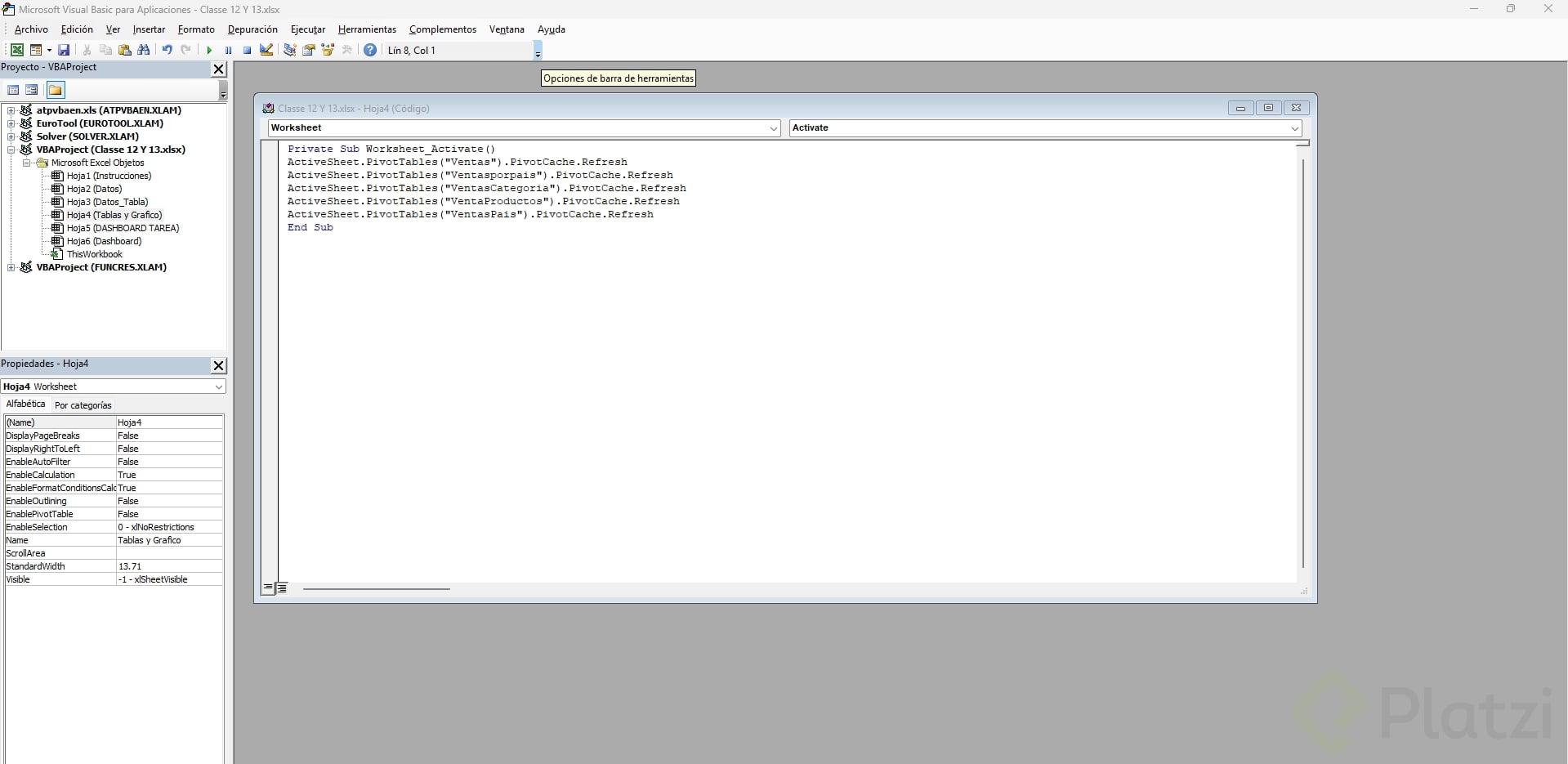
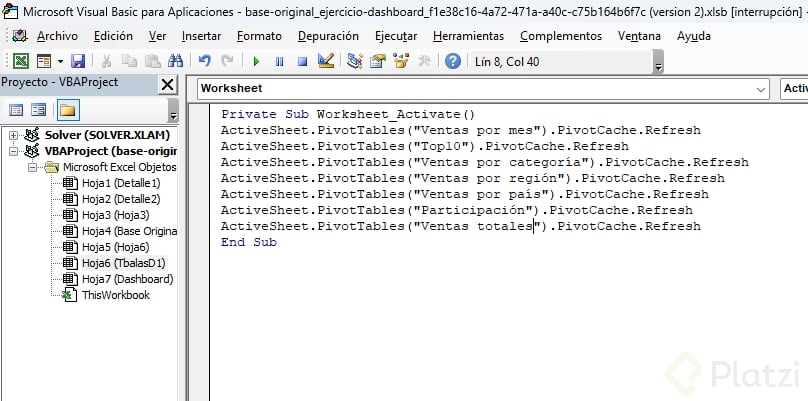
In the Visual Basic editor, select the sheet that holds the pivot, switch the left dropdown to Worksheet and the right one to Activate. Then paste this snippet:
vba
Private Sub Worksheet_Activate()
ActiveSheet.PivotTables("Ventas").PivotCache.Refresh
End Sub
From now on, every time you open that sheet, the pivot named Ventas refreshes by itself. If you have several pivots, duplicate the line and change the name: Vendedores, Agentes, and so on.
How should I save a file with macros in Excel?
Macros do not survive in a normal .xlsx file. Excel will warn you that autosave cannot be completed because the workbook must be macro enabled.
Go to Save As and pick Excel Macro Enabled Workbook (.xlsm) [07:40]. When you reopen the file, Excel will ask you to authorize macros, and from there everything runs smoothly.
How can I keep the dashboard light and fast?
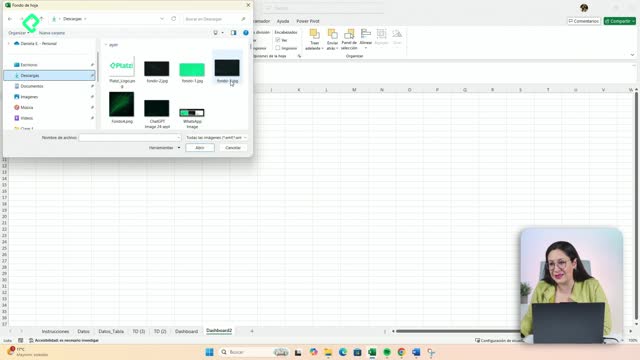
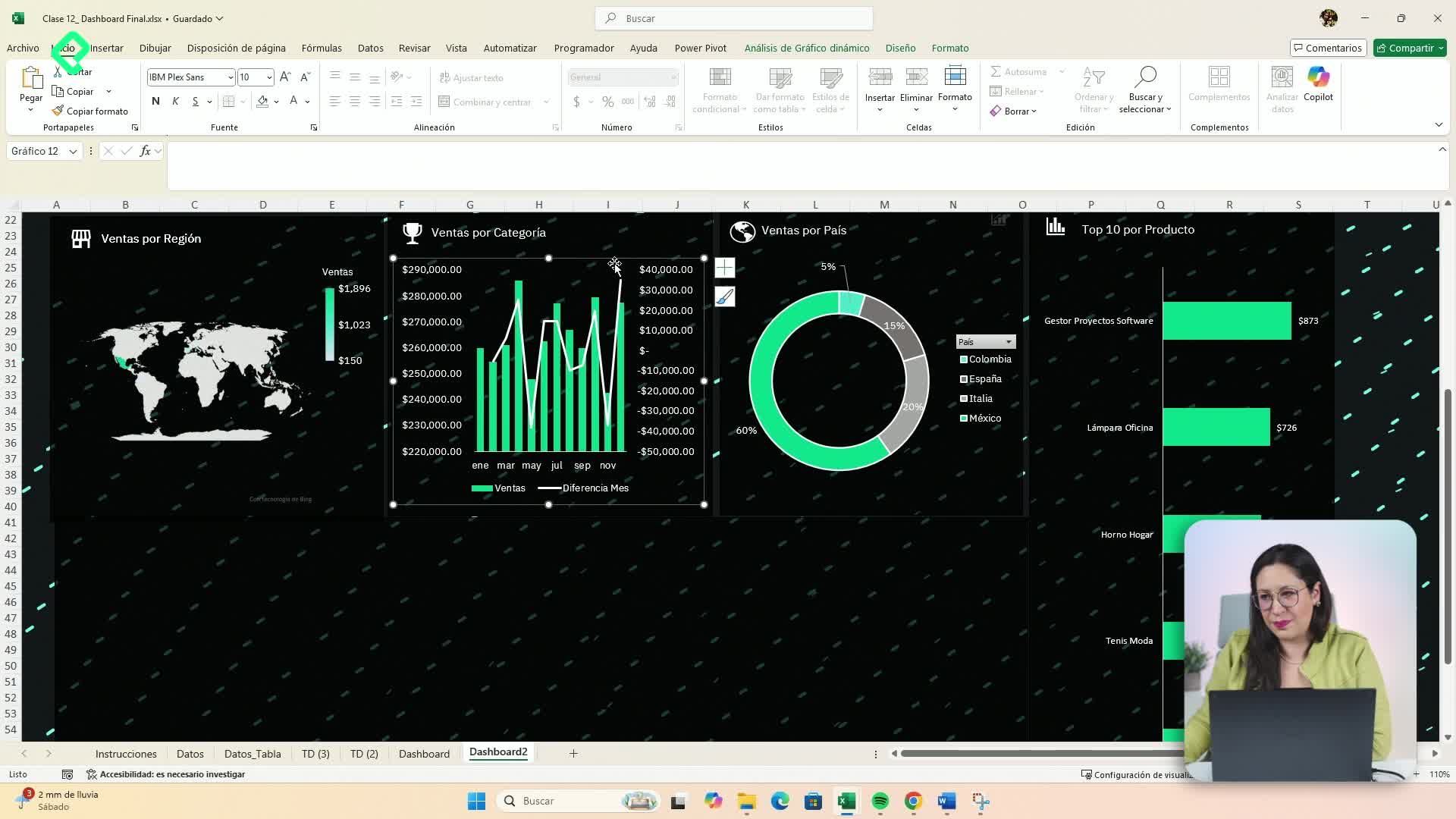
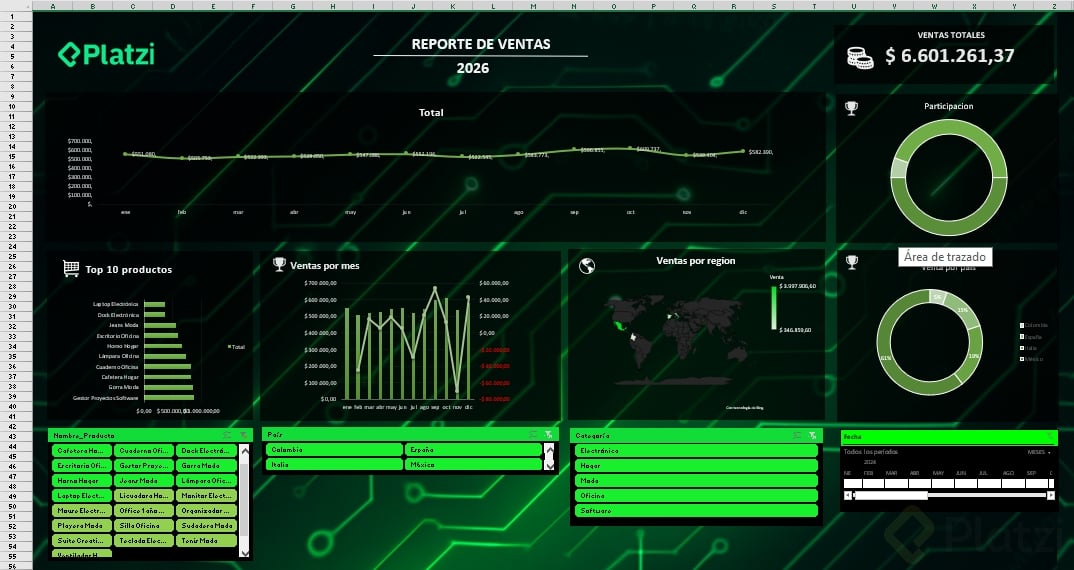
Large background fills repeat across thousands of empty cells, eating memory and slowing the file. To keep your dashboard responsive:
- Click the first empty column to the right of your dashboard, press Ctrl + Shift + Right Arrow, right click and choose Hide.
- Click the first empty row below, press Ctrl + Shift + Down Arrow, right click and choose Hide.
Your working area becomes cleaner, more delimited and noticeably faster, which pairs perfectly with the automatic refresh you just configured.
Which of the three methods fits your workflow better, the manual refresh, the open file trigger, or the macro? Share your case in the comments.