Excel errors can feel like a nightmare, but each one is actually a clue telling you what went wrong. Knowing how to fix Excel errors with functions like IFERROR and IFNA helps you clean up spreadsheets and keep your formulas working, even when data is missing or messy.
What do the most common Excel errors mean?
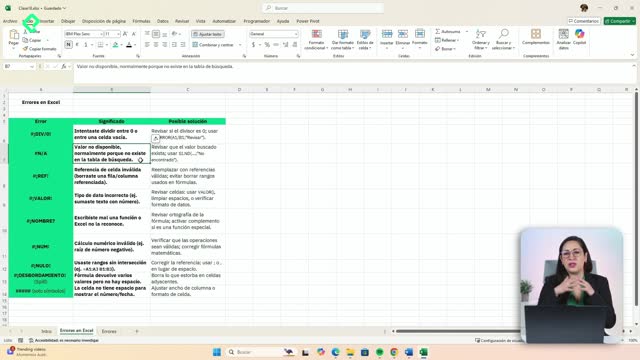
Before patching anything, you need to read what Excel is telling you. Each error code points to a specific issue in your formula or data.
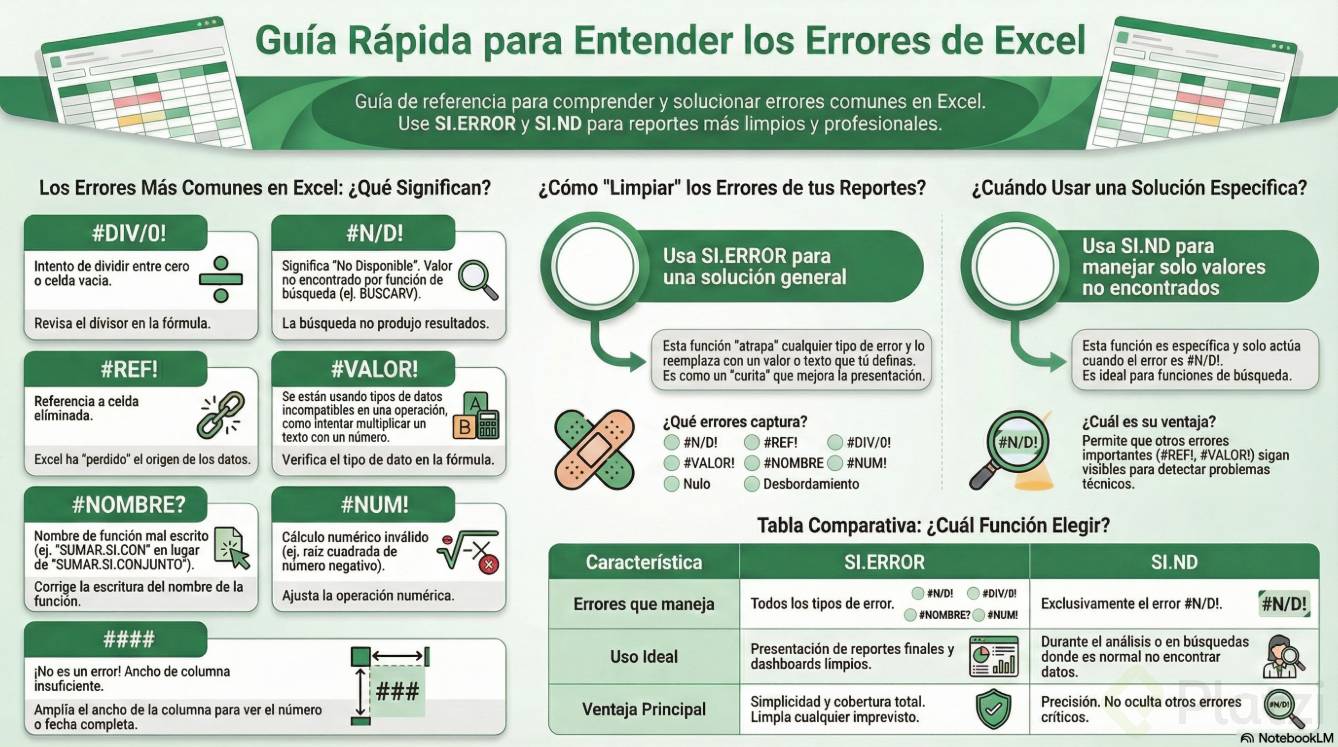
- #DIV/0!: appears when you divide by zero or by an empty cell.
- #N/A: shows up when a value isn't available, often after a VLOOKUP or a conditional match that finds nothing.
- #REF!: triggers when a formula references a cell that was deleted or moved.
- #VALUE!: usually means you're mixing incompatible formats, like multiplying a number by a text string that looks like a number.
- #NAME?: indicates a misspelled function name, for example writing sumarsi con instead of SUMIFS.
- #NUM!: invalid math, such as the square root of a negative number.
- #NULL!: invalid intersections between ranges.
- #SPILL!: a dynamic array formula doesn't have enough room to display its results.
And those scary ##### symbols? Not even an error. The column is just too narrow to show the full number or date.
What does #N/A mean in Excel? It means not available. Excel couldn't find the value you asked for, usually in a lookup function. The data isn't wrong, it just doesn't exist in your reference range.
Why does #NAME? appear when my formula looks right?
Because Excel doesn't recognize the function you typed. Even if the structure and arguments are perfect, a typo in the function name like sumarsi con instead of SUMIFS will return #NAME?. Always double check the spelling.
How do I use IFERROR to handle Excel errors?
The IFERROR function wraps around your main formula and tells Excel what to do if the result is any error. It works with VLOOKUP, SUMIFS, AVERAGEIF, simple sums, anything you've built.
The syntax is straightforward:
=IFERROR(your_formula, value_if_error)
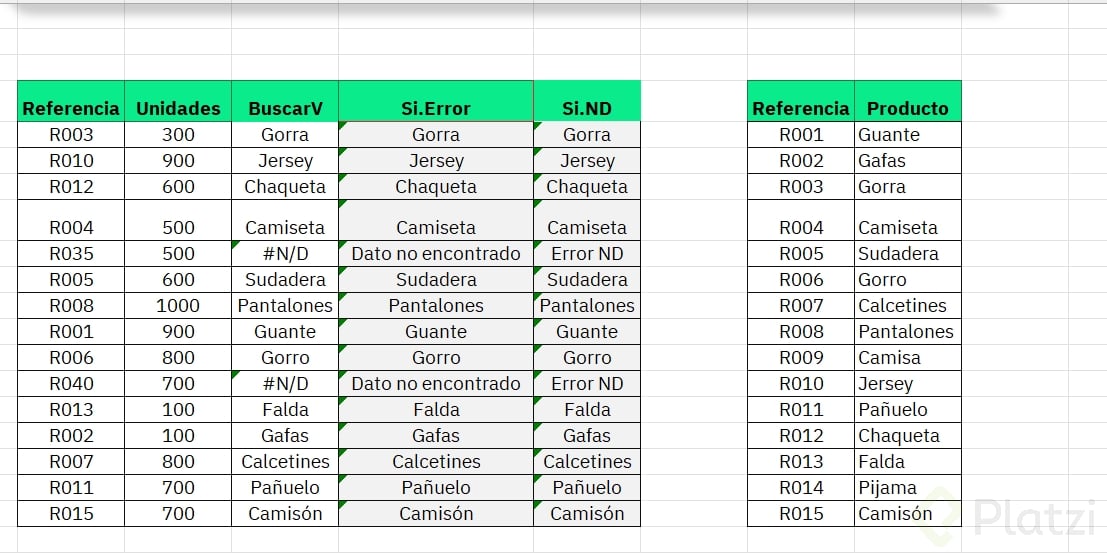
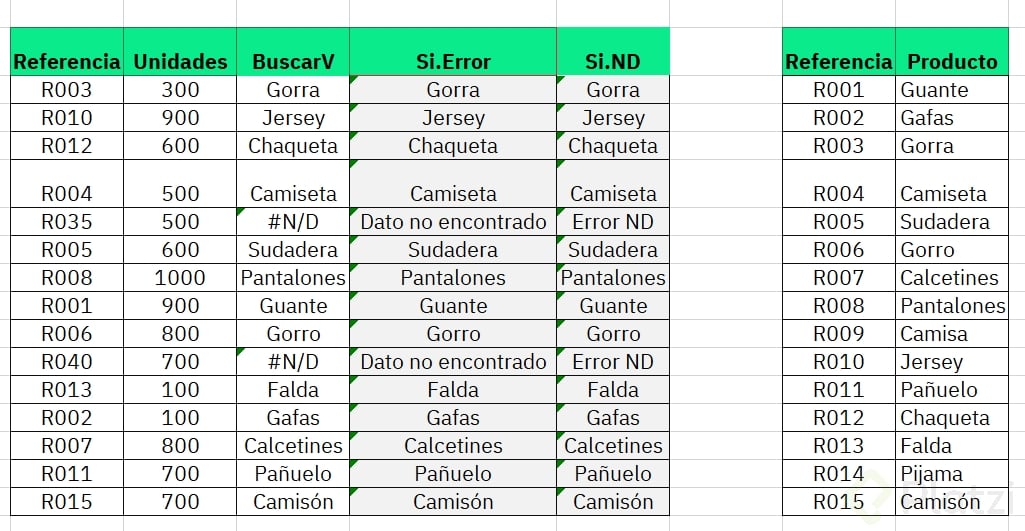
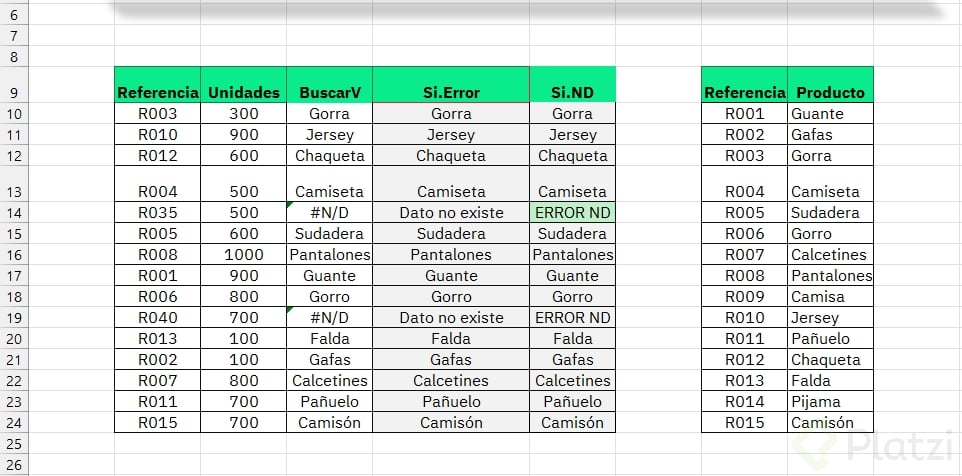
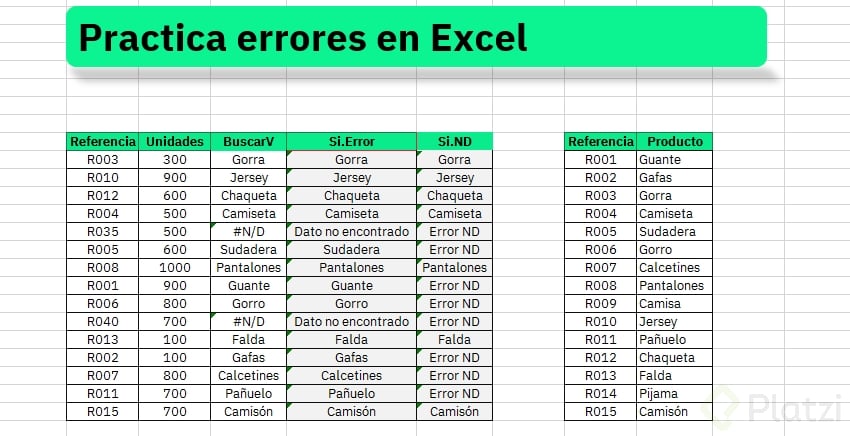
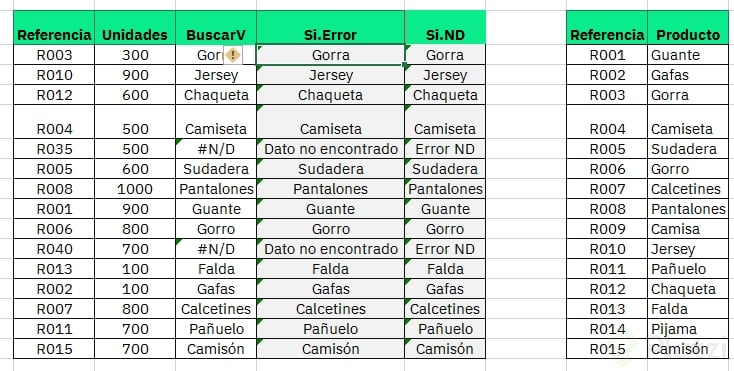
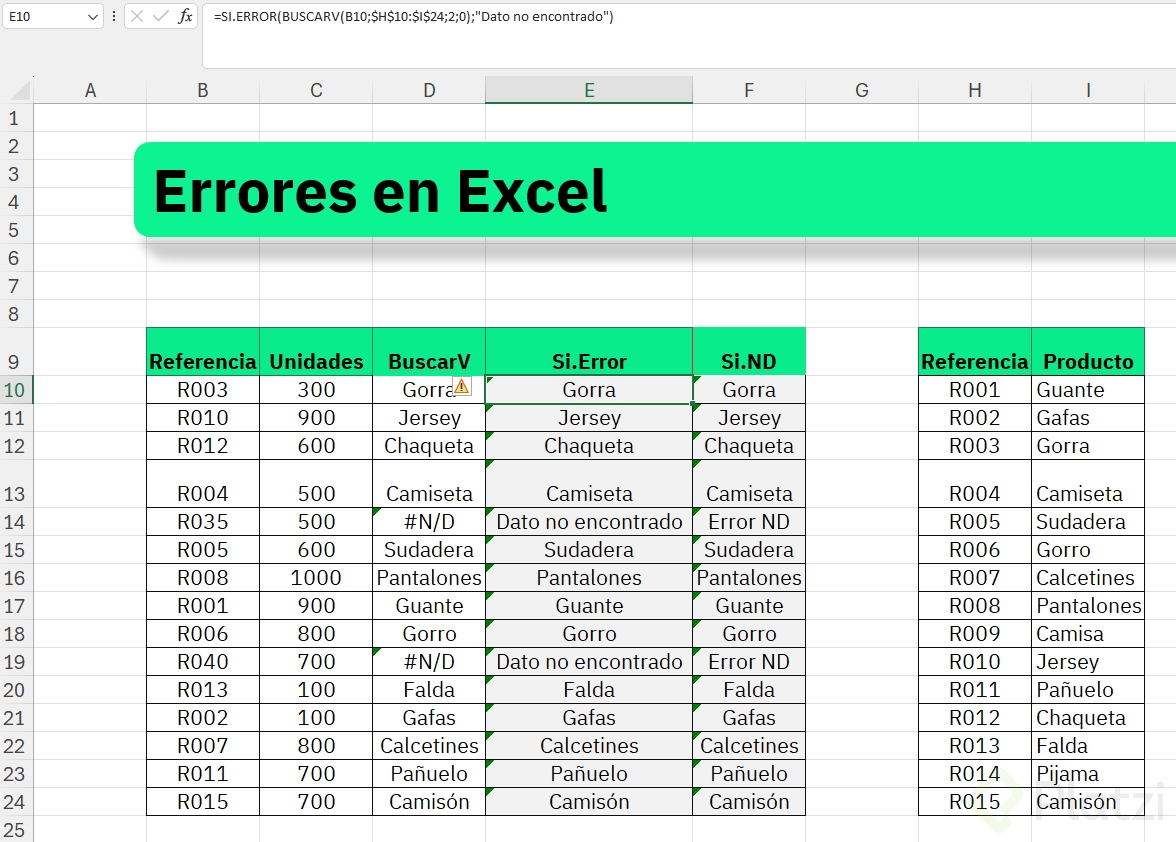
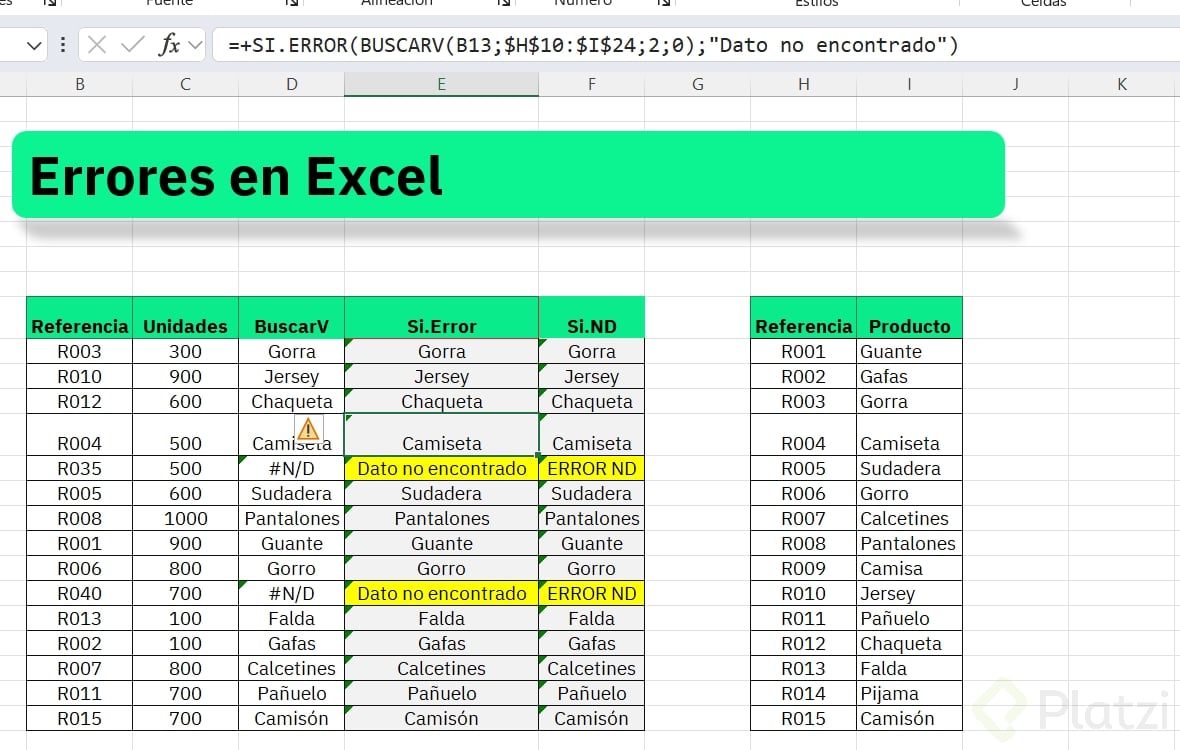
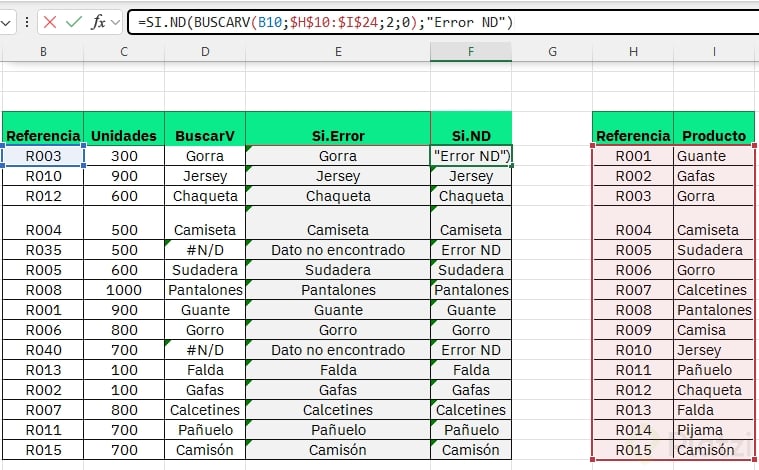
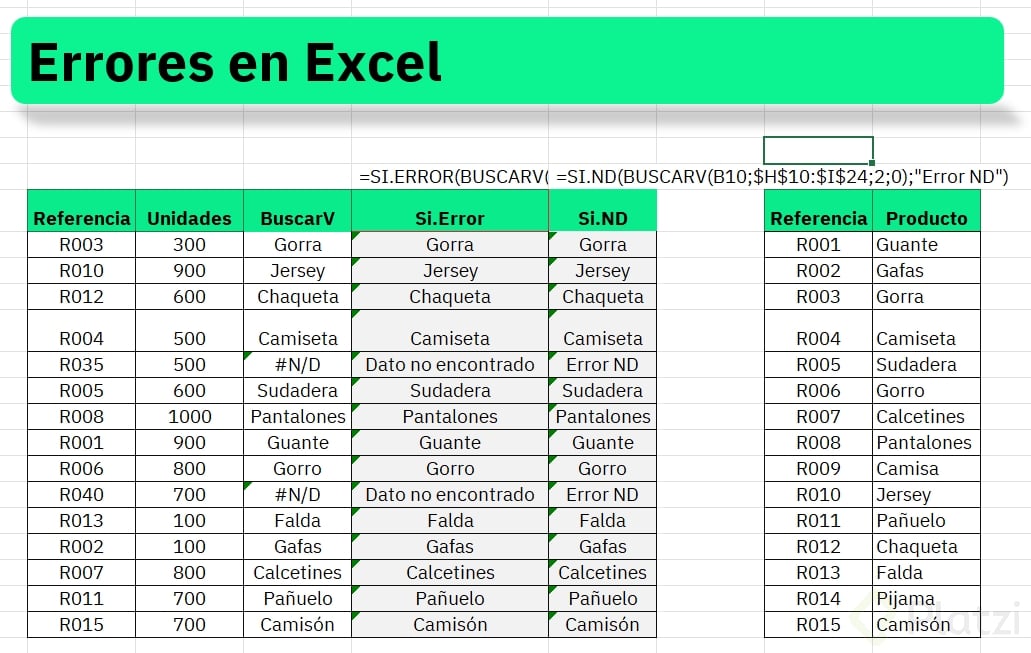
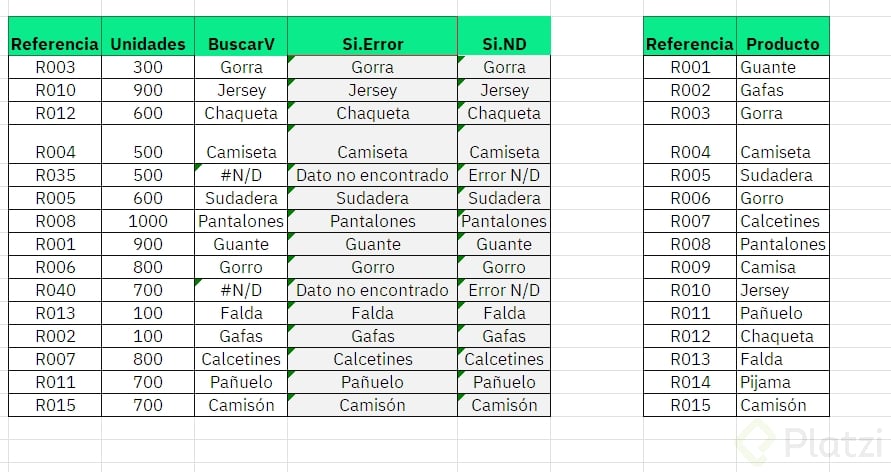
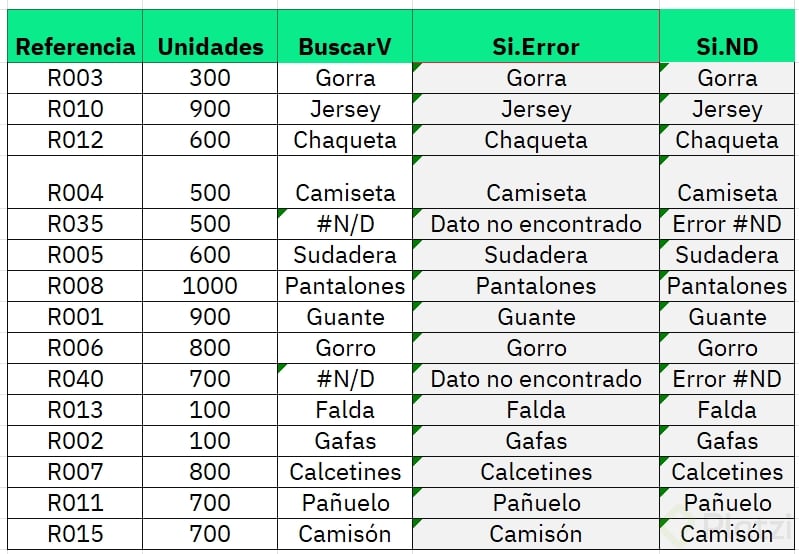
Imagine you're running a VLOOKUP to find product code R035, but it doesn't exist in your table. Excel returns #N/A. To replace that with something cleaner, you wrap it like this:
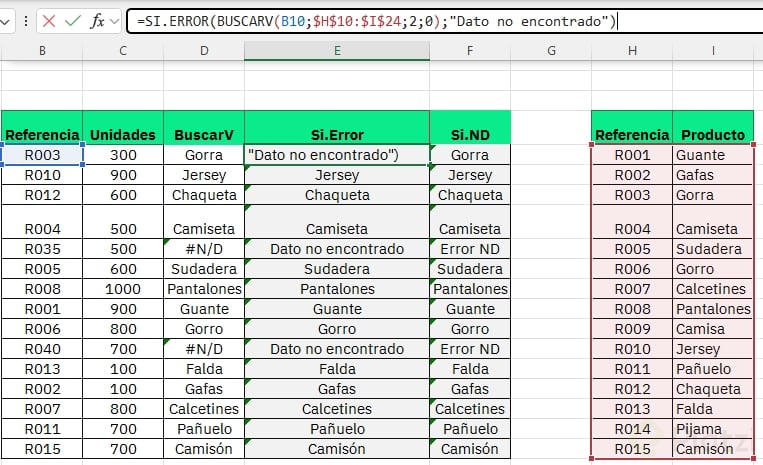
=IFERROR(VLOOKUP(F4, table, 2, 0), "data not found")
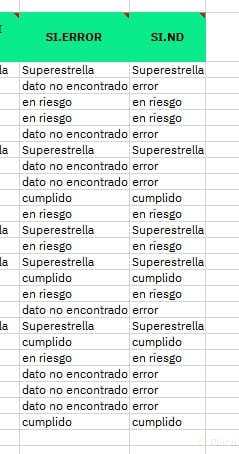
Now every missing match shows data not found instead of a noisy error. And here's the flexible part: the second argument doesn't have to be text. You can put another calculation there, like multiplying inventory by 20, and Excel will run that fallback whenever the main formula fails.
Does IFERROR fix every type of Excel error? Yes. IFERROR catches #DIV/0!, #N/A, #REF!, #VALUE!, #NAME?, #NUM!, #NULL! and #SPILL!. Any error your formula throws gets replaced with the value you define.
When should I use IFNA instead of IFERROR?
IFNA is the surgical version of IFERROR. It only catches one specific error: #N/A. Every other error code passes right through and stays visible.
The structure mirrors IFERROR:
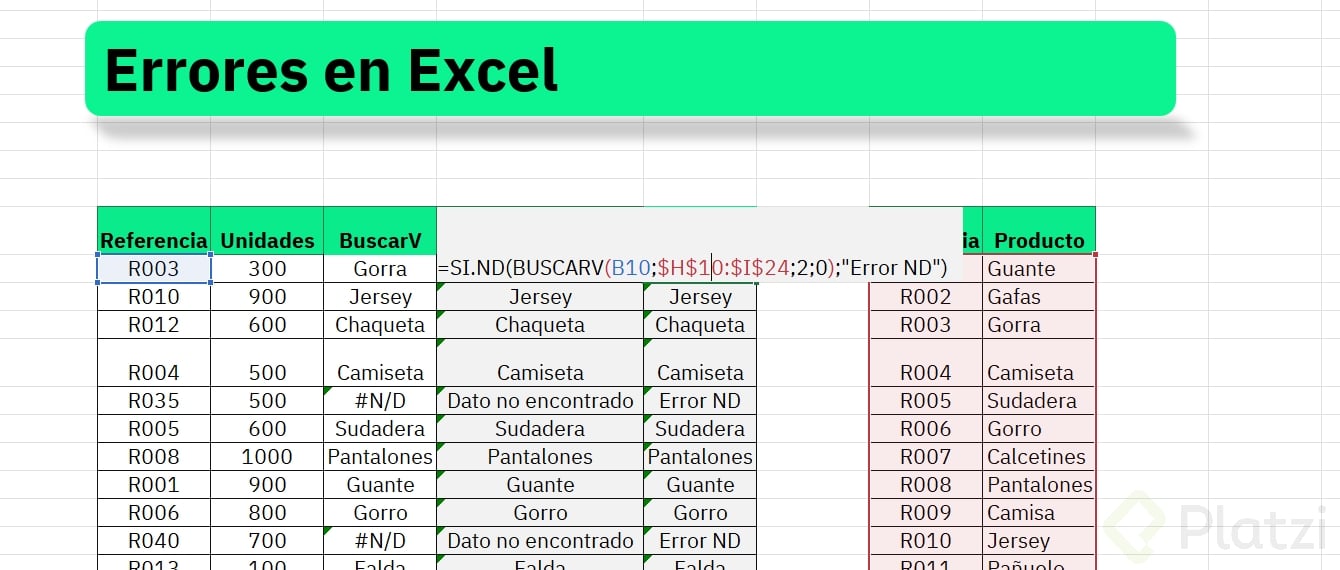
=IFNA(VLOOKUP(F4, table, 2, 0), "#N/A error")
Use IFNA when you want to mask missing lookups but still see other errors like #REF! or #VALUE!, because those usually signal something broken that you actually need to fix. IFERROR hides everything; IFNA filters with intention.
What's the real difference between IFERROR and IFNA?
IFERROR is the broad safety net. It treats every error the same way and replaces it with your fallback value. IFNA is targeted and only steps in when a lookup returns not available. If your spreadsheet has multiple potential issues and you want to debug them, IFNA keeps the other errors visible so you can spot them.
Are IFERROR and IFNA actually fixing the problem?
No, and this is the part most people miss. These functions are like a bandaid: they make the sheet look cleaner, but the underlying issue is still there.
Sometimes that's exactly what you want. A division by zero in an inventory column might be expected behavior, and showing data not found reads better than a cell full of #DIV/0!. But if the error signals real broken logic, like a deleted reference or a misspelled function, you need to go fix the source. IFERROR and IFNA are tools to handle known, acceptable errors gracefully, not to hide problems you haven't diagnosed yet.
Which Excel error gives you the most trouble in your daily work? Share it in the comments and let's troubleshoot together.