Advanced IF functions in Excel let you classify data, assign categories, and trigger calculations based on multiple conditions. If you work with sales targets, commissions, or performance tiers, mastering IFS, nested IF, IF with AND, and IF with OR will help you turn raw numbers into clear business rules without manual filtering.
What is the IFS function and when should you use it in Excel?
The IFS function evaluates several logical tests in order and returns the value linked to the first one that is true. You use it when you need to classify data into more than two categories at once.
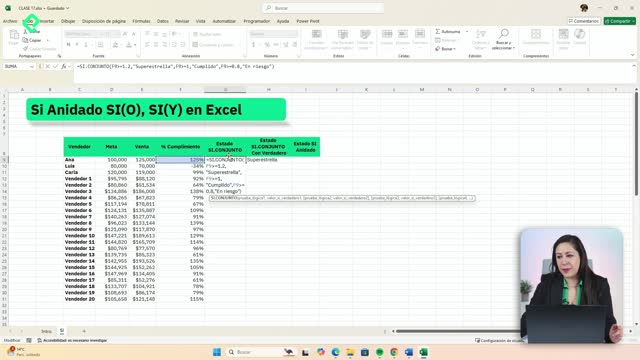
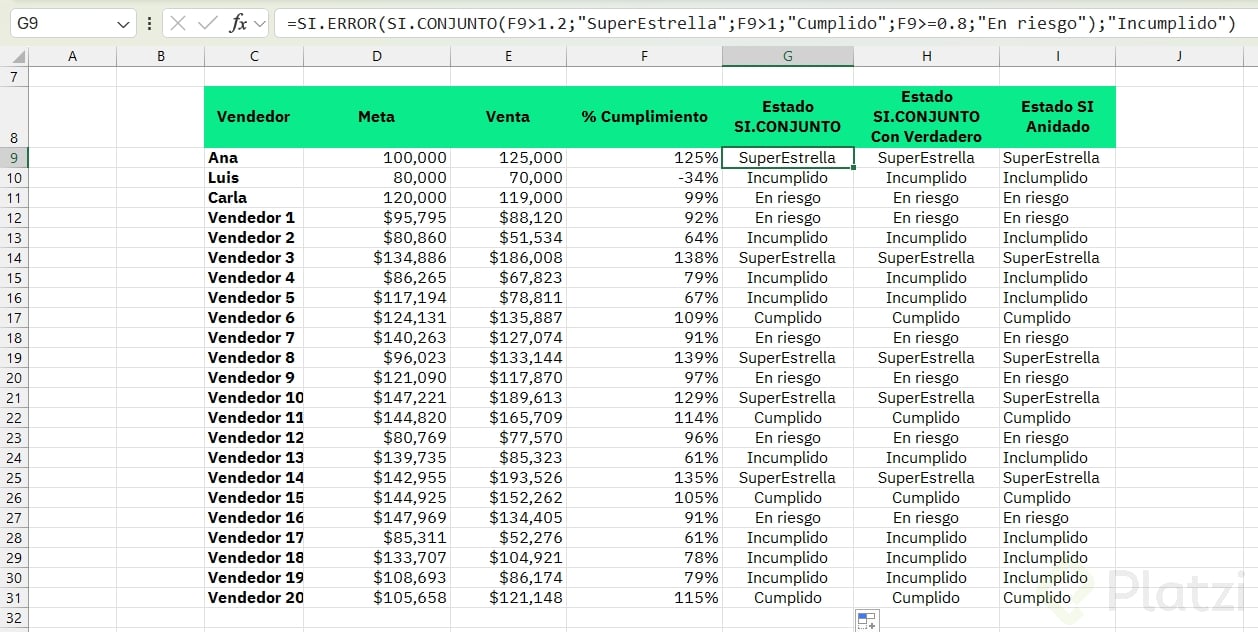
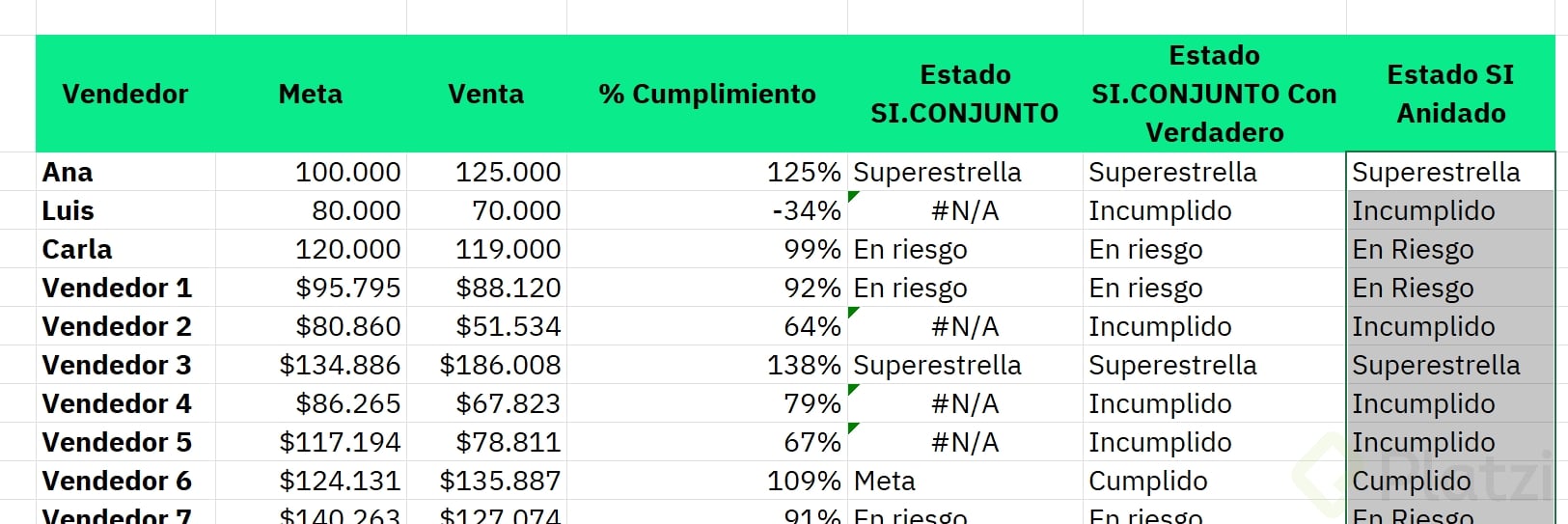
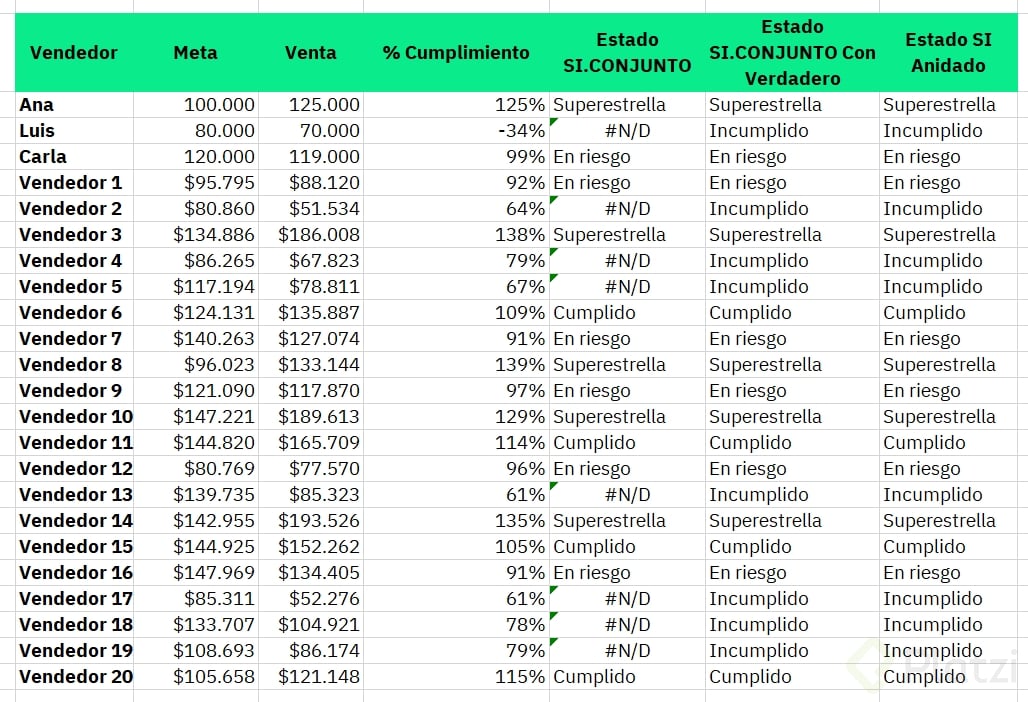
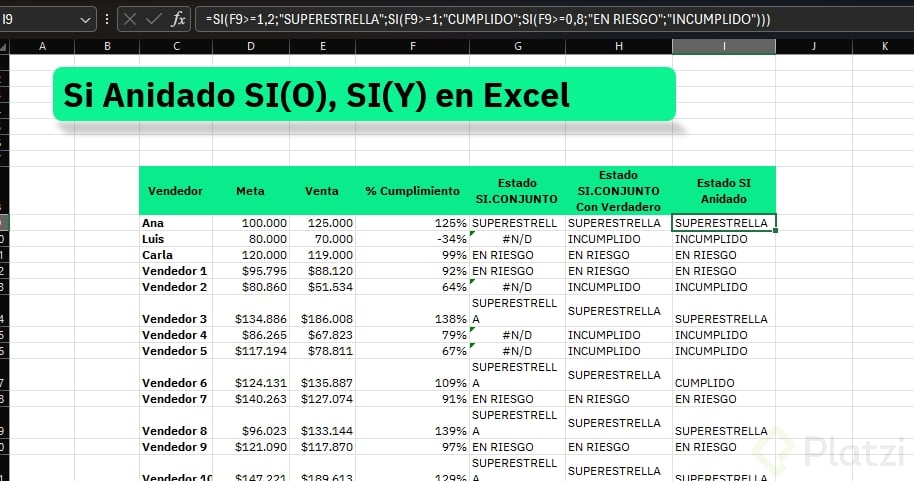
Imagine a sales table where you want to label each rep based on goal completion. The rule is simple:
- Above 120% of the goal: superestrella.
- Above 100%: cumplido.
- Above 80%: en riesgo.
The formula looks like this: =SI.CONJUNTO(celda>=1.2,"superestrella",celda>=1,"cumplido",celda>=0.8,"en riesgo"). Excel checks each logical test from left to right and stops at the first match. That is why the order of conditions matters: if you put the lowest threshold first, every record above 80% would be tagged as en riesgo and never reach superestrella.
What does a logical test mean in Excel? It is a comparison using signs like >, <, >=, <=, = or <>. Excel returns TRUE or FALSE, and the IF family uses that result to decide which value to show.
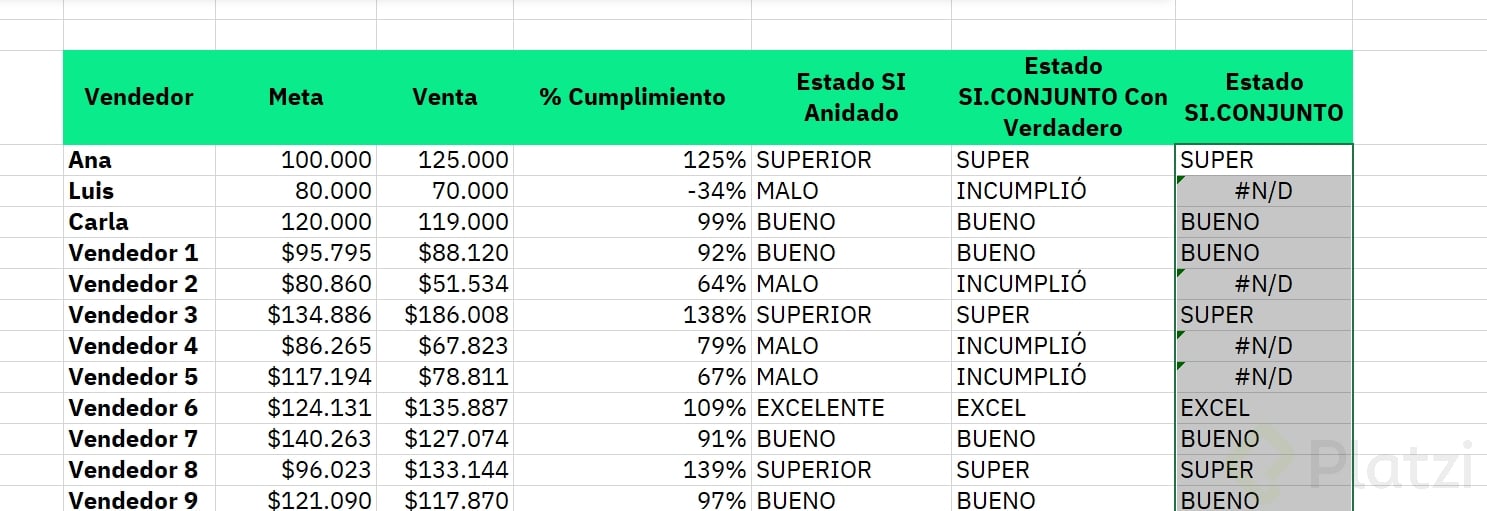
Why does IFS return ND and how do you fix it?
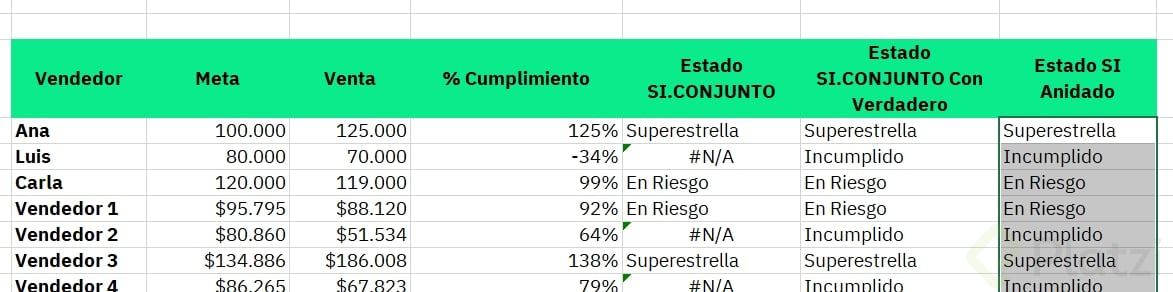
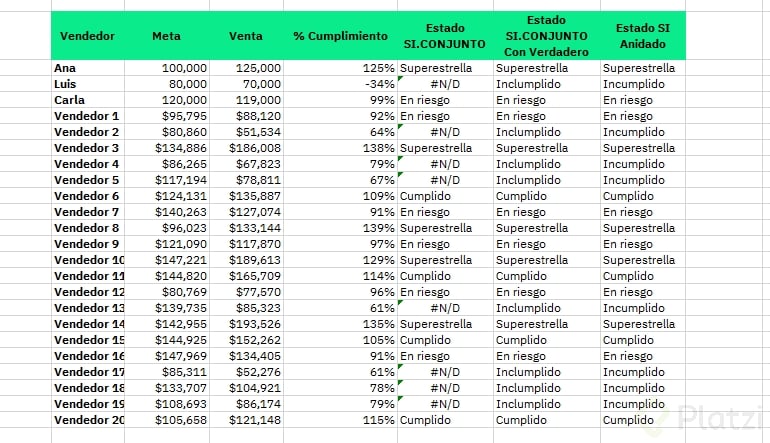
When a value falls outside every condition, like a rep at 79% or 67%, IFS returns the error #N/D because no test was satisfied. There are two clean ways to handle this.
The first is to add a final catch-all condition using VERDADERO (TRUE) at the end of the formula, paired with the text or calculation you want as default, for example incumplido. The second is to wrap the formula inside an error handler. Both approaches keep the spreadsheet readable and prevent broken dashboards.
A useful detail: the value you return does not have to be text. You can return a calculation, like multiplying the sales amount by a commission rate, lowering the goal by 10%, or any operation that fits the business rule.
How does a nested IF work and when is it better than IFS?
A nested IF places one IF inside another to evaluate multiple conditions sequentially. It does the same job as IFS, but it exists in every version of Excel, including older ones where IFS may not be available.
Using the same sales scenario, the nested version reads: =SI(celda>=1.2,"superestrella",SI(celda>=1,"cumplido",SI(celda>=0.8,"en riesgo","incumplido"))). Each parenthesis opens a new layer, and Excel uses different colors (purple, red, black) to help you track them. Close every parenthesis until you return to the outer black one to avoid syntax errors.
The practical rule: if you have up to three conditions, a nested IF stays manageable. Beyond that, IFS is shorter, cleaner, and easier to audit.
IFS vs nested IF: which one should I use? Use IFS when you have many conditions or a recent Excel version. Use nested IF when you have three or fewer cases or need backward compatibility.
How do you combine IF with AND and IF with OR for multiple conditions?
These combinations let you evaluate several criteria inside a single logical test, so you can model real business rules like commissions, bonuses, or eligibility.
IF with AND: all conditions must be true
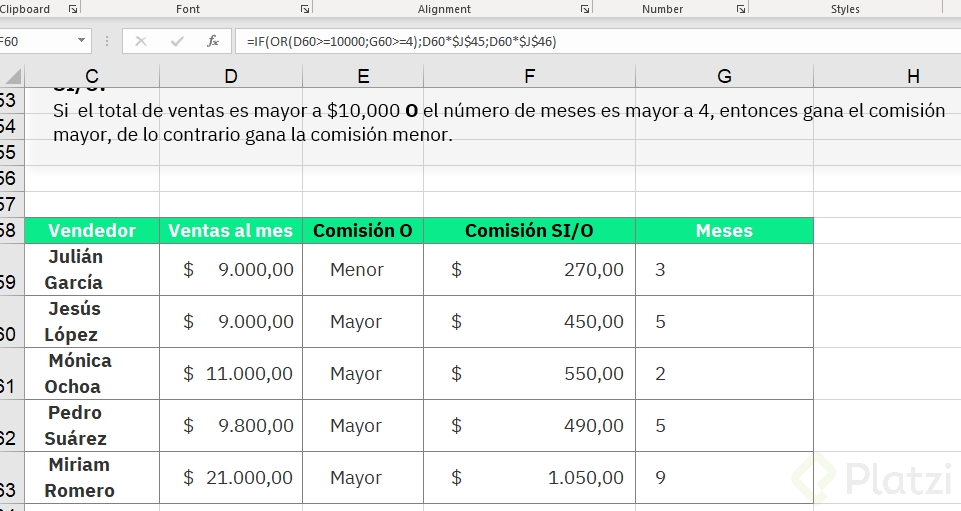
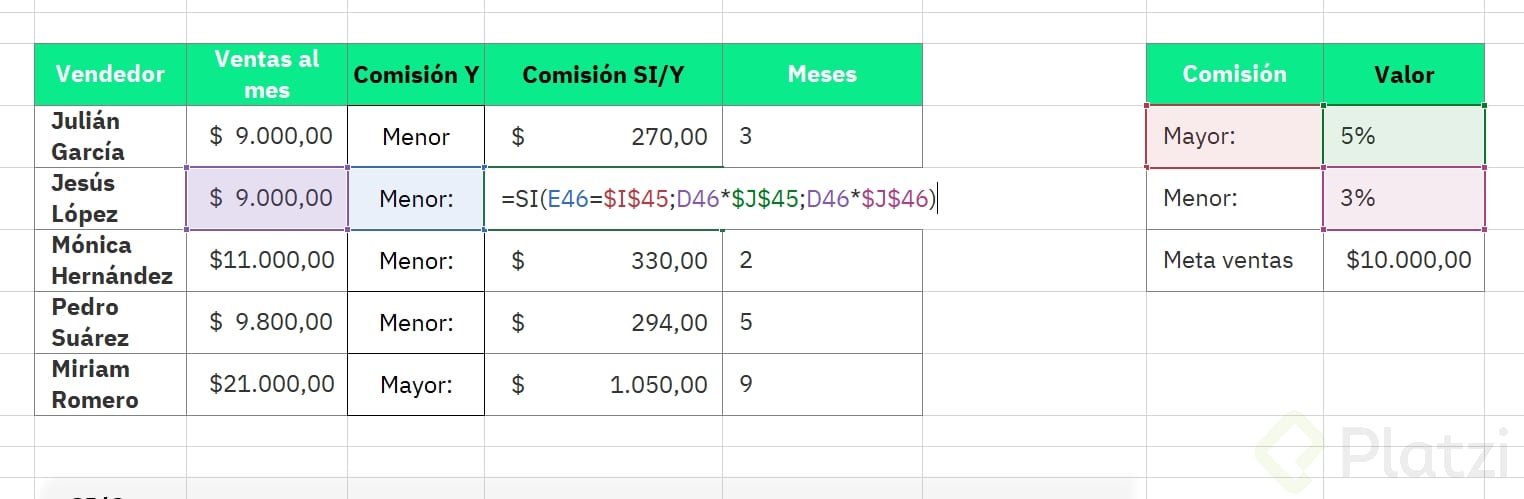
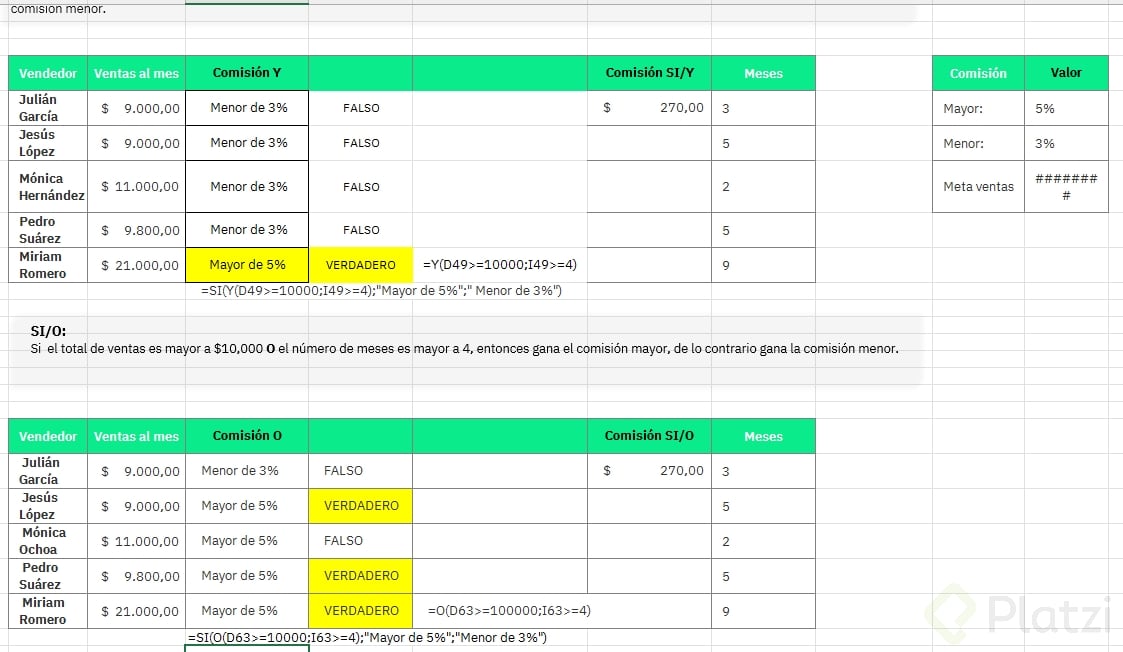
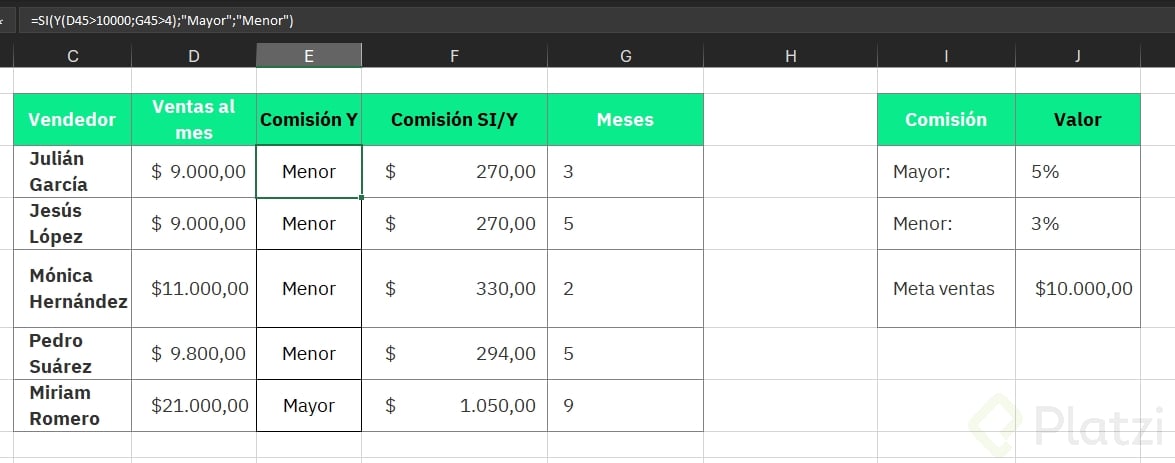
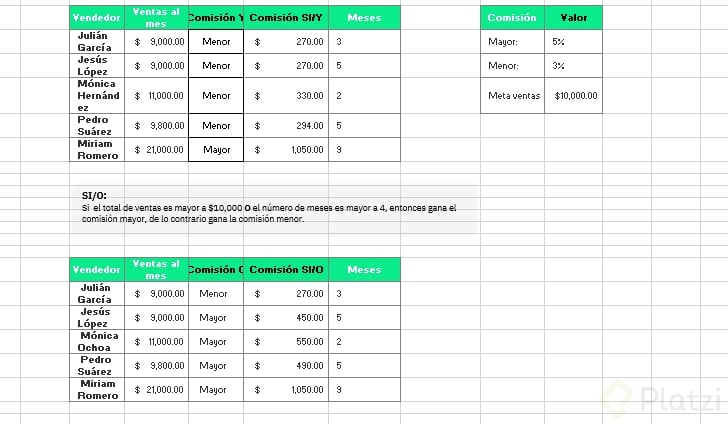
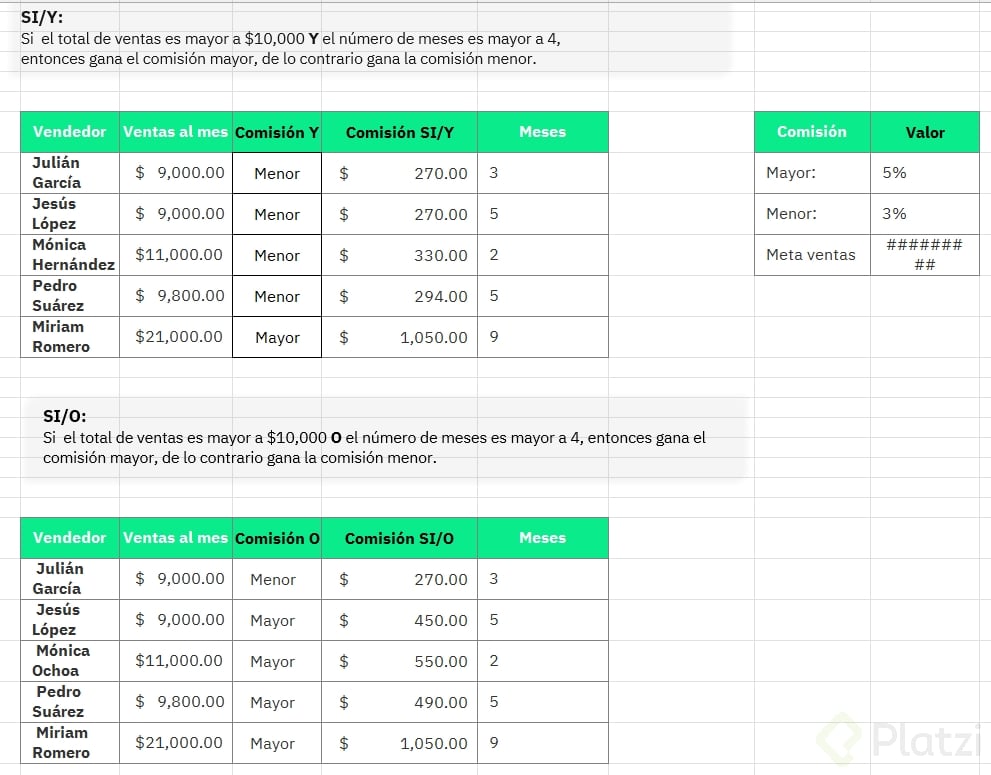
You use IF with AND (Y in Spanish Excel) when every condition must be satisfied at the same time. Example: assign a higher commission only if the sales amount is greater than 10,000 and the rep has been in the company more than 4 months.
The formula is =SI(Y(ventas>=10000,meses>=4),"comisión mayor","comisión menor"). If even one condition fails, the result drops to comisión menor. Instead of returning a label, you can return the actual calculation, multiplying the sales amount by the higher or lower commission rate. Remember to fix the commission cells with absolute references so the formula works when you drag it down.
IF with OR: just one condition needs to be true
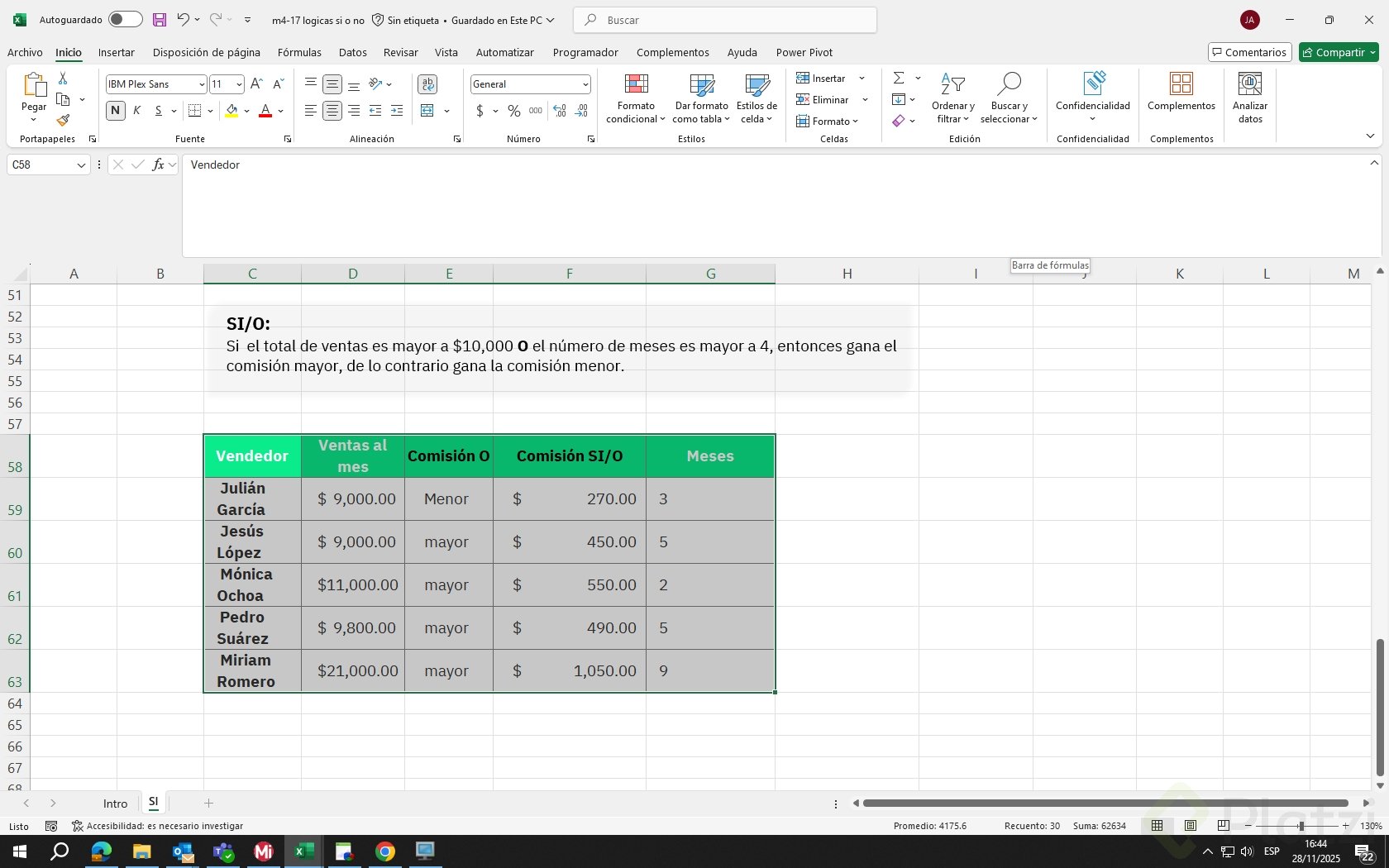
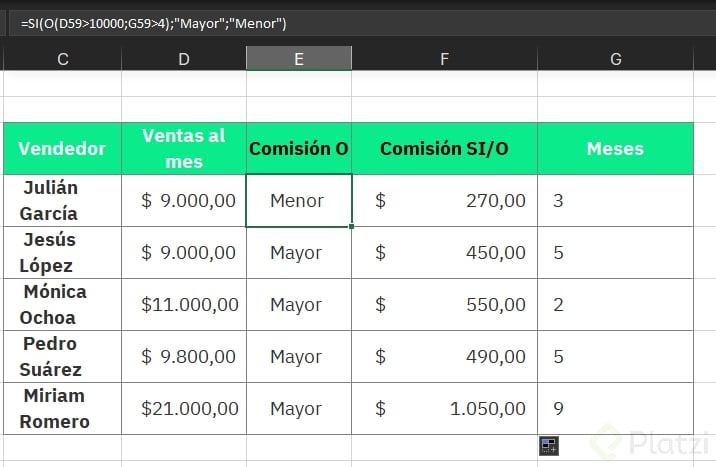
You use IF with OR (O in Spanish Excel, or in English) when meeting any single condition is enough. Same scenario, but now the rep gets the higher commission if sales exceed 10,000 or tenure exceeds 4 months.
The structure mirrors the previous one: =SI(O(ventas>=10000,meses>=4),"comisión mayor","comisión menor"). The only change is replacing Y with O. The impact on results is significant: with AND, very few reps qualify; with OR, many more reach the higher commission tier.
What is the difference between AND and OR in Excel IF formulas? AND requires all conditions to be true at the same time. OR returns true if at least one condition is met. Choose based on how strict your business rule needs to be.
Key skills, concepts and data points from the lesson
- Logical test [00:50]: comparison using
>, <, >=, <=, = that returns TRUE or FALSE.
- IFS / SI.CONJUNTO [01:10]: evaluates multiple conditions in order and returns the first match.
- Performance thresholds [00:30]: 120% (superestrella), 100% (cumplido), 80% (en riesgo).
- #N/D error handling [02:40]: use
VERDADERO as a final catch-all to assign a default value.
- Nested IF [04:20]: alternative to IFS, ideal for up to three conditions and older Excel versions.
- IF with AND [06:10]: triggers a result only when all conditions are met, useful for strict commissions.
- IF with OR [08:30]: triggers a result if any condition is met, useful for flexible bonus rules.
- Absolute references [07:50]: fix commission rate cells so formulas drag correctly across rows.
Which of these functions do you use the most in your spreadsheets? Share your use case in the comments and let me know which scenario you would like to see solved next.