Working with spreadsheets that have 100 columns or 100 rows turns manual counting into a nightmare. The MATCH function in Excel solves that problem by returning the exact position of a value inside a row or column, so your lookup formulas stay dynamic no matter how big your dataset grows.
If you build dashboards or recurring reports, pairing MATCH with INDEX or VLOOKUP gives you the flexibility to change criteria on the fly without rewriting formulas. Let's break down how it works and where it shines.
What does the MATCH function actually do?
MATCH returns the numerical position of a value inside a range. Instead of you counting columns one by one, MATCH does it for you.
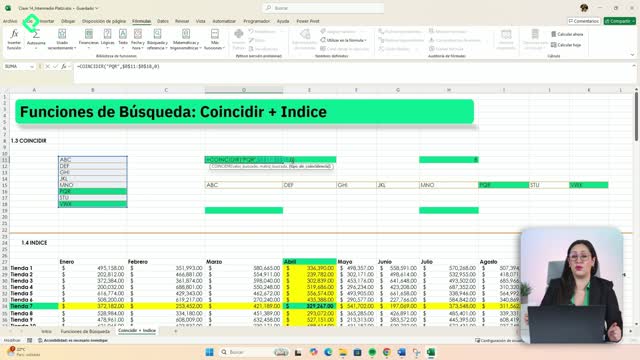
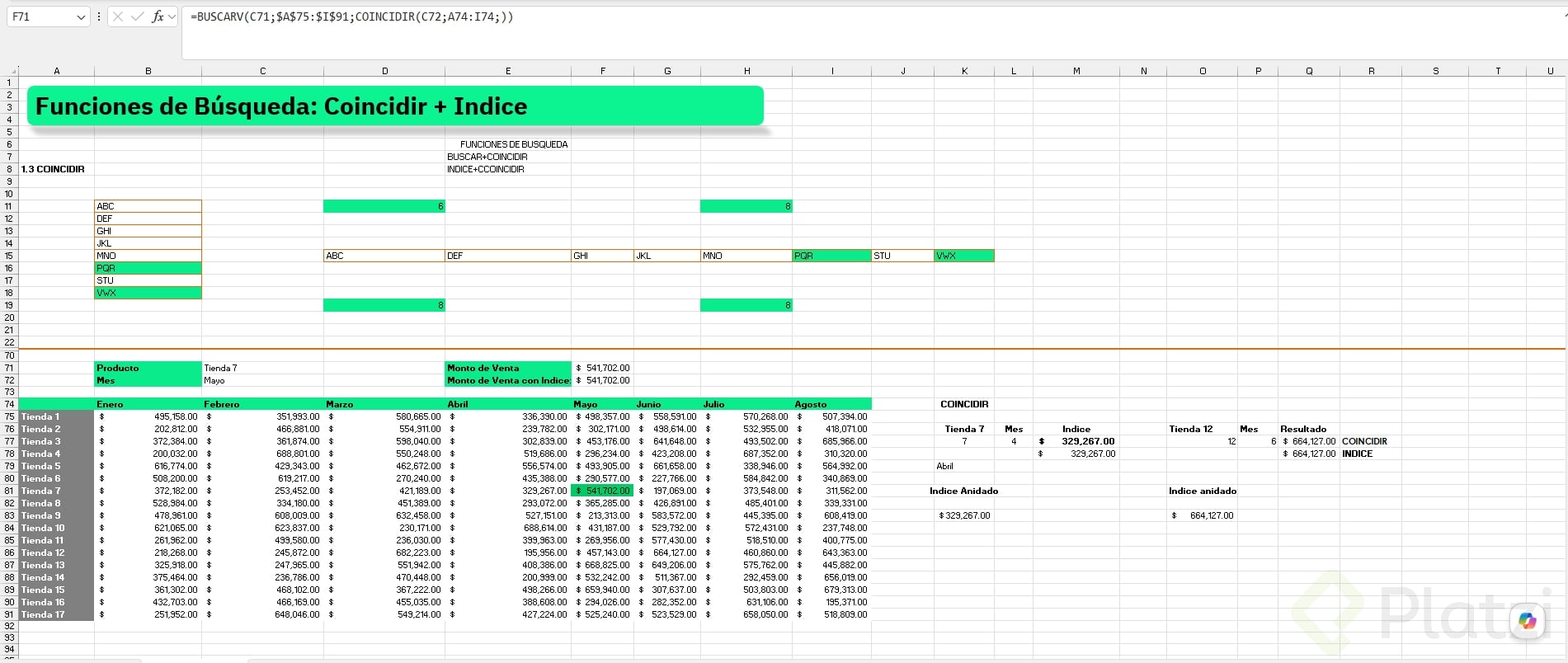
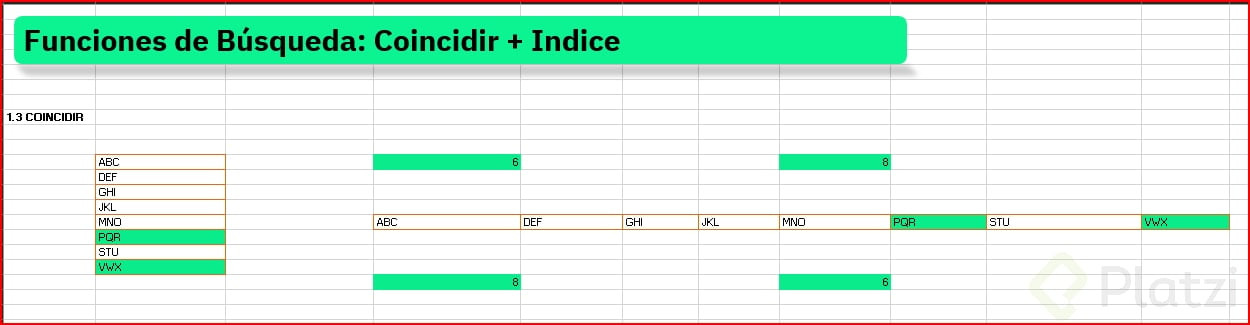
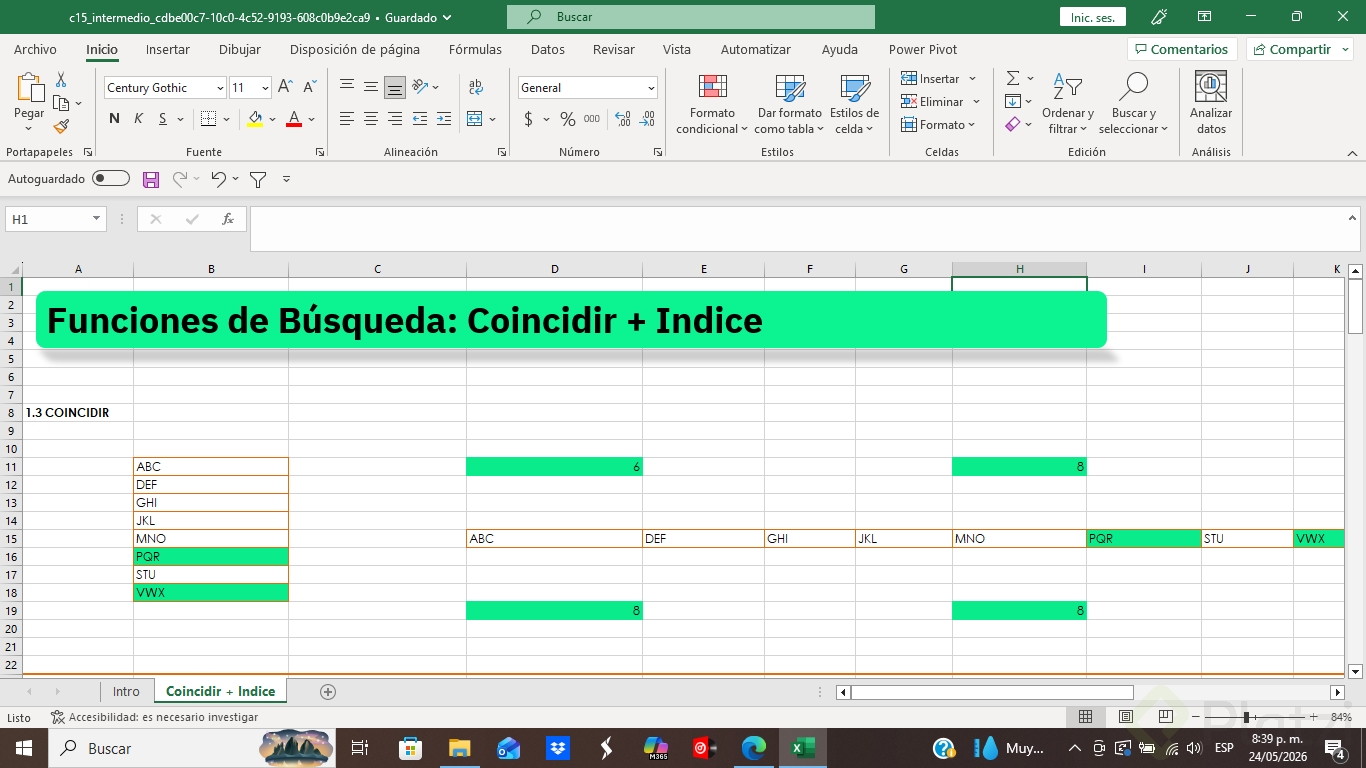
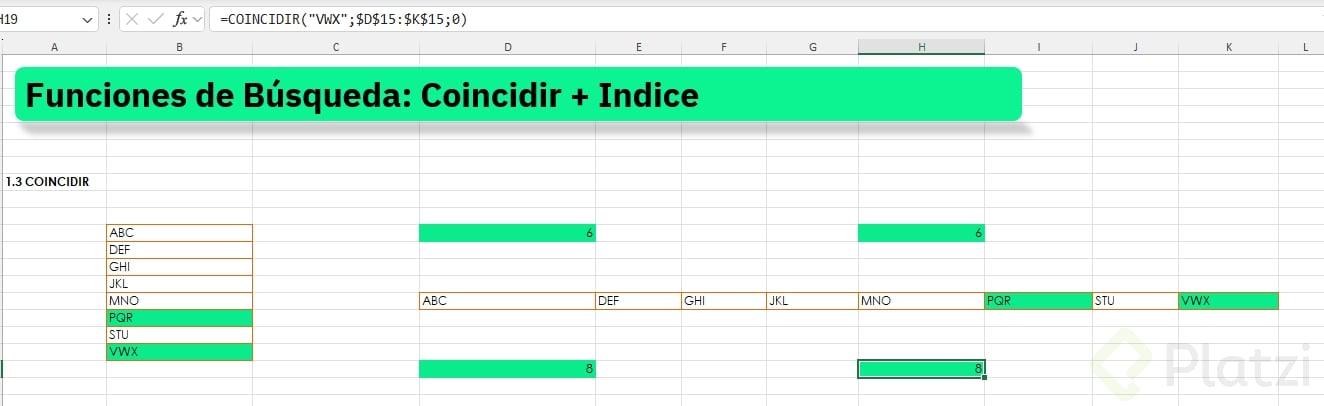
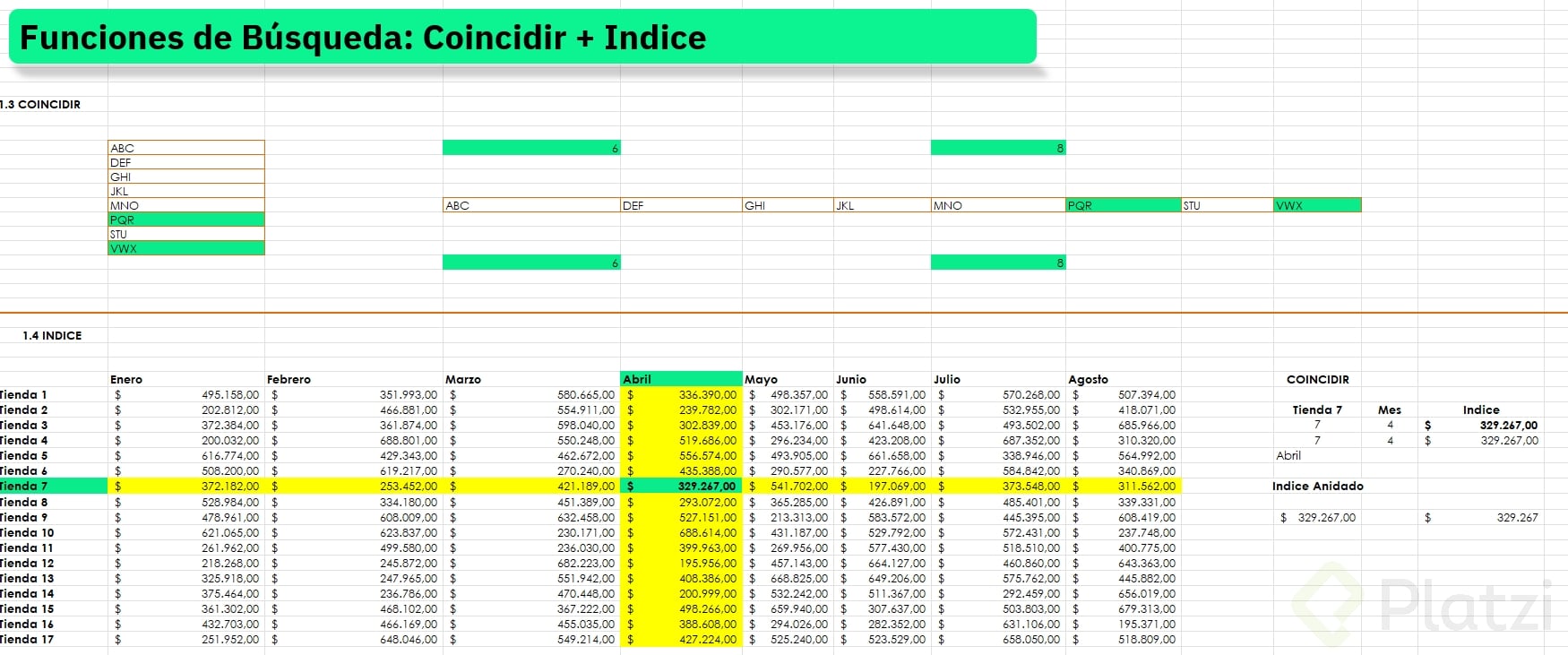
Imagine you're searching for the header PQR across a horizontal list of columns. You write =MATCH("PQR", range, 0) where the zero forces an exact match, and Excel returns 6 because PQR sits in the sixth position. The same logic applies vertically: searching for WX down a column returns its row number, in this case 8.
What is the MATCH function in Excel? It's a lookup function that returns the position number of a value inside a row or column. You use it with 0 as the third argument to force an exact match.
MATCH rarely works alone. Its real power shows up when you nest it inside another lookup function to replace that hardcoded column or row number you'd normally type by hand.
How do I combine INDEX and MATCH for a two way lookup?
INDEX needs three pieces of information: the matrix where your data lives, a row number, and a column number. Think of it like chess coordinates, you need both axes to land on the right cell.
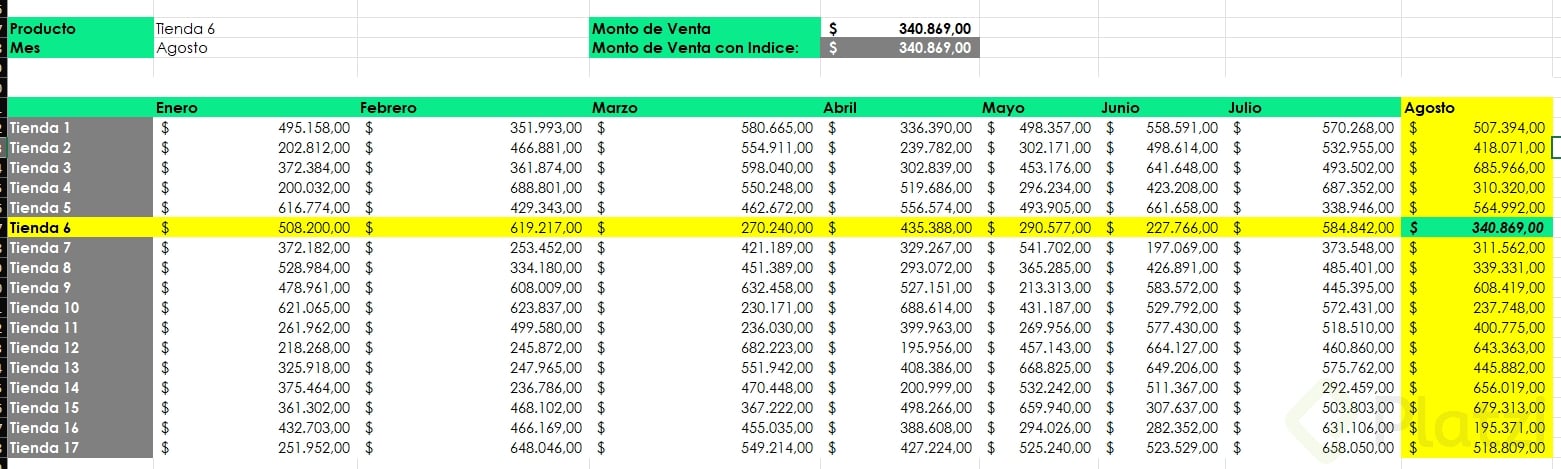
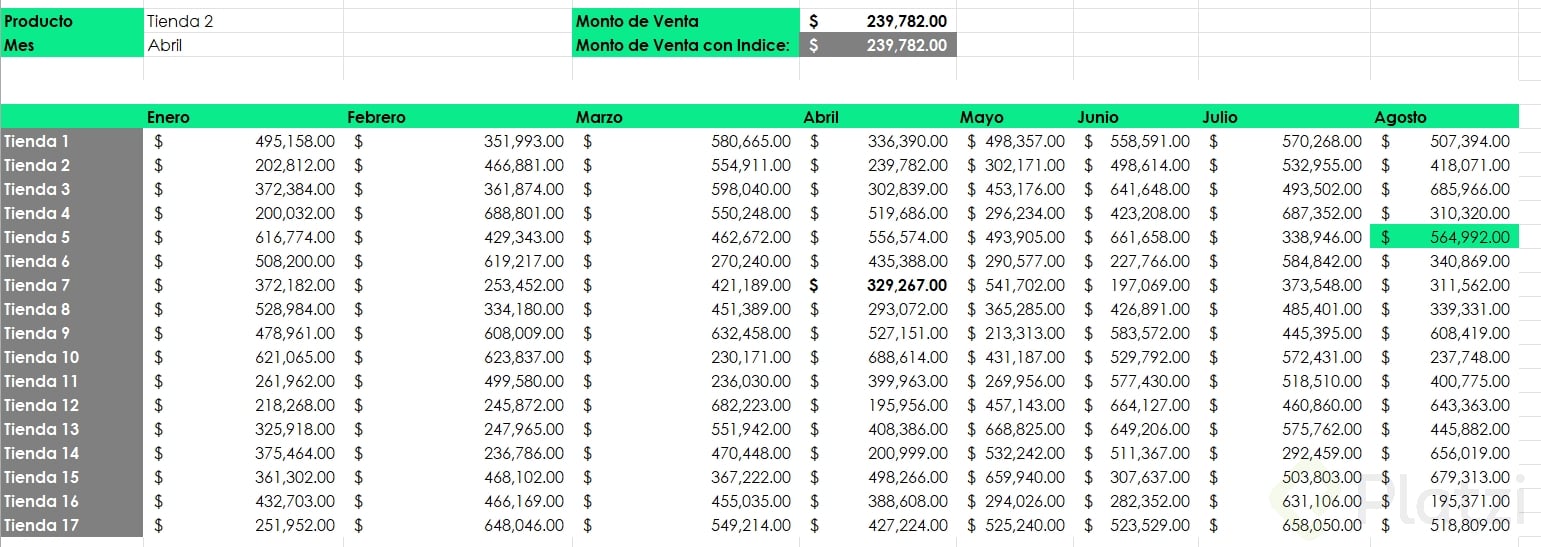
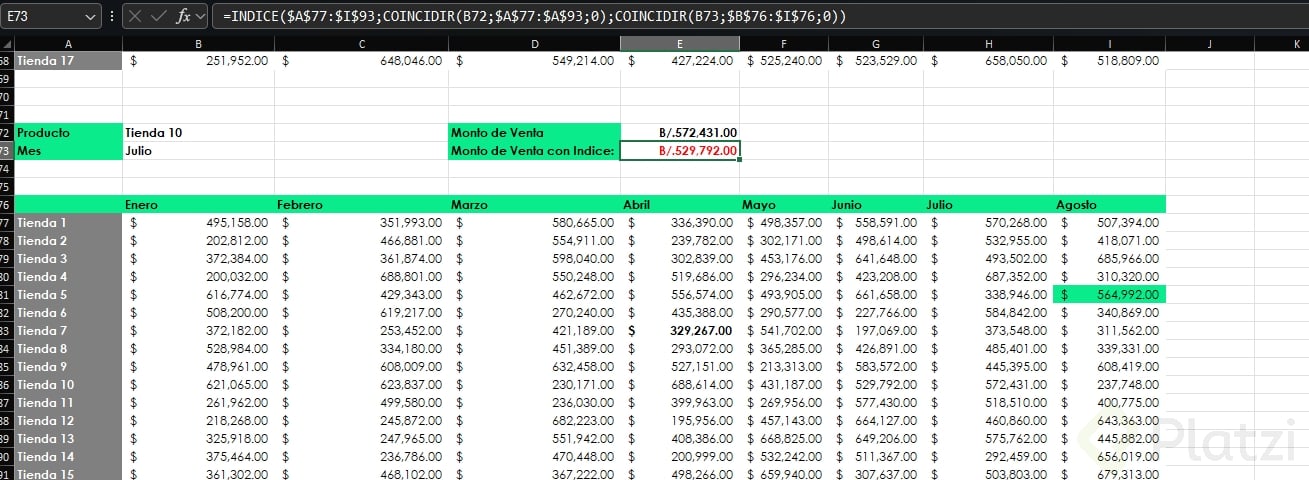
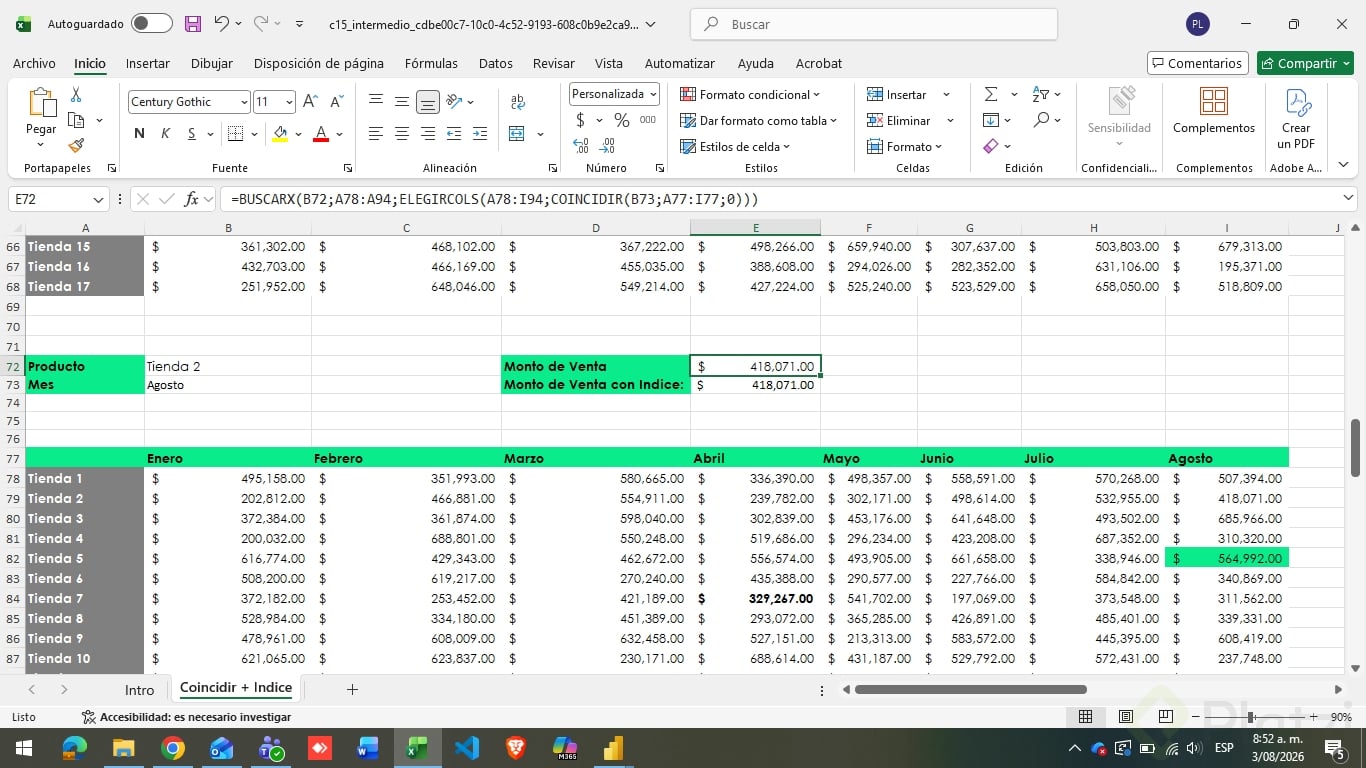
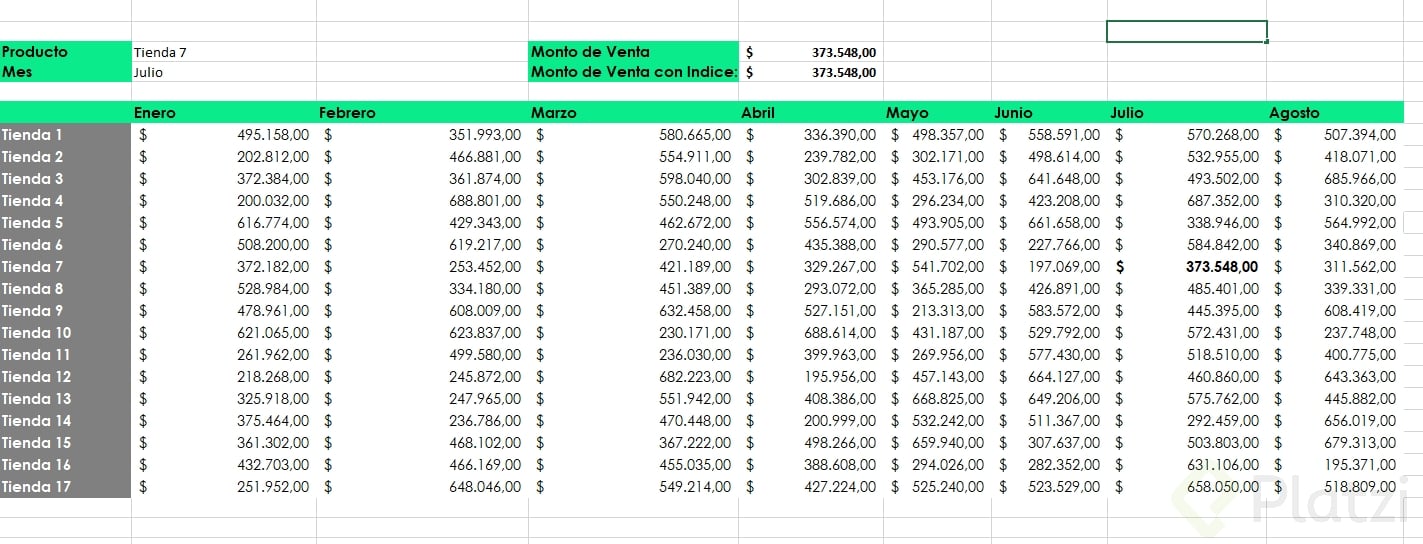
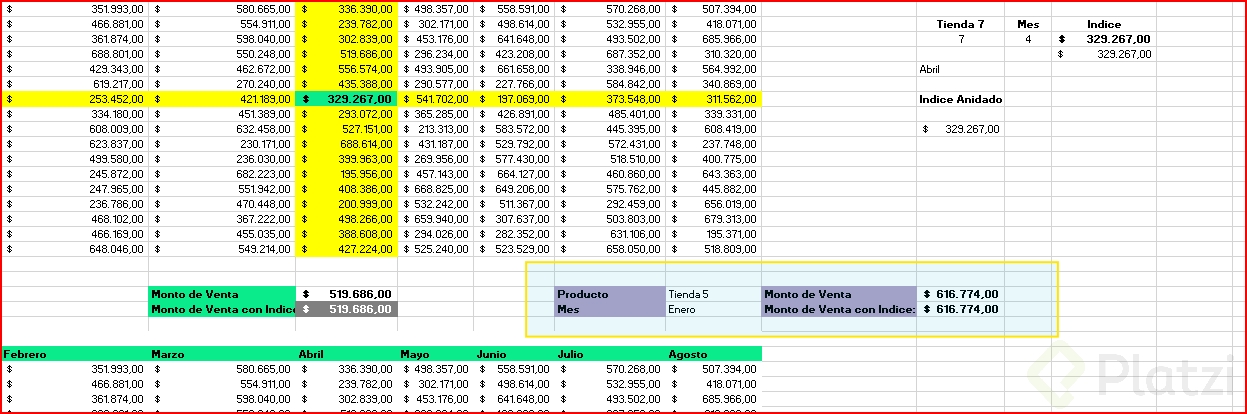
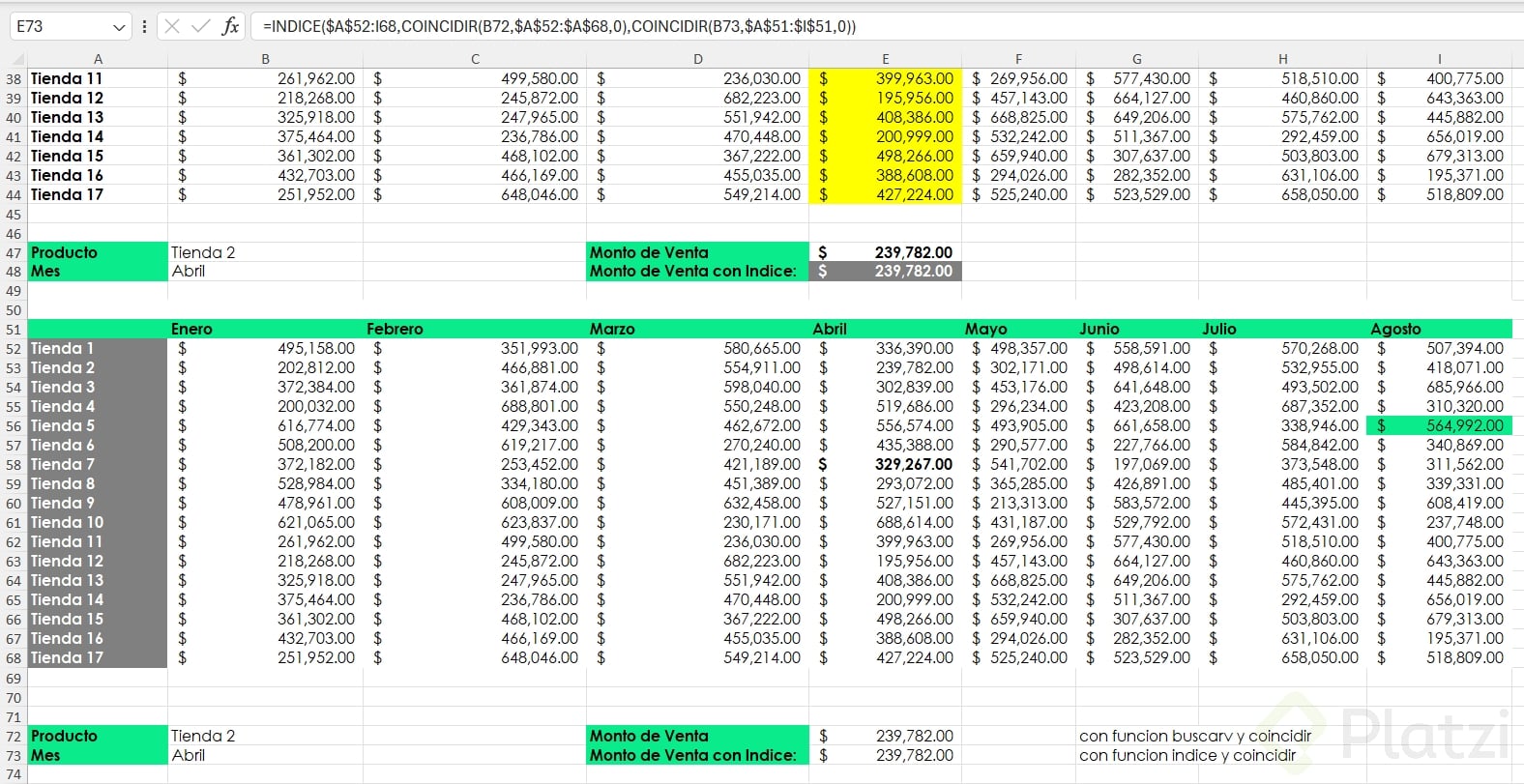
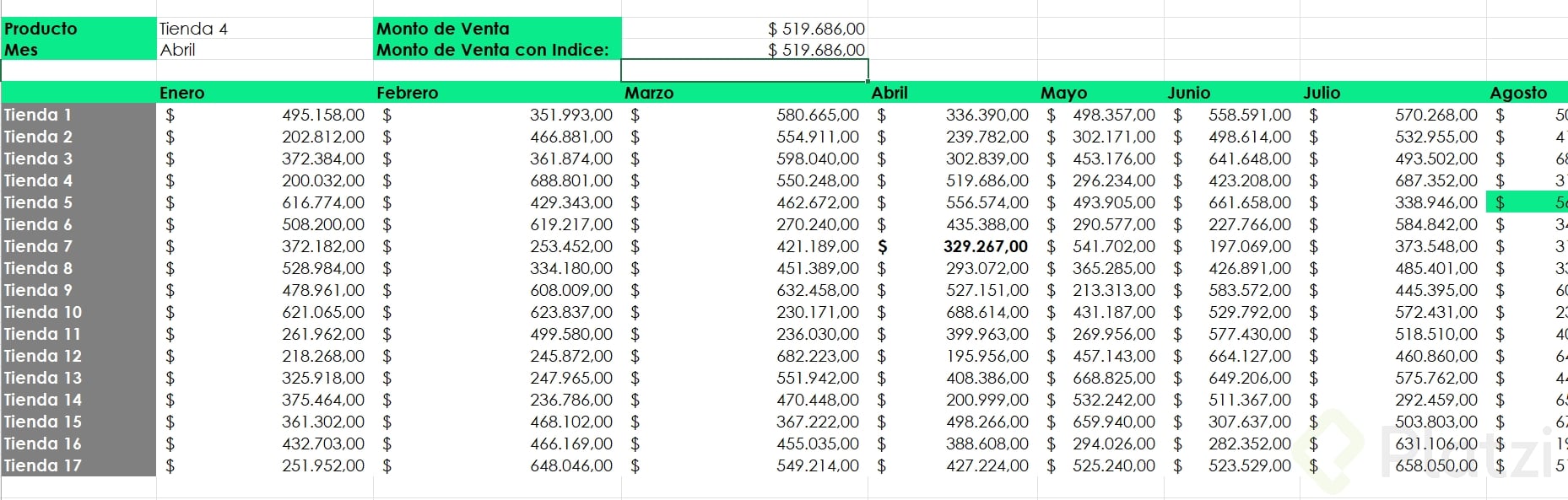
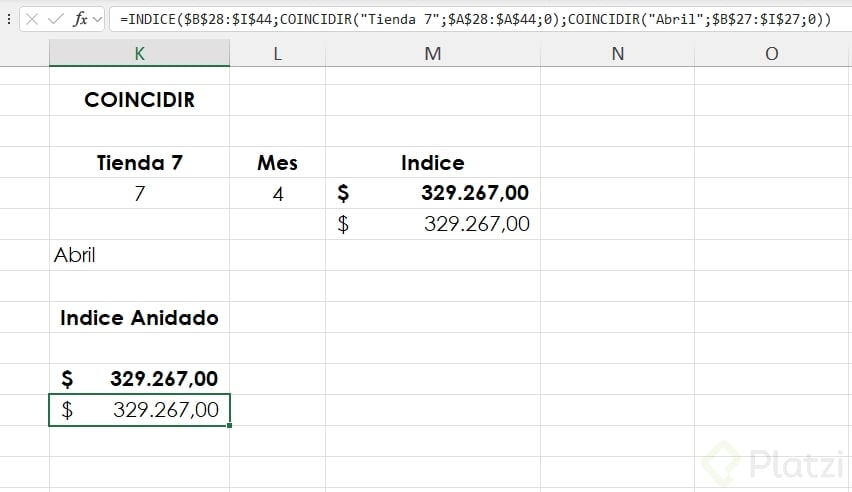
Say you have a sales table with stores across the top and months down the side. You want the value for tienda 7 in abril. Manually you'd count, but with INDEX plus MATCH it becomes automatic:
- Select the inner matrix without headers as the first argument.
- Use
MATCH("abril", months_range, 0) to get the row number.
- Use
MATCH("tienda 7", stores_range, 0) to get the column number.
- Close the parenthesis and Excel returns the exact intersection.
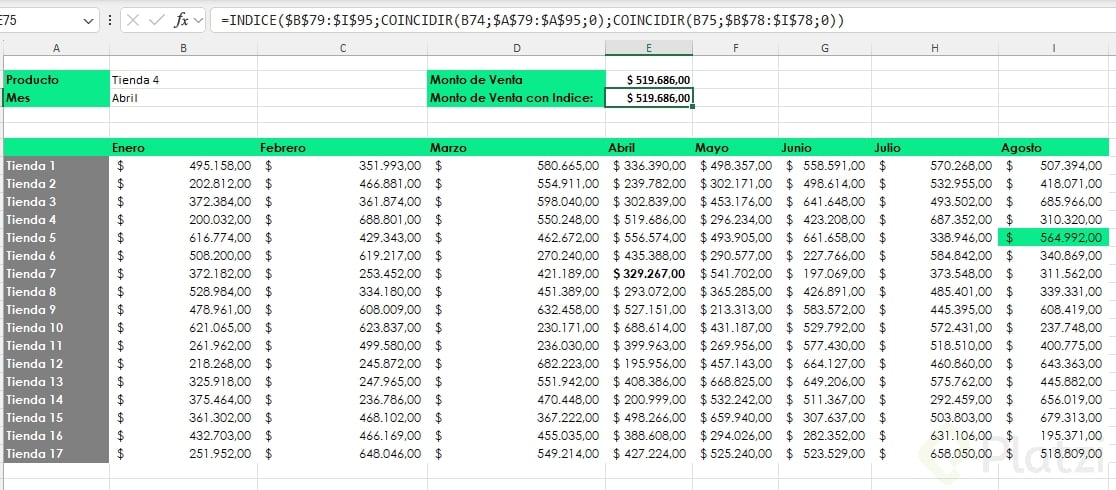
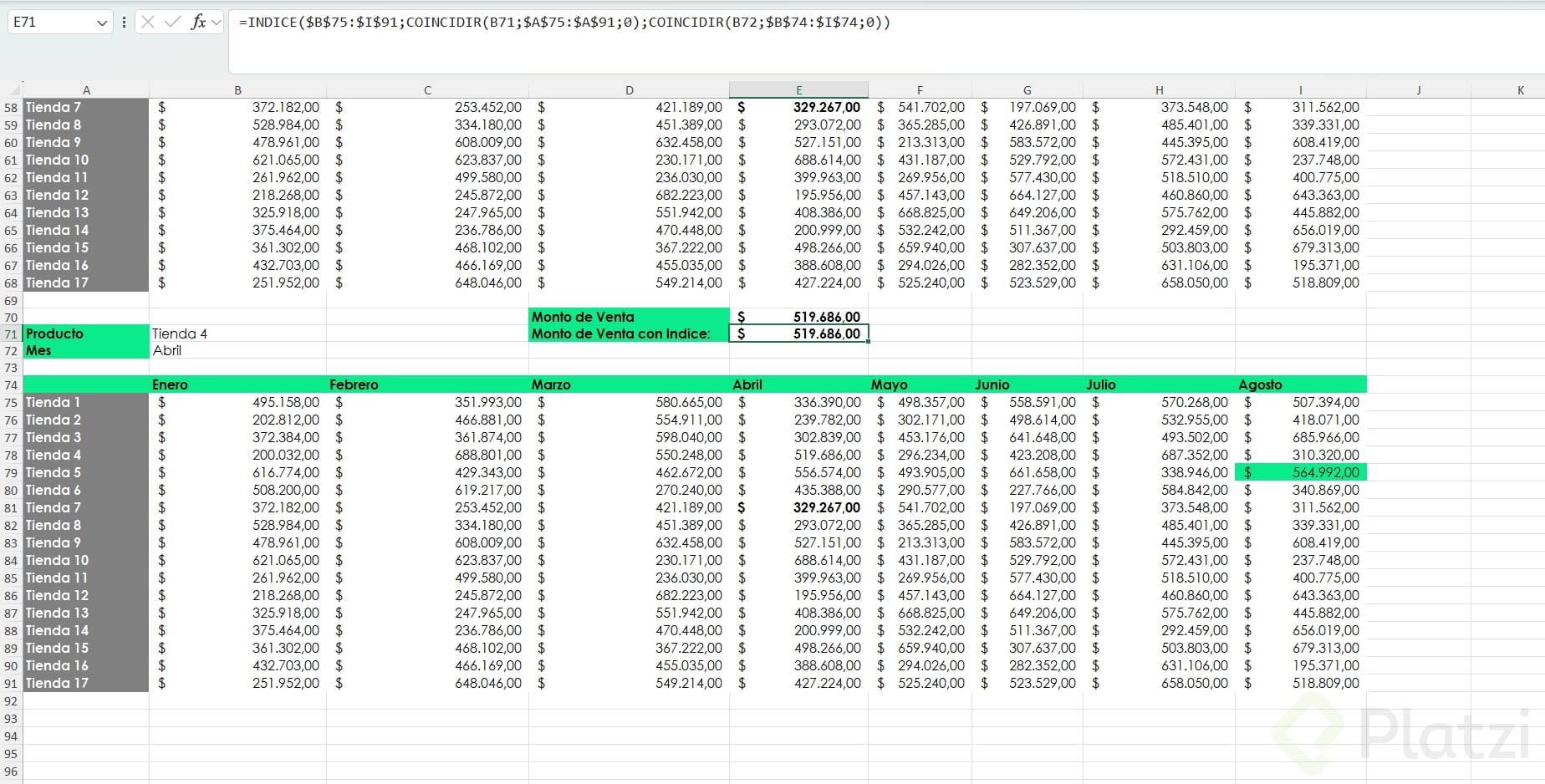
The formula reads as =INDEX(matrix, MATCH(row_value, row_range, 0), MATCH(column_value, column_range, 0)). Both MATCH functions feed coordinates into INDEX, so the result updates the moment you change the inputs.
Why nest MATCH instead of typing the number?
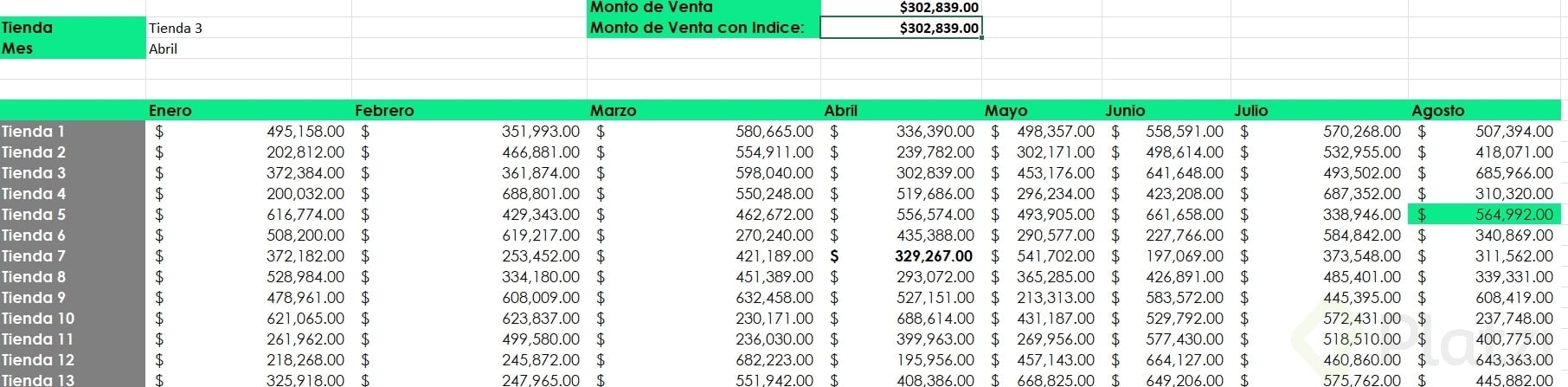
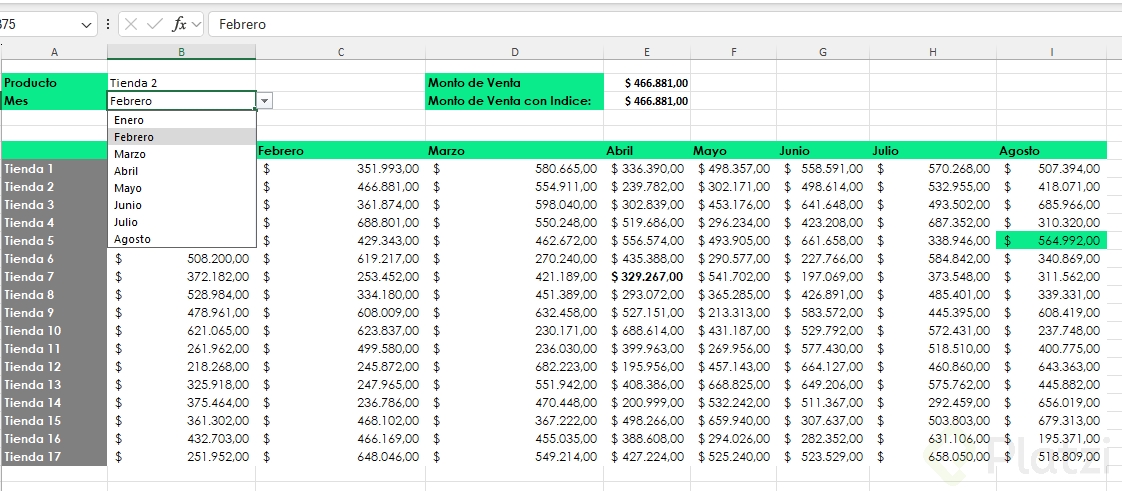
Because your inputs become dynamic. If you build a dropdown that lets a user pick tienda 3 or tienda 5, the column position changes. Hardcoding a number breaks the formula; MATCH recalculates every time.
Can I use VLOOKUP with MATCH for dynamic reports?
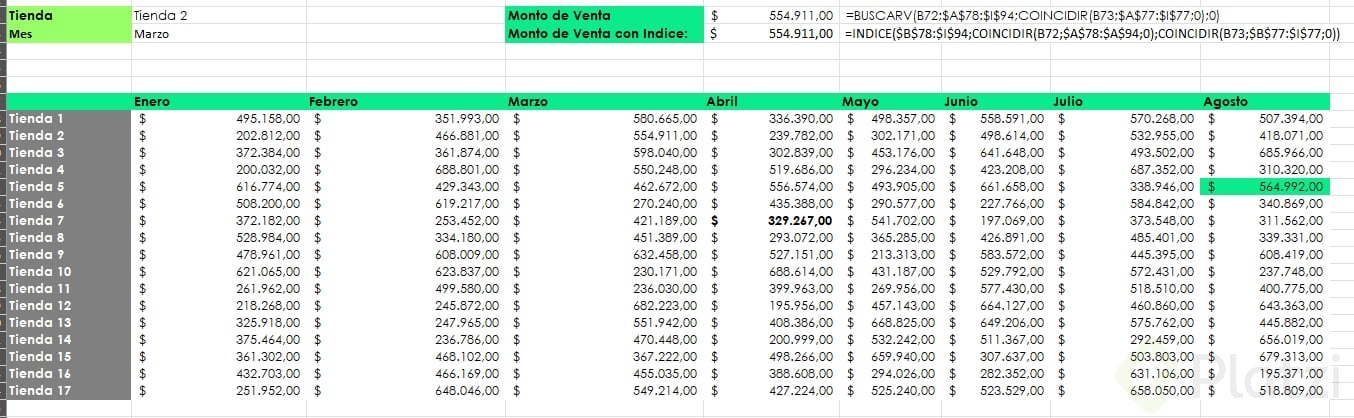
Yes, and it's one of the cleanest combinations for dashboards. VLOOKUP needs a lookup value, a table, a column index, and a match type. The column index is exactly where MATCH replaces manual counting.
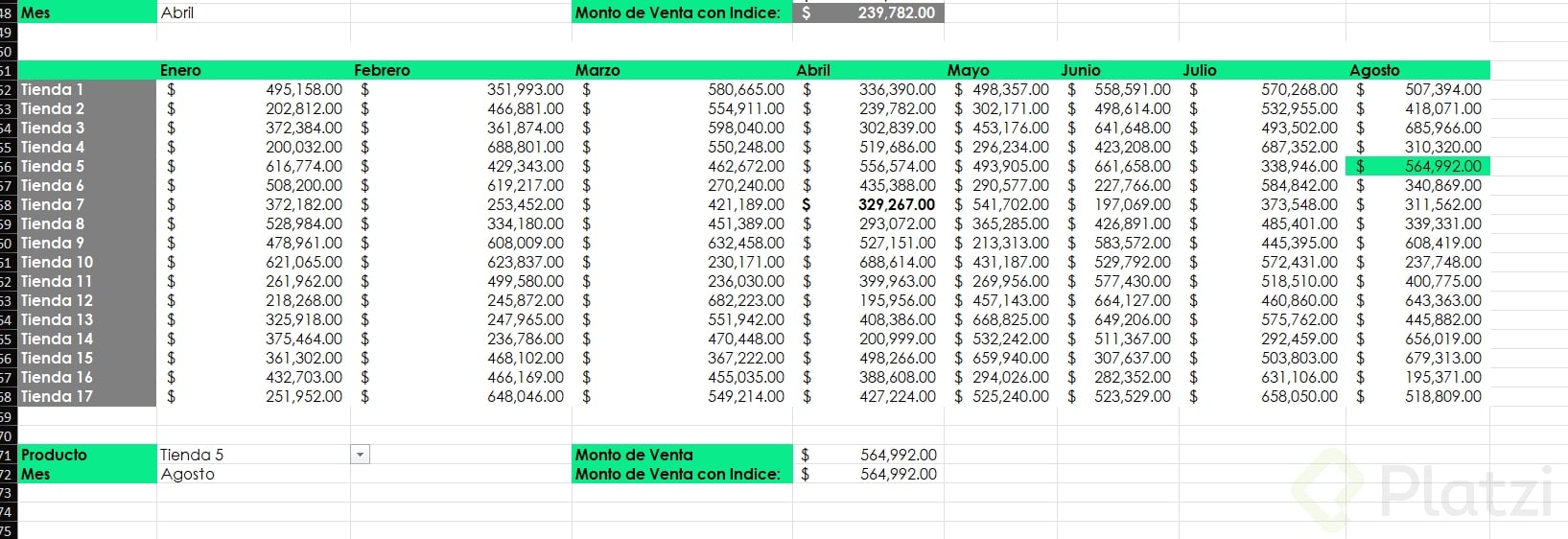
Here's the practical setup from the exercise:
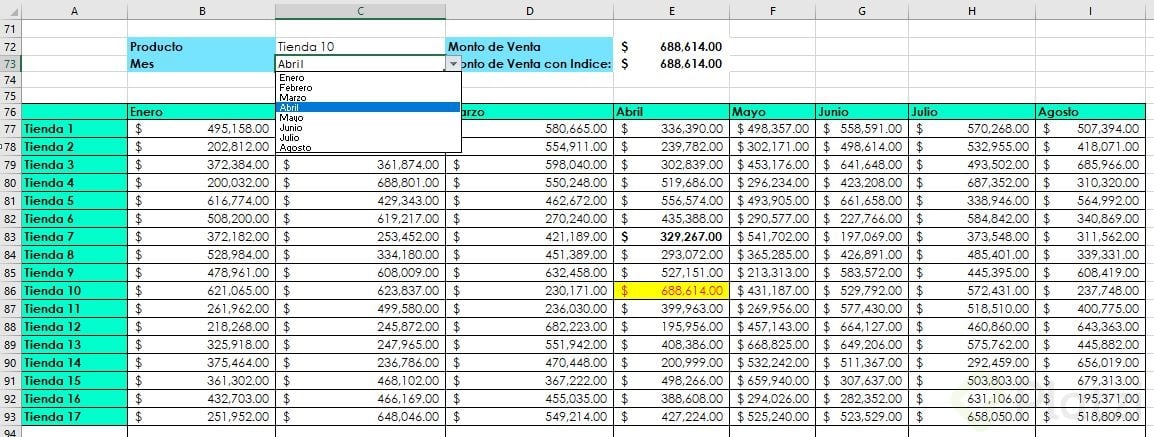
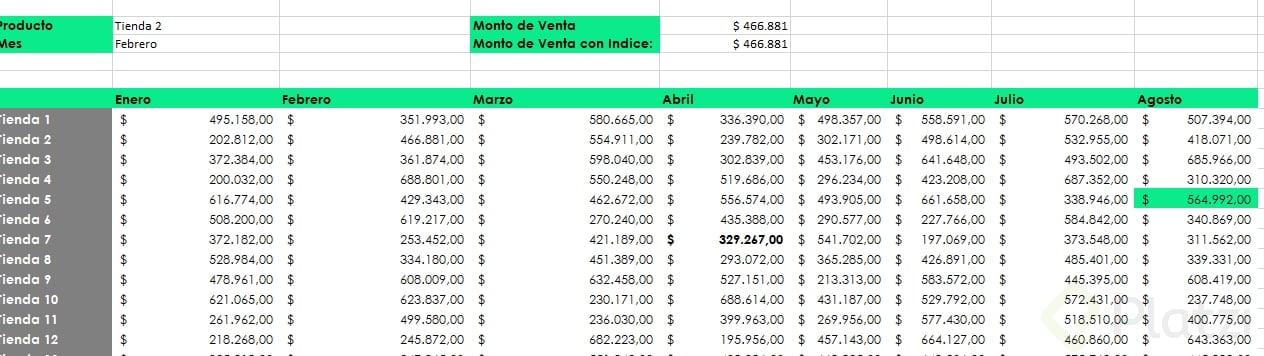
- Create two dropdowns using Data > Data Validation > List, one for stores and one for months.
- Write
=VLOOKUP(store_cell, full_table, MATCH(month_cell, header_row, 0), 0).
- Change the dropdown values and watch the result update instantly.
When should I use INDEX MATCH instead of VLOOKUP MATCH? Use INDEX MATCH when your lookup value isn't in the leftmost column or when you need to search both rows and columns at the same time. VLOOKUP MATCH works fine when your key sits in the first column.
The VLOOKUP version is shorter and easier to read for beginners. The INDEX version is more flexible because it doesn't care about column order and can pull values from anywhere in the matrix.
Building a dynamic dashboard from scratch
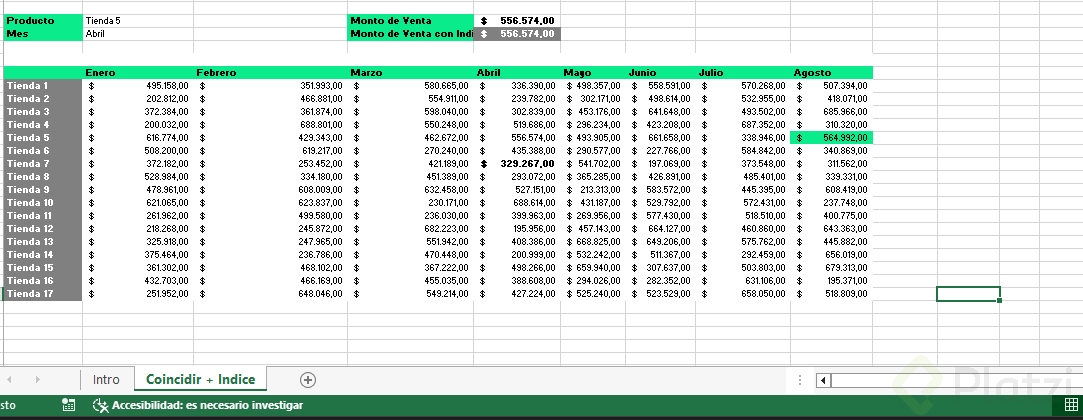
The full exercise ties everything together. You start with a raw table of stores and months, then add two dropdowns so the user can pick any combination. The output cell uses either VLOOKUP plus MATCH or INDEX plus MATCH to fetch the right number.
Key details to keep in mind:
- Always anchor your ranges with
F4 so the formula doesn't shift when you copy it.
- When selecting the matrix for INDEX, exclude the headers; INDEX counts from the first data cell.
- For VLOOKUP plus MATCH, include the leftmost column in your lookup table because VLOOKUP starts counting from there.
- Use
0 as the last argument in MATCH to guarantee an exact match and avoid silent errors.
Once both formulas are in place, switching from tienda 3 to tienda 5 or from abril to any other month refreshes the result without touching a single formula. That's the kind of dynamism that turns a static spreadsheet into a real reporting tool.
¿Ya probaste estas combinaciones en tus propios reportes? Cuéntame en los comentarios qué función te resultó más útil o qué caso de uso quieres resolver con MATCH.