Managing Events Venues
Clase 9 de 21 • Audiocurso de Inglés para Turismo y Hotelería
Contenido del curso


Module 2: Front Desk and Check-In Operations
Module 3: Guest Services and Amenities
Module 4: Restaurant and Dining Service

Module 5: Tourist Information and Concierge
Module 6: Handling Complaints and Issues
Module 7: Events and Special Requests



Resumen
Executing a successful conference is more than booking a room; it’s staging a performance with technical precision and clear communication. This guide distills practical steps to confirm tech needs, select the right seating arrangement, and deliver fast Wi‑Fi support—so presenters shine and attendees stay engaged.
How to plan technical requirements and communication for conferences?
Early communication prevents last‑minute failures. Move from vague requests to specific, written confirmations. Instead of “mic and screen,” confirm: “HDMI‑compatible projector (1080p) and a wireless lavalier microphone.” Writing details weeks in advance removes confusion and protects the program.
- Confirm device outputs and cables in writing. HDMI, VGA, USB‑C matter.
- Lock in resolution: 1080p is a common, safe baseline.
- Choose the right mic: a wireless lavalier (lapel) for hands‑free speaking.
- Schedule a test run about 24 hours before the event.
- Ask speakers to bring a backup kit: adapters and a USB drive copy.
- Introduce the speaker to on‑site technical support with a direct phone number.
What do key tech terms mean?
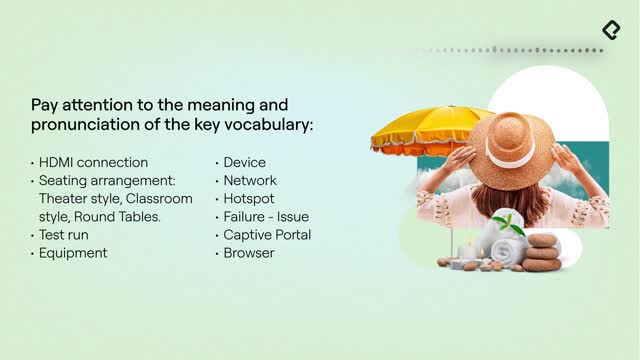
- Lavalier (lapel) microphone: clips onto clothing for hands‑free use.
- HDMI: standard for high‑definition video and audio.
- VGA: older video connector; many modern laptops lack it.
- USB‑C: common laptop/phone port; may need an HDMI adapter.
- On‑site verification: physically testing equipment and connections before go‑live.
How should you run the on‑site verification?
- Connect the speaker’s actual laptop to your system.
- Test visuals and audio end‑to‑end.
- Verify adapters, dongles, and file playback.
- Share the tech support contact and confirm availability.
Which meeting room setup and seating arrangement works best?
The meeting room setup checklist starts with seating, because it shapes participation and capacity. Pick the layout that matches your goal.
- Theater style: rows of chairs, no tables. Maximizes capacity. Hard for note‑taking. Best for keynotes.
- Classroom style: rows of tables with chairs. Requires more space. Good for laptops and notes. Ideal for training.
- Round tables: tables for 8–10 people. Encourages networking and conversation. Perfect for dinners or workshops.
Tip for requests like “workshop where people can talk”: round tables support interaction. If video will be shown from an iPad, confirm output type and adapters in writing.
How to troubleshoot Wi‑Fi issues with guests quickly?
Provide calm, methodical support. Diagnose first, then fix. Think like a doctor: find the source of the pain before prescribing a treatment.
What diagnostic questions solve most Wi‑Fi problems?
- Ask the golden question: are other devices online? If yes, the network is fine.
- Ask the second question: can their device join a different network, like a personal hotspot? If yes, their device works but conflicts with your system.
- If their device can’t connect anywhere, check its Wi‑Fi settings or antenna.
What simple fixes help a device connect?
- Restart the device. It clears temporary errors, like cleaning a cluttered desk.
- Forget the network and reconnect. Removes bad saved settings, like pulling out a stuck key and reinserting it.
- Check the password: watch for 0 vs O and case sensitive letters.
- Look for the captive portal: if it “connects but no internet,” open a browser (Chrome or Safari) to trigger the login page and accept terms.
Which Wi‑Fi terms should you know?
- Hotspot: a personal network from a phone or device.
- Forget the network: delete saved Wi‑Fi settings to reset the connection.
- Captive portal: a web page that appears to complete sign‑in before internet access.
- Case sensitive: uppercase/lowercase letters must match exactly.
Need to reply to a client asking for “a workshop where people can talk” and to “show a video from an iPad”? Confirm in writing: round tables for interaction, HDMI‑compatible projector, audio path for video, and the exact iPad adapter required. Offer a test run and share the on‑site support number.
Have a tricky setup or a Wi‑Fi scenario you face often? Share it in the comments and let’s solve it together.