Documenting code is rarely fun, but Windsurf changed that with Deep Wiki, a feature launched in Wave 12 that turns documentation into an automatic, context aware task. If you want to document an app, learn from a public repo, or share knowledge with your team, this is where it gets interesting.
What is Deep Wiki in Windsurf and why does it matter?
Deep Wiki is an AI powered documentation layer built into Windsurf that reads your project context and generates explanations, type definitions, usage examples and follow up questions in real time. You don't write docs from scratch; you guide the editor and it produces them for you.
What is Deep Wiki? It's a Windsurf feature that auto generates documentation for any function, class or interface inside your project, using the surrounding code as context.
The value is simple: less time writing boilerplate docs, more time understanding the codebase. And because it reads your actual project, the explanations match what you really have, not a generic template.
How do I open Deep Wiki on a function or class?
Windsurf gives you two entry points to interact with Deep Wiki, and both work on any function, interface or class inside your editor.
Using command + shift + click on a function
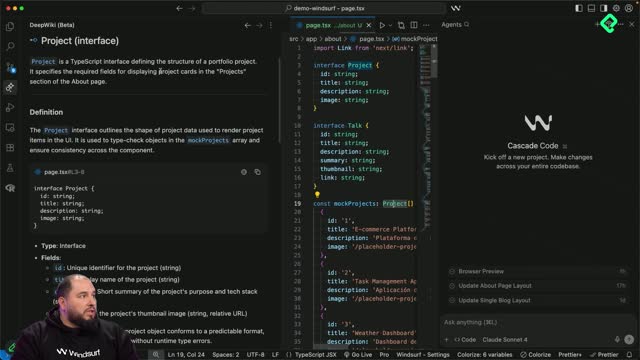
Hold command, shift and click directly on a function. A side panel opens on the left with a layered explanation of that piece of code [00:21]. You'll see:
A short concept of what the function does.
A full definition with usage, including what an interface is in your specific project.
Extra examples pulled from the actual context.
Notes and recommendations of related items to review.
Follow up questions you can click to keep exploring.
From that same panel you get three actions that turn this into a real workflow: refresh to regenerate the article, copy article to paste it into Confluence or any shared doc, and add to Cascade to use it as context for future prompts [01:05].
Using AI Actions and the Explain command
The second way is even faster. Place your cursor on a function and a small AI Actions button appears at the top of the block [01:35]. Click it, choose Explain, and Windsurf runs an explanation inside Cascade.
A detail worth noting: the internal examination runs in English, but if you've been chatting in Spanish, the final answer comes back in Spanish. The output includes the structure, the typing, whether it's an interface, how it's used inside the component, and its technical characteristics.
What's the difference between command shift click and AI Actions Explain? The first opens a structured wiki panel with copyable articles and follow ups. The second runs a conversational explanation inside Cascade, useful when you want to keep asking questions in chat.
How can I use Deep Wiki to learn from any GitHub repo?
Here's where it gets really useful for learning. You can clone any public repository, open it in Windsurf, and use Deep Wiki to navigate the codebase as if someone wrote the docs for you.
In the demo, the PHP avanzado de Platzi course repo is opened from scratch [02:45]. Without knowing the project, clicking the Deep Wiki button on AboutController reveals that it's a class responsible for handling requests for the about page, plus its definition in code, its namespace, the methods it uses and example usages that aren't even written in the file.
This flow works for any project you want to study:
Download or clone the repo from GitHub.
Open it in Windsurf.
Click on controllers, classes or functions you want to understand.
Use command + shift + click or the AI Actions button to generate the wiki.
Follow the suggested questions to dig into related files like HomeController or PostController.
Turning Deep Wiki output into team documentation
If your team needs shared docs, the loop is straightforward: open each function, generate the Deep Wiki article, click copy article and paste it into Confluence or any internal wiki [03:55]. In a short time you can have an entire repository documented and ready to share.
And if your team doesn't need formal docs, there's a lighter alternative: share the repo link and tell teammates to read it through Windsurf using Deep Wiki. The documentation lives on demand, generated only when someone needs to understand a piece of code.
Key concepts and skills you'll practice
A few ideas from the walkthrough are worth keeping close as you try this:
Deep Wiki, the auto documentation engine inside Windsurf available since Wave 12 [00:10].
Cascade integration, where any generated article can be added as context to ask follow up questions [01:15].
AI Actions, the inline button that triggers the Explain command on the function under your cursor [01:35].
Interface and type explanations, generated from the real project context, not from generic definitions [00:45].
Repo onboarding, using Deep Wiki to understand unfamiliar codebases like the PHP avanzado repo [02:45].
Try it on a function you wrote last month and another from a repo you've never seen. Then drop a comment telling me which use case clicked for you: documenting your own app, onboarding to a new repo, or building shared docs for your team.