Setting up rules in Windsurf is one of the fastest ways to keep Cascade aligned with your project's standards without repeating yourself in every prompt. You'll learn how to create global, project, and file-specific rules, where to find the customization panel, and how to write activation modes that actually work for your workflow.
Rules act as direct instructions to Cascade, so once you define them, your AI assistant respects your stack, your styles, and your conventions every single time.
What are Windsurf rules and why do they matter?
Rules are persistent instructions that guide how Cascade writes code, suggests changes, and executes actions inside your workspace. Instead of repeating "use TypeScript" or "stick to Tailwind" in every prompt, you define it once and Cascade keeps that context active.
There are three scopes you can work with:
Global rules, applied across every project.
Project rules, scoped to a specific workspace.
File-type rules, targeted to certain files like tests or components.
What is a Windsurf rule? It's a markdown instruction stored in .windsurf/rules/ that tells Cascade how to behave. Each rule has an activation mode and a content body of up to 12,000 characters.
Where do you find the rules panel in Windsurf?
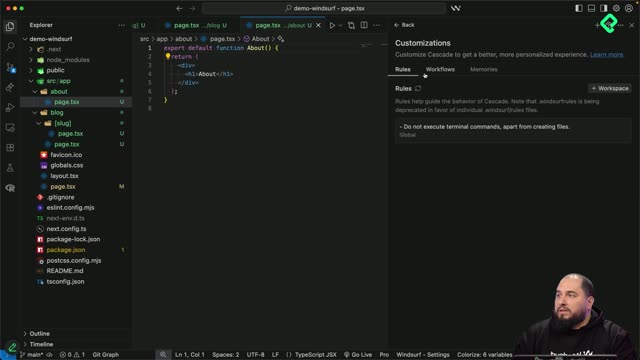
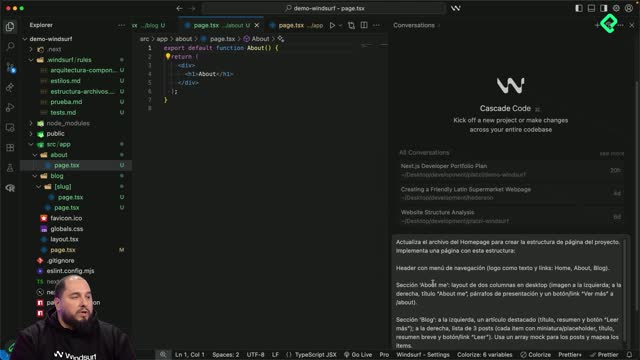
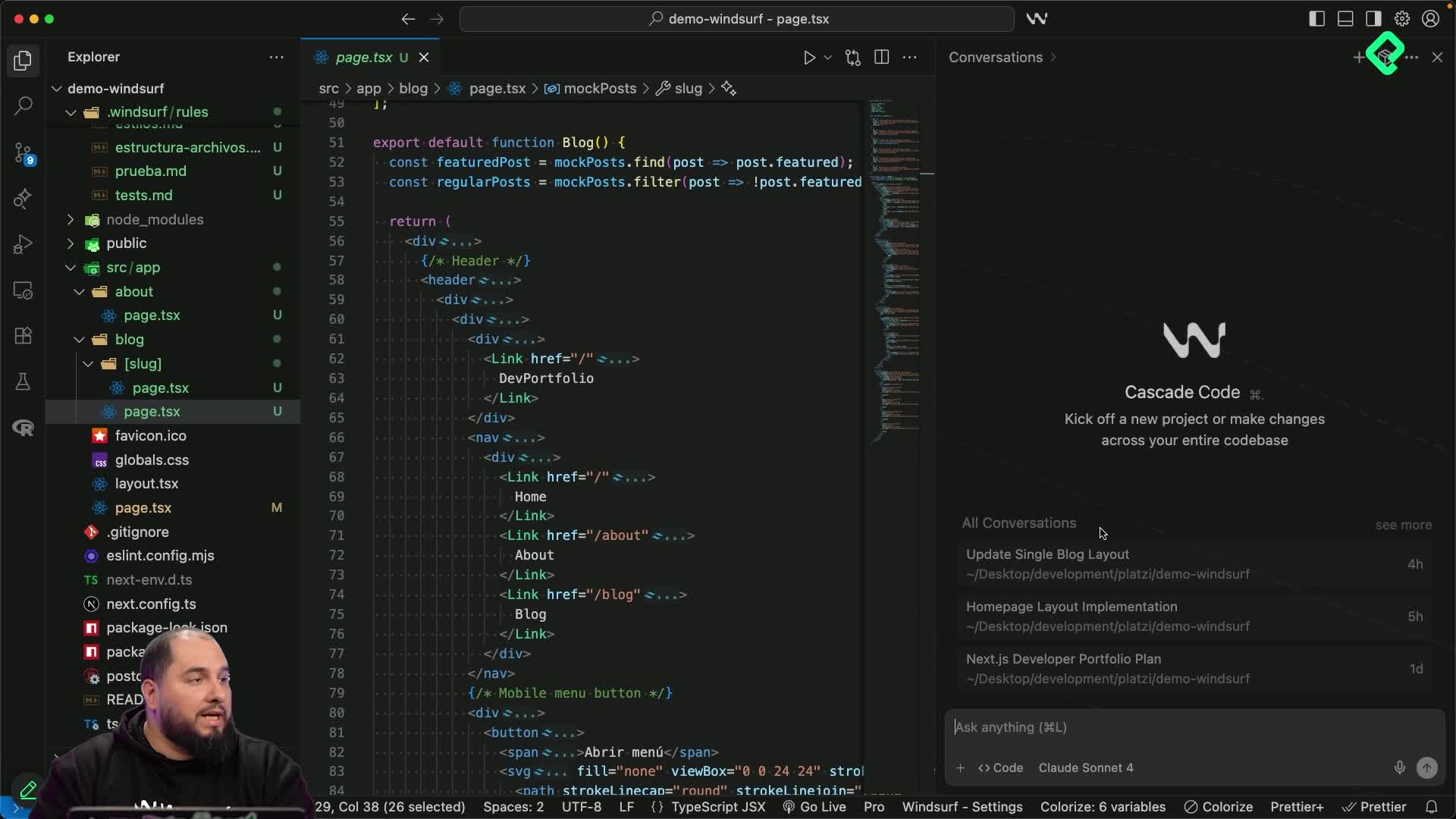
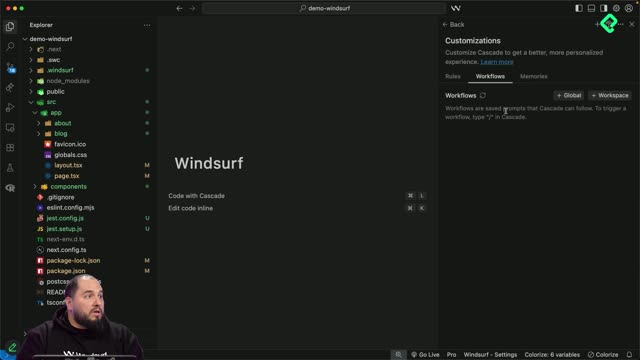
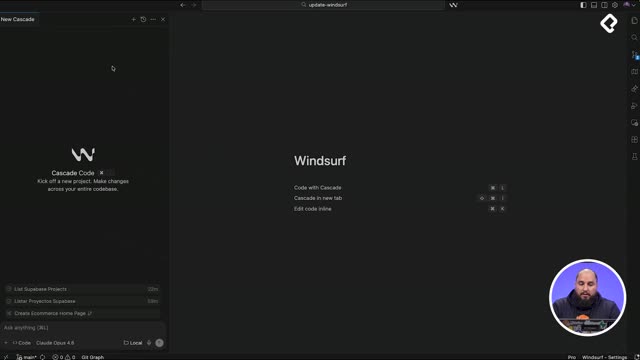
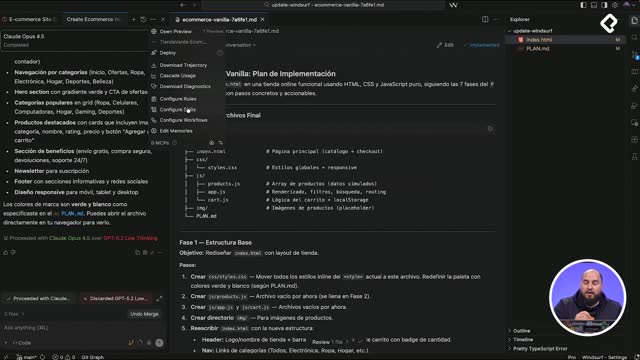
Open Cascade and look at the top right corner for the customization icon, shaped like a small box [00:25]. Click it to open the customization panel, which has three tabs. The one you want is the rules tab.
From there you can see active rules, edit them, or add new ones. In the demo, one rule was already set: do not run terminal commands beyond creating files, which is a great example of how granular you can get with Cascade's behavior.
How do I create my first rule?
Click add a new rule in the workspace and give it a name [00:50]. Windsurf automatically creates a markdown file inside .windsurf/rules/ using the name you provided. Each rule file contains two key elements:
An activation mode.
A content body with the actual instructions.
The activation mode controls when the rule fires. You can set it to manual, always on, model decides, or global. Pick the one that matches how often you want Cascade to apply that logic.
How should you write effective rules for your project?
The global rule in this project covers the foundations of the codebase. It tells Cascade to always use TypeScript in components and pages, prefer modern async/await over callbacks, and follow semantic commit conventions like feat, fix, and chore [02:30].
This rule is set to always on, which means Cascade applies it on every interaction without asking. The content is short, only 194 characters out of the 12,000 character limit, but it shapes the entire project's output.
How many characters can a Windsurf rule have? Up to 12,000 characters per rule. You can edit any rule later from the customization panel without losing your setup.
What styling rules should you define?
For styles, the rule reminds Cascade to use Tailwind exclusively, avoid mixing CSS modules or styled components, and keep class names consistent while reusing custom utilities [03:40]. This reinforces a decision already made during the planning chat, but having it as a rule guarantees Cascade won't drift later.
Set this one to always on as well so every styled component respects the same system. If you ever migrate away from Tailwind, just edit the rule, save, and the new context takes over.
How do you organize rules for tests, structure, and components?
Beyond globals and styles, three more rules round out the setup:
A rule for test files with their own conventions.
A rule for file structure across the project.
A rule for component architecture.
When naming the file structure rule, underscores are not accepted but hyphens work fine [05:15]. All three are set to always on so Cascade respects them on every generation.
How do you edit or update an existing rule?
Open the customization panel again, find the rule you want to change, and click edit. Windsurf brings back all the options: activation mode and content. Modify whatever you need, save, and the new version takes effect immediately.
This flexibility matters because projects evolve. Maybe today you use Tailwind, tomorrow you adopt a design system, and next month you change your commit conventions. Editing a rule takes seconds and keeps Cascade aligned with reality.
What other rules would you add to your workspace? Drop your ideas in the comments and share how you're keeping Cascade consistent across your projects.