Windsurf Preview: Edit Your Site Without Leaving the Editor

Resumen

Switching between your code editor and the browser every time you make a change burns time you could spend building. Windsurf Preview solves this by running a local server and rendering your website inside the editor, with element selection and Cascade integration that speed up debugging and visual edits.

What is Windsurf Preview and why does it matter?

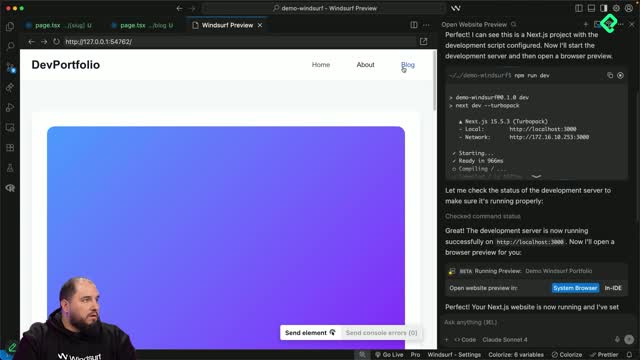
Windsurf Preview is an internal browser that lives inside the editor, so you don't need a second monitor or constant tab switching to see your changes.

What is Windsurf Preview? It's a built-in browser inside Windsurf that runs your local development server and lets you interact with your site without leaving the editor.

It isn't Chrome, Firefox, or any external tool. It's an emulator wired directly into Cascade, which means anything you click or inspect can become part of your AI context [01:55].

How do I open a preview of my website in Windsurf?

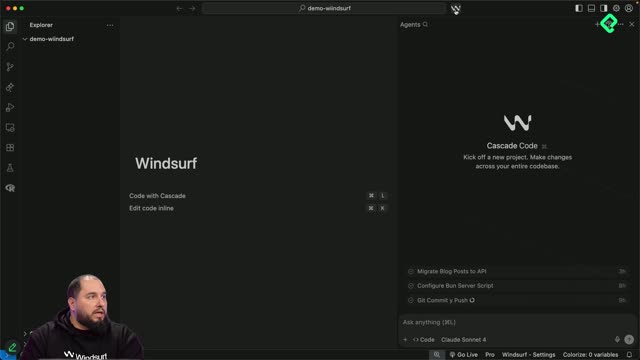
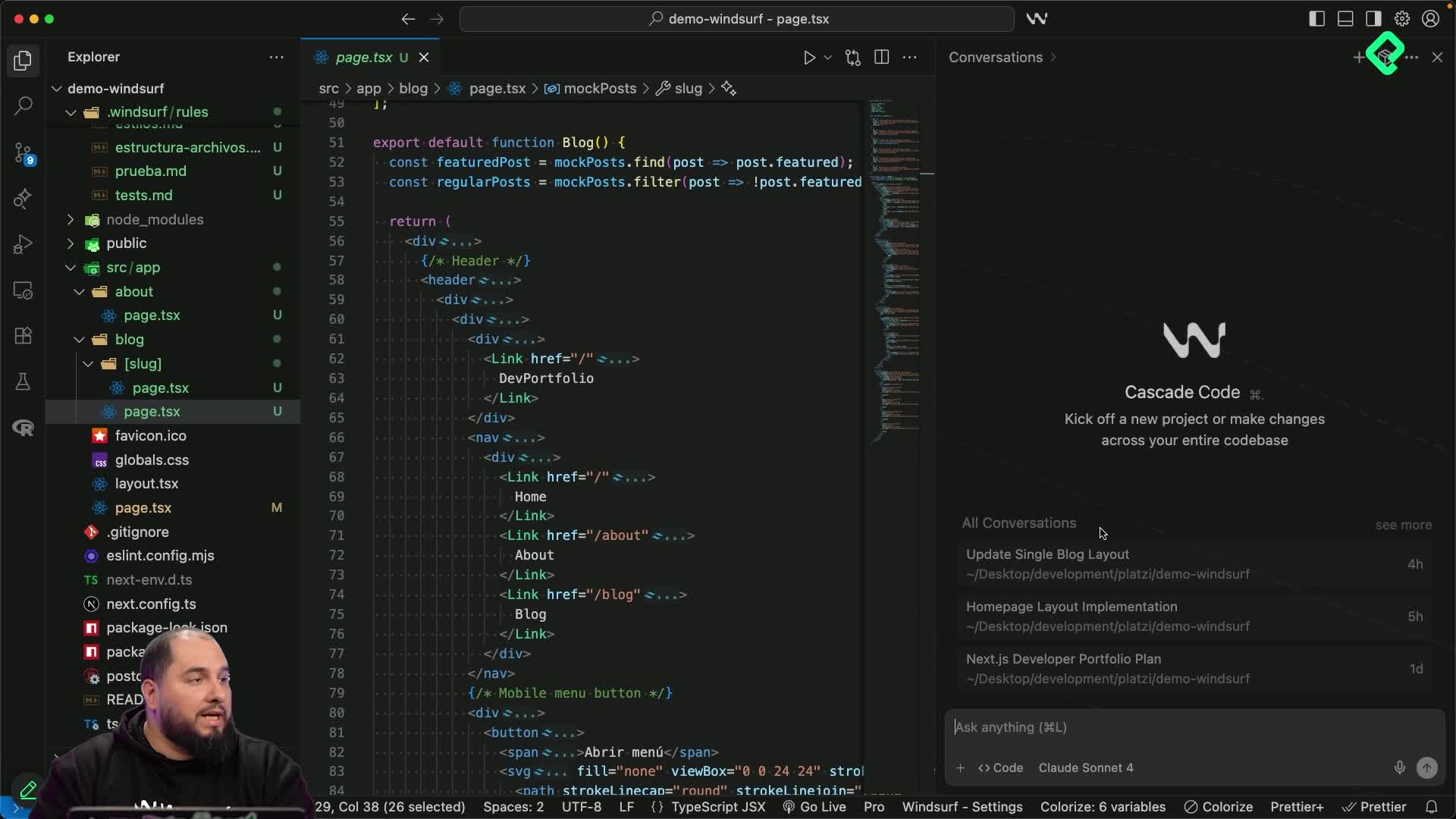
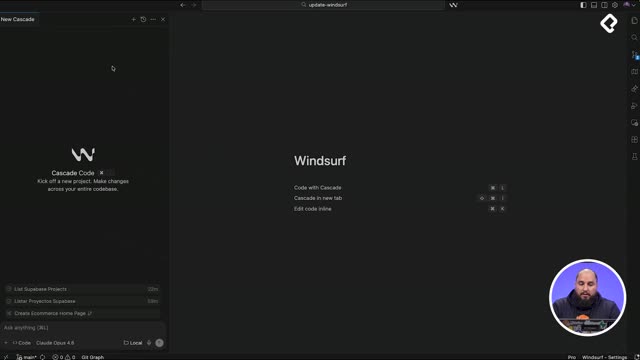
Start with a clean Cascade session on the right side of the editor. Then follow these steps:

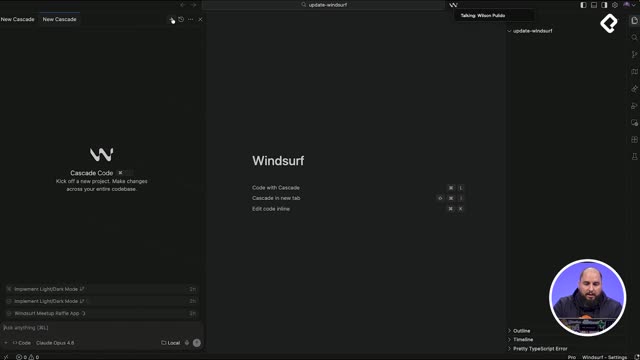
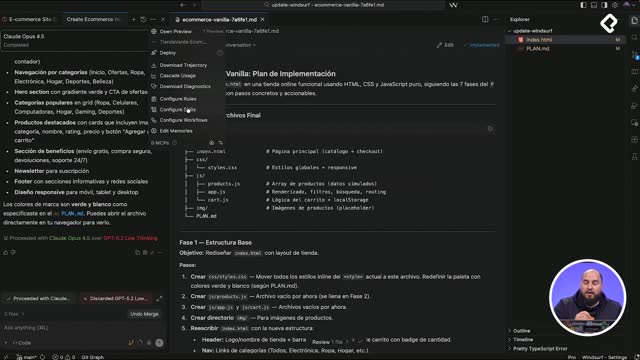
  1. Click the three dots icon at the top of Cascade.
  2. Select Open Preview, which writes the command Open a browser preview of my website [00:32].
  3. Confirm the terminal execution when Cascade asks for it.
  4. Wait for the development server to spin up.
  5. Choose between opening it in your system browser or in the Windsurf internal browser.

Once the server is ready, a new tab appears in your file navigator labeled Windsurf Preview. Inside it you can navigate your full site, homepage, about, projects, talks, and blog, just like you would in Chrome.

How does element selection work with Cascade?

At the bottom of the preview there's a small bar with two key actions: console errors and a send elements button. The send elements tool behaves like the element selector in Chrome DevTools, but with a twist.

What happens when I click send elements? The selected element is added to Cascade as @domElement context, so the AI knows exactly which component you're referring to without you describing it.

This removes the friction of explaining things like "the blue button on the homepage that says See more" [02:35]. You click, Cascade captures it, and you move on.

Making visual changes through prompts

Once an element is in context, you can request changes in plain language. In the demo, the instruction was simple: change the button background to black [02:55].

Cascade identifies the current color (blue), applies the change, shows the update live in the preview, and explains what it did before you accept. You never touch the code directly, you give instructions, Cascade edits the files, and you approve the diff.

Why is this faster than the traditional workflow?

The real gain is in the loop between spotting an issue and fixing it. You can:

  • Identify a bug visually inside the preview.
  • Select the exact DOM element with one click.
  • Describe the fix in natural language.
  • See the result rendered immediately.
  • Accept or reject the change without leaving the editor.

This is especially useful when you only have one screen, since the preview, the code, and the AI assistant share the same window.

Do I need to stop the server when I'm done? Yes. Ask Cascade to stop the development server, otherwise it will keep running on that port and block future sessions [03:55].

A practical tip before you close Windsurf

Get into the habit of telling Cascade something like "stop the dev server" at the end of your session. It's a small step that prevents port conflicts the next time you open a project.

Tell me in the comments how you used Windsurf Preview and which problem it helped you solve.