Working with an unfamiliar codebase can feel overwhelming, especially when you open a project and find multiple folders staring back at you. Claude Code helps you map the architecture of an existing project and set up your local development environment using simple prompts in plain language, even before you write a single line of code.
This approach works for any developer landing on a new full stack project who needs to understand the big picture fast and get the backend running locally without guessing commands.
What can Claude Code do inside your editor?
Claude Code runs directly inside the editor and has access to your project files, terminal commands, and a memory system. That means it can read folders, execute CLI commands with your permission, and store context for future sessions.
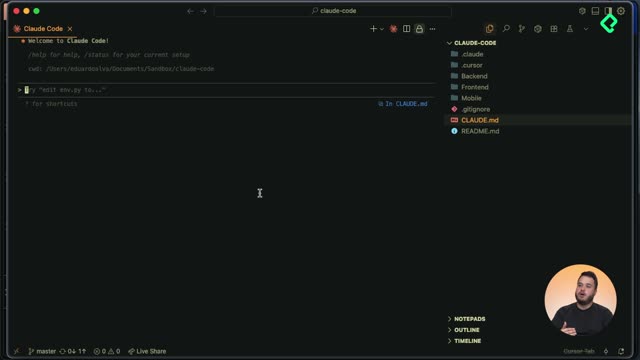
In the project used for this walkthrough, the root contains three folders: backend, frontend, and mobile. That structure already signals a full stack project, but the real architecture stays hidden until you ask the right questions.
What is Claude Code? It is an AI coding assistant that runs in your terminal or editor, reads your project files, executes commands with permission, and keeps context across sessions through a memory file.
How do I prompt Claude Code to analyze a project?
The trick is giving explicit context. Open Claude Code inside the editor and write a prompt that tells it to analyze the project and return an architecture summary.
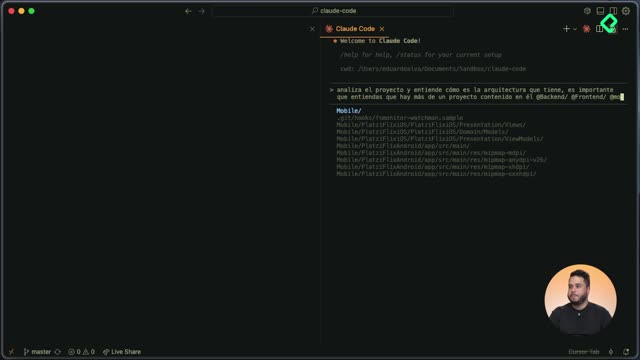
Use the @ symbol to mention specific folders or files. This opens a small file explorer where you can reference backend, frontend, and mobile directly, so Claude knows exactly which parts to inspect.
A working prompt looks like this: analyze the project and understand its architecture, knowing there is more than one project inside, and use these folders to build a complete big picture.
How does Claude Code explore your codebase?
Once you hit enter, Claude Code announces its plan and starts running commands. You will often see permission prompts before any CLI execution, which is your safety net.
For example, it may run a search command inside frontend/src looking for files with .tsx, .ts, .js, or .jsx extensions and reading the first 15 lines of each. Since this is a read only search, accepting it is safe.
The analysis can take several minutes because the entire project context needs to travel to the LLM, which then reasons about the codebase structure.
What kind of architecture summary will I get?
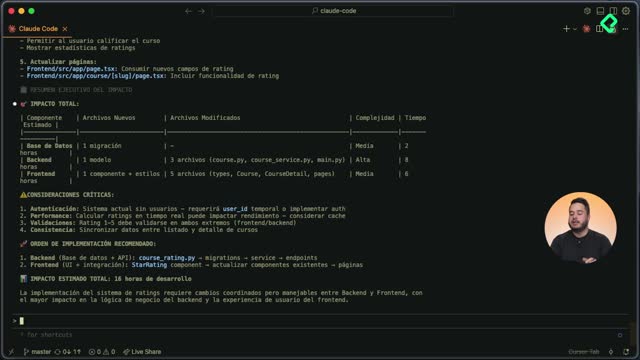
In the example project, Claude Code identified an online educational system with a multiplatform architecture and three main components. It detected the stack of each one with impressive accuracy:
- Backend built in Python with FastAPI and a Postgres database.
- Frontend built with Next.js, including server side rendering and server side generation, responsive Netflix style grid, native fetch integration, and dynamic navigation.
- Mobile app covering both Android and iOS platforms.
It also listed available models, endpoints, and traced the request lifecycle end to end: how the mobile app and frontend send requests to the backend, and how the backend talks to the database.
How do I save the analysis as project memory?
Getting a great analysis in the chat is useful, but losing it when the session ends is not. Claude Code uses a file called cloud.md as its memory system for a project.
Ask Claude to save the architecture summary into cloud.md so it persists for future development. A simple prompt works: thank Claude for the analysis and ask it to create cloud.md using the context already in memory.
What is the cloud.md file? It is the memory file Claude Code uses to remember project context across sessions. Saving the architecture summary there means future prompts already know your stack and structure.
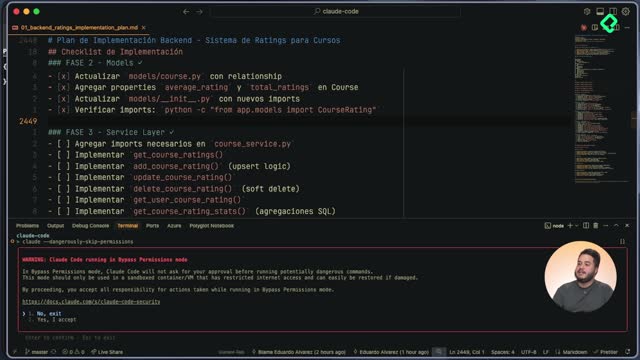
When Claude Code is integrated into the editor, you will see a confirmation prompt before the file is written. Read the proposed content first, then accept. If you were running Claude Code only in the terminal, you would get a text box asking to accept once, accept for the entire session, or reject with feedback.
How do I get the backend running locally with Claude Code?
With the architecture documented, the next step is spinning up the backend in your local environment. Tell Claude that you want the backend service running and mention that Docker is already installed.
Claude Code will check the Docker version first because cloud.md notes the project uses containers. When it asks for permission to run Docker commands, you can choose to allow once, allow consistently for this project, or deny.
What happens when a command fails?
This is where Claude Code shines. Every executed command becomes part of the conversation, so Claude reads the output and reacts.
In the walkthrough, the make start command failed with an error saying the Docker daemon was not running. Claude detected the message, started Docker, ran a sleep of 10 seconds, then executed docker ps to confirm the containers were live.
A few more steps followed naturally:
- Run database migrations using the existing make commands.
- Seed the database with test data, falling back to seed fresh when a duplicate email blocked the first attempt.
- Send curl requests to the API endpoints to verify everything responded with expected data.
How do I handle long running commands?
Some commands like make logs never finish on their own because they keep streaming output. Claude Code lets you push the execution to the background by pressing Control plus B.
The process keeps running in the background while Claude continues with the next steps, and you can see the active background task at the bottom of the interface.
What should I always review before accepting commands?
Claude Code can hallucinate, so your job is to act as the safety filter. Read each proposed command before approving it.
A search command, a Docker check, or a make target with clear intent is usually safe. A command that deletes files across your computer is not. The rule of thumb: if a command does not match the task at hand, reject it and ask Claude to try a different approach.
With just a handful of plain language prompts, you walk away with documented architecture inside cloud.md, a clear mental model of the project, and a backend running locally. Drop a comment with the first project where you plan to try this workflow.