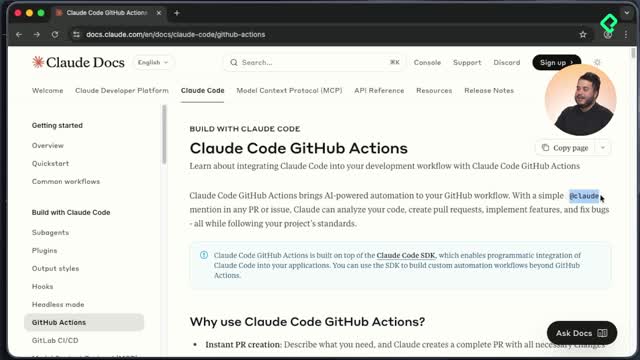
Installing Claude Code in your GitHub repository lets you mention Claude directly inside pull requests and issues, using your codebase as context just like you would in the terminal. This guide walks you through the fast installation path powered by GitHub Actions, what permissions you need, and how to confirm everything works.
What does it mean to install Claude Code on GitHub?
The Anthropic team enabled Claude Code inside repositories through GitHub Actions. Once installed, you can tag Claude in a pull request or issue and give it instructions as if you were typing in the terminal, but from the GitHub interface.
What is GitHub Actions used for here? It is the automation layer that runs Claude Code inside your repo whenever you mention it in a comment, open an issue, or request a review on a pull request.
This is useful if you want code reviews, automated suggestions, or quick answers without leaving GitHub.
Which installation method should you choose: fast or manual?
You have two paths to set this up, and the right one depends on your access level.
- Fast method (recommended): runs through a single Claude Code command. You need to be repo admin, be able to add secrets, and enable read/write permissions on content, issues, and pull requests.
- Manual method: a fallback if the quick command fails or you do not have admin rights. The workflow code is the same, you just paste it yourself.
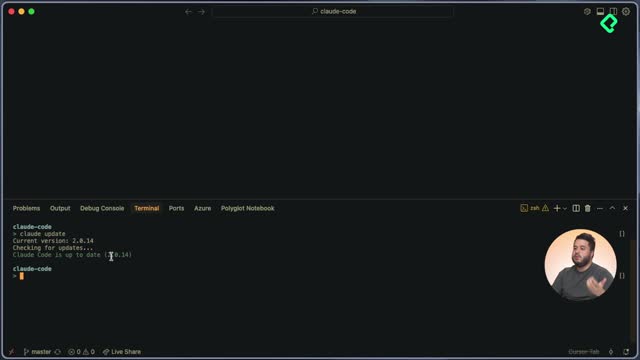
Before starting, make sure you have the GitHub CLI installed on your system. Without it, the fast install will not run.
Do I need to be a repo admin to install Claude Code? Yes for the fast method. For the manual method you can paste the workflow files, but you still need someone with admin rights to add the Anthropic API key as a secret.
How does the fast installation work step by step?
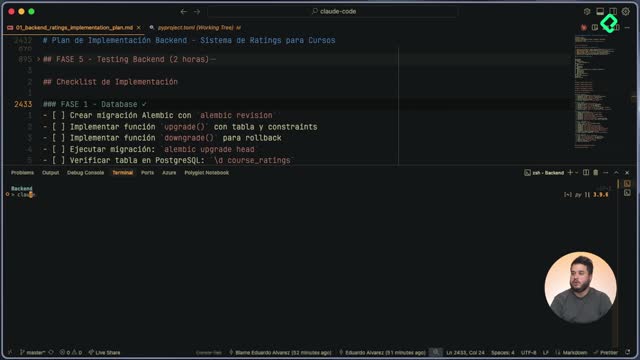
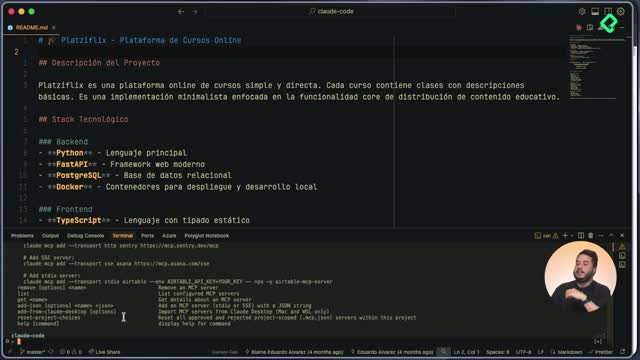
Open Claude in your terminal and run the GitHub app install command. Claude detects your current repository and asks if that is the one you want to configure. Confirm it and your browser will open automatically.
Configuring the Claude app inside GitHub
In the browser you will see a configure button that lists the organizations where you can install Claude. Pick the right organization and then:
- Select only the repository where you want Claude installed.
- Enable access to Actions.
- Grant read and write permissions on code, discussions, issues, and pull requests.
- Click install and authorize.
- Sign in to the Anthropic console using Google or your usual access method.
Once you confirm the app is installed in the repo, return to your terminal and press enter to continue.
Choosing how to invoke Claude Code
The installer asks how you want to trigger Claude:
- Using the Claude handle (mentioning Claude in comments).
- Through an automatic review on every pull request.
If you pick the handle, Claude prepares a to do list and creates a pull request against the master branch describing exactly what it wants to add: the GitHub Actions workflow files.
What gets added to your repository?
When you open the pull request, you will see two workflow files generated by Anthropic itself, the same ones available in the manual setup docs.
- One workflow handles automatic code review on pull requests.
- The other lets you invoke Claude when you comment on a PR, create or assign an issue, or request a review.
The PR goes through the normal code review process, but since you are admin you can merge it directly into master. After merging, your repo will show a workflows folder with the Claude and Claude Code Review workflows ready to run.
Where is my Anthropic API key stored? In the repository secrets. The fast installer adds it for you under Settings, Secrets, Actions, so the workflows can authenticate without you pasting anything manually.
If you check the repository settings, the secrets section under Actions will already contain the Anthropic API key. That means Claude Code is now wired in as a GitHub Actions workflow with credentials in place.
What if the fast install fails?
If the command does not work or you lack admin permissions, switch to the manual setup. The workflow code is identical to what the fast method generates, so the end result is the same. You just copy the YAML files into your repo and add the API key as a secret yourself.
Drop a comment sharing what issues you ran into during installation and how you fixed them.