Six Photoshop Tools to Remove Objects from Photos
Contenido del curso

Capas y Objetos Inteligentes.
Estilos de capa, selecciones y máscaras
Corrección Fotográfica
Herramientas de Creación Gráfica
- 16
Cómo crear y exportar pinceles en Photoshop
10:36 min - 17
Vectores y pluma en Photoshop
11:08 min - 18
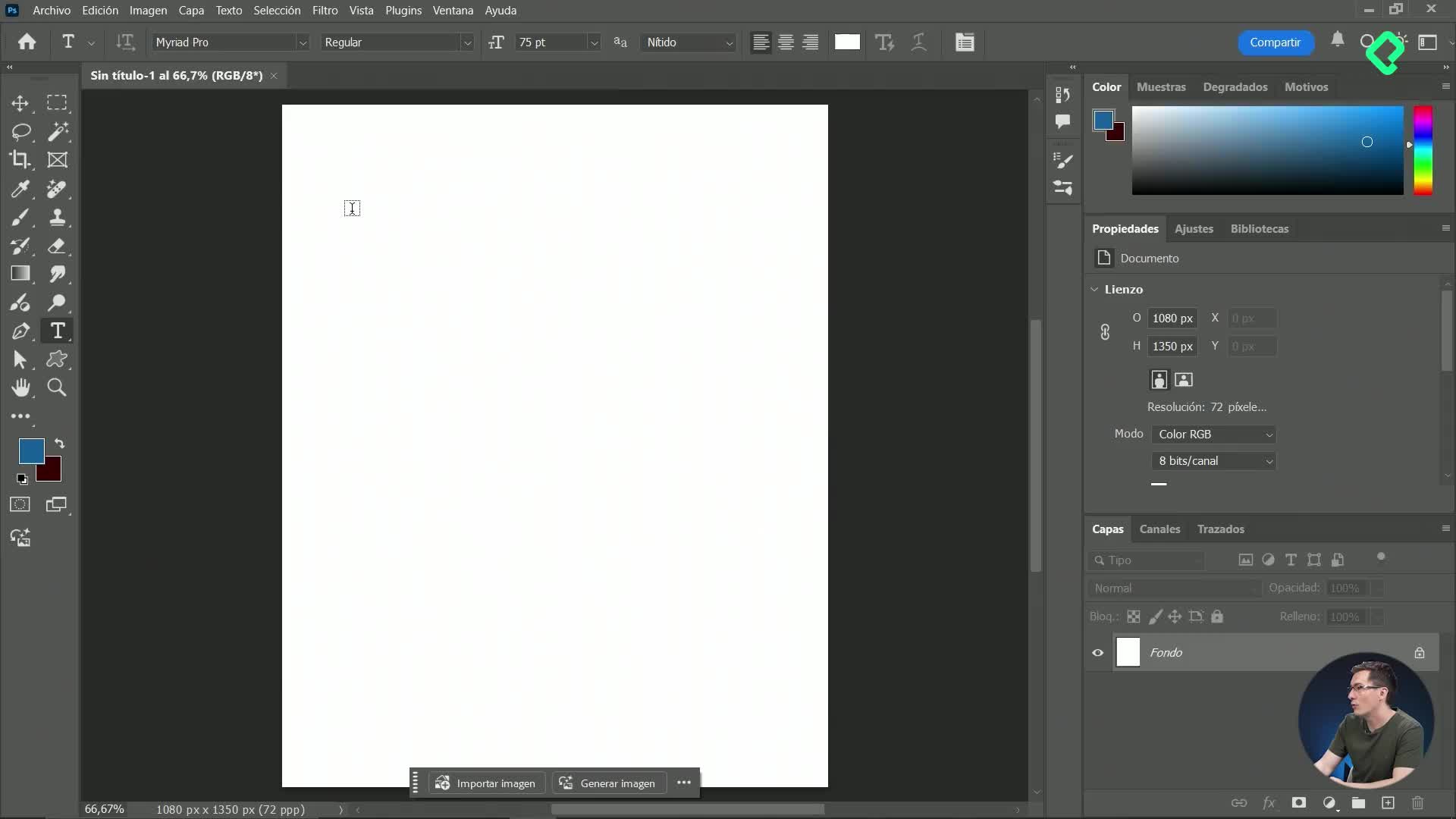
Herramienta de texto en Photoshop para anuncios publicitarios
09:51 min - 19
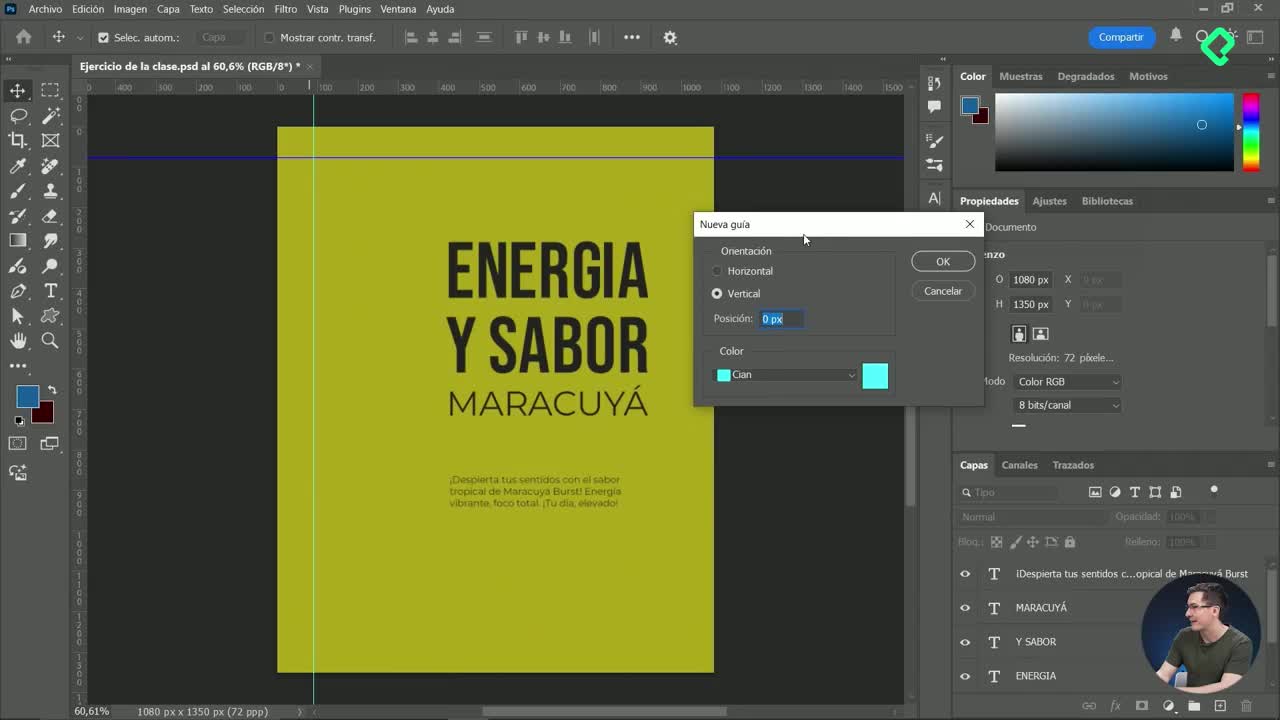
Guías y alineación en Photoshop
12:05 min - 20
Creación de motivos y texturas personalizadas en Photoshop
11:17 min - 21
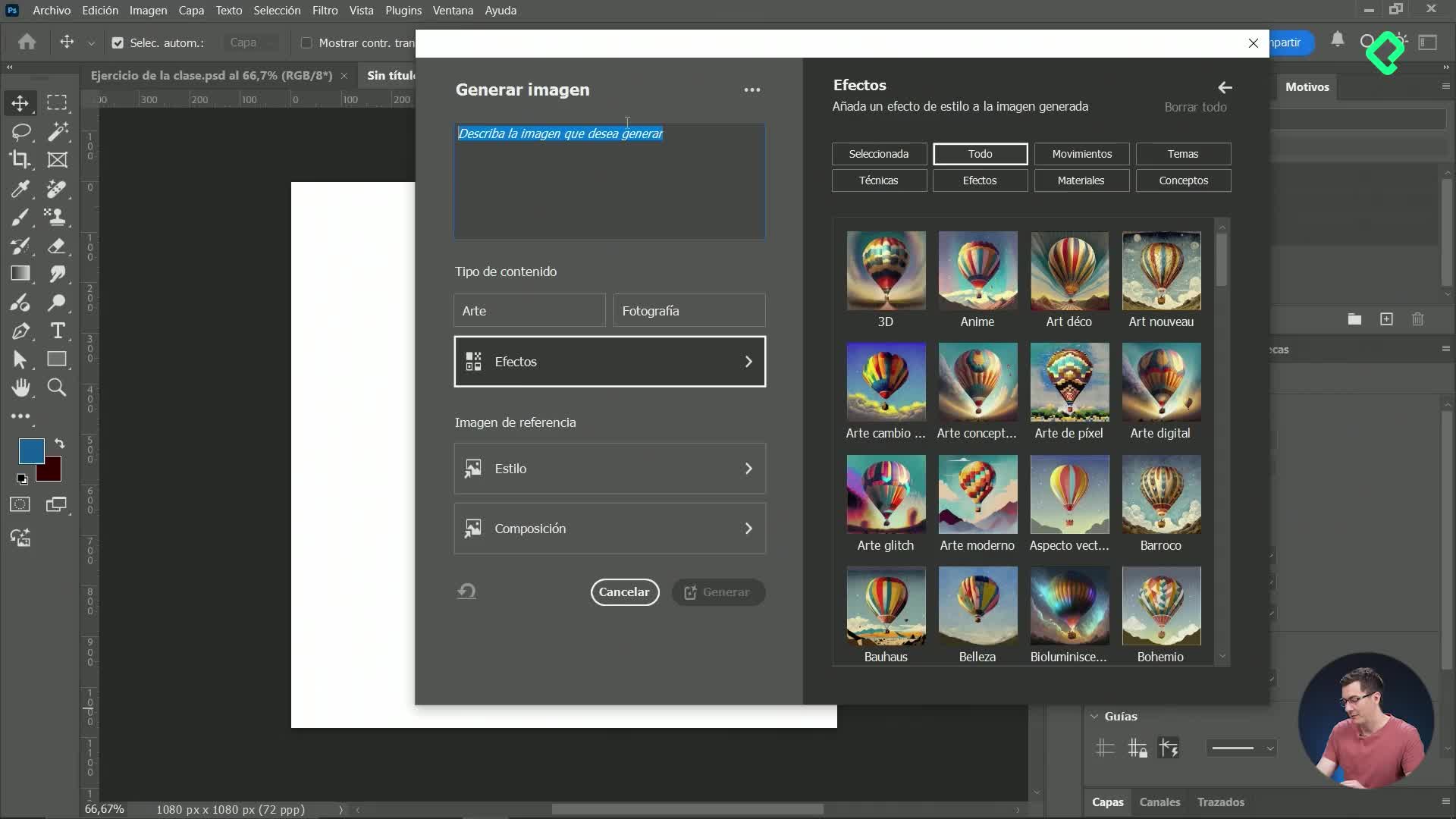
Generación de imágenes con inteligencia artificial en Photoshop
11:16 min - 22
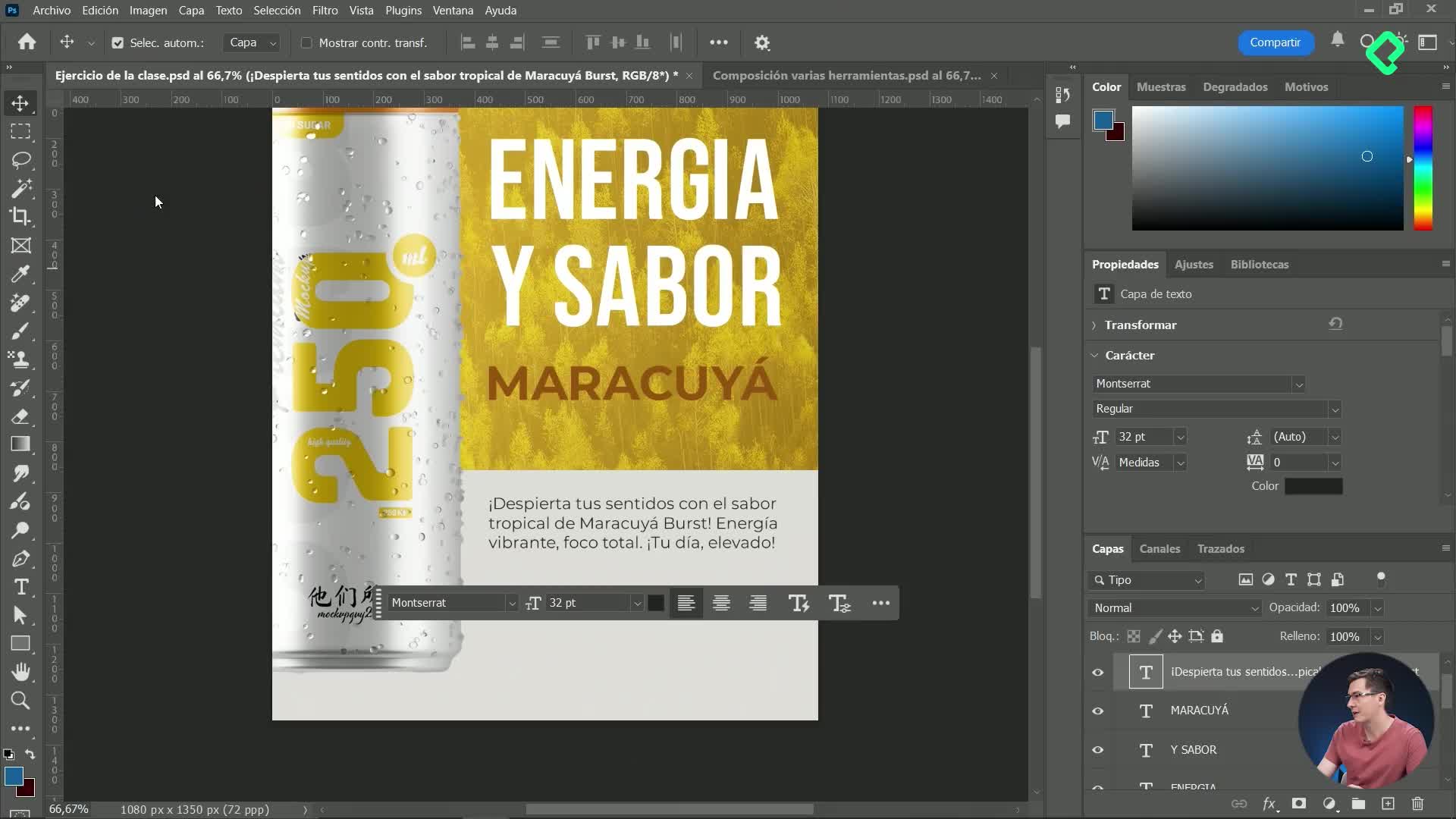
Integración de imágenes IA y efectos avanzados en diseño digital
12:19 min - 23
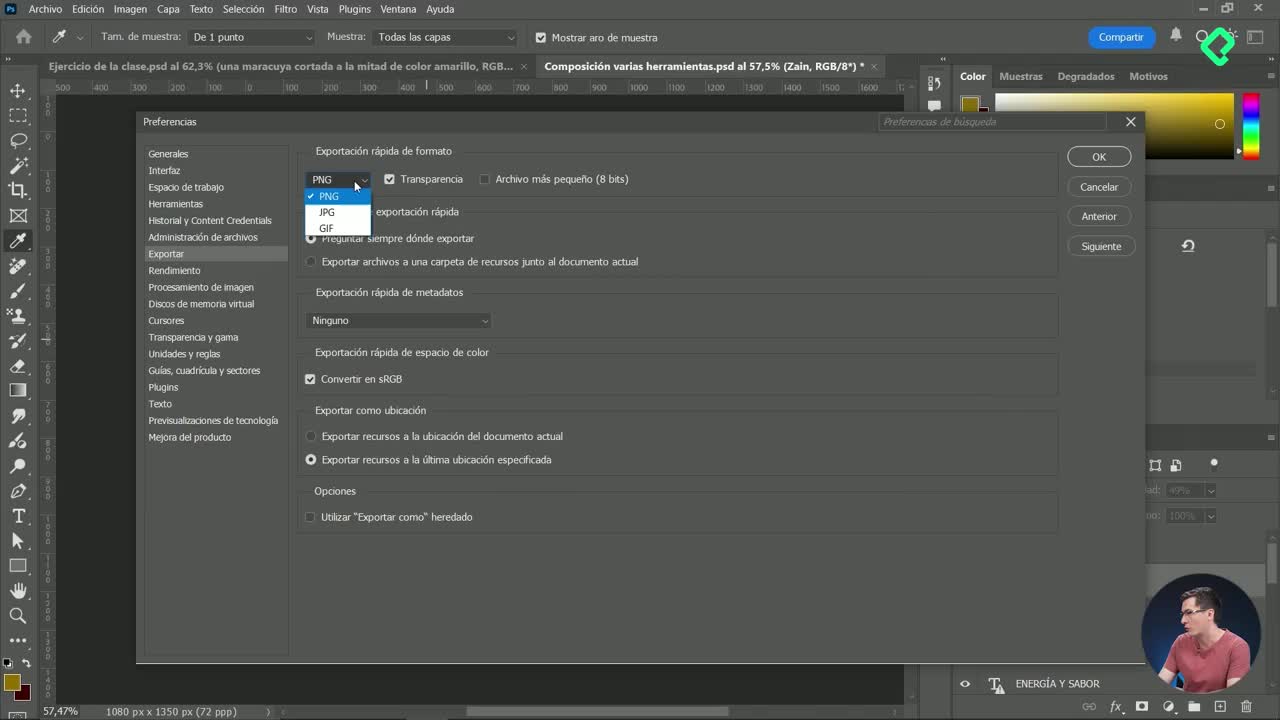
Formatos de exportación de imágenes en Photoshop
10:56 min - 24
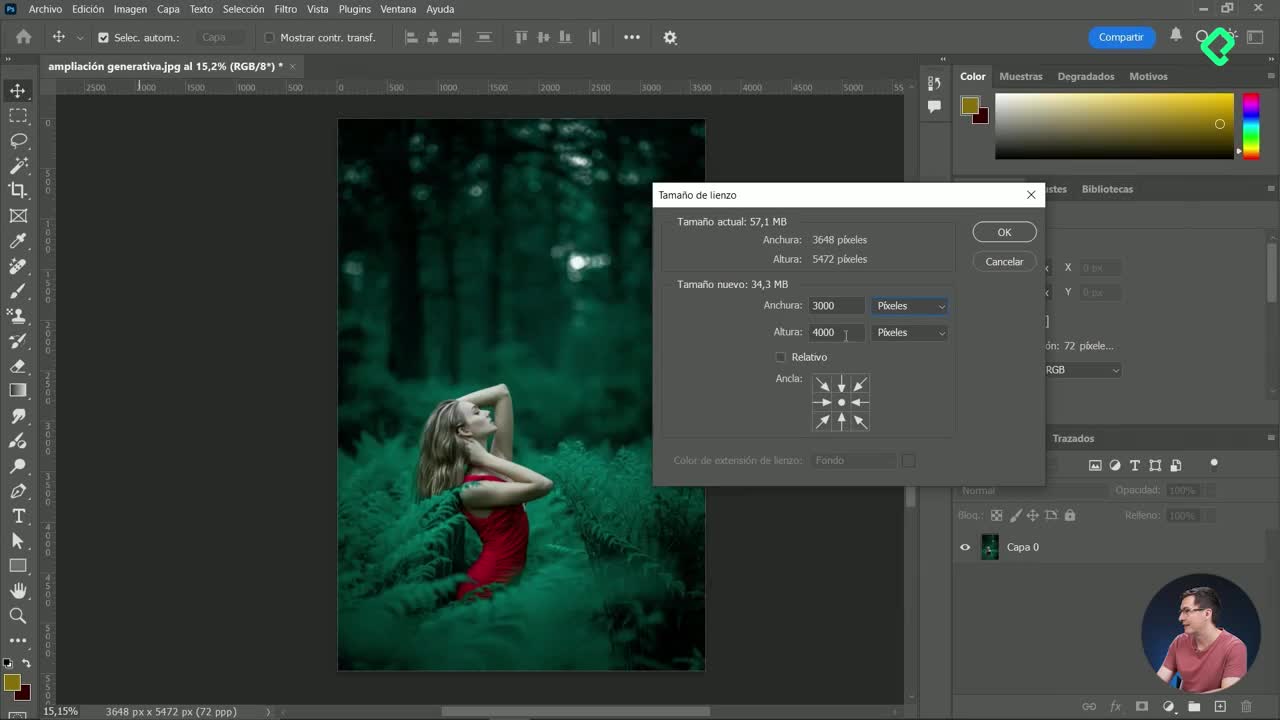
Cambiar el tamaño del lienzo en Photoshop con ampliación generativa
07:35 min - 25
Cómo guardar templates y bibliotecas personalizadas en Photoshop
04:53 min
Recursos
Resumen
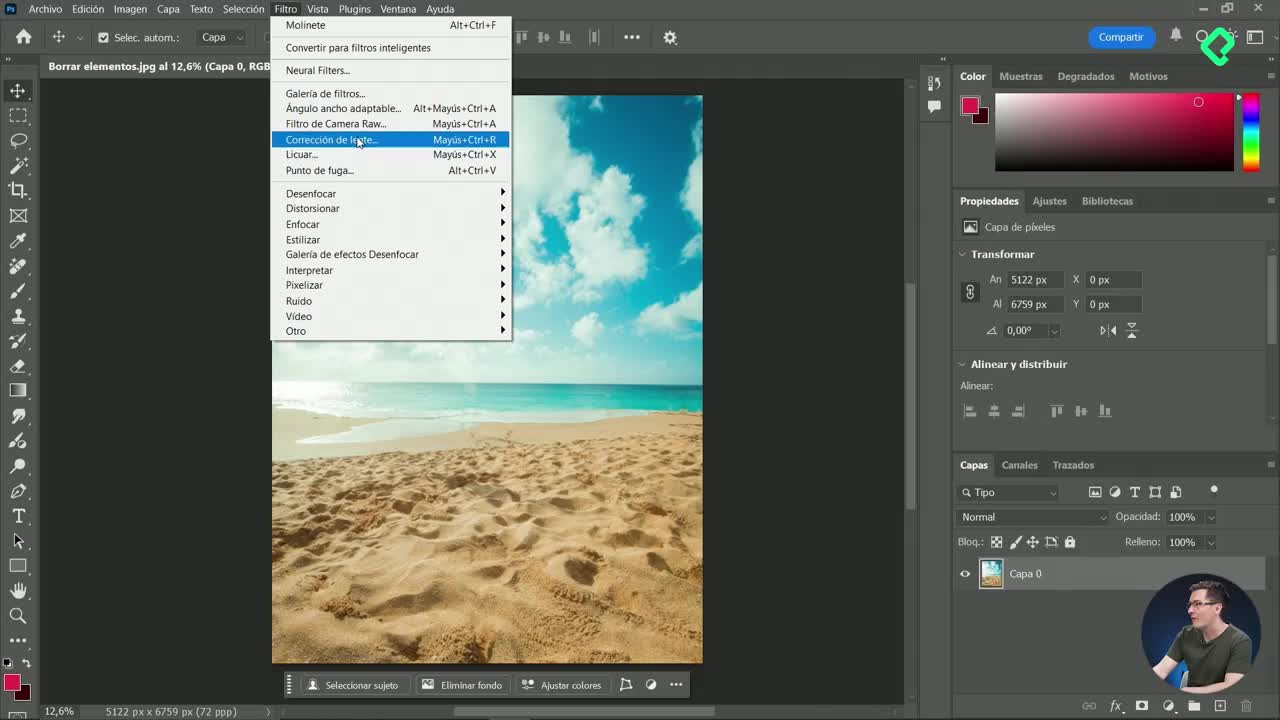
Removing objects in Photoshop is one of those skills that turns a good photo into a clean, professional image. If you work with images in your projects, you will often need to erase people, shadows or distracting elements, and Photoshop gives you several tools to do it, from AI-powered features to classic manual techniques. This guide walks you through each one using the same beach photo as an example.
Before touching any tool, unlock the layer lock so you can edit freely. From there, the key decision is whether you want to work destructively (directly on the image) or non-destructively (keeping the original intact). That single choice shapes everything else.
Which Photoshop tools use AI to remove elements?
The fastest results right now come from the two artificial intelligence features: Generative Fill and the Remove tool. Both read the surrounding pixels and rebuild the area for you.
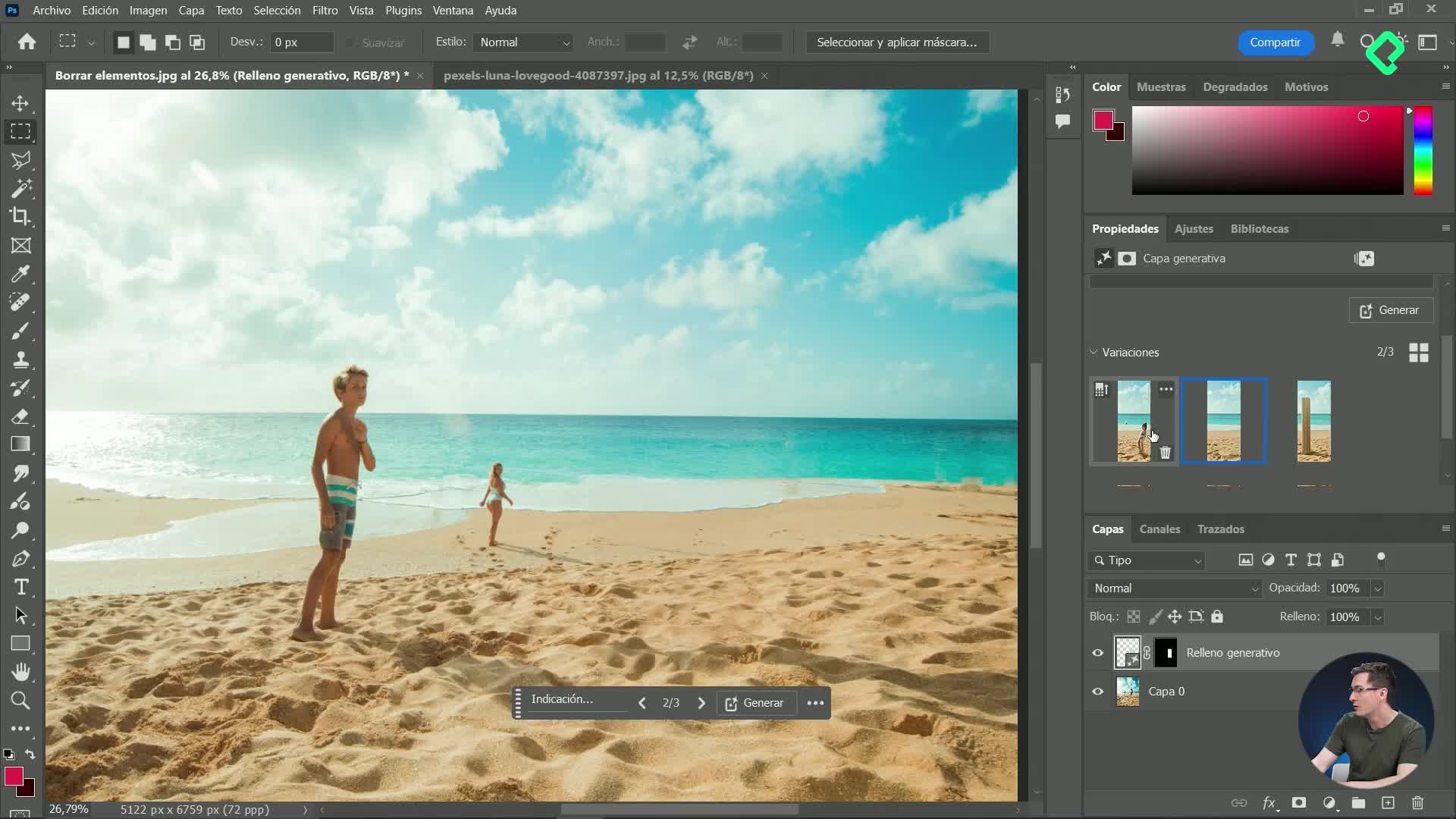
Start with Generative Fill [00:30]. Select the area around the element using the Rectangular Marquee tool, then open Generative Fill, delete any text in the prompt box and click Generate. You leave the prompt empty on purpose, because you are asking Photoshop to fill the gap with the background, not add something new.
And here comes the honest part: generative fill does not always nail it on the first try. Sometimes it invents an element you never asked for, like a little girl appearing where a man used to be [01:04]. The trick is that it always gives you three options, so you pick the cleanest result. Its biggest advantage is that it works non-destructively, creating a new layer on top while your original stays untouched.
What is Generative Fill in Photoshop? It is an AI feature that fills a selected area based on its surroundings. Leave the prompt empty to remove an object, click Generate, and choose from three results on a new layer.
The Remove tool [01:48] sits on the left toolbar and behaves like a brush. Resize it by holding Alt, right-clicking and dragging left or right, then paint over the object. Photoshop analyzes the image and erases it automatically. The result is impressive, though it works destructively, so your only undo is Control or Command Z. You can even paint over leftover shadows to clean them up.
How do the manual removal tools compare?
When AI is not enough, the classic tools still earn their place. Each one works a little differently, and knowing the distinction saves you time.
- Patch tool [03:14]: select the object, then drag the selection onto a clean part of the image to use as reference. Press Control or Command D to deselect. Choosing a bad reference point leaves visible errors, so pick carefully.
- Healing Brush tool [04:04]: requires a reference first. Hold Alt, click a clean source area (a crosshair appears), then paint over the object. It blends the sampled texture into the painted spot.
- Spot Healing Brush [04:46]: the simplest of all. No reference needed. You just paint, release, and Photoshop calculates what surrounds the area and fills it in. Like the two above, it is destructive.
After trying these, you will notice the AI Remove tool usually gives a cleaner result, but the manual tools give you more control when the background is tricky.
What is the Fill Along Contour (Content-Aware Fill)?
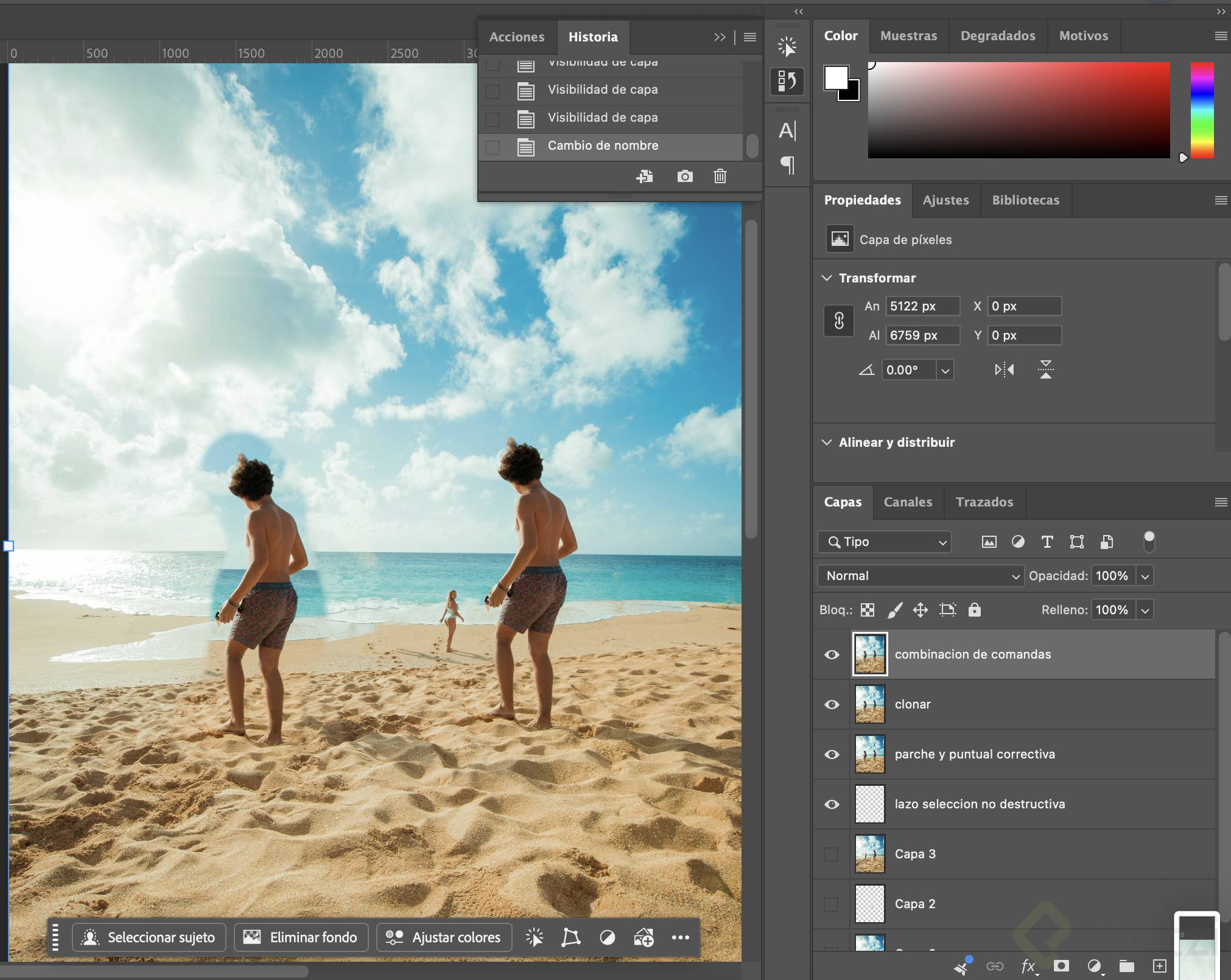
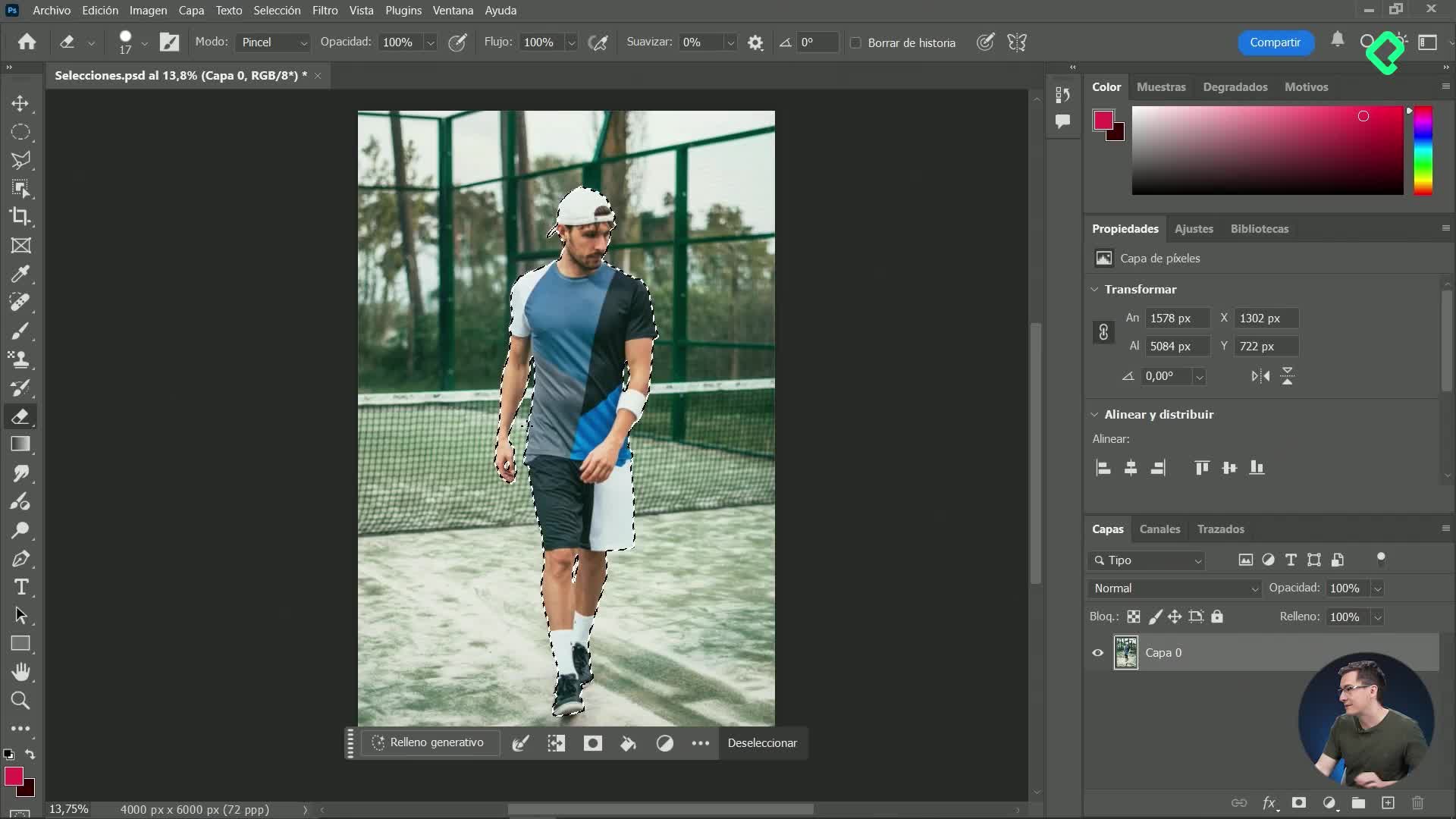
This one is worth the extra steps. Make a selection with the Lasso tool (or any selection tool) around the person, then go to Edit and choose Fill based on content [05:17]. A dedicated window opens where the green area marks the reference zone Photoshop uses to rebuild the selection.
You can switch between automatic and manual mode, painting over the exact parts you want used as reference, and holding Alt to subtract areas you want excluded. The best part is the output options: you can apply it on the current layer, send it to a new layer, or duplicate the layer. Choosing a new layer keeps everything non-destructive and acts like a patch hiding the person.
How does the Clone Stamp tool work for removing and duplicating?
The Clone Stamp tool [07:04] both removes and duplicates elements. The critical setting lives at the top: the sample source, where you tell Photoshop to draw from the current layer, all layers, or another one.
Hold Alt, click the part you want to copy, then paint to clone it elsewhere. If you sample the ocean or beach outline, you can paint over a person to erase them. On a layer with content this is destructive.
To work non-destructively, create an empty layer and set the sample to all layers [08:14]. Now Photoshop pulls information from the layers below and paints it onto your new empty layer, keeping the original image intact.
Clone Stamp vs Healing Brush: what is the difference? The Clone Stamp copies pixels exactly from your sampled source. The Healing Brush samples texture but blends it with the target area's light and color, producing a softer, more natural match.
Why does the History panel have a limit?
The History panel (Window, then History) lets you step back through every action, like Control Z through time, even all the way to when you first opened the image [02:35]. But it is not infinite.
Go to Edit, Preferences, Performance and look for History States [09:32]. That number controls how many steps are saved and how many times you can undo. You can raise it to 100 or 150, but each saved step consumes memory and can slow Photoshop down. The default of 50 works well for most machines. Keep in mind: once you close and reopen a file, all those history steps disappear, since they only exist while the program is open.
One last shortcut worth memorizing: press Ctrl+Alt+Shift+E to merge all visible layers into a single new layer on top [10:42], without flattening the originals. It is the fast equivalent of duplicating your layers and merging them manually.
Now that you know these tools, grab the practice images in the resources section, delete a few elements and share your results in the comments.