Contenido del curso

SEO and Narrative Structure
Strategic Networking
Content Creation and Engagement
Job Search Tactics
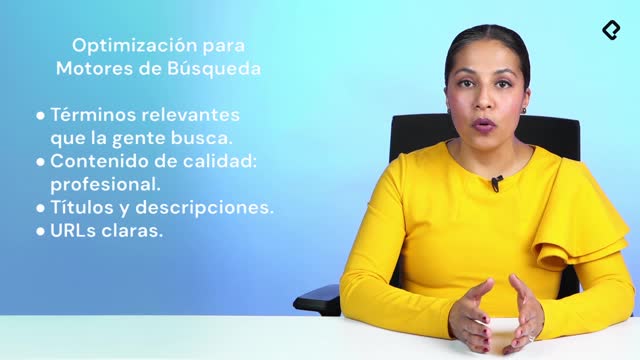
Customize Your LinkedIn URL for SEO
Resumen
Your LinkedIn profile works as your professional address on the internet, and you decide how people find you inside and outside the platform. Optimizing your LinkedIn profile URL, customizing each section, and understanding what makes an All-Star profile turns your account into a discoverable asset for recruiters, clients, and collaborators.
What is a LinkedIn URL and why should you customize it?
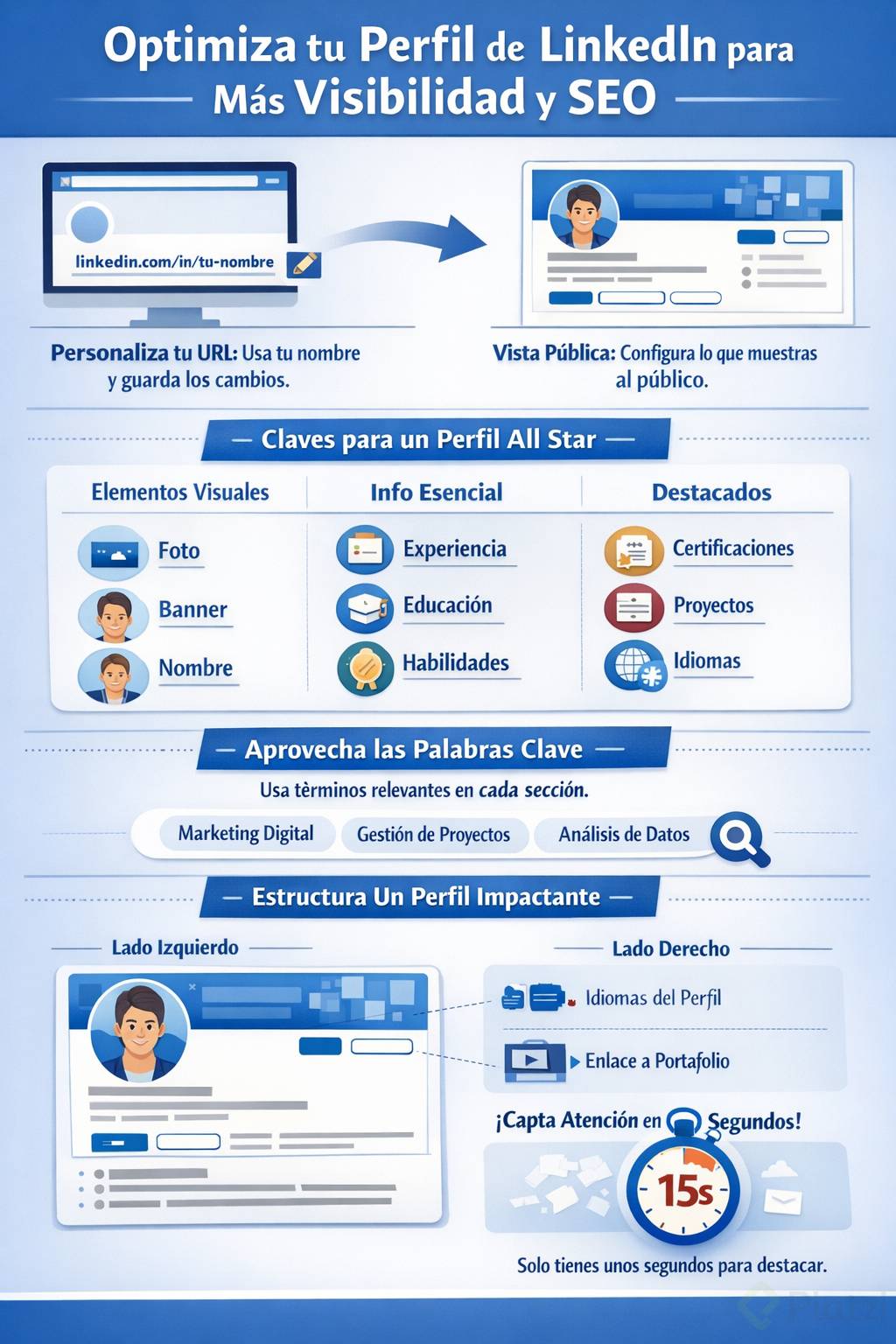
Your LinkedIn URL is the direct address to your profile, the link you share when you want someone to connect with you or review your work. By default, LinkedIn assigns a random number after linkedin.com/in/, but you can replace it with your name to make it cleaner and easier to remember.
What is a personalized LinkedIn URL? It is a custom web address that replaces the random characters LinkedIn gives you with your name, making your profile easier to find on Google and easier to share offline.
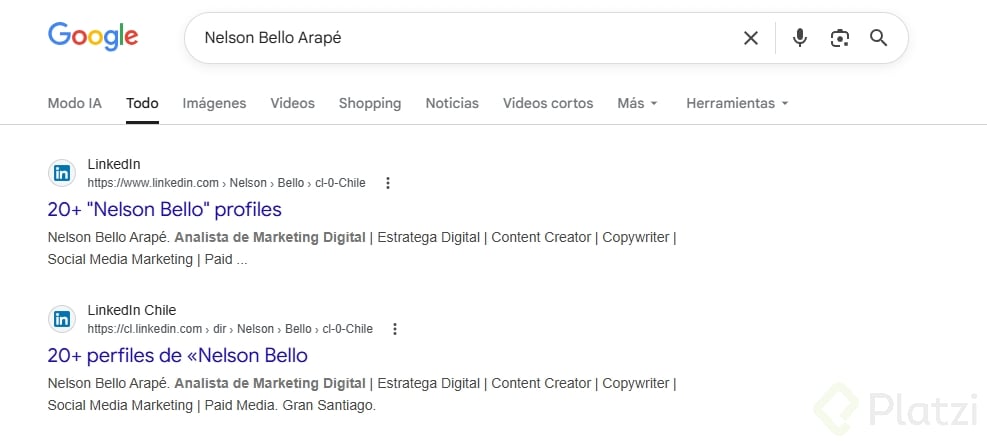
Think about how you search on Google. You usually type one or two words, like bicycles or cameras. The same logic applies when someone looks for you: they will type your name. If your URL matches that search, your profile is more likely to appear.
How do you edit your LinkedIn URL step by step?
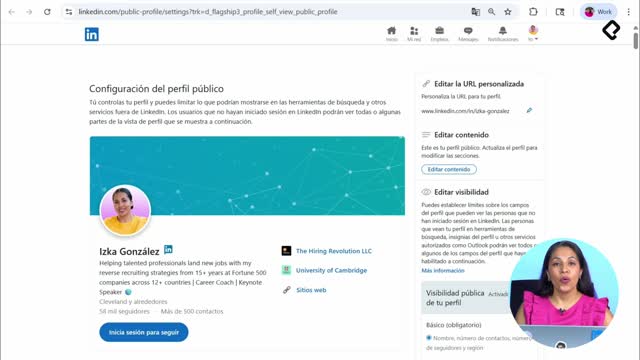
To personalize your URL, click the pencil icon in the public profile section. LinkedIn will take you to a preview of how your profile looks outside the platform, so you can see exactly what a visitor sees.
- Click the pencil icon next to the URL field.
- Keep
linkedin.com/in/and edit only the text after the slash. - Use between 3 and 100 characters, no spaces, no symbols, no special characters.
- Prefer your full name; if it is taken, combine first name, middle name, or last name.
- Use a hyphen between names to improve discoverability through SEO.
If the URL you want already belongs to someone else, LinkedIn will ask you to try another combination. Once you find one that represents you, click save.
What sections make a complete LinkedIn profile?
LinkedIn organizes your profile into essential, recommended, and additional blocks. To explore them, click Add section and you will see every element the platform allows you to fill in.
The All-Star profile is LinkedIn's internal benchmark. When you complete the basics, the algorithm marks your account as trustworthy and shows it more often to other members.
What is an All-Star LinkedIn profile? It is the completion level LinkedIn assigns when your account has all the essential data: name, photo, banner, education, position, and skills. Reaching it increases how often your profile appears in searches.
Which fields are essential versus optional?
The essentials are non negotiable because they tell LinkedIn your profile is real and worth showing. The optional ones add depth and help you stand out.
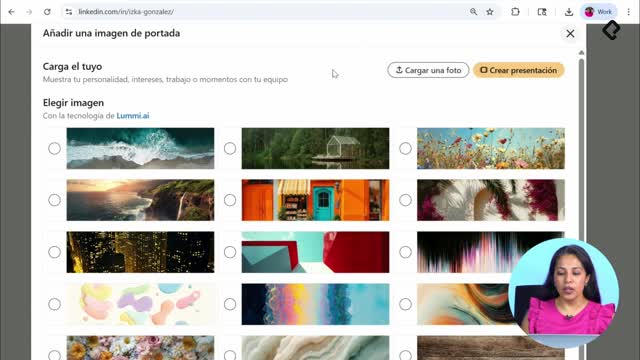
- Essentials: name, profile photo, banner, headline, education, current position, services, and skills.
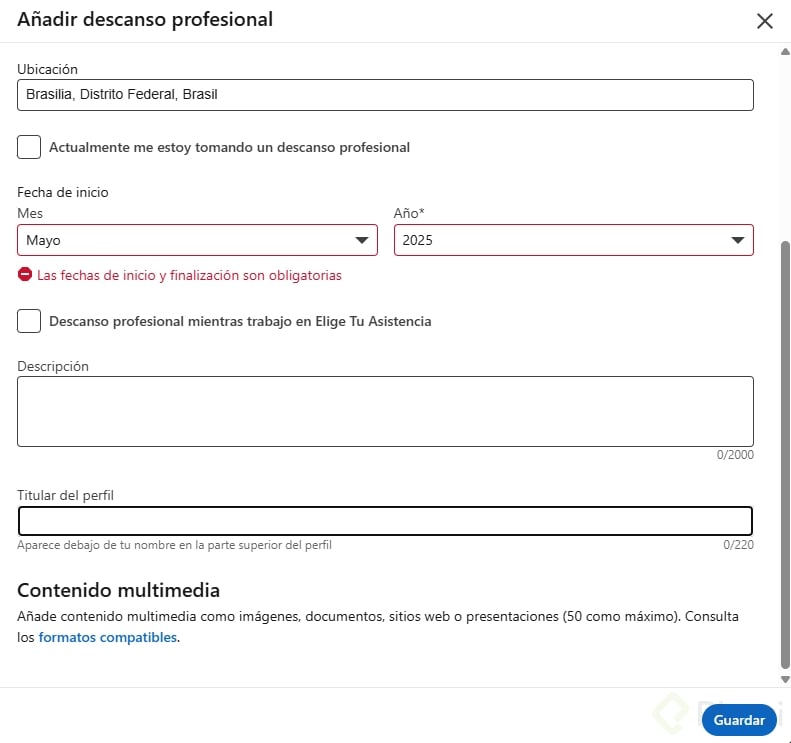
- Career break: a section LinkedIn added during the pandemic to acknowledge non linear careers.
- Featured: certifications, courses, projects, and recommendations from clients or colleagues.
- Additional: volunteering, publications, awards, and languages.
Every word you add becomes searchable. Beyond your photos, your profile is text, so each section is an opportunity to be found through relevant keywords.
How does a real LinkedIn profile look section by section?
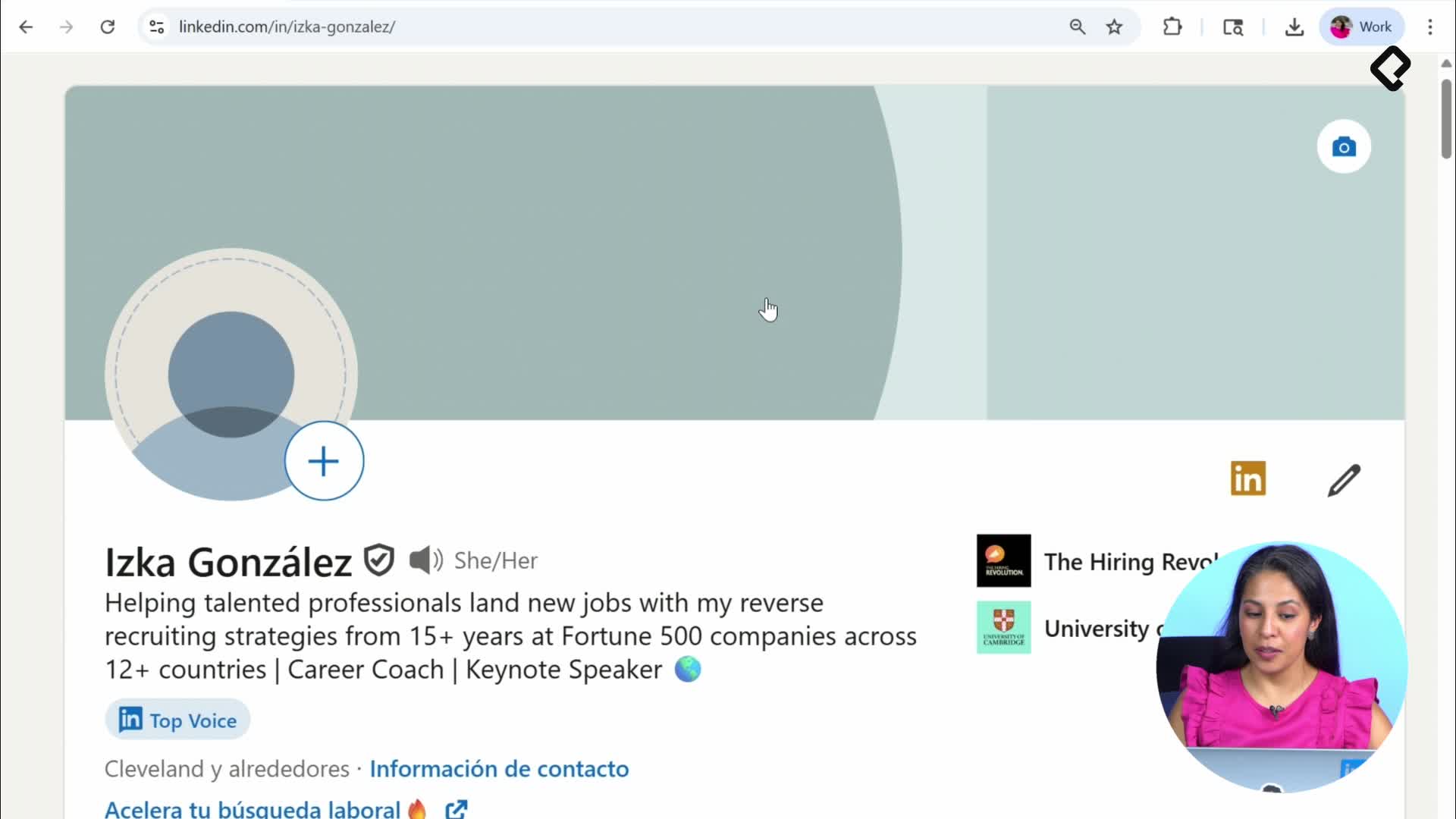
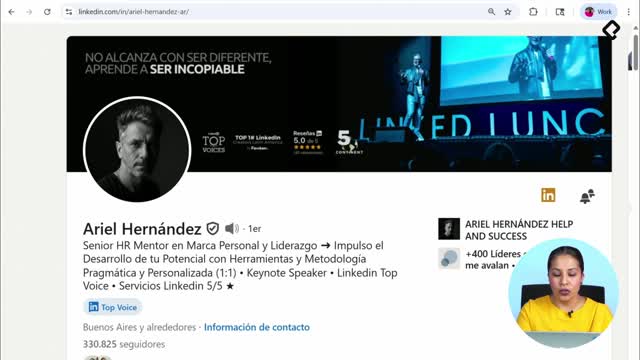
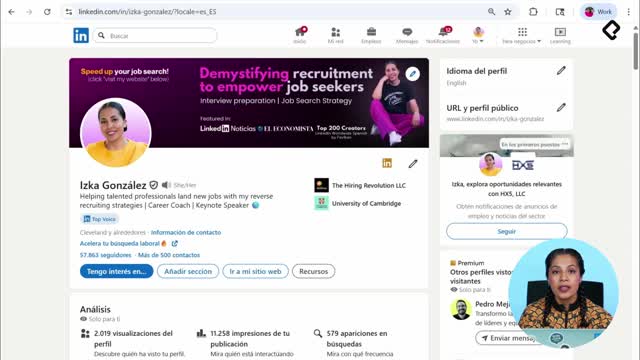
When someone lands on your profile, the first block on the left shows your banner, photo, name, connection degree, headline, current company, last education, and location. You can also add a link to a portfolio or service page, and visitors can connect, message, or take other actions from there.
On the right side, LinkedIn displays the languages your profile is available in. The primary language sits on the left, and any additional language appears on the right.
Does LinkedIn translate my profile automatically? No. If you add a second language, you must edit and update every text manually. Changes in your primary language do not sync to the additional one.
What goes into the About, Skills, and Experience sections?
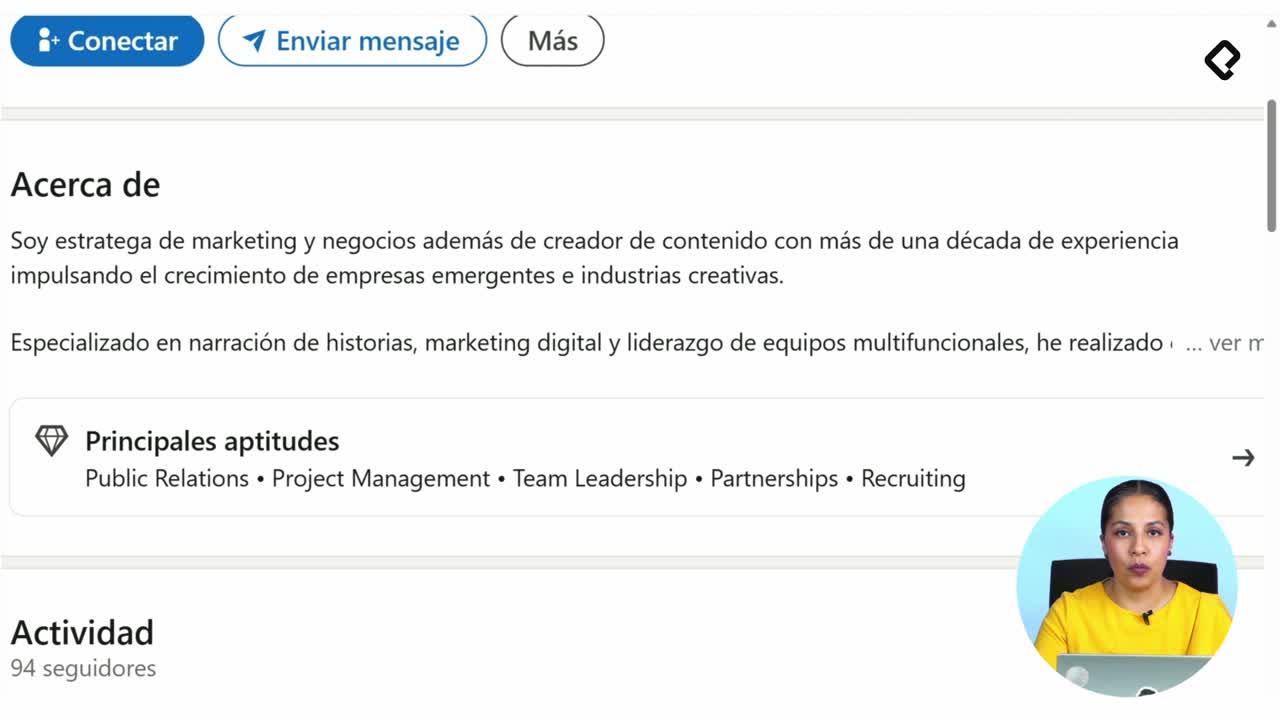
The About section is your professional summary, and LinkedIn previews only three lines before the reader has to click see more. Use that space to show who you are quickly and clearly.
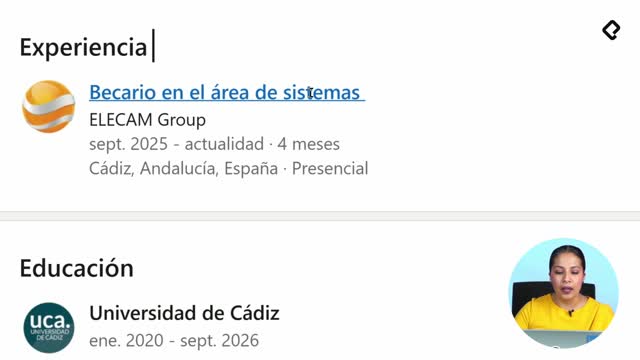
In Skills, LinkedIn lets you add more than 50, but quantity is not the goal. Choose skills that match the role and message you want to project. The Experience section works like a resume: it starts with your most recent or current job and goes backwards.
LinkedIn introduces you the same way you would meet someone in person: image first, then presentation, then connections, and finally professional experience. That is why people often spend only 15 seconds scanning a profile, the opening blocks carry most of the weight.
Now open a profile inside LinkedIn and tell me in the comments how far down you scrolled before losing interest.