Contenido del curso

SEO and Narrative Structure
Strategic Networking
Content Creation and Engagement
Job Search Tactics
Why Your LinkedIn Profile Gets No Views
Resumen
You've updated your LinkedIn profile a thousand times, written posts, connected with recruiters, and still nothing moves. If you want to optimize your LinkedIn profile to actually land a job, sell more, or connect with the right people, the shift starts with strategy, not cosmetics. Here you'll learn how to read the platform, set a clear goal, and use every section to your advantage.
Why does LinkedIn matter for your professional goals?
LinkedIn is the world's largest professional network with over 850 million members, and that number alone changes how you should approach it. It's not just a digital résumé; it's a living platform where you can connect with virtually any professional on the planet.
And here's the part most people miss: LinkedIn is constantly testing. Like any online platform, it runs A/B testing, so your feed today might look different tomorrow. That's why memorizing buttons matters less than understanding the logic behind them.
LinkedIn's mission is simple: help every member reach their professional goals and connect with others participating in the global economy. Your job is to align with that mission.
What is LinkedIn used for? It's a professional networking platform where you manage your personal brand, find jobs, grow a business, and connect with leaders worldwide. Every action you take inside the platform should push you toward a goal outside of it.
How do I define my goal before optimizing my profile?
Before touching a single section, you need to define your career goal. Without it, optimization is just decoration.
Ask yourself which of these fits you right now:
- Landing a job, whether traditional, freelance, hybrid, or part time.
- Selling more through your business or services.
- Connecting with a leader because you want to learn something new.
Your goal becomes the filter for every photo, headline, post, and connection request. Every action inside LinkedIn is what leads you to results outside of it.
What's on your LinkedIn profile and how to navigate it?
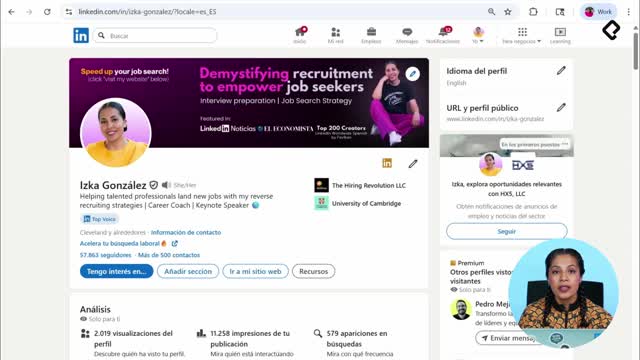
When you log in, the first thing you see is your feed. On the left, you'll find your photo and a small box with who you are, so you can always locate yourself. The center is the social layer: posts, videos, and updates from your network.
Take a minute to scroll your feed on purpose. If something feels off, you can always adjust it later.
How does the top bar work?
The top bar is your command center. From the search box you can look up people, companies, groups, and posts, with filters that narrow things down fast.
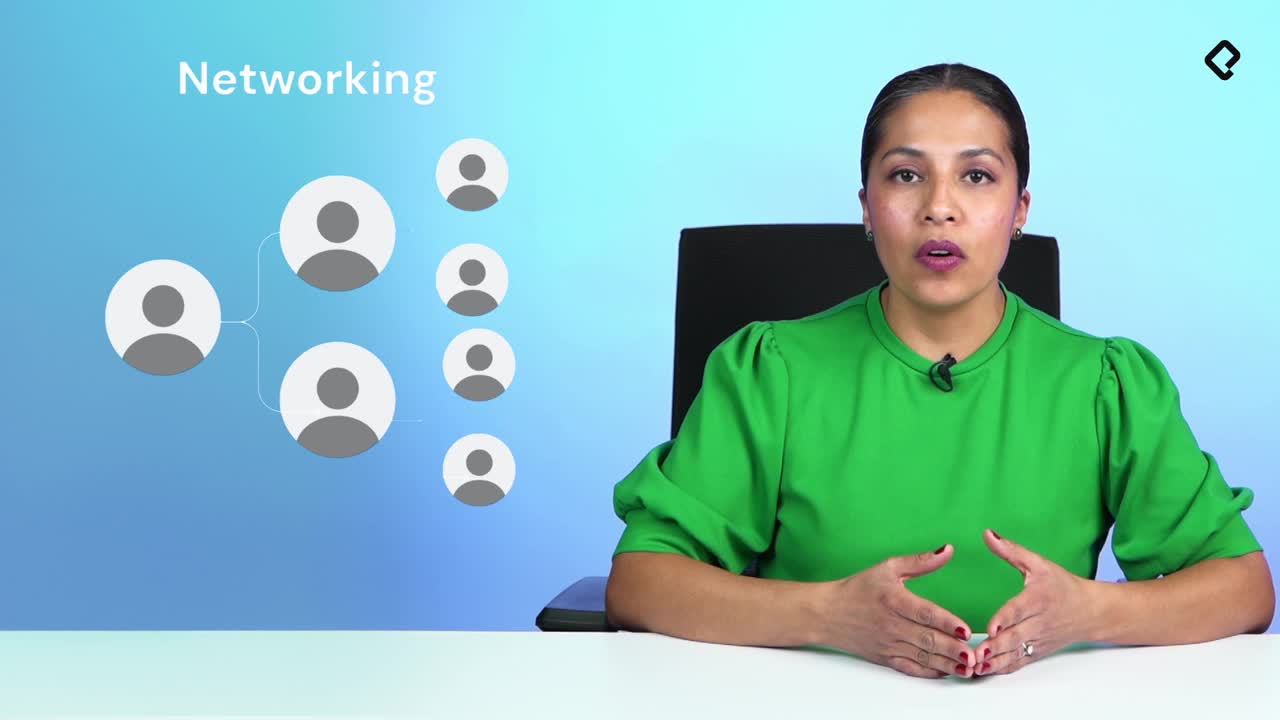
Right next to it sits one of the most underrated views on the platform: your network. LinkedIn organizes contacts as first, second, and third degree connections, and that hierarchy is the engine of networking. Someone who knows someone who can refer you for a job or recommend your service is exactly how opportunities travel here.
The other key shortcuts in that bar:
- Jobs, where you find traditional, freelance, hybrid, or part time roles.
- Messaging, where you send and receive messages with first degree connections.
- Notifications, which alert you to connection requests, mentions, and new job postings from companies you follow.
What are first, second, and third degree connections on LinkedIn? First degree means you're directly connected. Second degree means you share a mutual contact. Third degree means there are two people between you. The closer the degree, the easier it is to message and get referrals.
Why are notifications so important?
Notifications are where opportunities surface in real time. If you're job hunting, a notification can tell you the moment a company you follow opens a position. Treat that bell like a radar, not a distraction.
How do I manage privacy, language, and feed preferences?
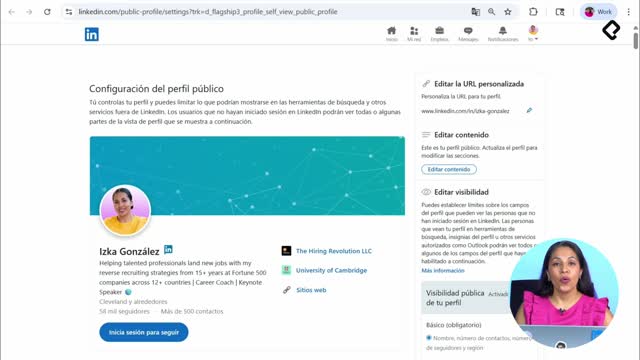
From your profile menu you can control almost everything: settings, privacy, who can contact you, the language your profile displays in, and what shows up in your feed.
This is where you fix the classic complaints. Why am I seeing posts that don't interest me? Why does this ad keep appearing? Why is someone flooding my feed with content that isn't useful? All of that is adjustable from settings, and tuning it makes your daily LinkedIn experience sharper.
From the same menu you can log out, and if you're growing a team, you can also create and manage job postings from there.
What's the difference between a free and a premium LinkedIn account?
The top bar also leads to two extra spaces worth knowing. For Business explains the platform's options for growth and company pages. Learning is LinkedIn's catalog of courses, available through a premium account.
A premium account unlocks tools that a free account doesn't show. If you're on a free plan, some features in the examples won't appear on your screen, and that's normal. The headline takeaway:
- Free account: full access to networking, jobs, messaging with first degree connections, and posting.
- Premium account: adds Learning courses and additional visibility and search tools.
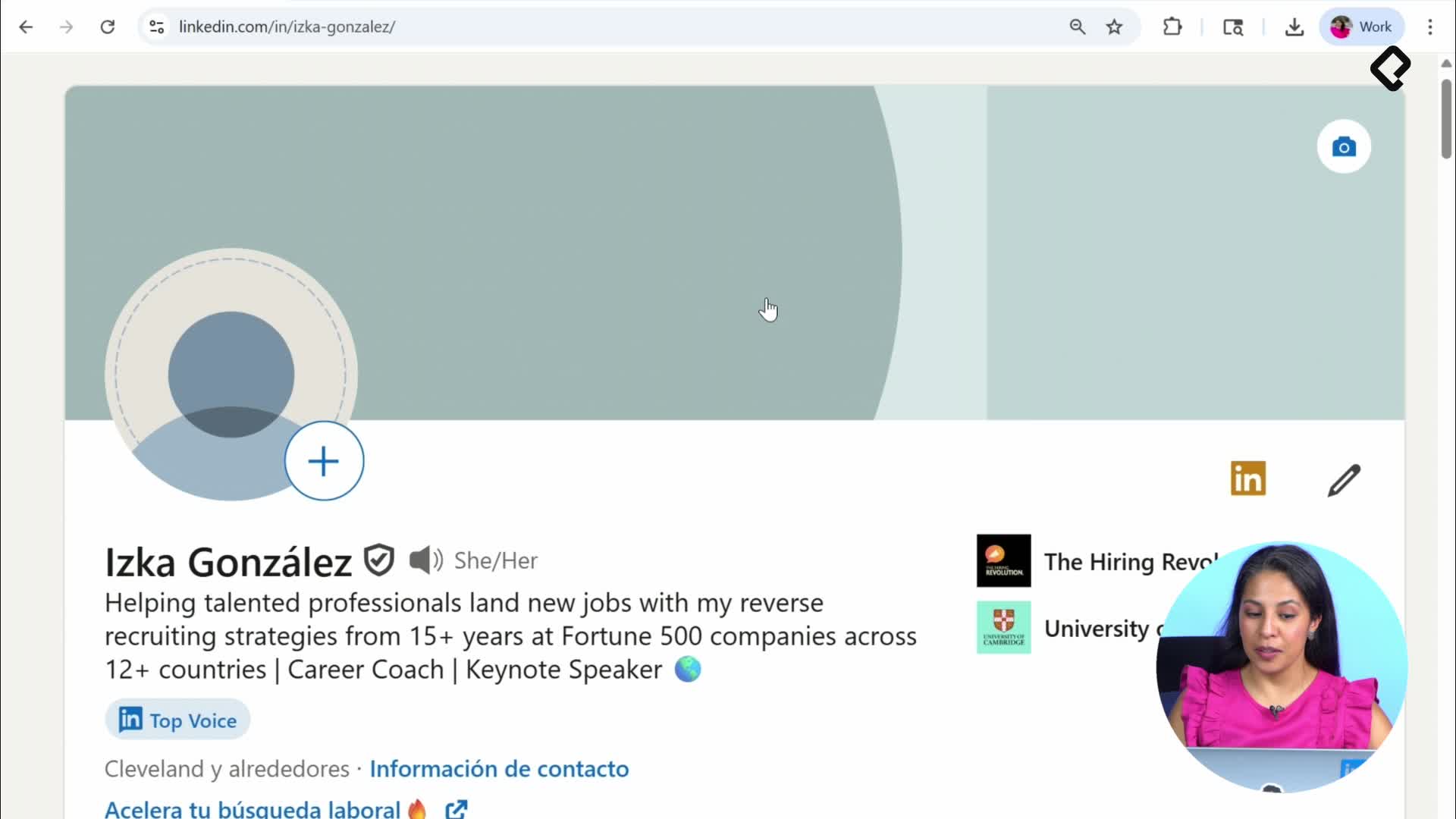
Your headline, that short description under your name, is one of the first things anyone sees alongside your photo. It's the hook that decides whether someone clicks to view your full profile, so treat it as prime real estate from day one.
Drop a comment with your professional goal for using LinkedIn or any question you have after this first walkthrough. In the next class we'll tackle a controversial topic: the profile photo.