Deploying an MCP Server to Azure Container Apps

Resumen

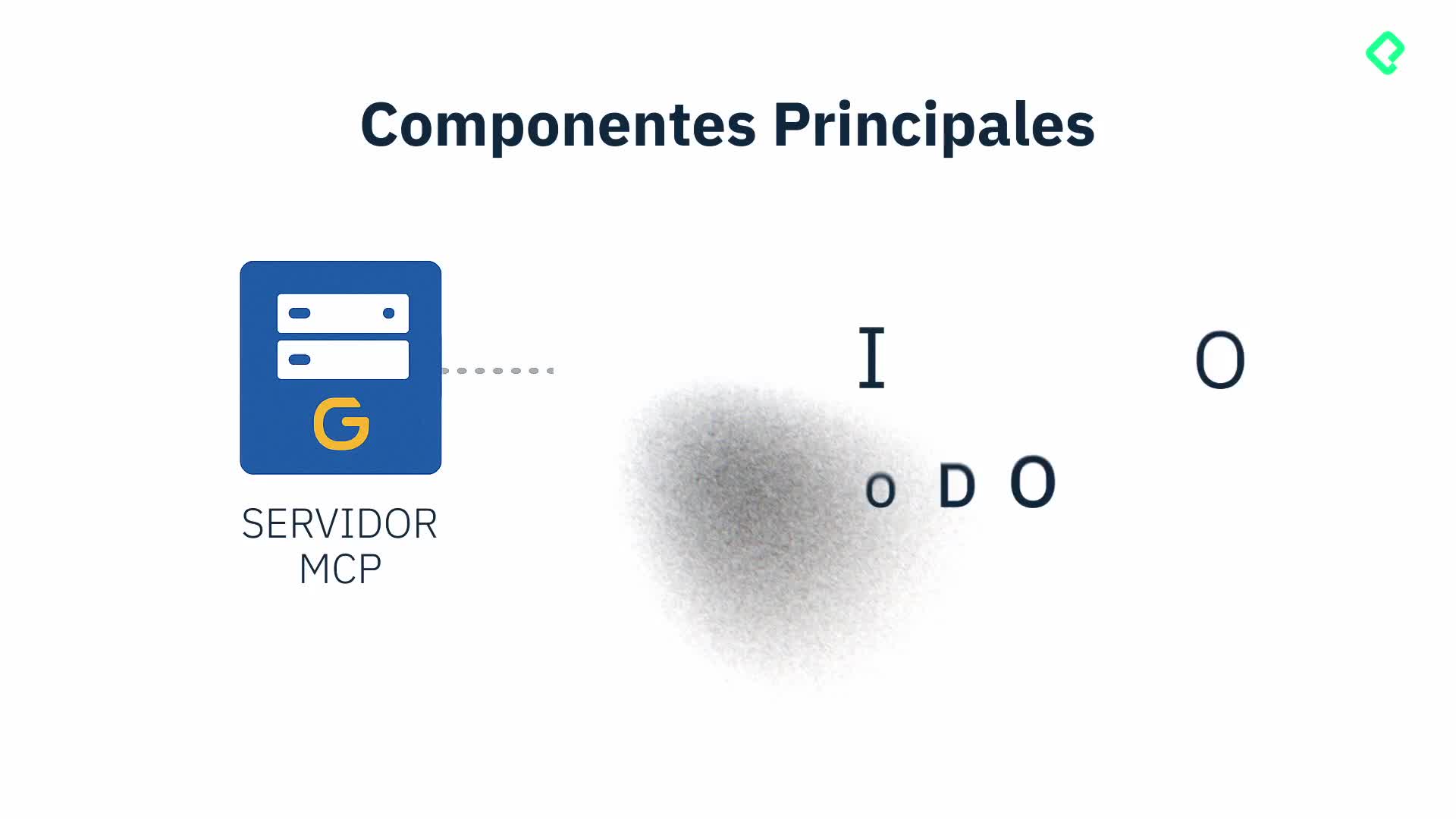
Running an MCP server locally works for solo projects, but scaling it to a distributed team or exposing it publicly requires a cloud deployment. Here you'll learn how to publish an MCP server to Azure Container Apps using a sample weather API, so any client host can consume it remotely.

Why move an MCP server from local to the cloud?

Most MCP projects today live on local environments, where a single team taps into the resources that fit their workflow. But adoption is growing fast, and with it the need to share servers across global teams or even open them to external users.

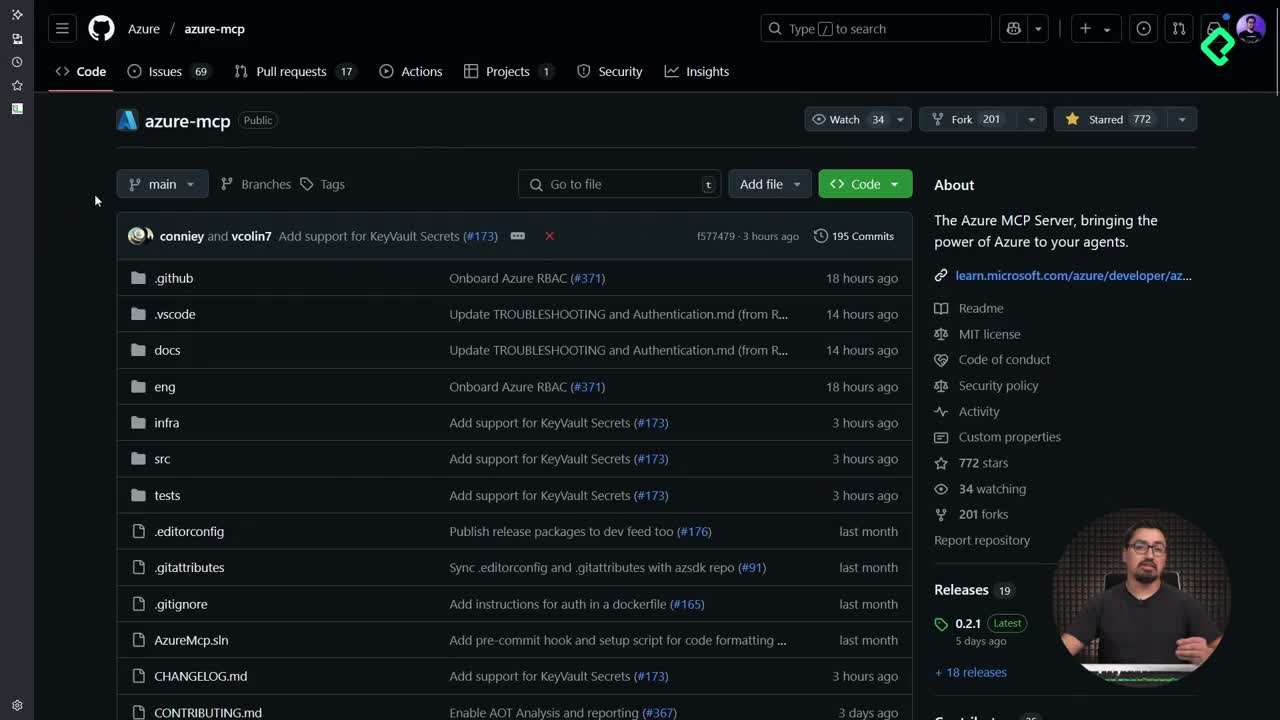
Think about the Azure MCP server you can plug into Visual Studio to query your subscription, or the GitHub MCP server that answers questions about your repositories. None of those work without being deployed somewhere reachable. That's the gap a cloud deployment fills.

What is Azure Container Apps? It's a serverless service in Azure for running containers without managing hardware. You define an environment, drop your app inside, and Azure handles scaling and networking.

How do I prepare the MCP sample repository?

The starting point is the repo aminspinoza10/azure-container-apps-mcp-sample, a fork of Anthony Chu's project from the Container Apps team. It ships a customized MCP server ready to deploy [01:45].

From your terminal, the flow is straightforward:

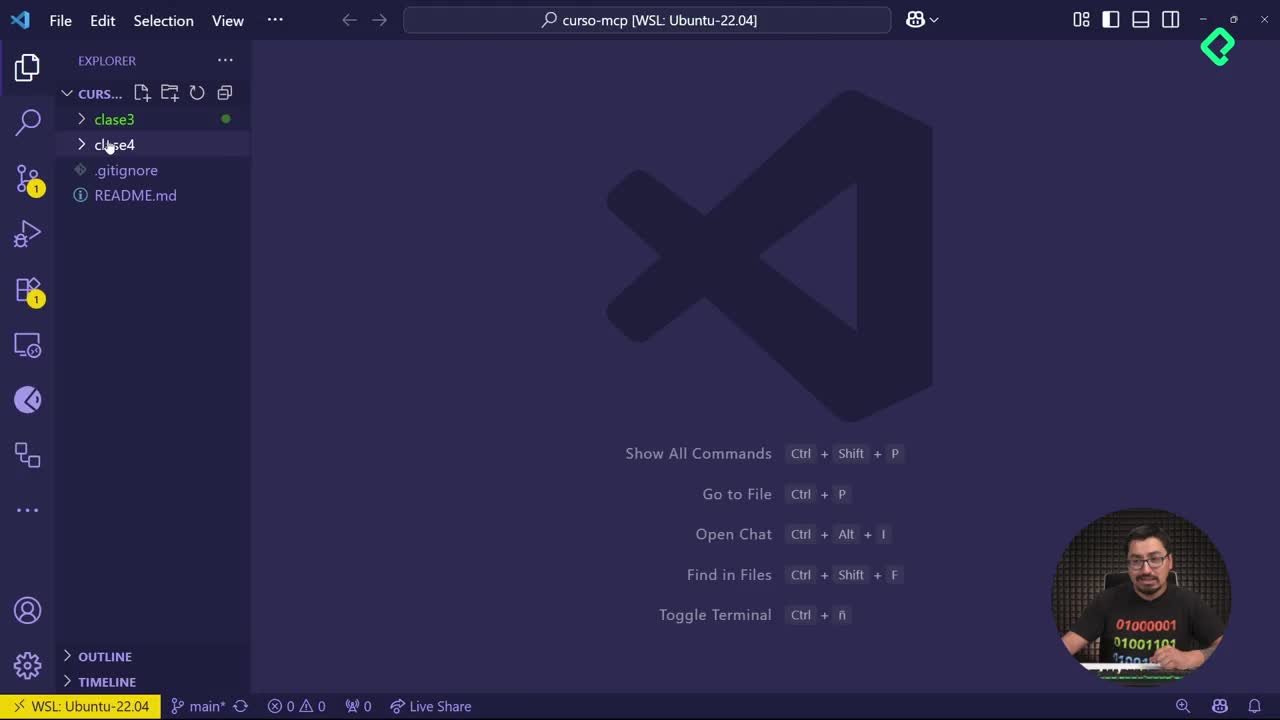
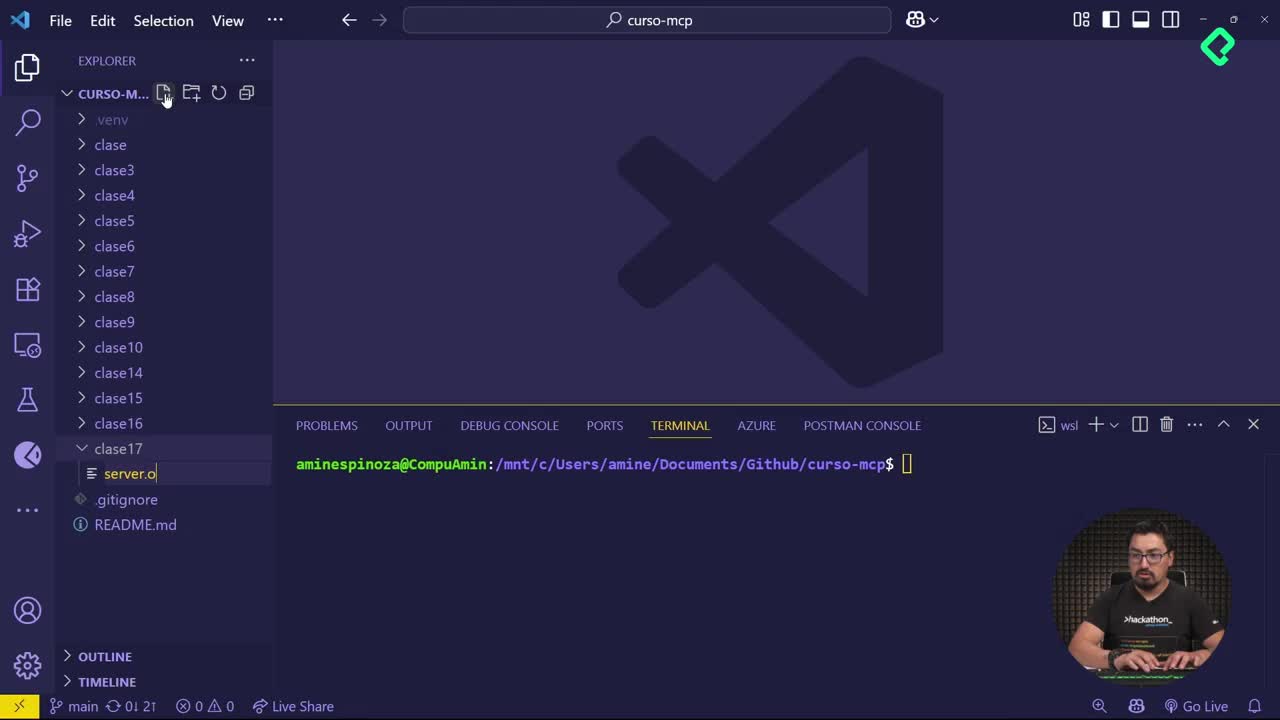
  • Create a working folder with mkdir clase10 and move into it with cd.
  • Clone the repo using git clone over SSH.
  • Open the project with code . to inspect it in VS Code.

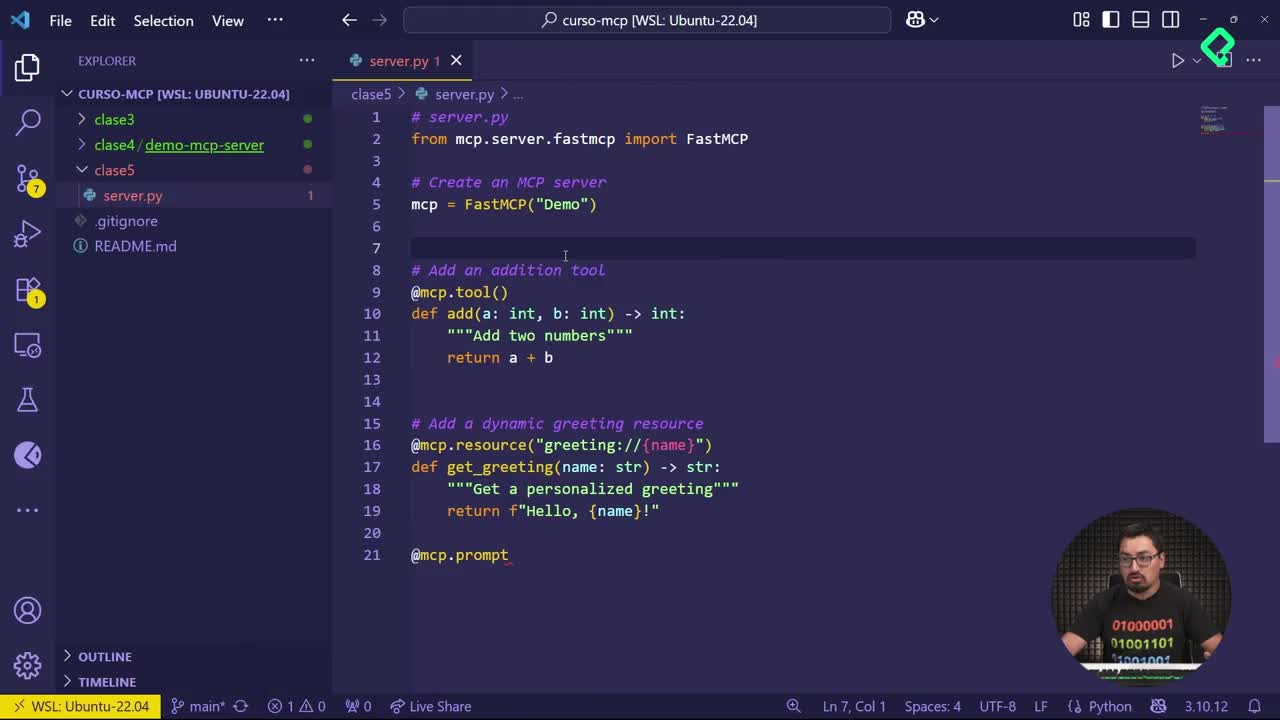
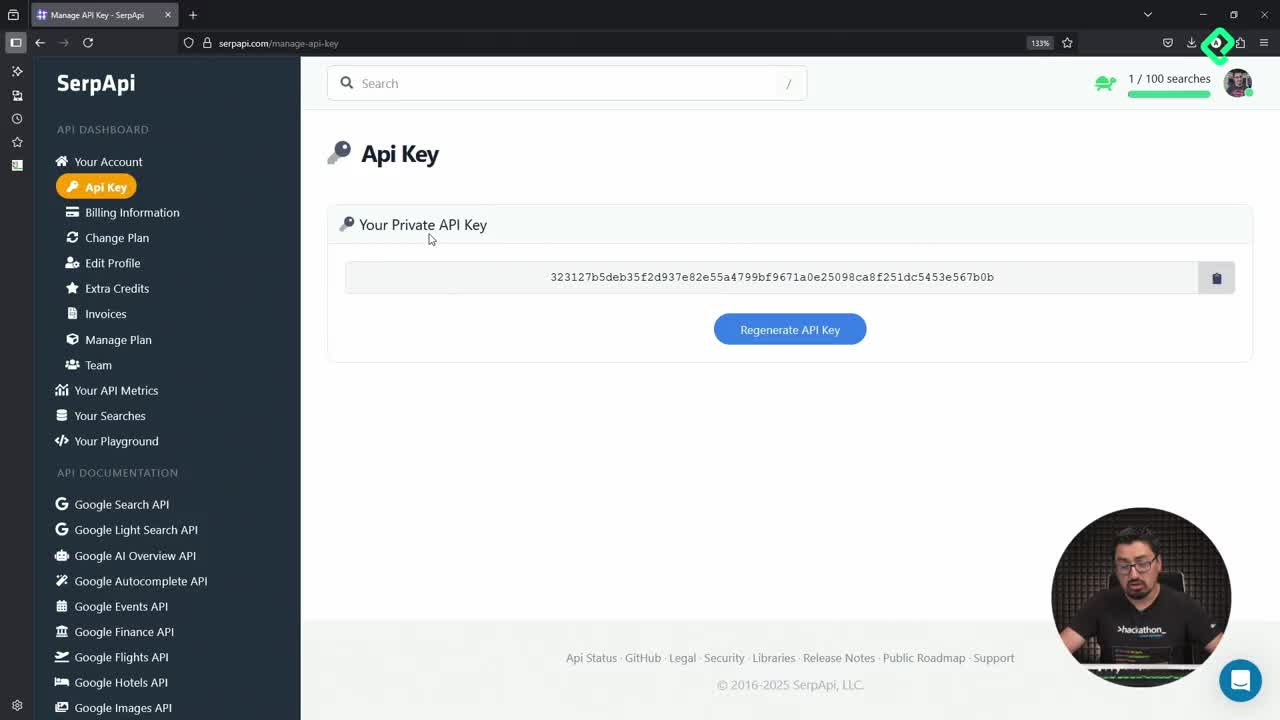
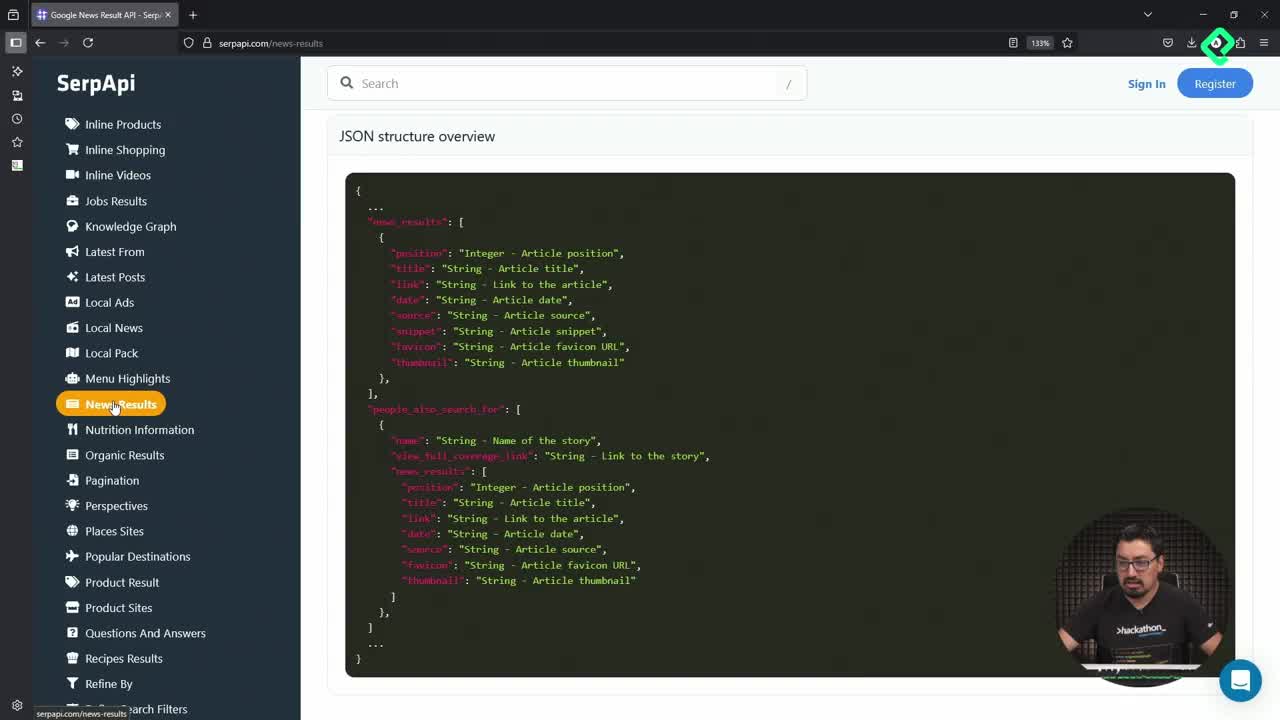
Inside the project you'll find a Dockerfile, but you won't need it here to keep things simple. The MCP server itself is more polished than the basic examples: it requires an API key for security, uses SSE transport for streaming, and exposes tools that consume api.weather.gov to return alerts and forecasts for the United States [03:30].

Why use an API key in an MCP server? Because once the server is public, anyone with the URL could hit it. The key acts as a shared secret that the client must send to authenticate.

How do I create the Container App environment in Azure?

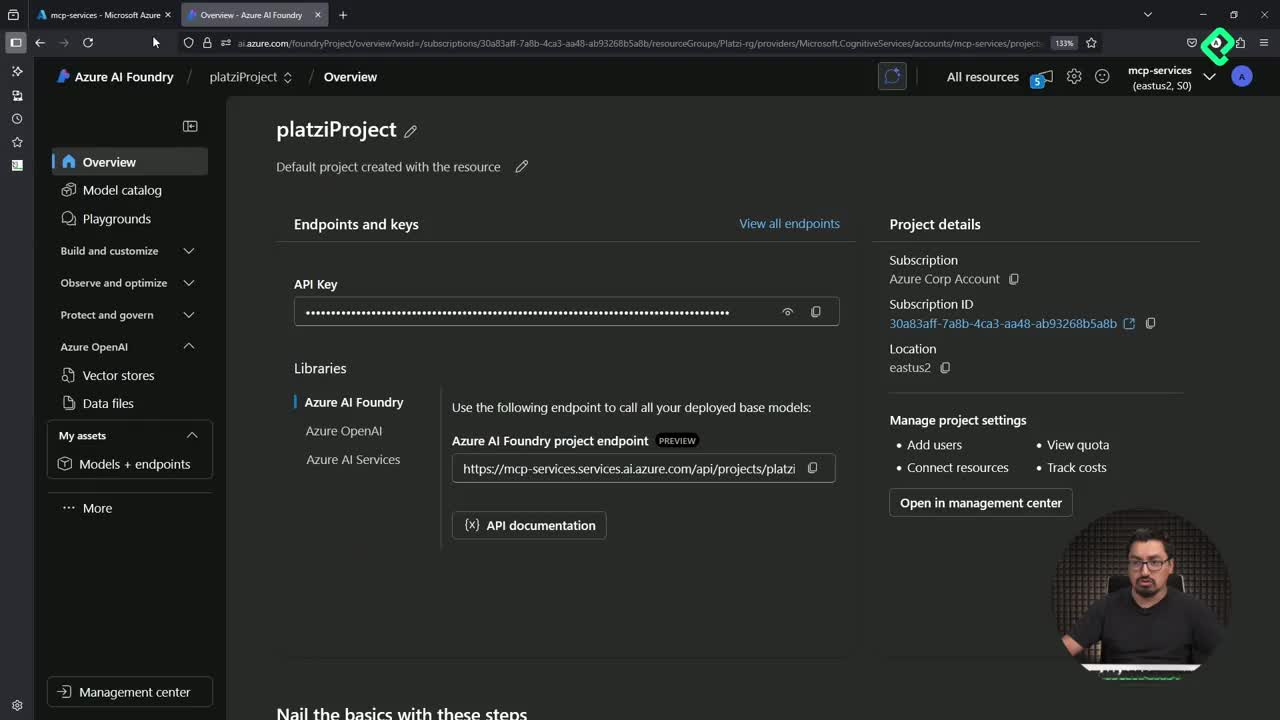
Azure subscriptions come with 200 USD of starter credit, and a Container App will barely scratch that budget. Inside your resource group, search for Container App in the marketplace and hit create.

The key fields when provisioning the environment are:

  • A name in lowercase only, for example mundoplatzi.
  • The region, in this case East US.
  • A new workspace named env-platzi-mcp, which works like a storage plan that hosts all your apps.
  • Networking set to accept traffic from anywhere on the Internet, since MCP clients need to reach it.

No zone redundancy is needed for a test, and no custom hardware setup is required either. Pick a basic container image, validate, and click create. The deployment takes a few minutes [07:50].

Once it finishes, go to the resource and copy the public URL. It loads a default page confirming the environment is alive. From here, grab two values you'll reuse: the environment name and the resource group.

How do I deploy the MCP server with az containerapp up?

With the environment ready, the deployment itself happens through the Azure CLI. The command structure looks like this:

bash az containerapp up
--resource-group <your-resource-group>
--name weather-mcp2
--environment <your-environment>
--location eastus2
--env-vars API_KEY=Medellin_Colombia123
--source .

The most important flag is --source ., which tells Azure to take the source code from your current folder instead of pulling a prebuilt container image. That's why you must run the command from inside the cloned repo [10:20].

The API_KEY value is a free-form string mixing letters and numbers, set as an environment variable the server reads at runtime. After hitting enter, Azure builds, packages and pushes the app for you. When it finishes, the terminal prints Container App Created along with the URL.

If you open that URL in a browser, you'll see a not found response, and that's expected: an MCP server isn't a web app. It speaks the Model Context Protocol over SSE, so it only responds to clients that follow that handshake.

What did you just ship to the cloud?

You now have a remote MCP server exposing weather tools, protected by an API key, running serverless on Azure Container Apps. The next step is connecting a host application as a client to consume those tools, which is exactly what comes next in the course.

Have you tried deploying an MCP server to another cloud, or hit any roadblock following these steps? Drop your experience in the comments.