Testing MCP Servers Without a Browser

Resumen

Automating an MCP server without a graphical interface changes how you build and ship backend tools. If you come from distributed systems or scripting heavy environments, learning to test an MCP server from the command line unlocks faster iteration, cleaner pipelines and real automation, without losing the safety net that the MCP Inspector provides.

Why use the CLI instead of the MCP Inspector?

The MCP Inspector is visual, fast and great for exploration. But you can't always rely on a browser to validate a server, especially when you need to plug it into Bash scripts, CI jobs or scheduled tasks.

Moving to the CLI gives you three concrete wins:

  • You can automate calls inside Bash or any scripting tool.
  • You skip the token dance that cURL requests usually demand.
  • You keep the same security layer that the Inspector already handles for you.

¿When should I use the MCP CLI instead of the Inspector? Use the CLI when you need to automate, run scripts or integrate the server into a backend workflow. Use the Inspector when you want visual exploration or quick debugging.

How do I prepare the server.py file for testing?

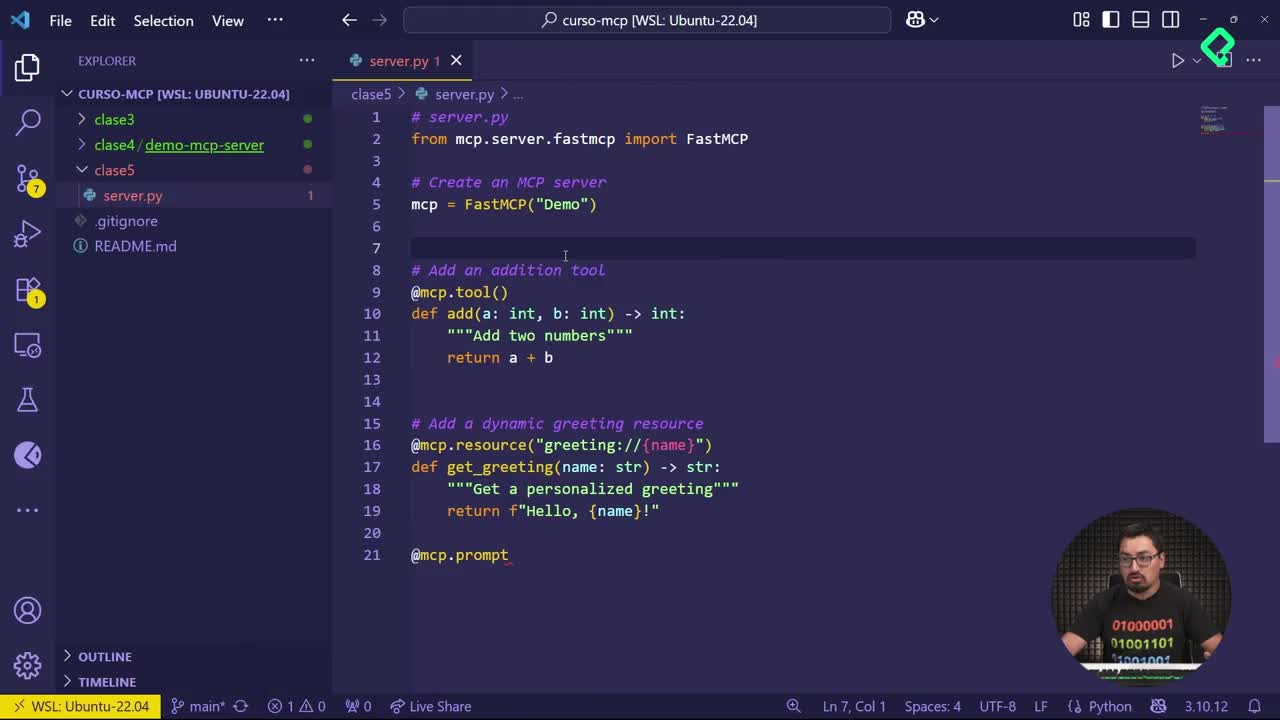
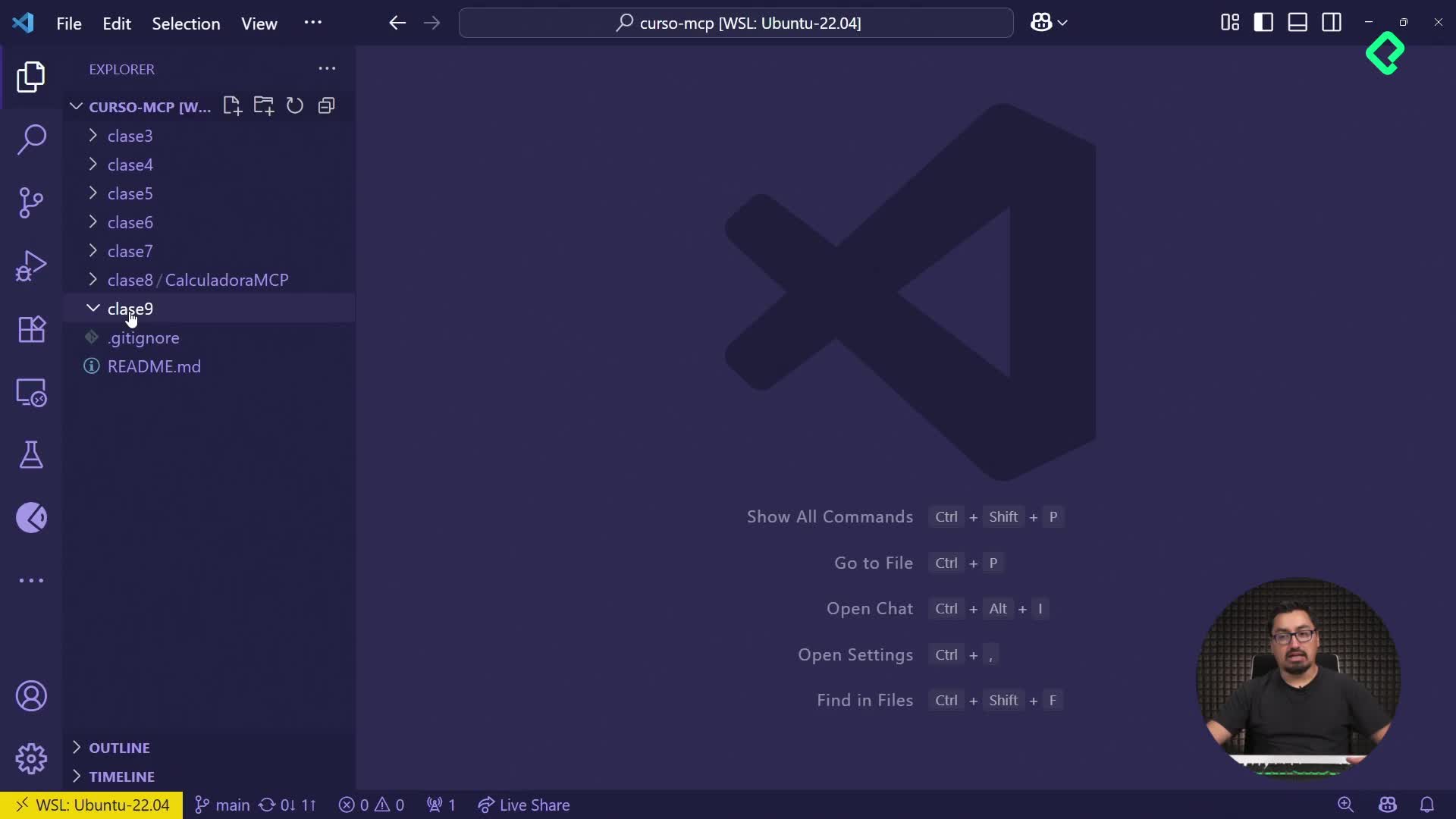
The setup starts inside a folder called class nine, with a single server.py file that merges the code from previous classes: the add tool and the calculator operations (subtract, multiply, divide).

A small but important detail shows up here: the original add used integers, while the calculator used floats. To keep the server consistent, every numeric type gets unified to float. The decorators are also adjusted so each function is registered with mcp instead of a generic server reference.

The result is a clean server with four operations ready to be called from the terminal.

How do I run the MCP Inspector in CLI mode?

The usual command launches the visual Inspector:

bash npx @modelcontextprotocol/inspector

Adding the --cli flag switches the same tool into command line mode. From there, you pass a --method parameter to tell the Inspector exactly what you want to do.

To list every tool exposed by the server, the command looks like this:

bash npx @modelcontextprotocol/inspector --cli mcp run server.py --method tools/list

The terminal returns a JSON payload with the four tools: add, subtract, multiply and divide. That JSON is the same data the Inspector renders visually under the Tools tab.

How do I call a specific tool from the terminal?

Inside the visual Inspector, calling a tool means expanding it, filling in the arguments and pressing run. The history panel shows the underlying method as tools/call, with the arguments and the result.

That exact behavior maps to the CLI with the tools/call method and the tool name plus its arguments:

bash npx @modelcontextprotocol/inspector --cli mcp run server.py --method tools/call --tool-name sum --tool-arg a=25 --tool-arg b=25

The response comes back as content type text with the value 50. Same input, same output, no browser involved.

¿What is the difference between tools/list and tools/call? tools/list returns every tool the server exposes with its schema. tools/call executes one specific tool with the arguments you pass.

How do I read CLI errors to find the right method?

Not every method name is obvious. Trying to query resource templates with the wrong name returns a Method not supported error, but that error is actually useful: it lists the supported methods, including tools/list, tools/call and the resources family.

The correct call for resource templates is:

bash npx @modelcontextprotocol/inspector --cli mcp run server.py --method resources/templates/list

A singular resource instead of resources, or template instead of templates, breaks the call. The server responds with an empty result when there are no resources defined, which is the expected behavior, not an error.

How does the CLI fit into a real automation workflow?

Once the commands work in isolation, you can wrap them inside Bash scripts, pipelines or any scheduler. Because the MCP CLI inherits the Inspector's security handling, you avoid building authentication flows manually, which is the main friction point when using cURL against an MCP server.

A few practical patterns that open up:

  • Run tools/list as a health check before deploying.
  • Call tools/call inside a script to validate outputs against expected results.
  • Use resources/templates/list to audit which resources a server exposes.

This is where the MCP server stops being a demo and starts behaving like a real backend component you can integrate with the rest of your stack. What workflow would you automate first with this CLI? Share your idea in the comments.