MCP Server Setup With Python and Inspector

Resumen

Setting up an MCP development environment is simpler than it looks. You only need Python, a code editor, and the right pip package to start building your first server, test it with an inspector, and prepare it for a client. Here you will learn the exact workflow to go from an empty folder to a fully running MCP server you can inspect in your browser.

What do you need before installing MCP?

Before touching any code, clarify your tools. The setup is intentionally minimal so you can grow it later.

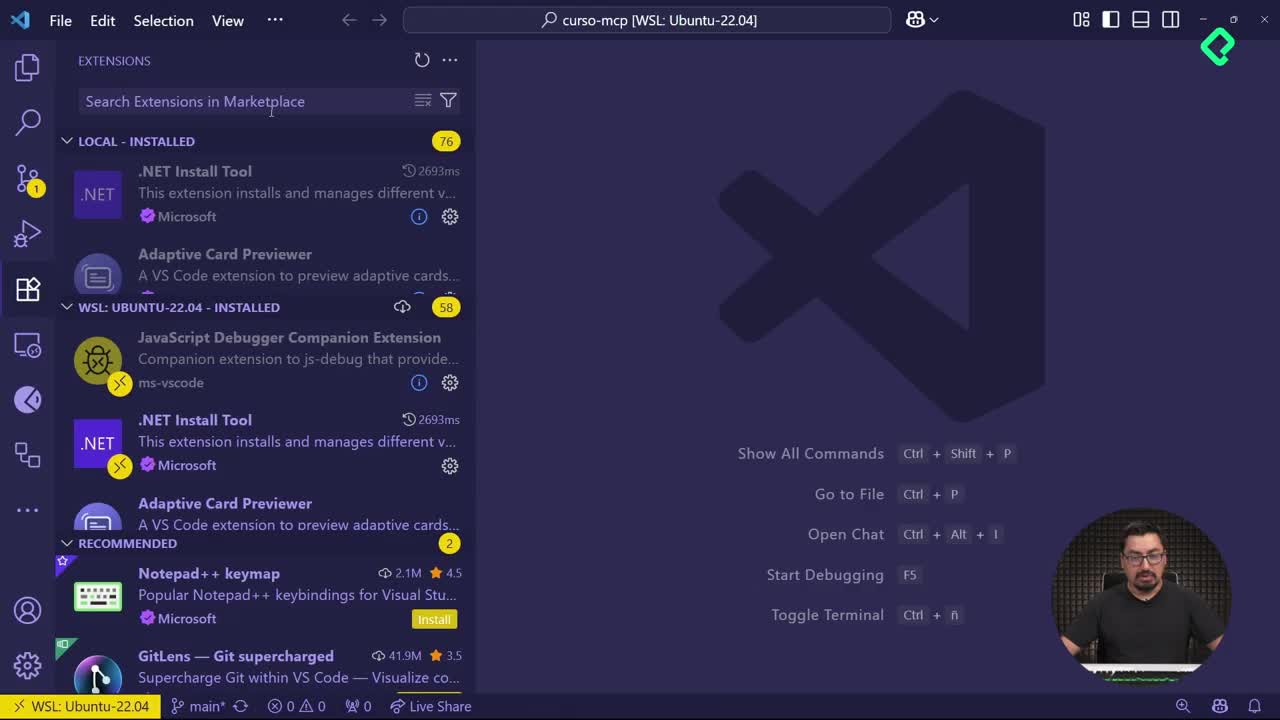
  • A code editor of your choice. I use VS Code because I also build regular software, but Eclipse, IntelliJ, Visual Studio or Anthropic's Claude work just as well, especially Claude which is highly compatible with MCP.
  • A programming language with an official SDK. The course uses Python, but you can build MCP servers with TypeScript, C#, Java or Node.
  • A terminal where you can run pip and create folders.

What language should I use to build an MCP server? Any language with an official SDK. Python, TypeScript, C#, Java and Node all have one. Pick the one you feel most comfortable with.

The choice of Python here is personal preference, not a technical requirement tied to AI. That distinction matters because it frees you to follow along in whatever stack you already know.

How do you install the MCP CLI with pip?

The first real step is installing the MCP command line interface. This package gives you a global tool you can reuse across every project, so you only install it once.

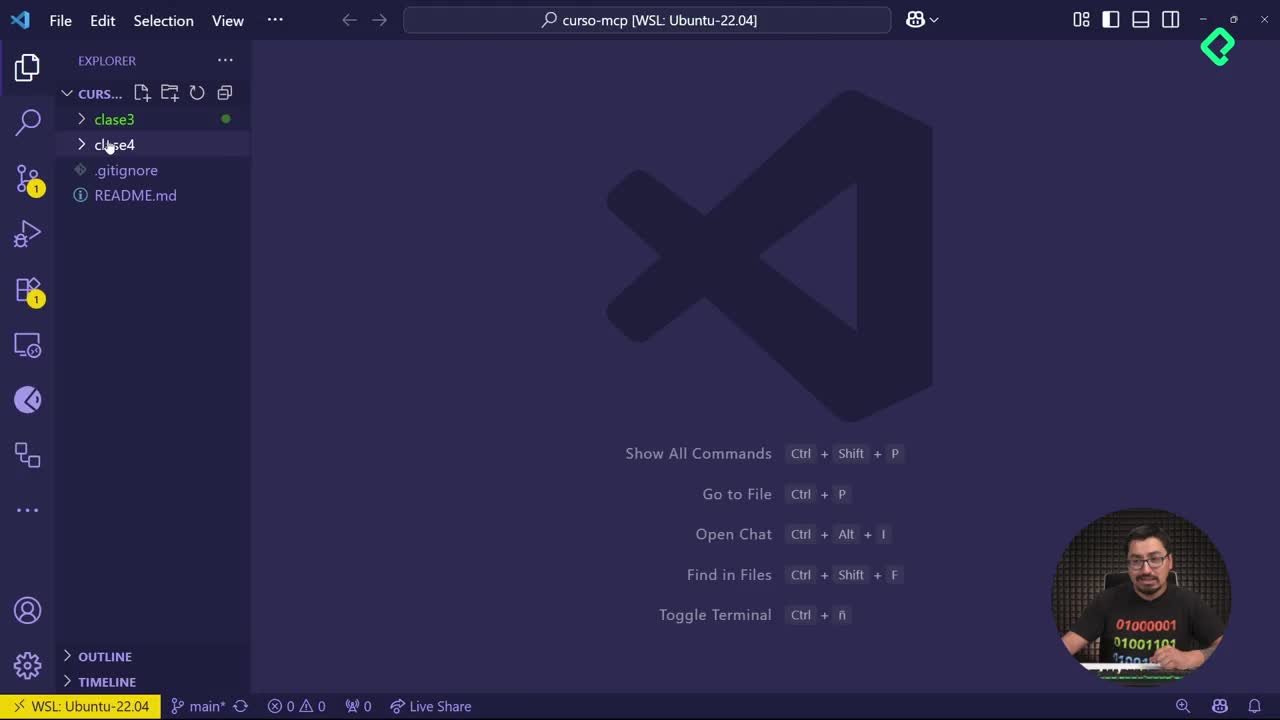
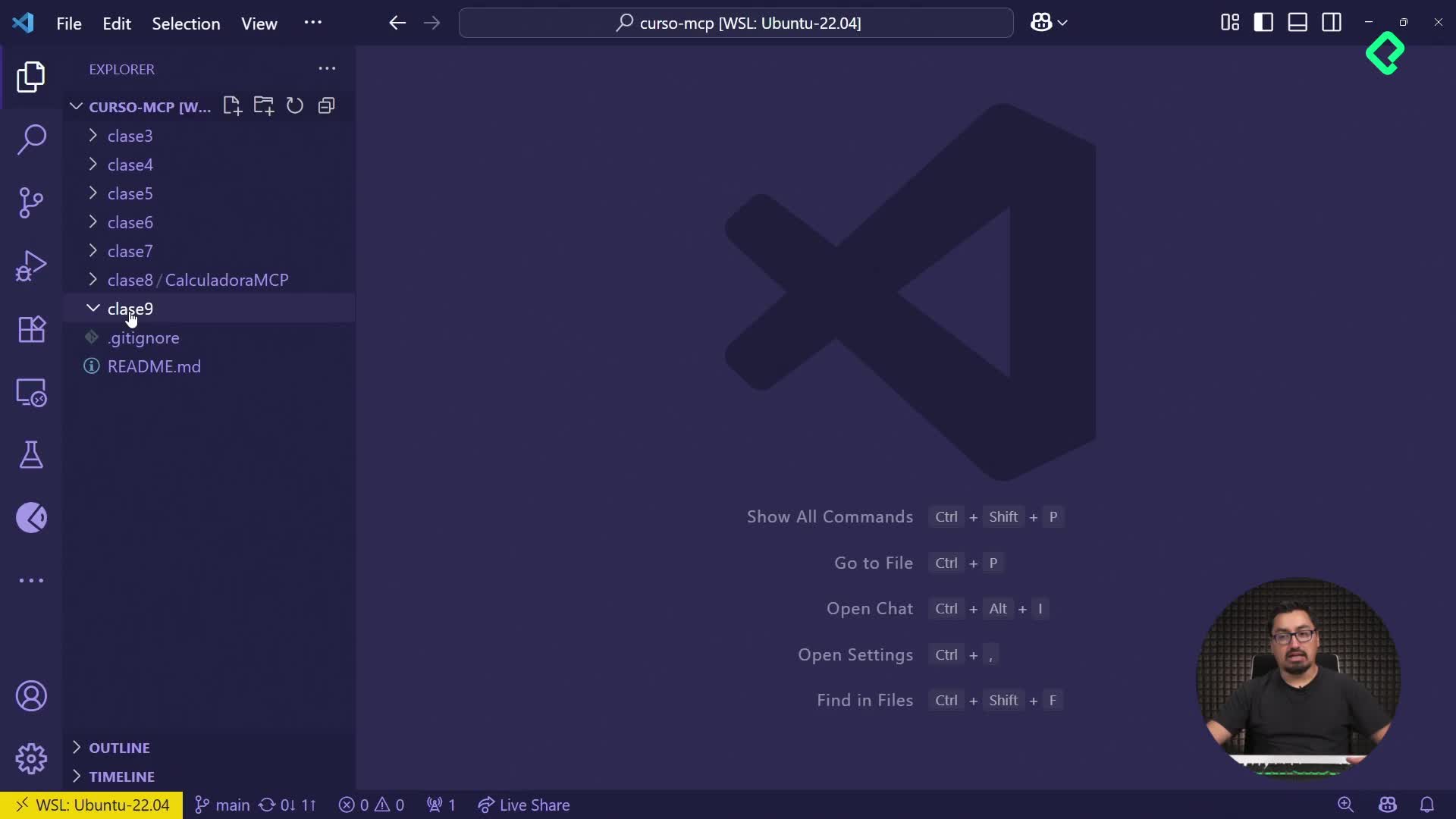
Inside your working directory, create a folder for the lesson and move into it:

bash mkdir clase-tres cd clase-tres

Then install the package globally:

bash pip install "mcp[cli]"

The brackets around cli are what unlock the command line tooling. Without them you get the library but lose the convenience of running mcp dev or mcp run directly from your terminal.

How do you create your first server.py file?

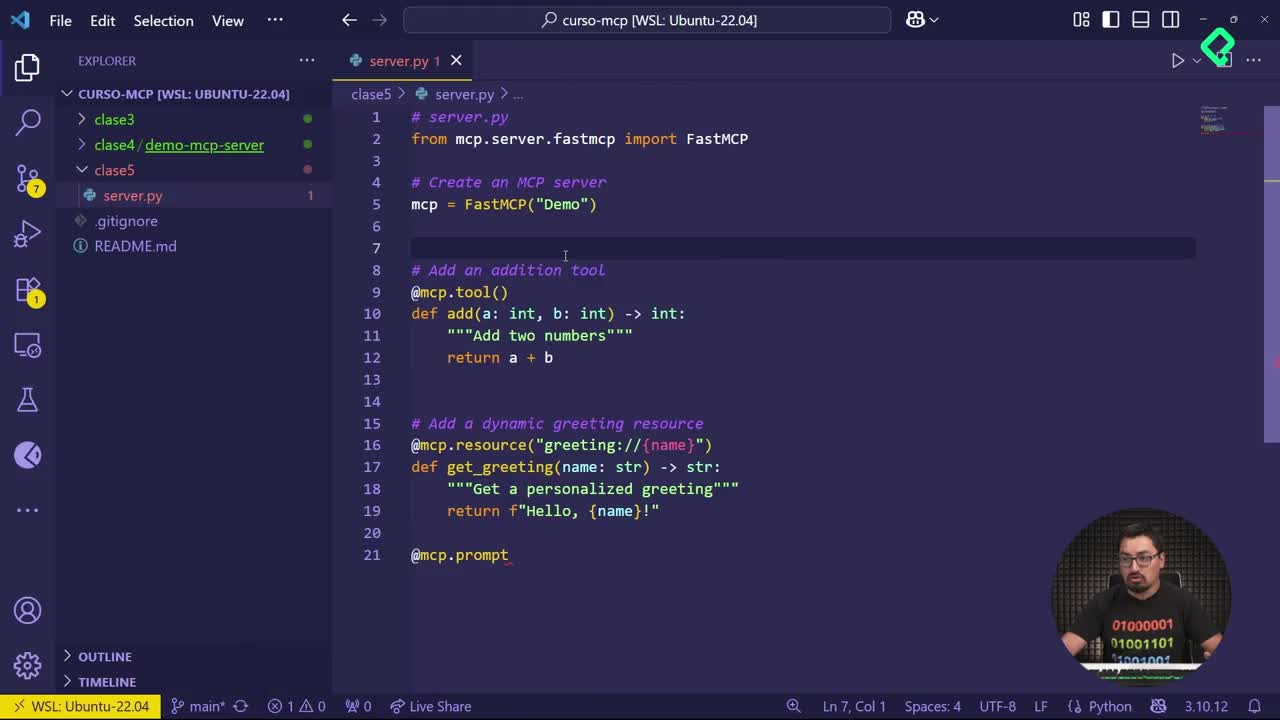
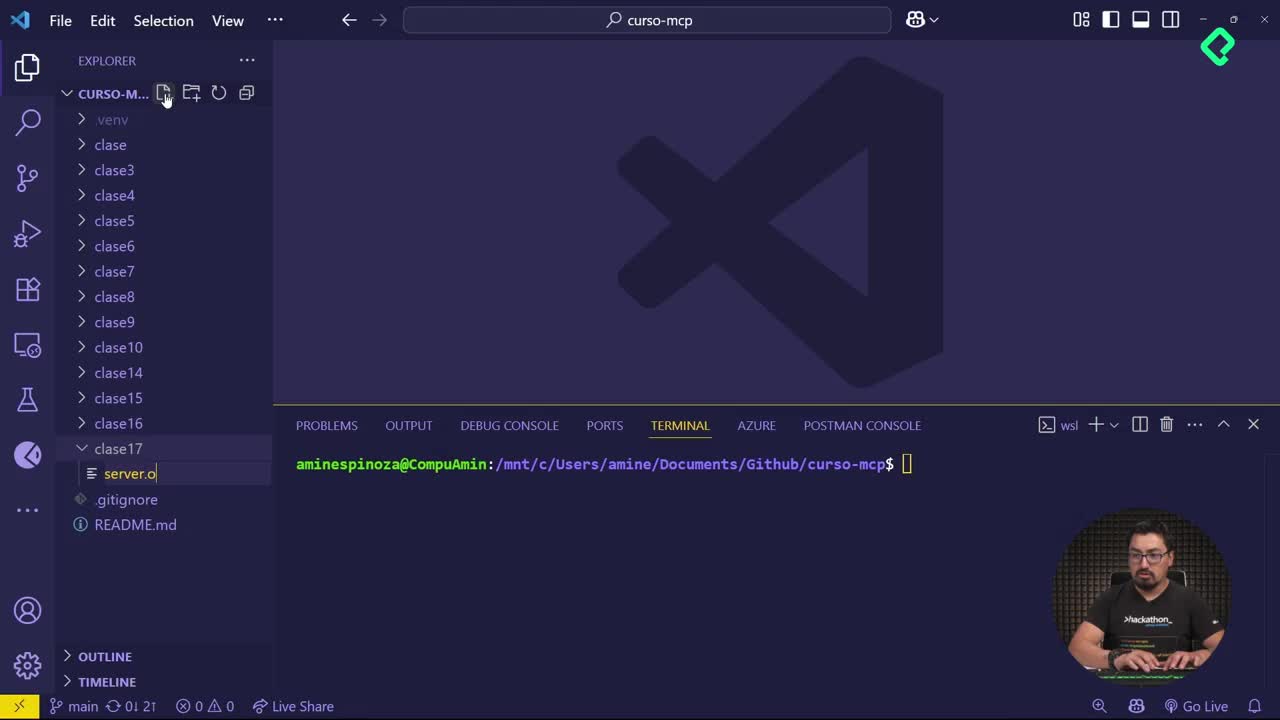
Open the folder in VS Code with code . and create a file named server.py. The minimum code uses FastMCP, the high level helper that turns regular Python functions into MCP capabilities.

python from mcp.server.fastmcp import FastMCP

mcp = FastMCP("Demo")

@mcp.tool() def add(a: int, b: int) -> int: return a + b

@mcp.resource("greeting://{name}") def greeting(name: str) -> str: return f"Hello, {name}"

Notice two decorators: @mcp.tool exposes a function as a callable tool, and @mcp.resource exposes data the client can read. Both are the building blocks of any server.

How do you test the server with MCP Inspector?

Once you have the file, run the development server from the same folder:

bash mcp dev server.py

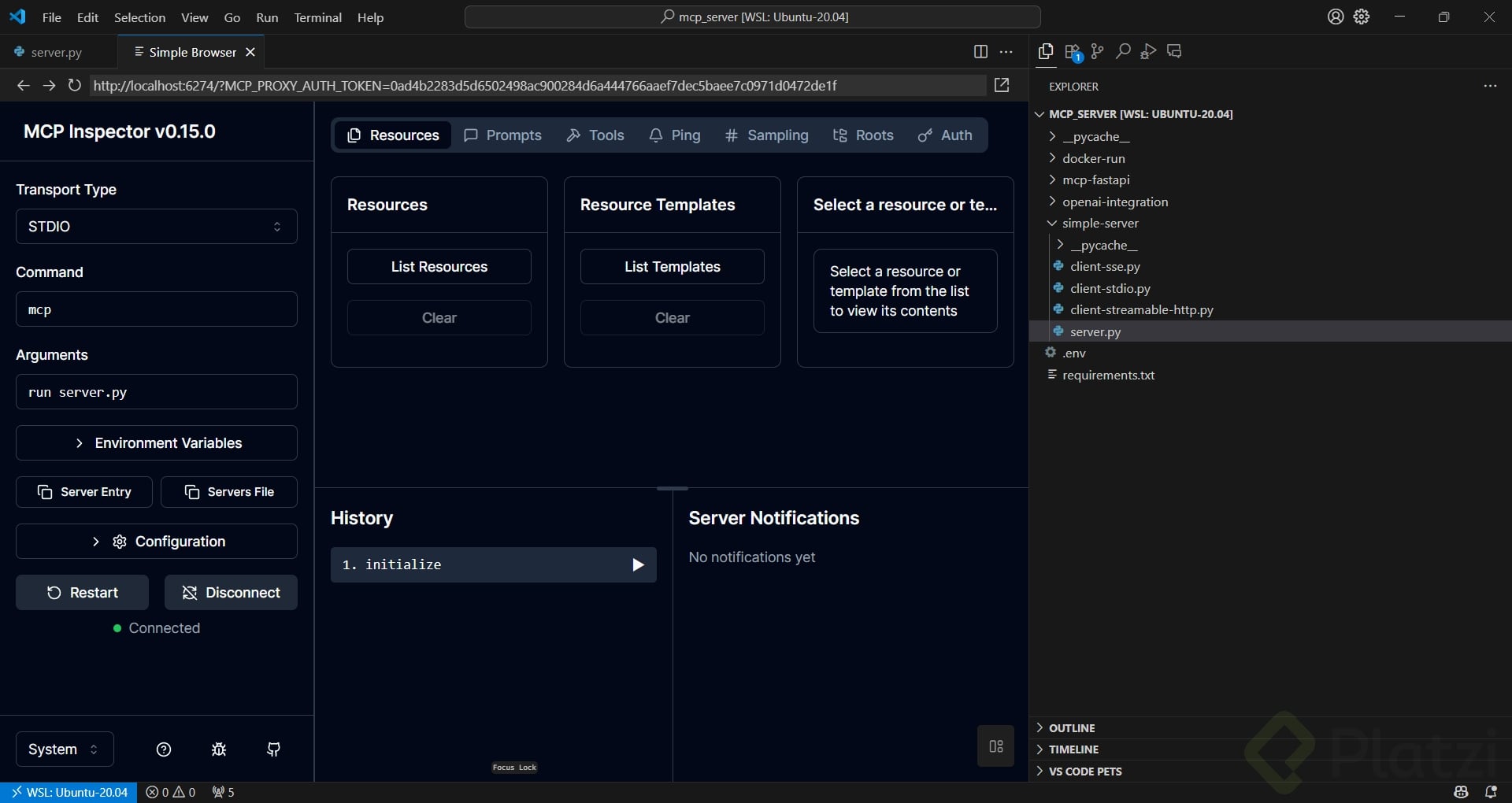
The terminal returns a session token and a localhost URL. Hold control and click the link to open MCP Inspector in your browser. This visual tool lets you connect to your server and explore everything it exposes.

What is MCP Inspector? A browser based tool that lists the tools, resources and prompts of an MCP server so you can test them before connecting a real client.

If the connect button throws a connection error, close the session with control plus C and use a more reliable command that prepends the inspector explicitly to mcp run server.py. In my own exercises this version establishes the connection cleanly while the default one sometimes fails silently.

How do you list resources and tools in the inspector?

Once connected, the inspector exposes four useful actions:

  1. List resources, which may appear empty if all your resources use parameters.
  2. List resource templates, where parameterized resources like greeting with a name argument show up.
  3. List tools, where you find functions like add along with the schema the client must follow.
  4. List prompts, another category you can attach to a server.

The red text that sometimes appears is a log, not an error. Reading it carefully prevents unnecessary debugging.

What is the difference between a tool and a resource in MCP? A tool is a function the client can call to perform an action. A resource is data the client can read, often identified by a URI pattern with parameters.

This inspection step is the equivalent of scanning your server's contract. You confirm how each component is structured so that any client connecting later knows exactly what to consume.

What should you practice before the next step?

Before moving on to building a client, extend the server to feel comfortable with both decorators. A good practice set looks like this:

  • Add tools for subtract, multiply and divide following the same pattern as add.
  • Expand the greeting resource to accept a full name with multiple parameters.
  • Re run mcp dev server.py and confirm each new capability appears in the inspector.

Playing with these small variations cements the mental model of tools versus resources and prepares you for the client side, where these definitions become the contract your AI application will rely on. What tools or resources are you planning to add to your first server?