Contenido del curso
Conceptos basicos de MCP
- 5
Four Core Blocks of Every MCP Server
05:47 min - 6
Building an MCP Client That Talks to Your Server
07:18 min - 7
Adding an LLM to Your MCP Client
11:38 min - 8
STDIO vs SSE in MCP Servers
05:44 min - 9
LLM Connected to a Local MCP Server
11:14 min - 10
Testing MCP Servers Without a Browser
08:53 min - 11
Deploying an MCP Server to Azure Container Apps
09:39 min - 12
Using MCP Servers in VS Code Agent Mode
09:52 min
MCP avanzado
- 13
Query Azure Resources Directly From VS Code
06:46 min - 14
Herramientas avanzadas de MCP para optimizar servidores y seguridad
03:53 min - 15
GPT-4 Reading Local Files via MCP Server
14:09 min - 16
Image Brightness Analysis with MCP and NumPy
09:48 min - 17
How MCP Agents Remember Conversations
05:01 min - 18
Enrutamiento de herramientas con MCP Server
09:19 min
Integrando tu MCP con un agente
MCP Dev Environment Setup for Python
Resumen
Setting up your MCP development environment is the first practical step before building anything with the Model Context Protocol. You will learn which tools to install, why each one matters, and how to verify your setup works on Windows, macOS or Linux, so you can focus on coding instead of fixing configuration issues.
What do you need before starting an MCP course?
MCP sits inside the AI Engineer specialization, so a bit of groundwork goes a long way. Before touching the protocol itself, make sure you already feel comfortable with two areas: the fundamentals of LLMs and the basics of artificial intelligence. Platzi has dedicated courses for both, and going through them first will make every concept here click much faster [01:20].
The second piece is programming fluency. You can absorb every AI concept in the world, but if your chosen language still feels foreign, you will get stuck on syntax instead of ideas. Pick your language, get comfortable, and then come back.
What prerequisites do I need for an MCP course? Solid programming skills in your chosen language, plus the LLM fundamentals and AI fundamentals courses. Without these, the learning curve gets steep fast.
Which tools should you install for MCP with Python?
The stack depends on the language you choose. With .NET, the build system handles the small server for you. With Python, which is the path used here, you need a few specific pieces working together [00:30].
Here is the checklist to run in your terminal:
- python3 --version to confirm Python is installed. The reference version used is 3.13.7 [03:10].
- pip3 --version to verify pip, the package manager. Version 25 works perfectly [03:35].
- curl -LsSf with the official UV install script to set up UV, the virtual environment manager [04:00].
- pip3 install uvicorn to add Uvicorn, the lightweight web server commonly paired with FastAPI [04:30].
- npx --version to confirm npx, the npm package runner [05:00].
Each command in this list will be available in the class resources, so you can copy and paste instead of retyping.
Why do you need npx if you are coding in Python?
This is the part that surprises most people. MCP ships with an inspector, a graphical tool that lets you see your server in action. That inspector runs as an npm package executed through npx, which is why Node ends up on a Python developer's machine [05:15].
You will not write JavaScript during the course, but you will lean on npx every time you want to debug your MCP server visually.
What is UV in Python? UV is a fast virtual environment and package manager for Python. It replaces the typical venv plus pip workflow with a single, faster tool, and it is the recommended way to isolate dependencies in this course.
How do you handle Python virtual environments on Linux or WSL?
If you work on Linux or inside WSL (Windows Subsystem for Linux) with Ubuntu, you will hit a wall the first time you try to install a package globally. Python now blocks global pip installs by default, and that is intentional, for security reasons [06:30].
The fix is straightforward: create a virtual environment for your project and install everything inside it. UV makes this almost invisible, and one of the upcoming classes walks through the exact commands.
A quick note on operating systems. The rest of the course runs on Windows with WSL Ubuntu, but the workflow is nearly identical on macOS or native Linux. Small variations exist in install paths, nothing that breaks the experience.
Do you need an Azure subscription for this MCP course?
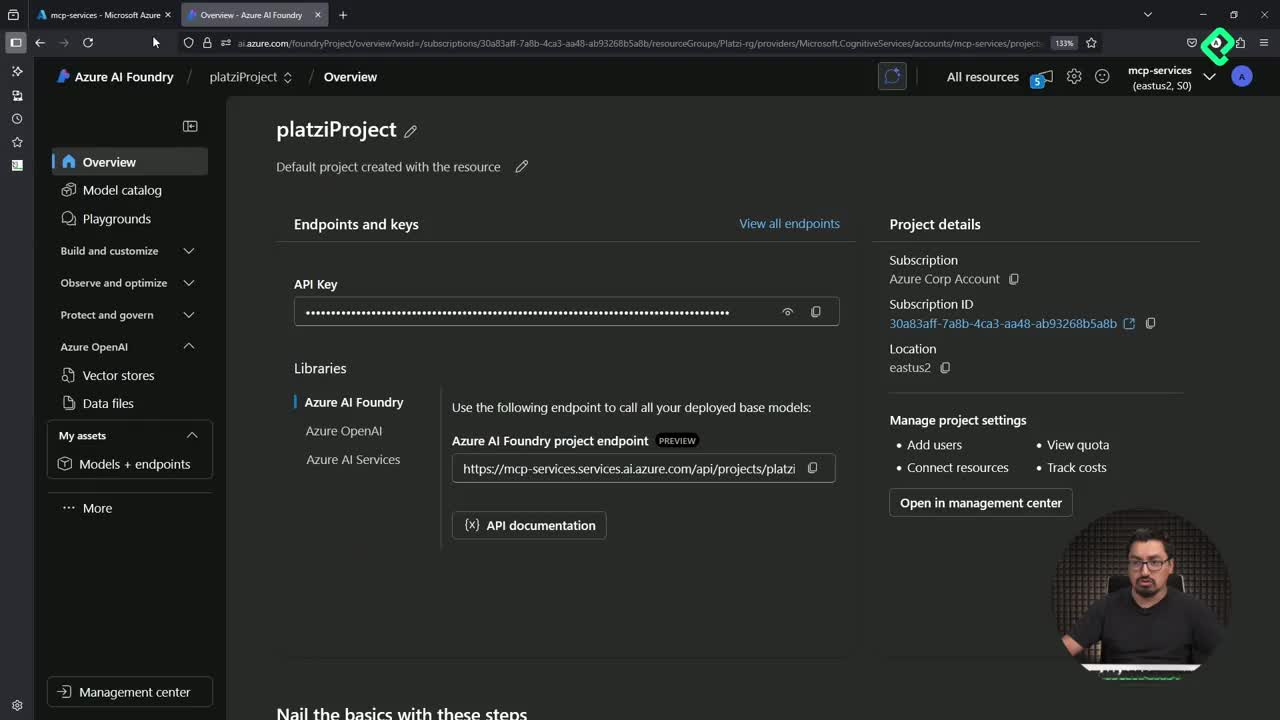
An Azure subscription is not mandatory, but it is highly recommended. Some classes deploy the MCP server to the cloud so it can be installed on any instance you want, and that step is much smoother with Azure ready to go [07:30].
The good news on cost:
- A free Azure subscription gives you around $200 in credits.
- The full course is expected to consume only three or four dollars if resources are managed carefully.
- Forgetting to shut down a resource is the main risk, so keep an eye on your dashboard.
With those credits, you have more than enough room to follow every cloud related class without worrying about your wallet.
Got your environment ready? Drop a comment with the operating system and Python version you are using, and let me know if any of these tools gave you trouble during installation.