LLM Connected to a Local MCP Server

Resumen

Connecting a Large Language Model to your MCP server changes everything. Instead of feeding rigid inputs like 2 in A and 3 in B, you can ask how much is 5 plus 10 in plain language and let the LLM parse the request, route it to your MCP, and return a human friendly answer. Here you will learn how to wire an LLM to an MCP calculator using Microsoft's AI Toolkit extension in VS Code, ideal for developers exploring agentic workflows.

What is the AI Toolkit extension and why does it matter for MCP?

The AI Toolkit is a Microsoft extension for VS Code that lets you plug LLMs into your projects through GitHub credentials, without deploying anything to the cloud.

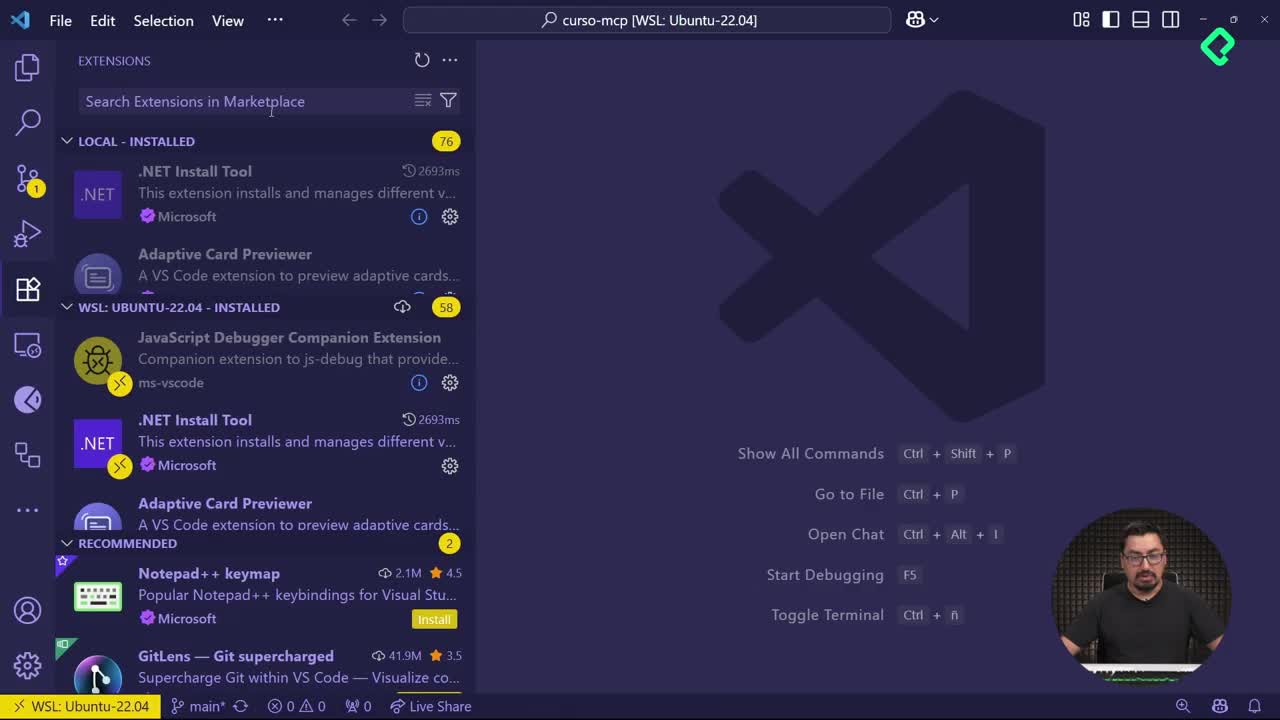
Once installed, you may need to reload VS Code. If the icon does not show right away, search AI Toolkit in the extensions panel. From there you get access to a model catalog where every entry is hosted by GitHub, so your GitHub account is the only key you need.

What does AI Toolkit do? It connects LLMs hosted on GitHub to your local VS Code, letting you build agents and test prompts without external infrastructure.

In the catalog you can pick models like OpenAI GPT-4o and add them to your workspace with a single click [01:30]. If your GitHub account is already linked to VS Code, the toolkit authenticates silently. Otherwise, a browser prompt will ask for your credentials.

How do you create an agent and a system prompt for your MCP?

The agent is the orchestrator that mixes your model, your system prompt, and your MCP server.

Inside AI Toolkit, open the Agent Prompt Builder under tools and create a new agent. Name it something descriptive like Calculadora. The first thing it asks for is a system prompt, the instruction set that defines how your agent behaves.

Here comes a quirky detail: no matter how detailed your input is, the prompt generator will rewrite it into a much longer, more elaborate version. You can paste two lines and get back a polished multi paragraph system prompt. Do not take it personally, the AI is just optimizing for clarity and coverage.

  • Open Agent Prompt Builder in the tools section.
  • Create a new agent and give it a clear name.
  • Generate the system prompt from a short description.
  • Review the expanded version before saving.

How do you build a Python MCP server connected to the agent?

Once the agent exists, the next step is attaching an MCP server that exposes the actual logic.

From the agent view, scroll to the MCP Server section and choose to add a new one. The wizard offers two templates: TypeScript Weather and Python Weather. Pick Python, define a folder (the toolkit suggests MCP Servers by default), and name the server, for example Calculadora MCP [05:30].

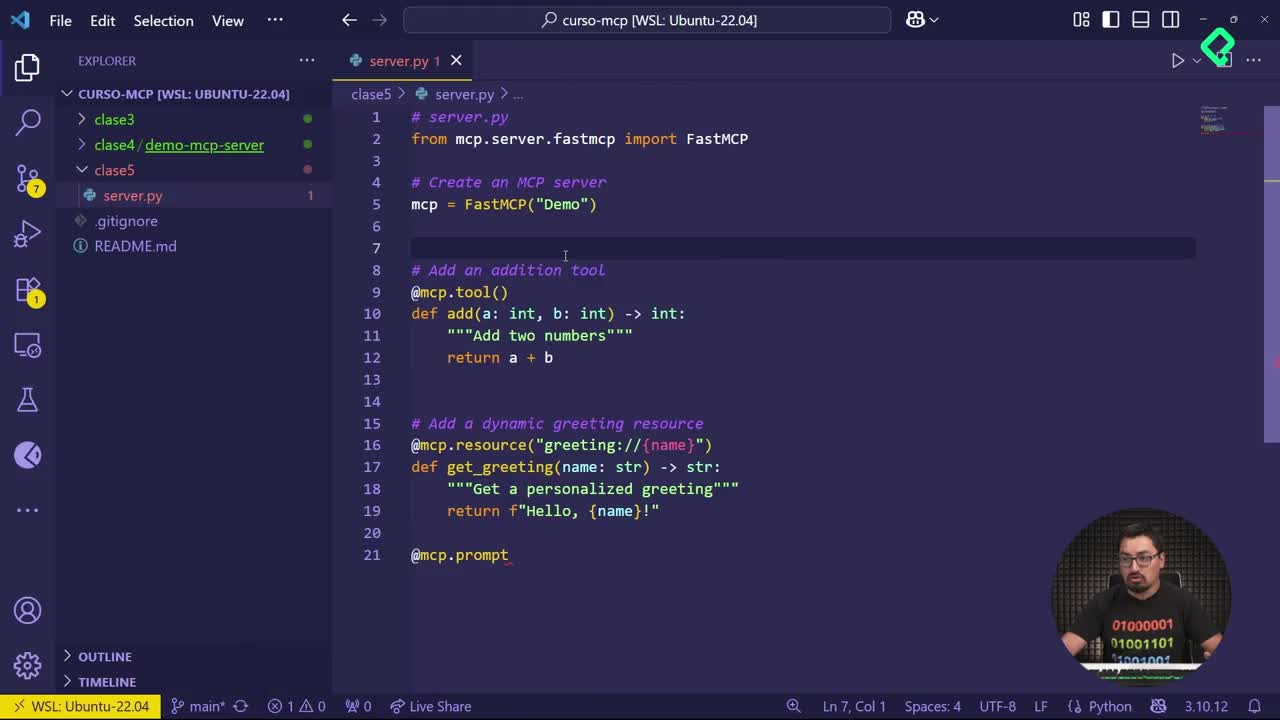
A new VS Code window opens with the project. Inside src you will find server.py with a weather template that works as a structural reference. From there:

  1. Open a terminal and create a Python virtual environment using venv with Python 3.
  2. Close the old terminal and open a new one so the environment activates automatically.
  3. Run pip install -e . to install dependencies declared in the project config.
  4. Replace the weather template with your own tools: add, subtract, multiply, divide.

Why use a virtual environment? It isolates dependencies for the MCP project, avoiding conflicts with other Python tools on your machine.

The only real difference from earlier MCP exercises is that this server exposes four arithmetic methods instead of just sum. Adding complexity step by step keeps the learning curve manageable.

How does the LLM interact with the MCP at runtime?

With the server ready, press F5 to launch it in debug mode. The agent now has three pieces talking to each other: the system prompt, the user prompt, and the MCP server tools.

For a real test, drop a user prompt like: The new Switch 2 costs 10,000. If Platzi pays me 1,200 per course, how many courses do I need to teach to buy the Switch if I already have 4,000 saved? Scroll down and you will see the tools panel listing add, subtract, multiply and divide as available actions [09:00].

Hit Run and watch the agent break the problem apart. It identifies variables, calls the MCP to compute 10,000 minus 4,000 equals 6,000, then calls it again to compute 6,000 divided by 1,200 equals 5, and returns a clean answer: you need to teach five courses.

How does the LLM decide which MCP tool to use? The system prompt and the tool descriptions guide the model to match each step of the reasoning with the right function exposed by the MCP.

That flow shows the real value of combining an LLM with MCP: natural language input, structured tool execution, and a readable result, all without deploying anything to the cloud. Your GitHub account plus the AI Toolkit are enough to start mixing AI models with your own MCP servers efficiently.

Have you tried building your own MCP agent yet? Share what tools you would expose first in the comments.