Using MCP Servers in VS Code Agent Mode

Resumen

Connecting MCP servers to VS Code turns your editor into a client capable of consuming both local and remote services through GitHub Copilot. You will learn how to enable MCP discovery, configure a remote server deployed on Azure Container Apps, and call its tools from agent mode.

How do you enable MCP discovery in VS Code?

Before adding any server, VS Code needs permission to detect them. Without this flag active, Copilot will not let you register new endpoints, no matter how well configured they are.

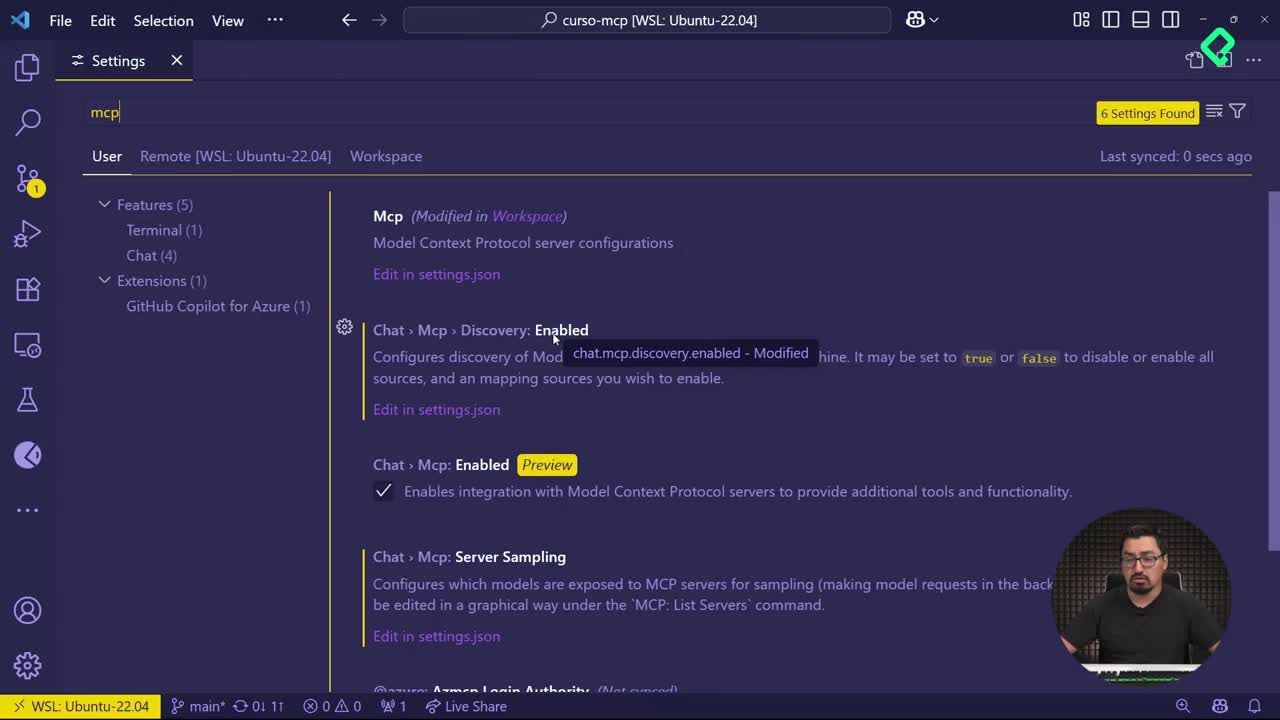
Open File, then Preferences, then Settings, and search for MCP. The setting you need is chat.mcp.discovery.enabled, and it must be set to true. You can verify it by clicking Edit in settings.json, where the property appears explicitly inside the JSON file. I keep mine enabled at the user level so it applies across every workspace I open.

What is chat.mcp.discovery.enabled? It is the VS Code setting that authorizes the editor to discover and accept new MCP servers. If it is false, Copilot will ignore any server you try to register.

How do you register a remote MCP server deployed on Azure?

Once discovery is on, you can add an mcp block inside settings.json. When I typed the field, the autocomplete created a sample template pointing to MCP Server Time, a Python command with its arguments already filled in. That template is useful as a reference, but in my case it threw a missing module error, so I treated it only as a guide.

The real configuration happens in two places: inputs and the server entry itself.

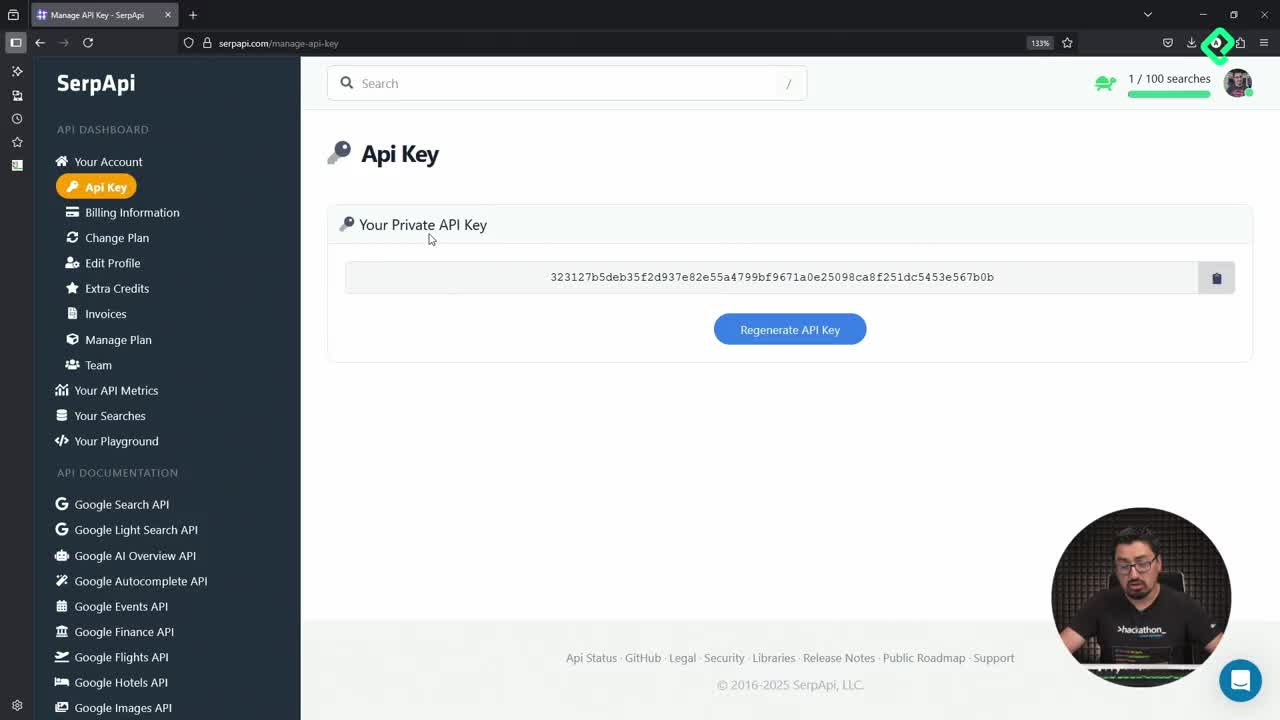
  • In inputs, you declare the variables your server expects. For the weather server I deployed, that means the API key.
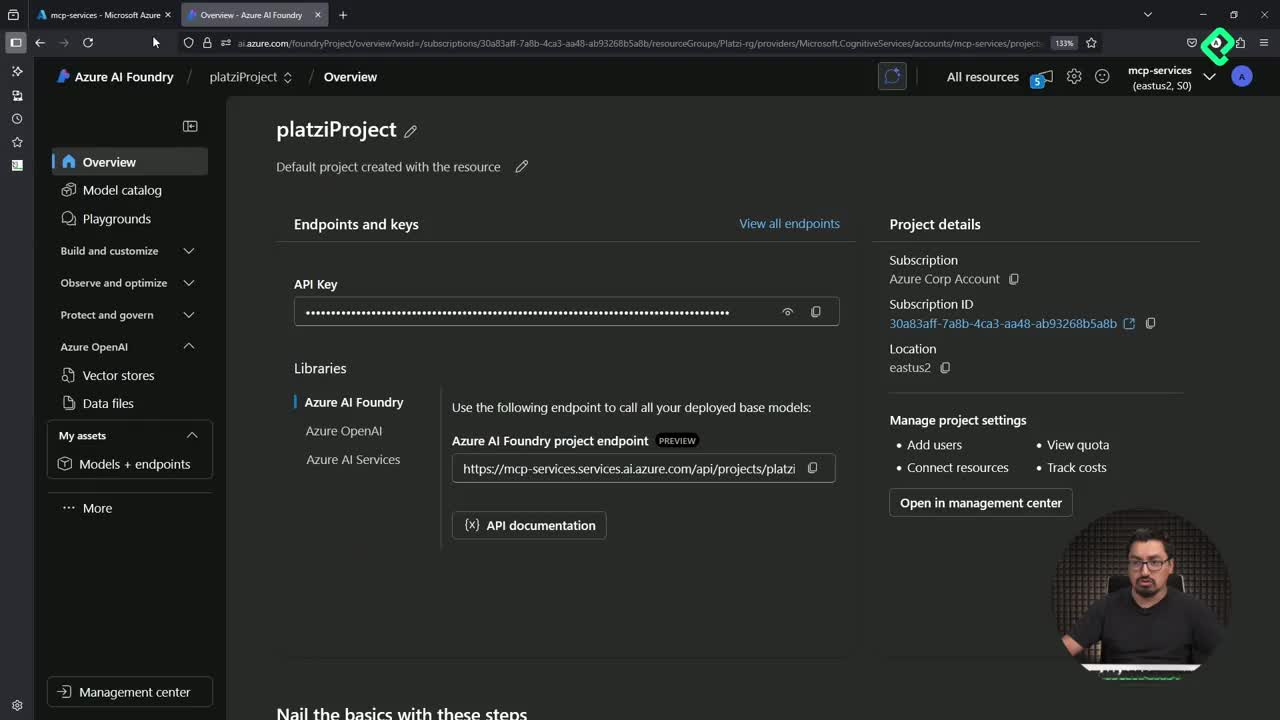
  • In the server entry, you give it a name like weather-sse, paste the URL of the Azure Container App, and append /sse at the end because the transport is Server Sent Events.
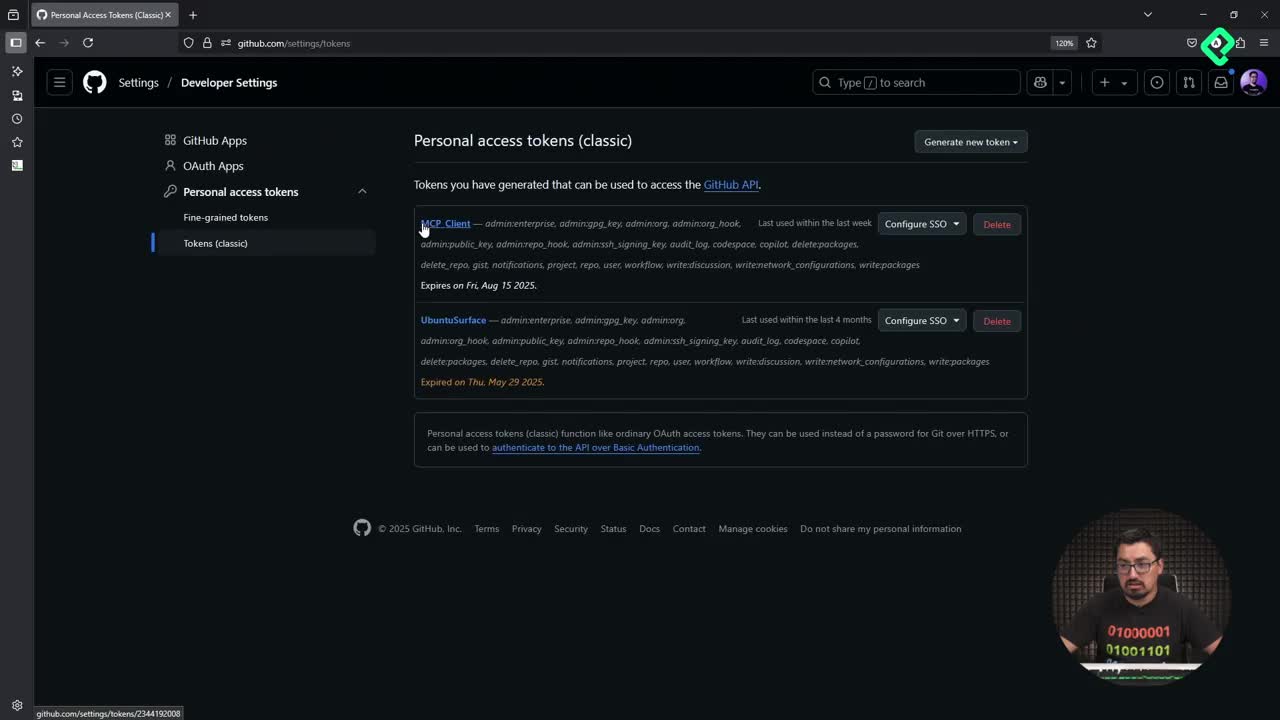
  • You also pass the API key originally configured in the container app so the server accepts the request.

With those values in place, a Start action appears above the server block. Clicking it boots the connection and the indicator switches to running.

Why must you use Copilot agent mode?

MCP tools are only exposed inside one specific Copilot mode. If you stay in Ask or Edit, the tools panel will not list your servers, even when they are running.

Open the Copilot chat, clear the conversation, and switch to agent mode. From the tools menu you will see every registered server, including mcp-server-weather-sse. The configuration automatically pulls the methods exposed by the server, in this case get_alerts and get_forecast. If a broken server like the default mcp-server-time shows up in red, disable it so Copilot does not try to call it.

Why does my MCP server show up in red in VS Code? It usually means the server failed to start, often because the command, module, or arguments in the template are not valid. Disable it or fix the configuration before Copilot can use it.

How do you call MCP tools from a Copilot conversation?

With the weather server live, I asked what is the weather in Seattle right now? directly in agent mode. Copilot identified the available tool and triggered run get_forecast from mcp-server-weather-sse.

The server replied that it does not work with city names, it needs latitude and longitude. Copilot resolved that gap on its own, supplied the coordinates for Seattle, and asked me to press Continue to execute the method. The forecast came back clear, around 50 Fahrenheit, exactly the kind of structured response the server was designed to produce.

A few details worth noticing in this flow:

  1. Copilot first generates context, then explicitly invokes the MCP tool.
  2. You always confirm the tool execution before it runs, which keeps the agent under your control.
  3. The server can negotiate inputs, like converting a city name into coordinates, before producing a final answer.

How do you add a local MCP server alongside the remote one?

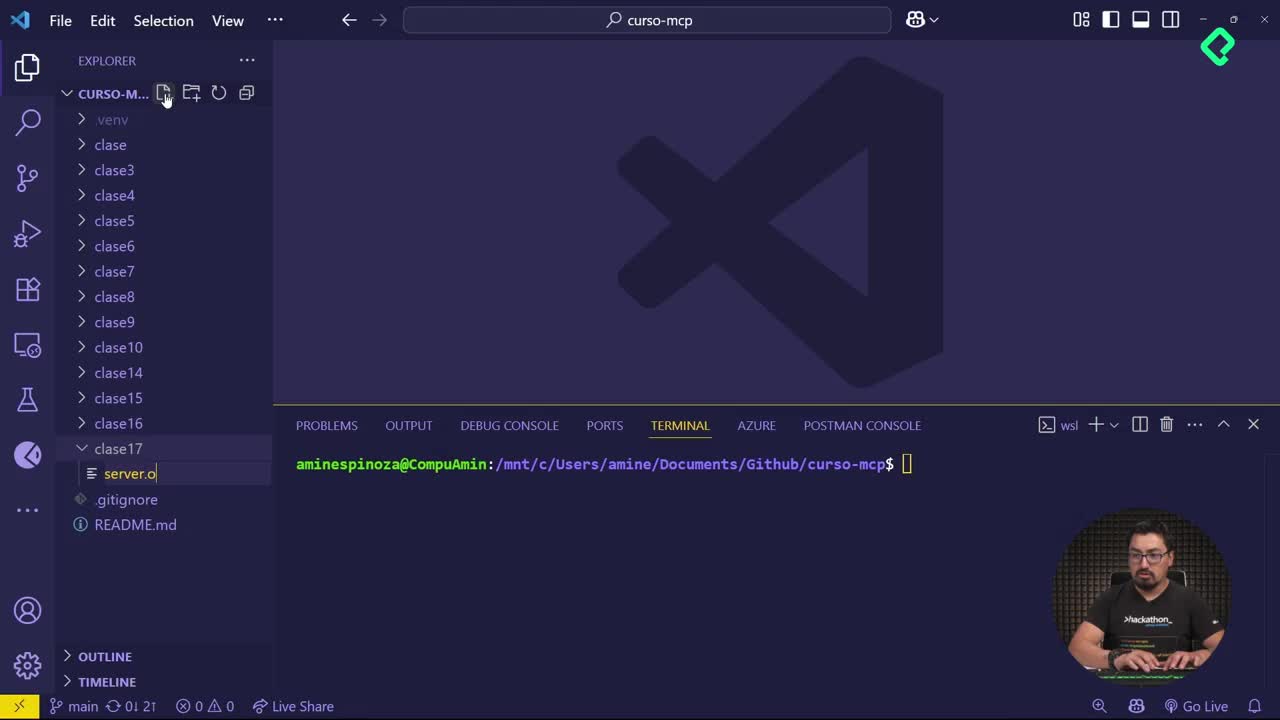
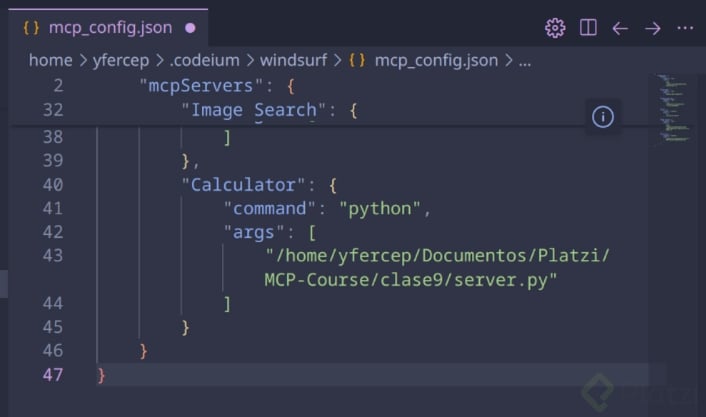
The same settings.json accepts local servers next to remote ones. After cleaning up the broken MCP Server Time template, I kept the working remote entry and added a new block underneath.

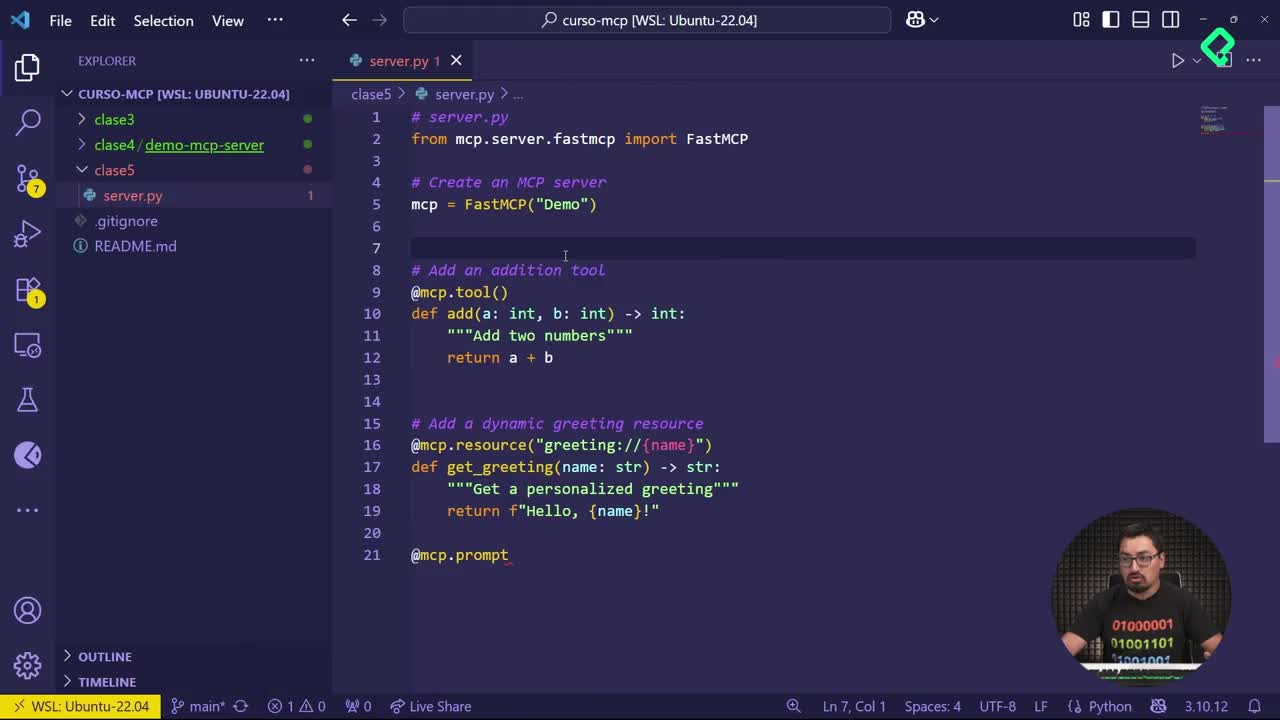
For a local server you replace the SSE URL with a command line invocation. In my case that meant pointing to the Windows command line, passing Python as the executable, and giving the path to the script of one of the servers built earlier in the course. Once saved, the Start action appears again, and after launching it the new tools join the same Copilot tools panel as the remote weather server.

From there you can mix both worlds in a single conversation: a remote SSE server hosted on Azure Container Apps and a local Python server running on your machine, both consumed by Copilot in agent mode.

Locate one of the servers you have built during the course, run it in agent mode, and tell me in the comments which arithmetic operations you have already executed inside your GitHub Copilot conversation.